Introduction
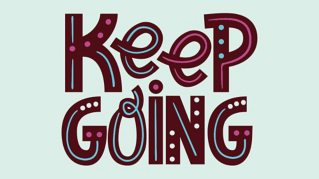
With Illustrator on the iPad, you can bring an image, like a sketch you made, or hand-lettering, or even a photo into Illustrator and use Vectorize to convert it into editable vector.
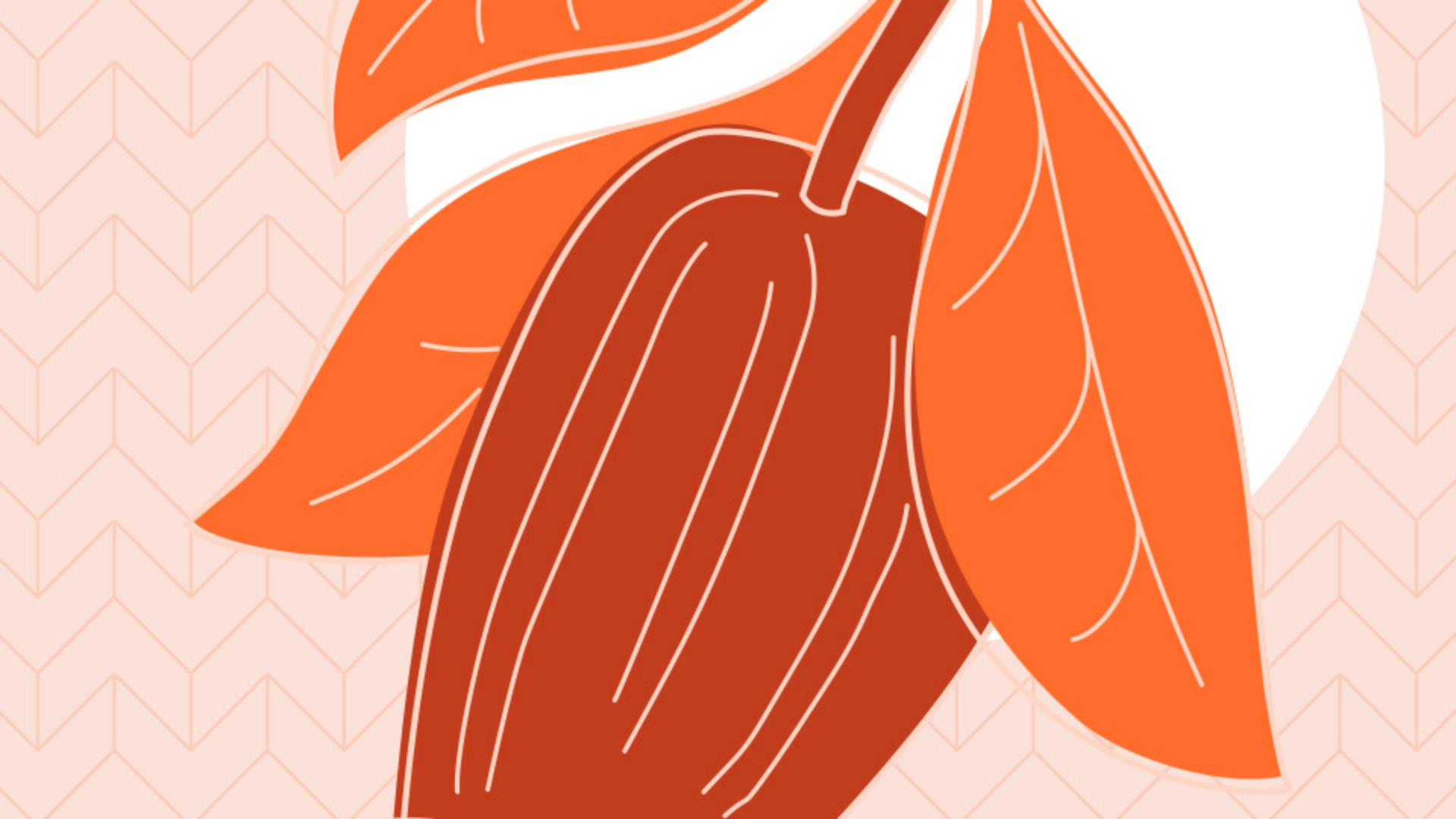
I'll show you how I've vectorized this hand-drawn sketch, so it can be used in this ad.
First, you need to bring in your image,
Importing images into Illustrator on the iPad
so tap Import in the Toolbar.
Now, you can use your Camera to take a picture of the sketch on paper, for instance.
You can also grab an image you have, bring in an image from your Files, Creative Cloud, or even Creative Cloud Libraries.
I already took a photo of this sketch, so I'll just tap to bring it in.
When it's placed, you can then vectorize it.
Vectorizing artwork and choosing presets
In the Common Actions bar below the image, you're going to see this Vectorize option.
Now, you'll see the same option over in the Task bar here, too, in the Object menu.
Tap the icon to start, and the Properties panel opens.
In here, you can change some settings to refine it.
Now, Illustrator identified what type of image it is, like a sketch or a logo or a photo, and it automatically chose a preset, called the Source, for you.
Right from the start, this vectorizes the image so you can get the best result.
Now, you can choose another Source if you want, to have a different result to start with.
Certain preset sources allow you to convert to vector using Color, or even Grayscale.
Now, I still think the Sketch preset will work best with this image, since it defaults to black and white.
All right, you're looking at the vectorized result, but you can also see what the image looked like before it was converted to vector artwork by tapping this Eye icon.
Sometimes I do this because I forget what the original actually looked like so you can quickly see it again, and even compare the result.
Then tap that Eye again Now, the Output option here is for making Fills or Strokes.
Refining vector results with tracing settings
Fills give you shapes that have a fill color, and Strokes create paths that have a stroke color.
Depending on what you want for a result, you can choose one or the other.
Now, most of us will just drag sliders like these to see what happens.
I do it all the time.
But let's take a quick look at what each does.
Now, Threshold for a black and white color mode.
This slider goes between 0 and 255, and those are shades of gray.
If you set it to a value, all pixels lighter than this value are converted to white.
All pixels darker than that value are converted to black.
If you vectorize in color, this Threshold option turns into a number of colors option.
Path.
This option creates a looser or tighter-fitting path.
The higher the value, the tighter the path will fit.
Now, for the Corners option here, a higher value means more corners.
A lower value means more curves.
For Noise, you can specify any area in pixels that is ignored while tracing.
A higher value results in less noise traced.
Noise could be, like, an eraser mark you left on the paper or dust on the paper you captured when you took a picture.
Now, the Method here, this option creates cutout paths.
The edge of one path is exactly the same as the edge of its neighboring path.
This option actually creates stacked paths.
Each path slightly overlaps its neighbor.
If you're tracing, especially in black and white, you have white in the background, for instance, you can select Ignore white, and it'll make it, so the white is not an actual shape you need to delete later.
In other words, the white area becomes transparent.
Now, if you want to actually edit this vector art, you need to commit to the results.
This means you can't change the options anymore, but you get vector art that you can then go edit.
Expanding and editing the final vector artwork
Tap Expand vectorization either here, at the bottom of the Properties panel, or if you go into the Common Actions bar, you can tap here.
You now have vector art that you can edit, maybe clean parts up of, or even apply color, for instance.
I can now take this and use it in my project.
Vectorization is a great way to bring an image, like a sketch, handlettering, or even a photo, into Illustrator, and convert it to editable vector that you can use either as a basis for your art or add it to a project.