Introduction
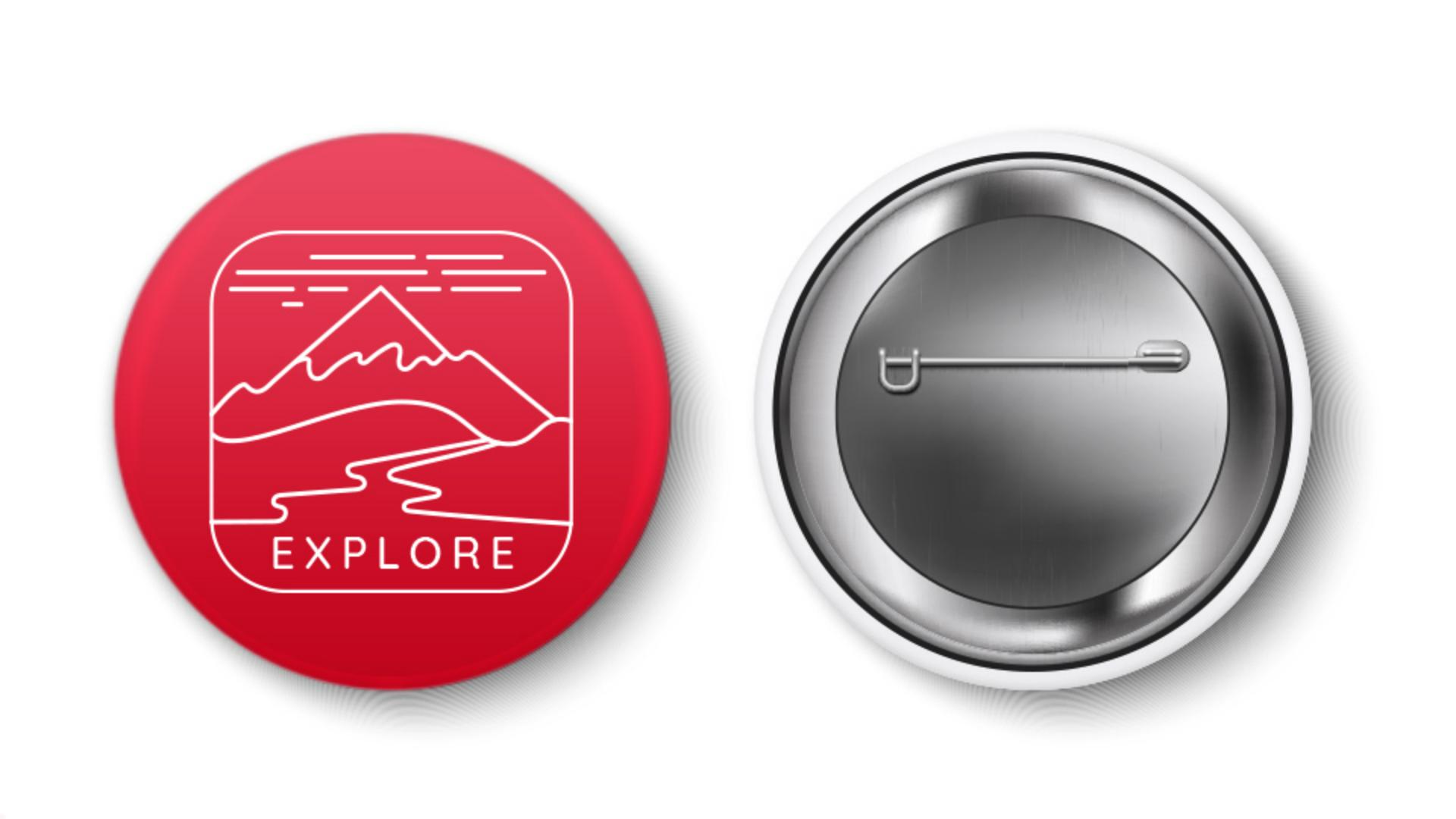
In this Illustrator tutorial you'll finish artwork for a mono-line, or a single line wait badge like you see here.
To finish the artwork in this project you'll use a series of Drawing Tools including the Curvature, Pen and Pencil Tools.
You also decide, which to use and understand why?
So, let's jump in.
Drawing smooth curves with the curvature tool
You'll start by creating a curve here.
It's a path with simple curves.
So, the Curvature Tool will work nicely.
Select the Curvature Tool in the Toolbar and before drawing you'll set the stroke and fill so, everything you draw has the same line weight.
In the Properties panel over here change the Stroke weight to 3 by pressing the up arrow a few times.
Then remove the Fill color by setting it to none.
To draw the first path.
Starting here click to set the first point.
Now to make a curve you're going to set points where the path changes direction.
So, click to add one here and then add a few more.
With the Curvature Tool you can also edit a path as you draw.
So, move the pointer over an existing point, and drag.
To add a new point so the path has a different curve here.
Click on the path and then drag the new point.
When you think the path looks good for the next part, you'll want to zoom in.
So, press Command + on Mac OS or Control + on Windows a few times.
To lock this path so you don't accidentally edit it.
Choose Object, Lock, Selection.
Now you'll create two paths for a river, coming from this line.
You'll use the Pen Tool this time
Creating precise river paths with the pen tool
since the Pen Tool allows you to draw more precise paths.
So, select a Pen Tool in the Toolbar.
Now to start, you'll set the first point so click and release here.
Move to pointer down here, now, you're going to create a straight line but instead of just clicking you'll press and drag so the next part of the path can be curved.
So, press and drag here and drag so that the line here looks like this.
Now if you make a mistake while you're creating an anchor point you can choose Edit, Undo Pen and try again.
To create another curve, move down here, press and drag again, move down, press and drag one more time in this direction.
Now you'll create one more S curve.
So, press and drag, move down here, press and drag again, move down, press and drag one more time in this direction, then click, to end the path here.
To finish drawing this path, you can deselect it by choosing Select, Deselect.
Now the right side of the river path is more of the same.
So, starting up here click to start the path.
Move the pointer down here, press and drag so the line looks like this and the next part of the path can be curved.
To create a few simple curves, press and drag in the direction that the line will go.
Move the pointer down here, press and drag in this direction, move down here, press and drag, move the pointer down here, press and drag in this direction.
Move down here press and drag and then to finish the line click here.
Next, you'll create a snow-capped peak on this mountain path
Drawing freeform details inside shapes with the pencil tool
by drawing a squiggly line.
The Pencil Tool is the perfect fit for this path because of how free form the paths can be drawn with it.
You'll draw a path inside of this path.
That way the ends of the squiggly line will be masked or hidden by the mountain.
With the Selection Tool selected click the mountain path.
Now to draw inside of it, click the Draw Normal button in the Toolbar and choose, Draw Inside from the menu.
If you see three small buttons down here instead of one, click the Draw Inside button.
You'll see dotted lines around the path now to indicate you can draw something inside.
To select the Pencil Tool, press and hold on the Paintbrush Tool and select it.
Come out here and draw a squiggly path.
The ends of the path, that extend beyond the mountain path are hidden.
Now to stop drawing inside, click the Draw Inside button and choose Draw Normal.
Refining the artwork using the eraser tool
Now you'll erase parts of the lines up here with your Eraser Tool to add a little more interest.
So, first you need to select the lines.
With the Selection Tool selected, drag across these lines.
To erase parts of them, select the Eraser Tool in the Toolbar and come to this line.
To erase the part in the mountain here, press and drag across the line.
Notice that the mountain path wasn't erased because it wasn't selected.
Now you can erase a few smaller parts of these lines by simply clicking on each line to erase.
In Illustrator using different Drawing Tools in combination you can create all kinds of artwork like this mono-line badge.
To practice, you can start again, but this time try coming up with your own design.