Digitize any image and use it to make pop art using Adobe Creative Cloud apps. Print your pop art illustration to use as a poster, or print it on specialty paper stock such as sticker paper or iron-on transfer paper. You can also save your artwork to use on your blog or website, or in another digital project.
Try this easy technique using our sample image or your own creative assets.
1
Select an image you want to work with
To re-create the pop art design shown here, download the sample photo. Then send it to your phone and save it to your Camera Roll. You can use this photo to create vector art with Capture, and then add pop art effects in Illustrator.

2
Capture a shape
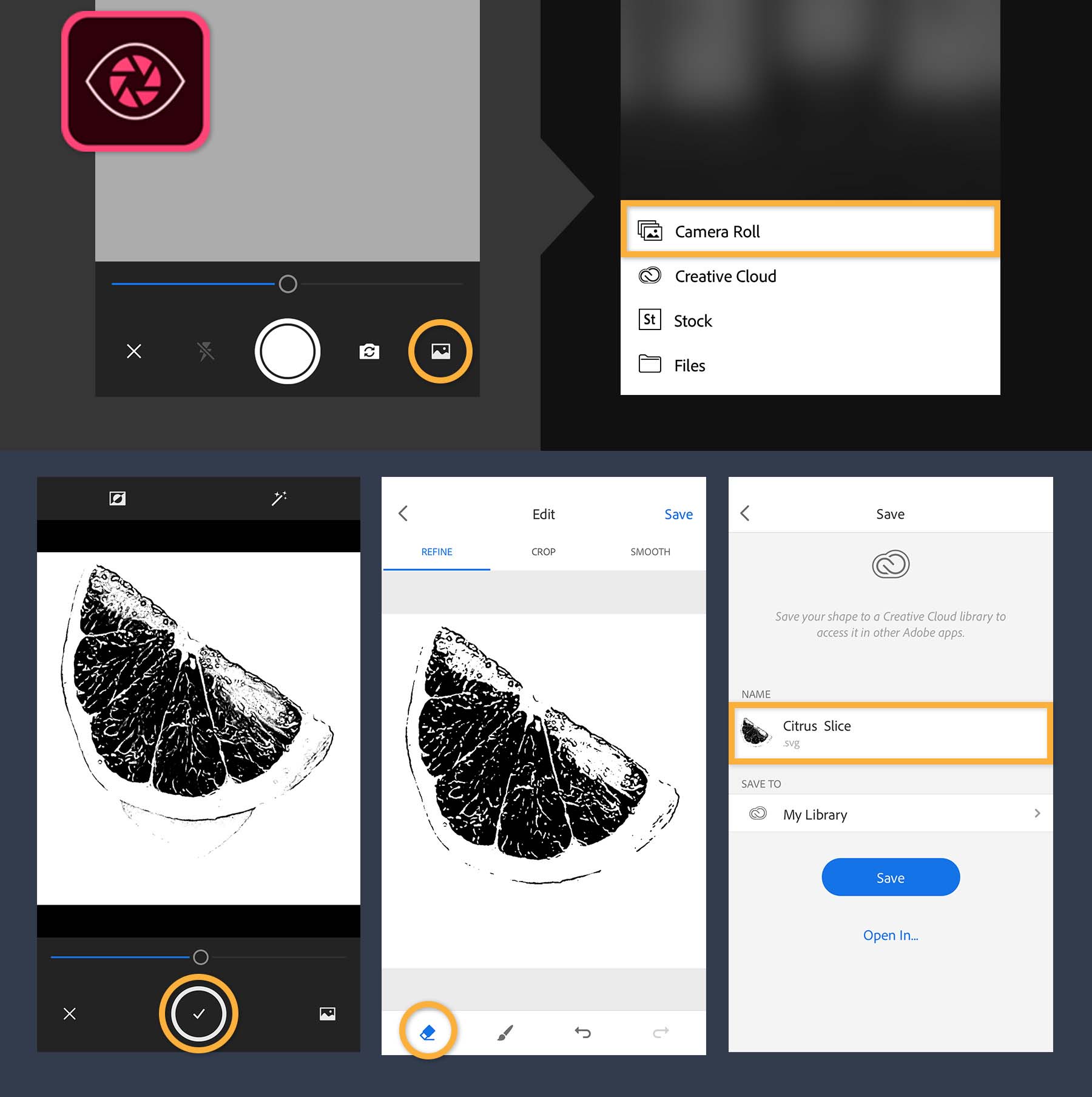
First, open Adobe Capture on your mobile device.
Note: The screenshots in this tutorial show Capture on an iPhone. The user interface may vary between iPhone, iPad, and Android devices.
Choose Shapes, and then tap plus (+). Next, tap the Capture From icon at the bottom right of the screen. Choose Camera Roll from the options.
Tap the photo you want to use and Capture will import the image. Adjust the slider to get the amount of detail you want.
Tap the Capture button (circle with check mark) to capture the image. You can refine, crop, and smooth your shape now — use your finger to remove parts of the shape. To add a portion to your shape, tap the Paintbrush icon and drag over additional areas. Tap Save. In the Save screen, rename your shape by tapping its default name and typing a new name. Save it to My Library. Tap Save.
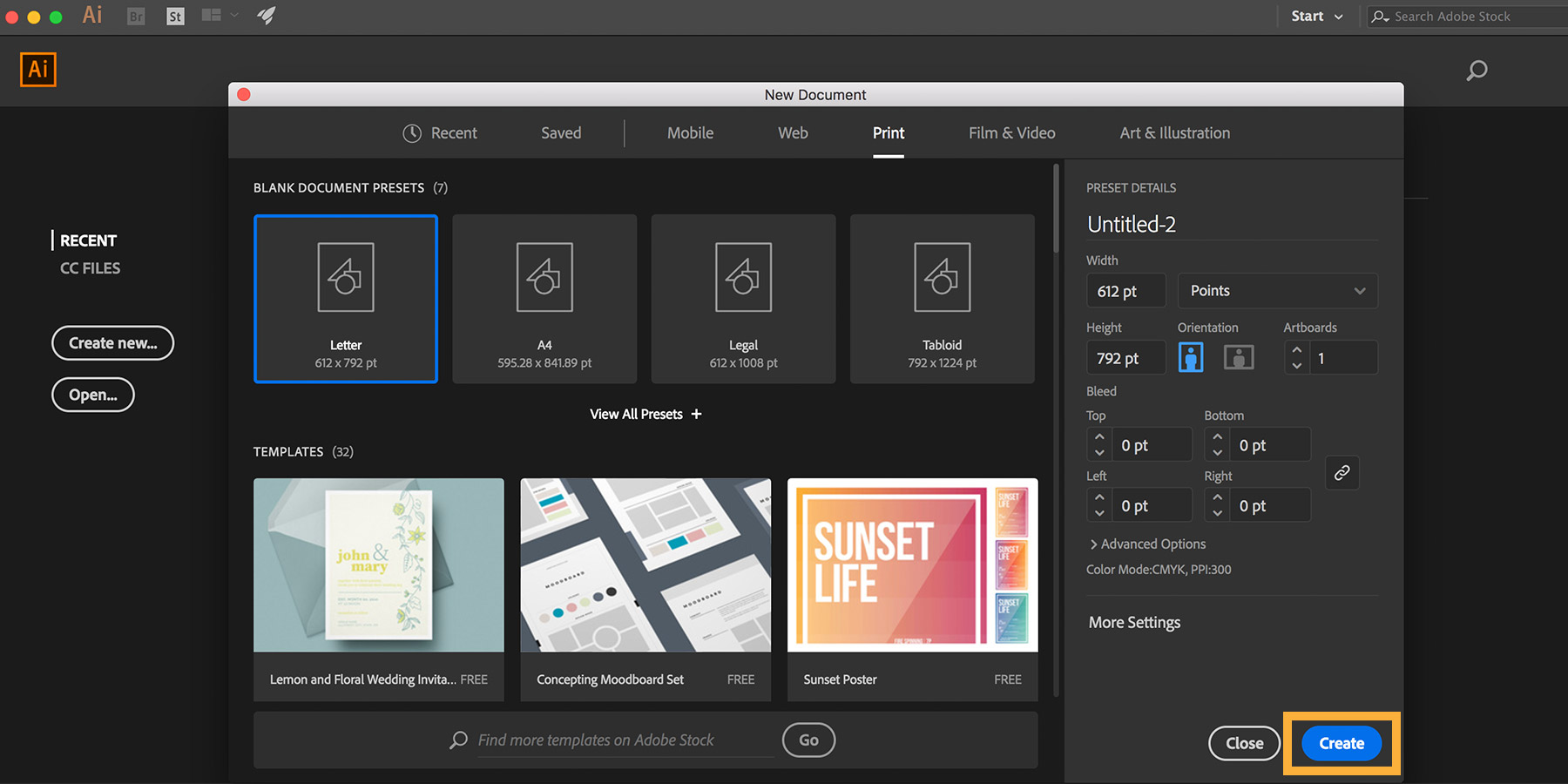
Launch Illustrator. Click the Create New button on the Start Screen, or choose File > New. Select Print at the top, and then select the Letter preset. Click Create.
4
Add your shape from your Creative Cloud Libraries
Now you’ll access the vector shape you created previously and edit it further.
Go to Window > Libraries to access your Creative Cloud Libraries. Select My Library and drag your shape onto the artboard. Click once to drop it onto the artboard.
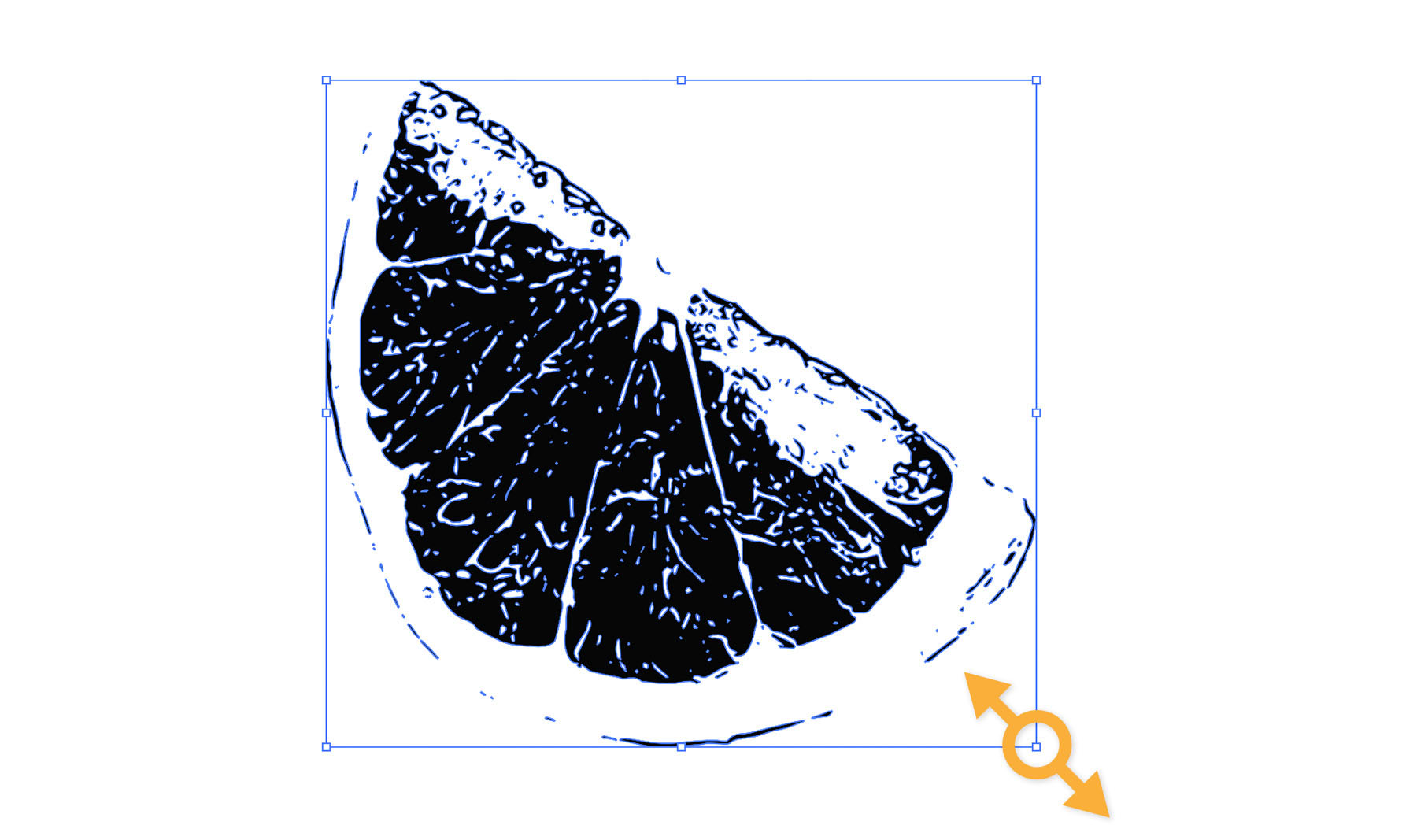
You can resize the shape if needed. Press Shift, and then drag a corner of the shape’s bounding box to scale it proportionally. Release, and drag the center of the shape to reposition it.
5
Refine the shape
You can easily remove any unwanted details from your captured shape. First, click somewhere on the artboard to deselect your shape. Then select the Eraser tool in the Tools panel and drag over areas to erase them.
6
Paint a second shape right on top
Press and hold the Paintbrush tool in the Tools panel and select the Blob Brush tool.
Click the Properties panel tab to view it. (Choose Window > Properties.) Click the Fill icon in the Appearance section of the Properties panel. Pick a color from the Swatches panel. Next, click the Stroke icon and set it to None if it isn’t already chosen.
Paint loosely over your shape.
Tip: Press the left and right bracket keys to dynamically change the brush size as you paint.
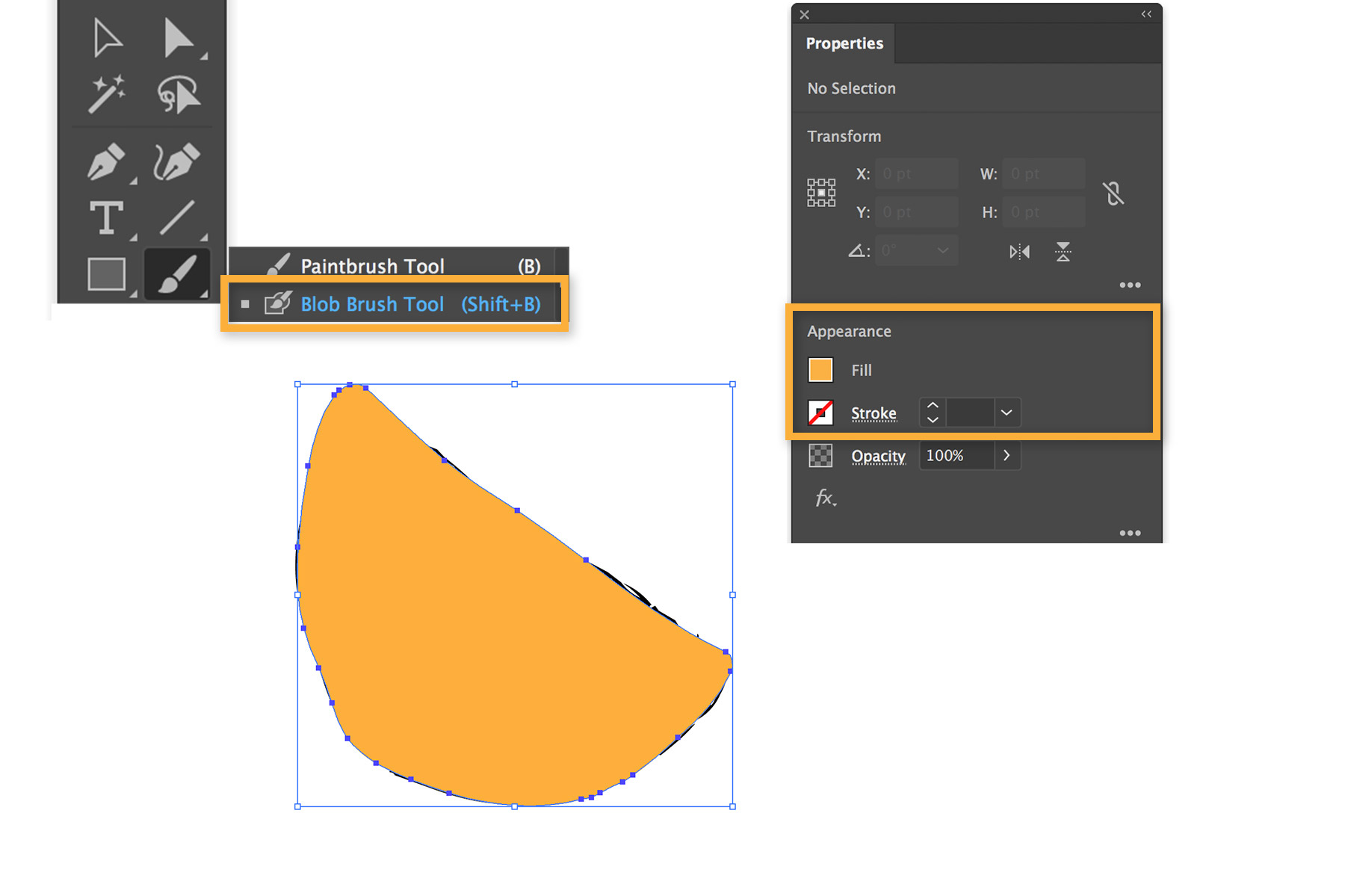
Press V to switch to the Selection tool, and click the painted shape to select it. Click Arrange under Quick Actions in the Properties panel and choose Send to Back to arrange it under your original captured shape.
7
Play with color choices
Next, click the original captured shape to select it. Click the Fill icon in the Properties panel and choose a contrasting color.
Click Opacity in the Properties panel and choose a special blending mode to create interesting color effects. We chose Multiply — this simulates the color interactions of transparent inks. Results may vary based your color combination.
8
Repeat your artwork (optional)
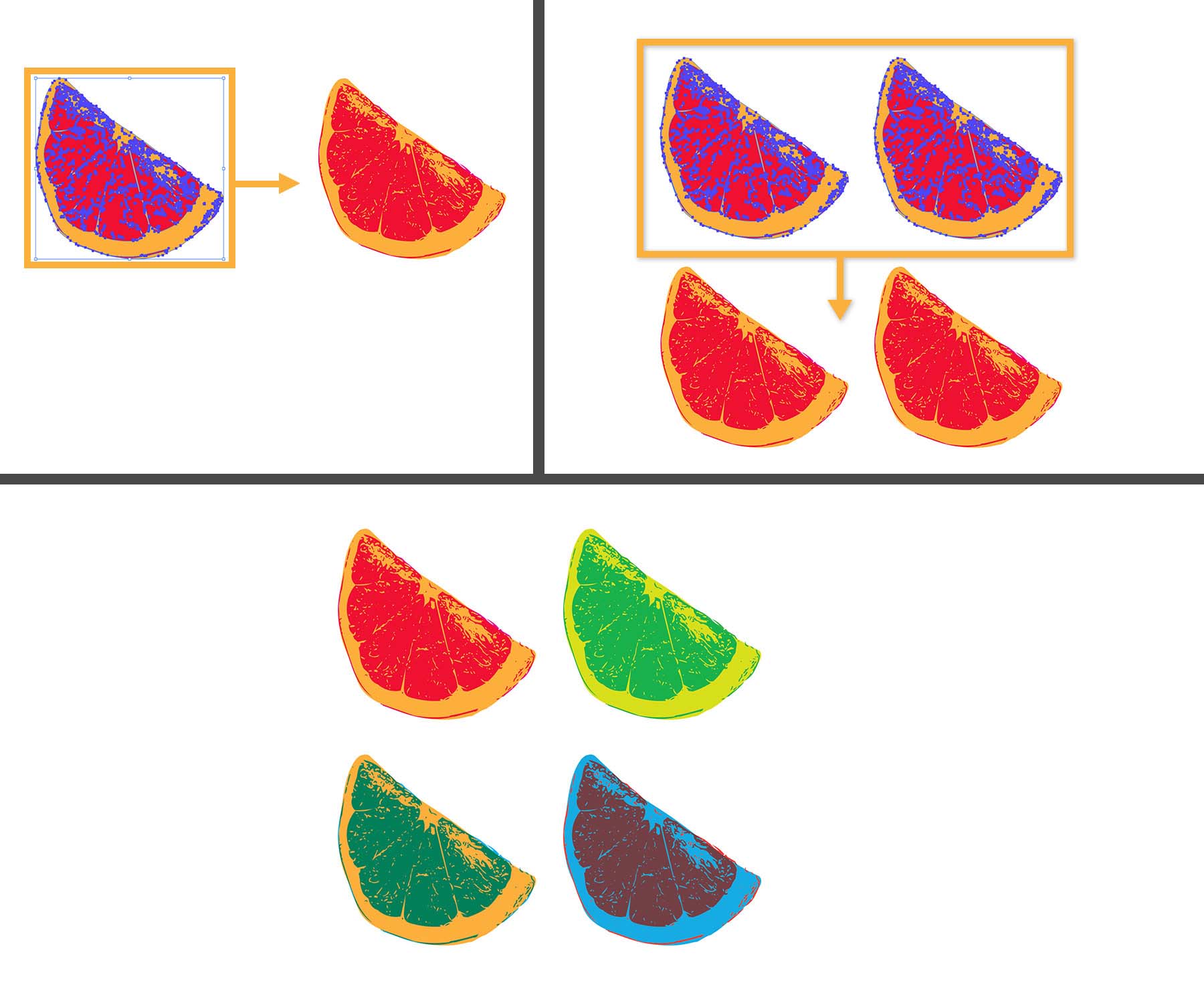
Take your pop art design further by placing it in a grid. Draw a selection rectangle around the shapes to select them both. Press Alt+Shift (Windows) or Option+Shift (macOS) and drag to duplicate along a straight line. Release your mouse to place the copy a short distance away.
Repeat this step to create another copy in the same row, or select the entire row and drag a duplicate below. You can recolor the duplicates if desired.
9
Print or share online
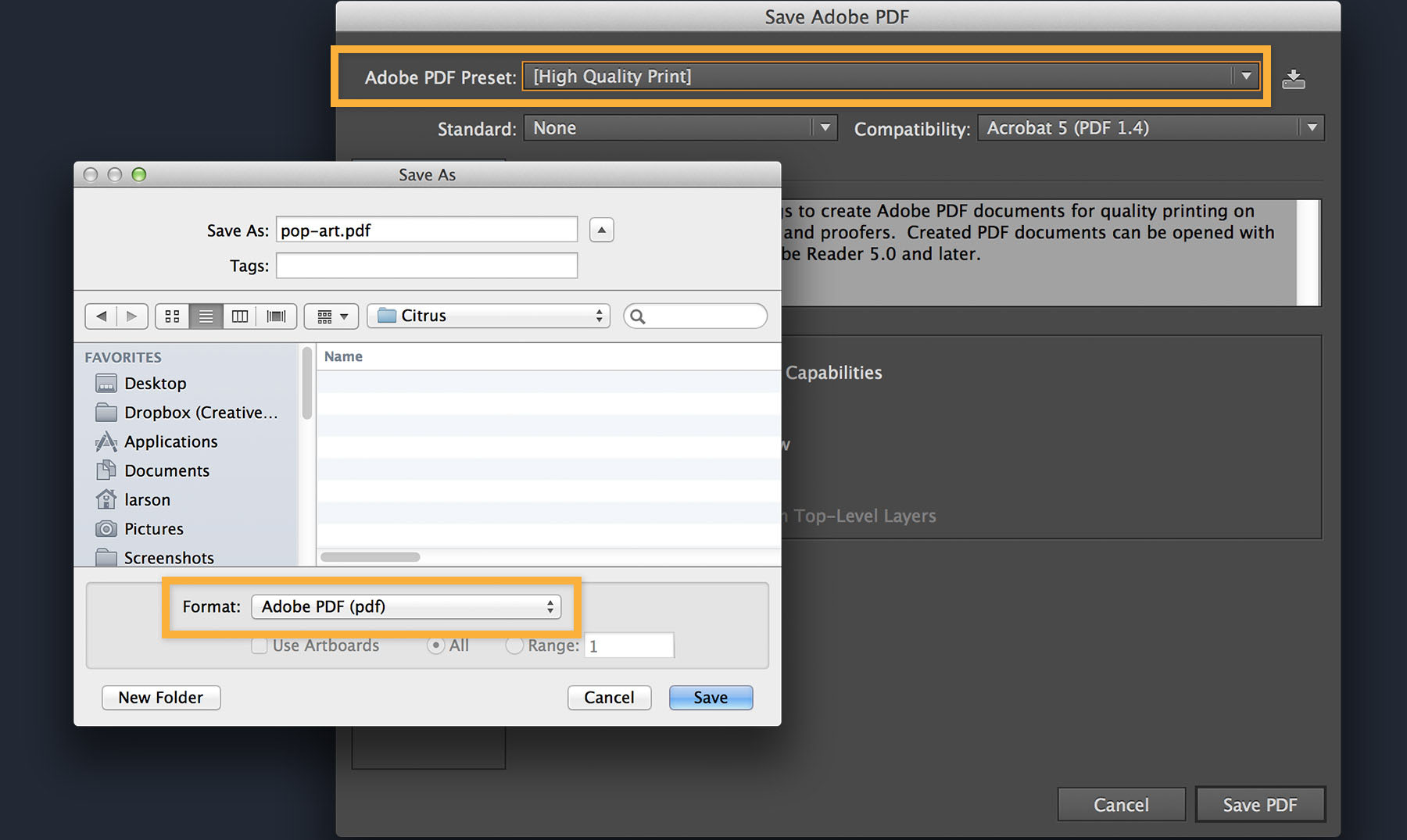
To save your pop art illustration so it can be printed or sent via email, save it as a PDF document. Choose File > Save, and select Adobe PDF. In the Adobe PDF Preset menu, choose either the High Quality Print or Press Quality option, based on your print provider’s recommendations.
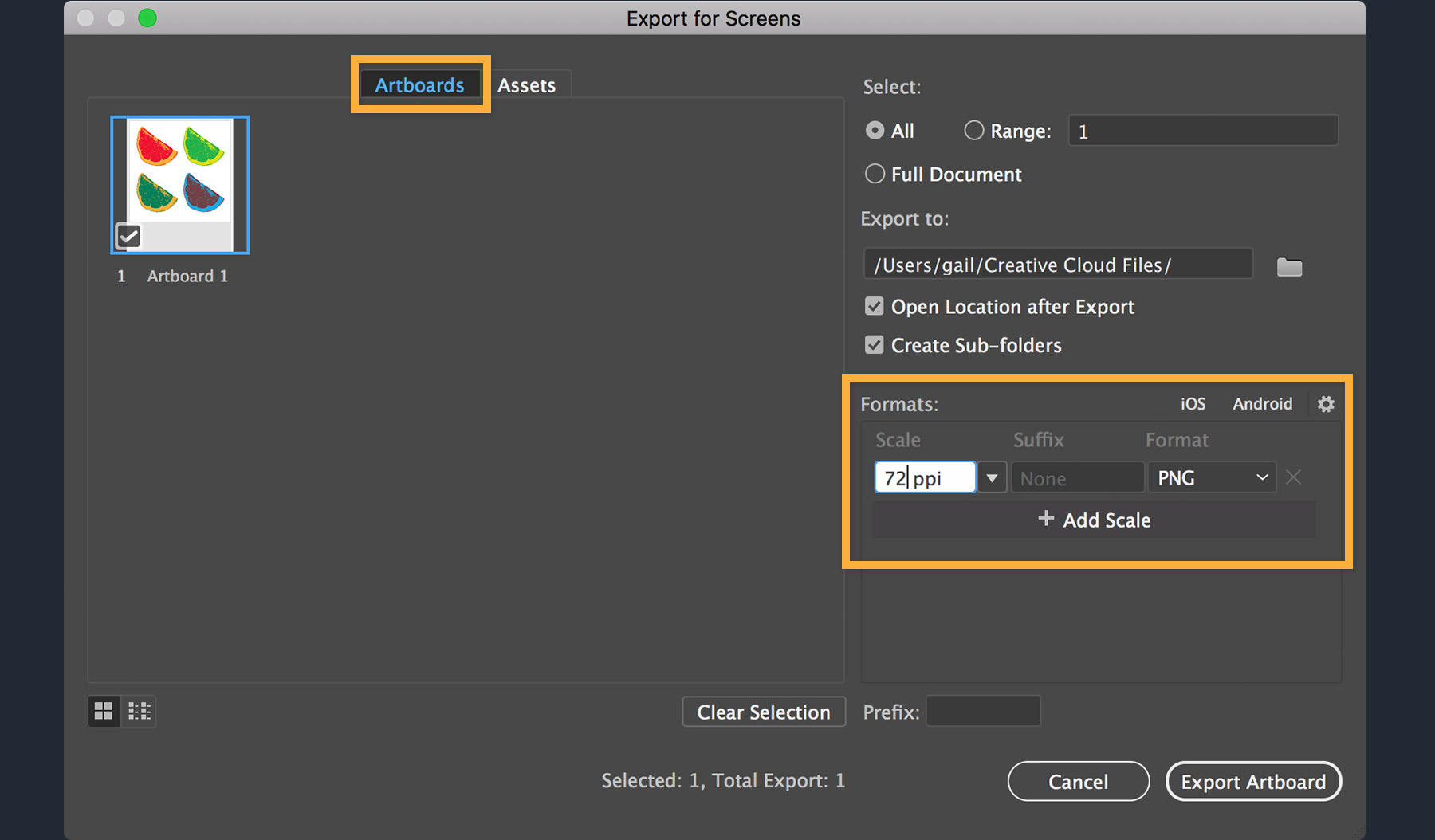
To save your illustration to view onscreen, choose File > Export > Export for Screens. In the Export for Screens dialog box, make sure Artboards is selected. Pick a location to save the file, and then choose a suitable format like PNG or JPEG. Click Export Artboard.
Hope you had fun. Practice with your own photos and share your designs with #adobepopart.

You can control how Adobe websites use cookies and similar technologies by making choices below. But note that if you disable cookies and similar technologies entirely, Adobe websites may not function properly.
Cookies are small text files stored by your web browser when you use websites. There are also other technologies that can be used for similar purposes like HTML5 Local Storage and local shared objects, web beacons, and embedded scripts. These technologies help us do things like remembering you and your preferences when you return to our sites, measure how you use the website, conduct market research, and gather information about the ads you see and interact with.
You can make choices in the menu below about what cookies and other technologies you want us to use on Adobe sites when you visit them from this browser. You can always change those choices later by clicking on the Cookie Preferences link at the bottom of the page.
If enabled:
We can improve your experience by tailoring the site and the content to things we think might be of interest
We can better keep track of your preferences — like what language you prefer to use
We will better understand your likely interests so we can provide you more relevant Adobe ads and content on non-Adobe websites and in non-Adobe apps
It will help us improve the performance of our website and those of our partners who use the Adobe Experience Cloud
If disabled:
We won’t be able to remember you from session to session so the experience may not be tailored to your interests
You’ll still have access to the content of the site but certain features that depend on cookies may not function
You’ll still see ads, they just may not be as relevant to you
General information
You can control how Adobe websites use cookies and similar technologies by making choices below. But note that if you disable cookies and similar technologies entirely, Adobe websites may not function properly.
Cookies are small text files stored by your web browser when you use websites. There are also other technologies that can be used for similar purposes like HTML5 Local Storage, web beacons, and embedded scripts. These technologies help us do things like remembering you and your preferences when you return to our sites, measure how you use the website, conduct market research, and gather information about the ads you see and interact with.
You can make choices in the menu below about what cookies and other technologies you want us to use on Adobe sites when you visit them from this browser. You can always change those choices later by clicking on the Cookie Preferences link at the bottom of the page.
If enabled:
We can improve your experience by tailoring the site and the content to things we think might be of interest
We can better keep track of your preferences — like what language you prefer to use
We will better understand your likely interests so we can provide you more relevant Adobe ads and content on non-Adobe websites and in non-Adobe apps
It will help us improve the performance of our website and those of our partners who use the Adobe Experience Cloud
If disabled:
We won’t be able to remember you from session to session so the experience may not be tailored to your interests
We’ll still count your use of our site and services
You’ll still have access to the content of the site but certain features that depend on cookies may not function
You’ll still see ads, they just may not be as relevant to you
Operate the site and core servicesOperate site and measure engagement
Always active
These cookies are required, and they are used to enable the site and related services core functionality. Without them the site could not operate, so they cannot be disabled.
These cookies enable the site and related services’ core functionality and collect statistics about user engagement, such as counting active use to help us understand trends. These cookies cannot be disabled.
Measure performance
These cookies are used to analyze site usage to measure and improve performance. Without them Adobe cannot know what content is most valued and how often unique visitors return to the site, making it hard to improve information we offer to you.
These cookies are used to analyze site usage to measure and improve performance. Without them Adobe cannot know what content is most valued, making it hard to improve information we offer to you.
Extend functionality
These cookies are used to enhance the functionality of Adobe sites such as remembering your settings and preferences to deliver a personalized experience; for example, your username, your repeated visits, preferred language, your country, or any other saved preference.
Personalize advertising
These cookies are used to enable Adobe and our partners to serve ads more relevant to your interests. Without them you will still see ads, but they might not be as relevant to you.
Personalize advertising
These cookies are used to enable Adobe and our partners to serve ads more relevant to your interests. Without them you will still see ads, but they might not be as relevant to you.