to try it today
File must be JPEG, JPG or PNG and up to 40 MB
https://main--cc--adobecom.aem.live/cc-shared/assets/img/upload-white.svg Upload your photo

By uploading your image or video, you agree to the Adobe
Terms of Use and Privacy Policy
to try it today
File must be JPEG, JPG or PNG and up to 40 MB
https://main--cc--adobecom.aem.live/cc-shared/assets/img/upload-white.svg Upload your photo
By uploading your image or video, you agree to the Adobe
Terms of Use and Privacy Policy
to try it today
File must be JPEG, JPG or PNG and up to 40 MB
https://main--cc--adobecom.aem.live/cc-shared/assets/img/upload-white.svg Upload your photo
By uploading your image or video, you agree to the Adobe
Terms of Use and Privacy Policy
- File size larger than 40 MB
- Unable to process the request
- We are unable to process this file type. Please try again.
- Only one file can be uploaded at a time.
- Image exceeds maximum dimensions (8,000 x 8,000 pixels). Please resize and try again.
- promoid=KCJMV97B&mv=other
Use the Colour Picker tool in Photoshop from anywhere.
The Colour Picker tool in Photoshop makes it easy to find, sample and save the perfect colour, whether you’re selecting visually, using precise values or grabbing a shade directly from an image. With support for HEX, RGB, CMYK profiles and more, it fits seamlessly into any creative workflow. Whether you’re using online Photoshop or desktop, you can keep your colours consistent across platforms and projects.
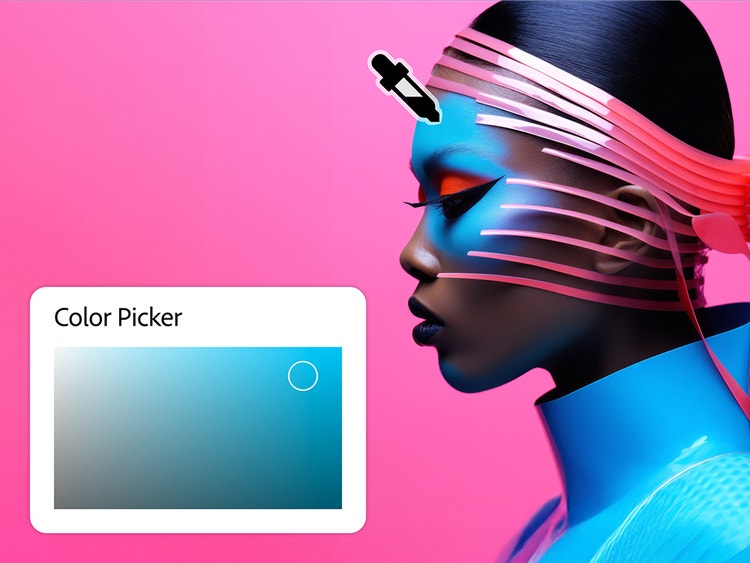
Easily sample and pick a colour from any image.
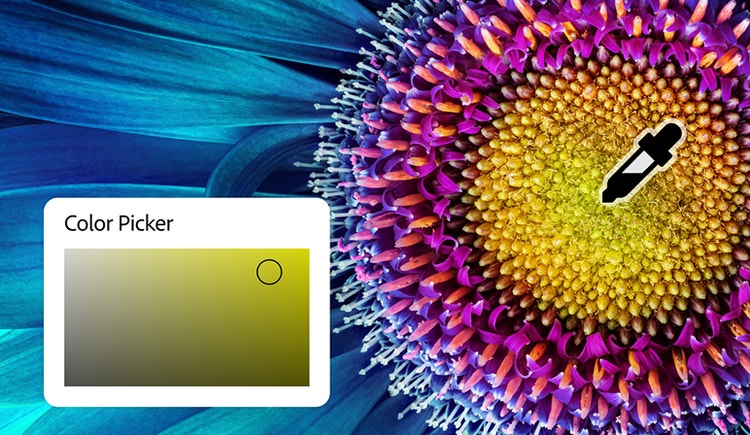
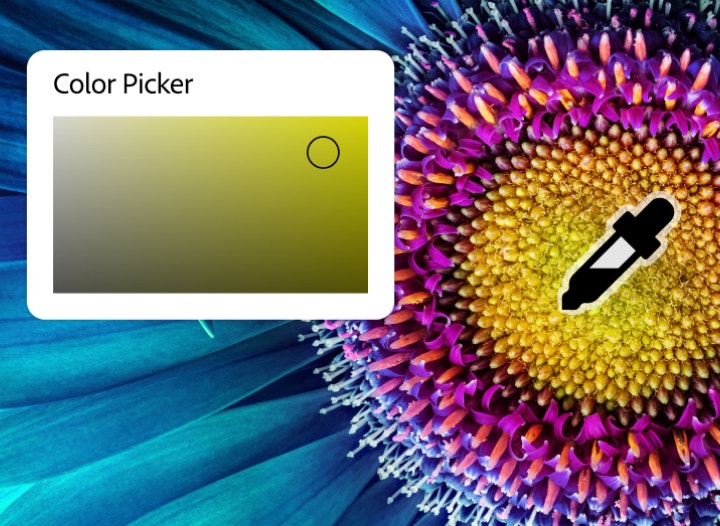
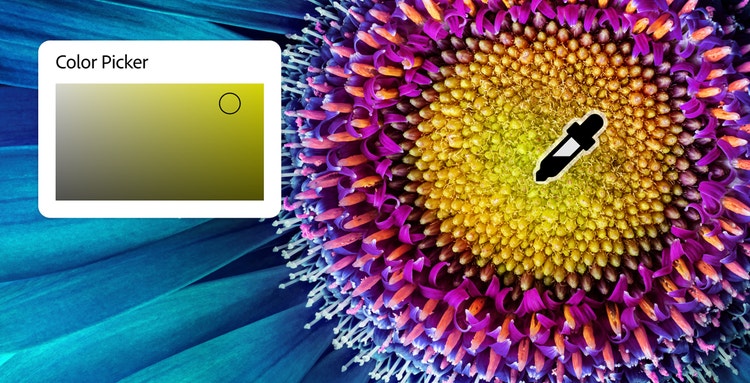
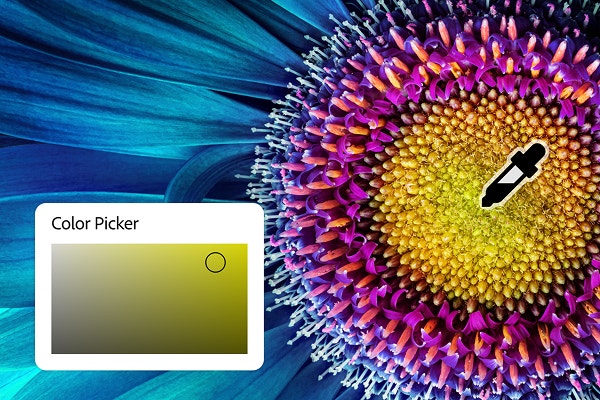
With the Colour Picker tool, you can choose colours directly within the panel or sample any pixel from an open image. Just click and drag the eyedropper to grab the exact shade you need, whether it’s from a photo, graphic or design element.
This makes it easy to match tones, build palettes or even change colour of image elements seamlessly. Use it to retouch product photos, adjust backgrounds or recolor text and shapes for brand continuity.
Save swatches and reuse your favourite colours anywhere.
Once you’ve found the perfect shade, you can click “Add to Swatches” in the Colour Picker to save it for later. Building a customised palette will help to keep your colours consistent across projects, whether you’re designing for work or fun.
Create cohesive social media graphics and or edit product photos to test background colours or prop ideas. If you’re looking to change colour of an object in a design or photo, having your saved swatches on hand makes it easy to get the perfect match.
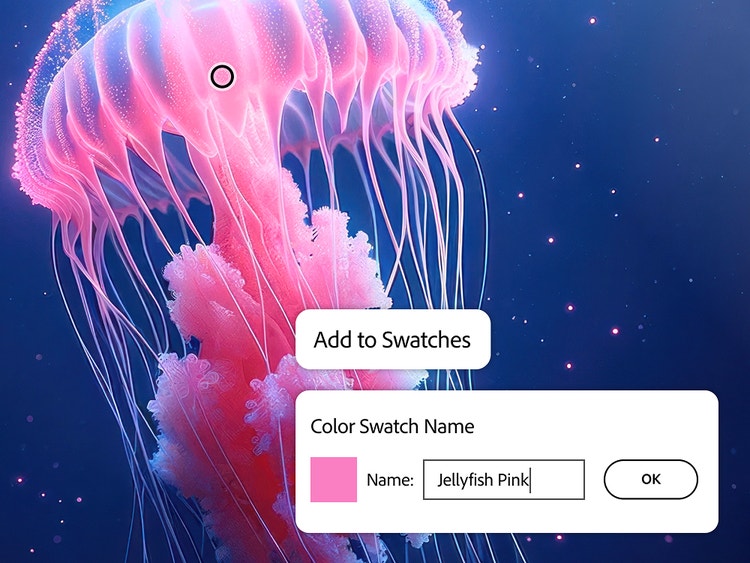
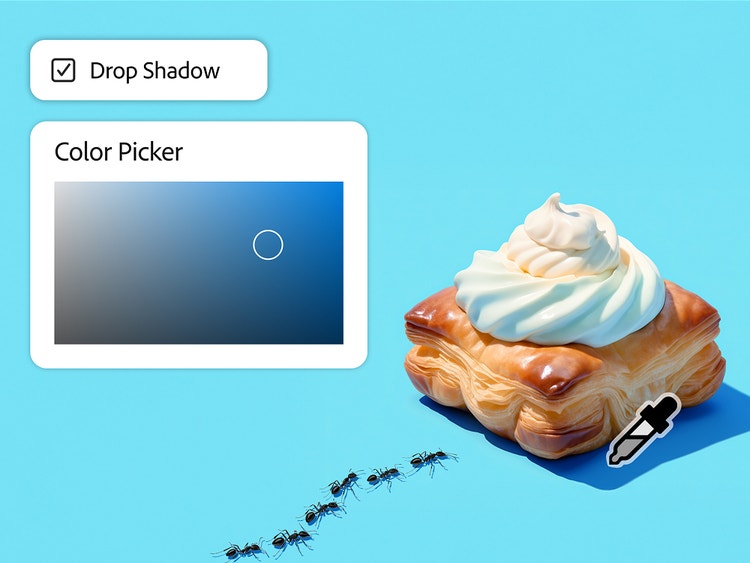
Use the online colour picker to choose shades with precision.
Whether you’re a beginner or a pro, the online Colour Picker in Photoshop gives you complete control over your colour choices. The intuitive visual interface makes it easy to explore and select the right shade, while the precise HEX, RGB or CMYK input fields let you fine-tune colours to the exact value.
You can use your selected colours in endless ways, whether you’re customising text, applying a background colour or adding effects. It’s especially helpful when you want to add drop shadow to image elements or fade a picture with subtle colour overlays.
Simple built-in CMYK, RGB & HEX colour picker.
The image Colour Picker tool makes it easy to view and convert colours across multiple formats, including HEX, RGB, CMYK, LAB and HSB. Whether you’re designing for web, print or both, having all these options in one place means you can quickly match the exact values you need.
It’s especially helpful for digital and web designers who want consistent colours across screens and print or anyone working with brand guidelines that call for specific formats.

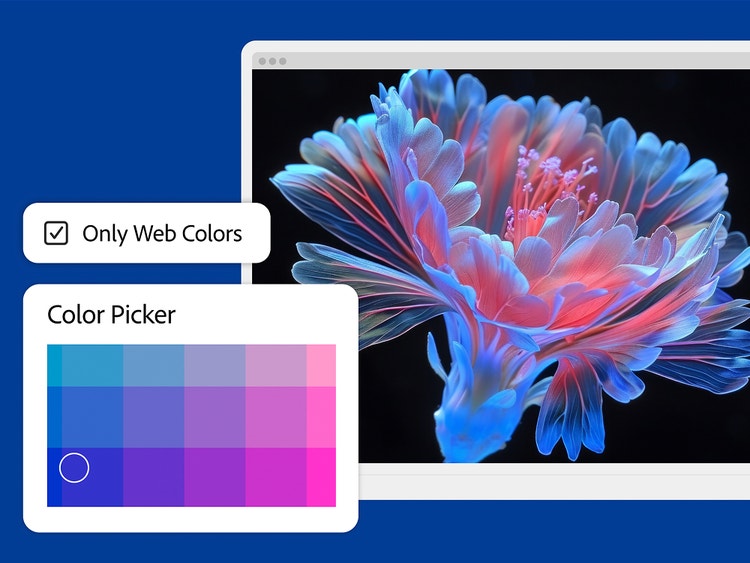
Use an online image colour picker for web-safe options.
When you need colours that look consistently online, click the “Only Web Colours” tickbox in the online colour picker to use the 216-colour web-safe palette. This ensures your chosen colours appear the same across most browsers and devices.
It’s a quick way to find HEX codes for CSS or HTML, stay within digital brand guidelines and create graphics that look great no matter where they’re viewed. Perfect for web designers, marketers or anyone working on digital assets.
Pick from a palette of colours on any device.
Select and save colours wherever you are with the Photoshop mobile app. Whether you’re travelling, on location for a photoshoot or just editing on the fly, you can sample from photos, adjust shades and store swatches right from your phone or tablet.
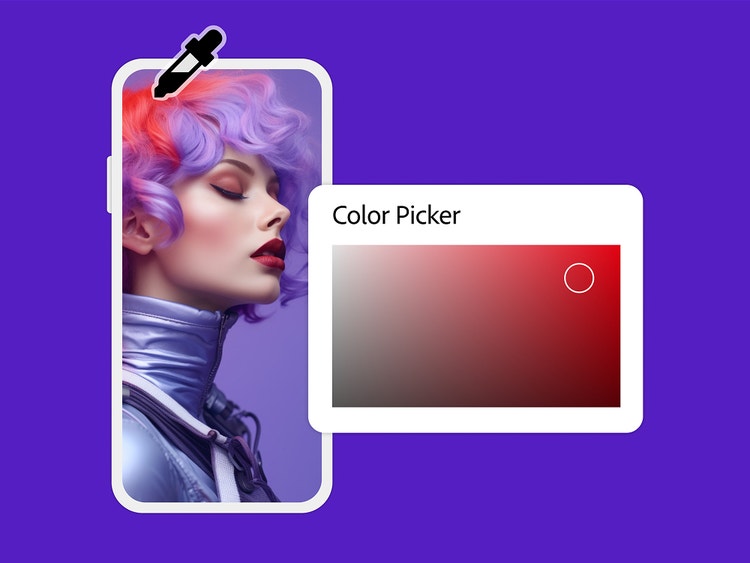
How to use the Colour Picker in Photoshop.
The Colour Picker tool in Photoshop is a fast and flexible way to choose the perfect shade, whether you’re designing from scratch, editing an image or sampling a colour from a photo. You can use it on a desktop, the mobile app or in Photoshop online and even import images directly from the frictionless tool for quick adjustments.
Here’s how to get started:
- Open your image in Photoshop.
You can upload a file from your computer, import directly from Photoshop online or open an existing project to sample colours. - Select the Colour Picker tool.
Click the foreground colour swatch at the bottom of the toolbar to open the image colour picker panel. You can also use the Eyedropper tool to use colour sampling. - Sample a colour from your image.
Click anywhere in your image to select a specific shade. Use this to match tones, create consistent themes or easily change the colour of image elements. - Explore colour options and formats.
View and adjust your selected shade using RGB, CMYK, HEX and other colour models. This is helpful for designers who need precise values for print and web projects. - Save your colour as a swatch.
Click “Add to Swatches” to save the selected colour for later use in your project or across different files. - Refine your colour choices.
Use the “Only Web Colours” tickbox for web-safe palettes or refer to colour management basics to help guide your decisions and ensure consistent colours.
Discover even more features.
Generative fill AI photo editor Remove background Sky replacement
Colour Picker Tool FAQs