Acrobat
Ask your PDF anything: AI-powered tools for smarter document interaction
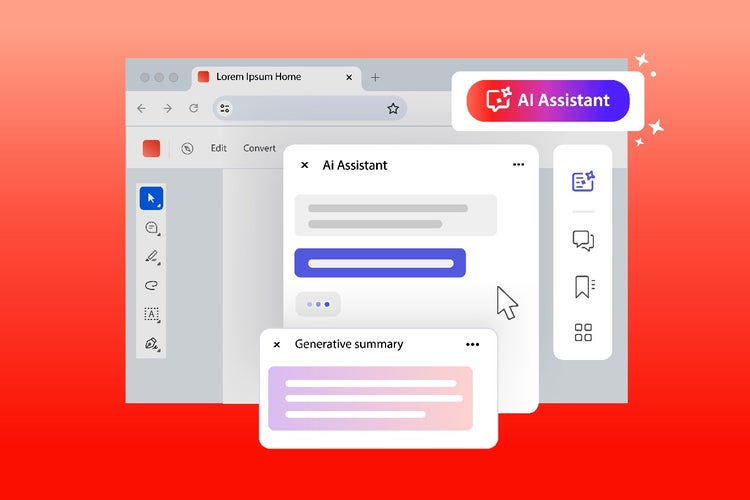
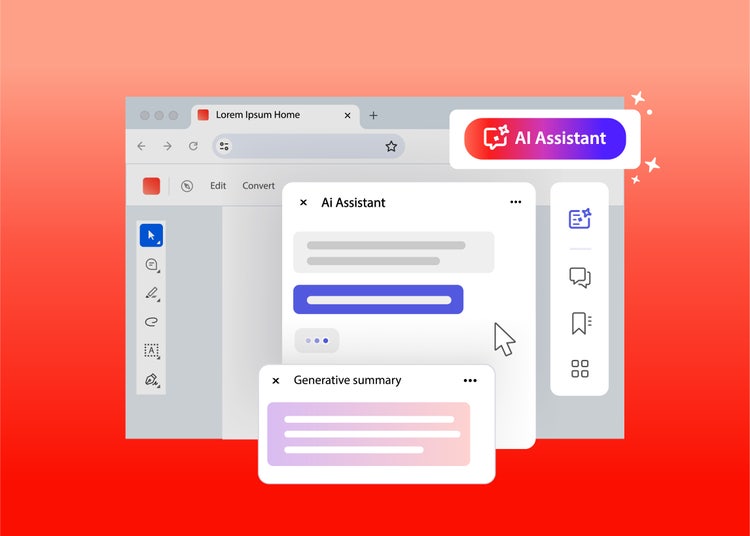
Interact with your PDFs using AI to extract insights, summarise content, and get answers instantly for faster, more efficient document handling.
Published by Adobe Acrobat India on 9 July 2025
JUMP TO SECTION
How do AI-powered PDF tools transform document interaction?
What can AI-powered PDF tools do?
How can you ask questions and chat with a PDF using AI?
What are the steps to chat with a PDF using Adobe Acrobat AI Assistant?
What are the best prompts to use when chatting with a PDF?
Signing documents, extracting information, and summarising lengthy reports no longer need to be manual, time-consuming tasks. With AI-powered tools like Adobe Acrobat’s AI Assistant, you can chat with any PDF, ask questions, summarise key points, and interact with content effortlessly. Whether you need insights from research papers, financial reports, legal documents, or business contracts, AI-driven PDF interaction makes working with documents faster and more intuitive.
This guide explores how AI-powered PDF tools work, how to chat with your PDFs, and how to maximise their capabilities for efficiency and productivity.
Key takeaways.
- AI-powered PDF tools allow users to chat with documents, extract insights, and generate summaries instantly.
- Adobe Acrobat AI Assistant enables users to ask specific questions and receive accurate, contextual answers from PDFs.
- AI can refine, rewrite, and format text, making documents clearer and more suited for different audiences.
- Using structured prompts improves AI-generated responses, ensuring precise and relevant document insights.
- AI-driven document interaction enhances productivity by reducing manual reading, summarising, and data extraction time.
How do AI-powered PDF tools transform document interaction?
Traditional PDFs require manual reading, searching, and summarising, which can be time-consuming — especially for long reports or research papers. AI-powered tools change this by enabling real-time interaction with PDFs, allowing you to:
- Chat with your PDF to extract key insights without scrolling through pages.
- Summarise lengthy documents instantly, saving time on research and analysis.
- Ask specific questions and get AI-generated answers tailored to your needs.
- Rewrite or reformat content to fit reports, presentations, or other uses.
AI-powered PDFs provide a faster, more efficient way to work with digital documents, making them ideal for professionals, researchers, and students alike.
What can AI-powered PDF tools do?
Adobe Acrobat’s AI Assistant offers a range of advanced capabilities for interacting with PDFs:
1. Summarise PDF content instantly.
- Generate quick overviews of lengthy documents, contracts, or research papers.
- Extract key takeaways without manually reading every page.
- Get bullet-point summaries for easier reference.
2. Ask your PDF questions.
- Find specific information without searching manually.
- Get direct answers from AI without scanning the entire document.
- Retrieve relevant data, statistics, or key statements in seconds.
3. Rewrite and refine PDF text.
- Adjust tone, structure, or readability for presentations or reports.
- Improve clarity, professionalism, and conciseness.
- Adapt content for different audiences or use cases.
4. Extract and organise important details.
- Convert data into structured formats like tables or bullet points.
- Identify main arguments, quotes, or case studies for research.
- Create actionable insights for business or legal use.
How can you ask questions and chat with a PDF using AI?
AI-powered PDF chat enables users to ask detailed questions and receive instant responses from document content. Instead of scrolling through pages manually, you can:
- Type a question directly into Adobe Acrobat’s AI chat interface.
- Receive AI-generated answers tailored to the context of your document.
- Interact dynamically, asking follow-up questions for deeper insights.
- Extract relevant sections, statistics, or legal clauses effortlessly.
Example use cases.
- Legal documents: “What are the key terms of this contract?”
- Market research reports: “Summarise the top three industry trends.”
- Financial statements: “What are the revenue growth figures for last year?”
- Academic research papers: “What methodology was used in this study?”
With AI-driven document interaction, you can work faster, extract insights effortlessly, and improve productivity.
What are the steps to chat with a PDF using Adobe Acrobat AI Assistant?
Using Adobe Acrobat’s AI Assistant is straightforward. Follow these steps to interact with your PDF:
1. Open Adobe Acrobat AI Assistant.
- Navigate to Adobe Acrobat online services.
- Select “Chat with PDF” from the AI-powered tools menu.
2. Upload your PDF.
- Drag and drop your document into the interface.
- Ensure your file is not password-protected for seamless processing.
3. Start interacting with your PDF.
- Type a question in the chat box (e.g., “Summarise the introduction”).
- Receive AI-generated answers instantly.
- Ask follow-up questions for more details.
4. Refine, copy, or download your responses.
- Copy AI-generated summaries into your notes.
- Download structured responses for further use.
- Use Acrobat’s editing tools to refine and format content.
Tip: For best results, use clear and specific prompts when chatting with your PDF.
What are the best prompts to use when chatting with a PDF?
Using well-structured prompts ensures more accurate and relevant responses from AI. Here are some effective prompt examples and how they can help:
1. “Summarise the key takeaways from this document.”
- Provides a quick, high-level overview.
- Helps with understanding lengthy reports or legal contracts.
2. “Highlight the key statistics in this document.”
- Extracts numerical insights and data points.
- Useful for financial reports, research papers, and business analytics.
3. “List the main arguments in this document.”
- Identifies core discussion points in debates or legal texts.
- Helps with academic analysis or corporate decision-making.
4. “Rewrite this section in simpler terms.”
- Makes complex legal or technical documents easier to understand.
- Useful for presentations, summaries, or business communications.

How can Adobe Acrobat AI Assistant enhance productivity?
AI-powered PDF tools streamline workflow by eliminating manual searching, summarising, and extracting information. Benefits include:
- Faster decision-making: Extract insights instantly instead of reading entire documents.
- Improved accuracy: Get structured responses with clear takeaways.
- Reduced workload: Automate document review and summarisation.
- Enhanced collaboration: Share AI-generated insights easily.
Adobe Acrobat’s AI Assistant saves time, enhances efficiency, and makes document handling smarter.
Be productive anywhere.
Want to discover even more PDF features? Try Acrobat's online tools for free in your browser.


Frequently asked questions.
Can AI-powered PDF tools analyse scanned documents?
Yes, but the accuracy depends on whether the document has been converted into readable text.
- If the PDF is a scanned image, use Adobe Acrobat’s OCR tool to extract text before using AI Assistant.
- AI can only analyse and summarise text-based PDFs, not images or handwritten documents.
- Converting scanned PDFs into machine-readable formats improves AI interaction and summarisation.
Tip: Always check if your document is text-searchable by trying to highlight words before using AI.
Does AI Assistant work with encrypted or password-protected PDFs?
No, AI tools cannot process encrypted or password-protected files unless the security settings allow content extraction.
- If a document is password-protected, unlock it using Adobe Acrobat before using AI-powered features.
- Some PDFs have restrictions that prevent text copying or modification, limiting AI capabilities.
- Always ensure you have permission to unlock and summarise protected content.
Tip: If working with sensitive data, review document security settings before uploading to AI tools.
Can AI summarise only a specific section of a PDF?
Yes, you can refine AI responses by directing it to focus on a particular section.
Use prompts like:
“Summarise the findings in section 3.”
“Extract key points from pages 10-15.”
“Highlight the main arguments in the conclusion.”
This allows for targeted summarisation rather than scanning the entire document.
Tip: If a PDF has a table of contents, use it to guide AI towards relevant sections.
Can AI Assistant help with contract review and risk assessment?
Yes, AI can quickly highlight key clauses, obligations, and potential risks in contracts.
- Extracts critical terms, such as termination clauses, liabilities, and payment terms.
- Helps legal teams and businesses identify risks and compare contracts efficiently.
- Summarises contractual obligations to support decision-making.
Tip: Use prompts like “Summarise risk factors in this contract” or “Highlight liability clauses” for quick insights.
Can AI Assistant convert PDFs into structured formats like tables?
Yes, AI can extract data and reformat information into structured tables for easier analysis.
- Useful for financial reports, research papers, and large datasets.
- Helps convert unstructured text into categorised information.
- Works best with numerical or comparative content.
Tip: Try “Extract financial data from this report into a table” to improve readability.
Can I use AI to generate citations and references from a PDF?
Yes, AI can identify references and citations in academic papers and research documents.
- Extracts bibliographic details, citations, and sources from PDFs.
- Useful for students, researchers, and professionals needing accurate references.
- Can format citations in APA, MLA, or Chicago style upon request.
Tip: Use prompts like “List all references cited in this document” for research-based PDFs.
Does AI Assistant support multiple languages for PDF interaction?
Yes, Adobe Acrobat AI Assistant can process and summarise PDFs in multiple languages, depending on AI model support.
- Supports widely used languages like English, Spanish, French, and German.
- Some AI models may struggle with complex or less common languages.
- Works best when the PDF contains clear, structured text.
Can AI Assistant rewrite complex legal or technical documents for easier understanding?
Yes, AI can simplify complex text, making documents more accessible to non-experts.
- Converts legal jargon into plain language summaries.
- Helps explain technical or industry-specific terms.
- Makes compliance documents, contracts, and reports easier to read.
Tip: Use “Rewrite this contract in simpler terms” to get a user-friendly version.
How does AI Assistant handle PDFs with embedded images, charts, or graphs?
AI focuses primarily on text-based content but can extract descriptive text associated with images.
- AI cannot analyse visual graphs but can summarise captions and surrounding explanations.
- Works best when documents include alt text or annotations for images.
- Future AI developments may improve direct analysis of visual data in PDFs.
Tip: If you need insights from a chart, try “Summarise the data explained in Figure 3.”
Can AI Assistant generate an executive summary from a long report?
Yes, AI can create concise executive summaries by focusing on key points.
- Extracts core insights, recommendations, and conclusions.
- Converts lengthy reports into actionable takeaways.
- Helps executives, analysts, and decision-makers focus on critical information.
Tip: Use “Create an executive summary for this document” to generate a structured report.
More resources