Adobe Acrobat
How to convert folder to PDF: Everything you need to know.
Need to combine all your documents into one organised file? Want to save yourself time from going through digital clutter? This guide shows you how to convert a folder to PDF, regardless of whether it holds documents, images, or even zipped archives.

Published by Adobe Acrobat India on 7 November 2025
Managing multiple files can quickly become messy. You’ll start with one document, and before you know it, you’re endlessly scrolling through numerous different files. The quick and easy answer: converting your folder to PDF to simplify file organization and management.
Instead of sending separate attachments or maintaining complex folder structures, you can combine all the documents inside a folder into a single PDF. This makes storage, sharing, and presentation easier. In this guide, we’ll cover various methods for converting folders to PDF, including zip folders and image folders, along with tips on utilising Adobe Acrobat for a seamless workflow.
What does “folder to PDF” mean exactly?
For most, converting a folder to PDF means merging all files inside into a single, comprehensive document. This ensures that nothing gets lost and everything stays together during sharing or archiving. Whether for your studies, business, work, or personal use, this feature is one that you can use in different situations:
- For working professionals: Reports, presentations, charts, and other business files can be combined into a single PDF, making it easier to prepare for meetings or share with clients.
- For students and educators: Lecture notes, reference materials, and study resources can be merged into one PDF, creating a streamlined, easy-to-access learning tool.
- For personal use: All documents can be consolidated into organised PDFs that are simple to store, manage, and share when needed: tax forms, receipts, insurance policies, travel itineraries, CVs, cover letters, and more.
Another folder to PDF conversion option is to convert all files within a folder into separate PDF files. This approach is ideal when you need to distribute individual files to different recipients or when you’re handling massive amounts of data that would benefit from universal accessibility, security, and consistency of PDF format.
File types you can include in a folder-to-PDF conversion.
Your folder may contain Word documents, Excel spreadsheets, PowerPoint presentations, JPGs, PNGs, or even zipped archives. Most folder to PDF converters (like Adobe Acrobat) can handle mixed file types and combine them into one PDF.
You can click here to read more on Adobe Acrobat’s supported file formats. You'd be surprised to know just how much you can gain control of your files.
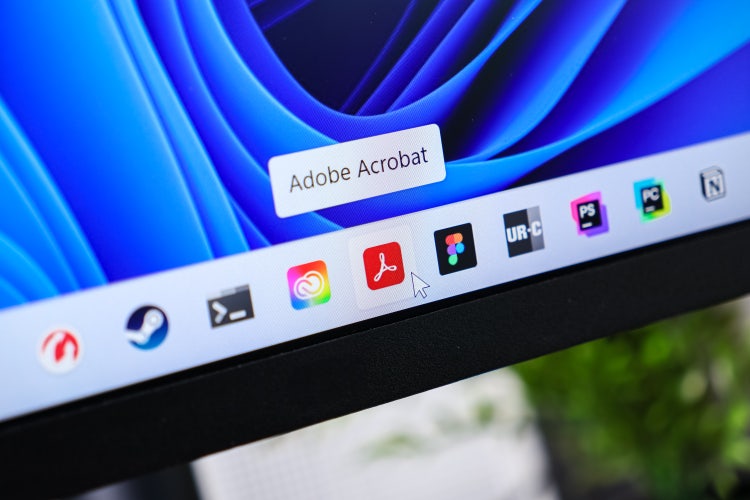
Convert a folder to PDF with Adobe Acrobat.
Option 1: Combine all files within a folder into one PDF document.
- Go to Adobe Acrobat online’s merge PDF page.
- Drag and drop the files that you want to merge or click on the “Select files” button to upload them.
- Rearrange the order of the files if you need to.
- Click “Merge files”
- Download the merged PDF.
- Log into Adobe Acrobat online to access further tools to organise or rearrange individual pages or share your merged PDF.
Option 2: Convert multiple files of a folder into separate PDFs.
- Open Adobe Acrobat.
- In the top menu bar, click on “+ Create.”
- Click “Multiple files.”
- Click “Create multiple PDF files” and then click “Next.”
- Click “Add files” and add the files you want to convert.
- Click “Okay.”
- Select from the output options to save your PDFs to the same or new folders, and original or new file names.
- Click “Okay.
If you need a more powerful, all-in-one PDF solution, Adobe Acrobat Pro is a good choice. You can try it for free for 7 days and then choose a plan that works best for you, your needs, and your budget.
How to convert a zip folder to PDF.
A zip folder is a compressed collection of files that is often used to send large sets of documents or images in a smaller package. If you’ve worked with zip folders before, you know that you cannot directly access the files inside them. You need to extract the files and use the necessary program to open each one.
Converting a zip folder to PDF makes your files far more accessible and easier to use. Here’s how you can do it:
- Open Adobe Acrobat.
- Go to File > Create > PDF from File.
- Select the zip file you want to convert.
- Click “Create” (or “Convert”) to process the file.
- Once converted, choose “Save” to store your new PDF.
For a more detailed walkthrough, check our guide on converting zip folders to PDF.
Why would you convert folders to PDFs?
Here are the key benefits of converting your document and image folders to PDFs:
- Simplified sharing: You can send one consolidated PDF instead of multiple individual files, making sure you don’t miss anything.
- Universal compatibility: PDFs are open standard, which means they open the same way on almost any device, browser, or operating system.
- Preserved formatting: Fonts, layouts, and image quality are locked and remain consistent across platforms to maintain content integrity.
- Better organization: You can reduce file clutter on your devices when you replace dozens of individual attachments or loose files with a single PDF file.
- Enhanced security: PDF files offer additional security features, such as password protection, encryption, or permissions to control access.
- Searchability: With OCR technology, scanned documents and images can become searchable text inside the PDF.
- File size optimization: Images and documents can be compressed during PDF conversion to reduce storage space.
Try our online tools to convert other file formats to PDF.

Create secure, shareable PDFs from Word docs.
--- #b6b6b6

Export spreadsheets as professional, polished PDFs.
--- #b6b6b6

Convert presentations into easy-to-share PDFs.
--- #b6b6b6

Make clean, compact PDFs from your JPGs.
--- #b6b6b6
Frequently asked questions.
Before converting, rename your files with numbers or logical naming (e.g., “01_Report,” “02_Data”). Most PDF converters arrange files alphabetically or numerically, so consistent naming helps preserve the order.
However, with Acrobat, you can rearrange and delete pages before merging them. This enables you to create a single, organised document that flows exactly the way you want.
Yes, conversion tools usually have file size caps. For instance, Acrobat is designed to have a 2GB limit for saving linearised PDF files.
If you’re working on extremely large files, compressing or splitting the PDF may be necessary.
More resources