Acrobat
Learn how to convert ZIP files to PDF using Adobe Acrobat.
Have you ever shared or received multiple files compressed into one folder? Converting ZIP files to PDF makes them easier to open, view and share without needing extraction software, helping you work efficiently across devices.
Published by Adobe Acrobat India on 4 July 2024
(Modified: 5 January 2026)
What is a ZIP file?
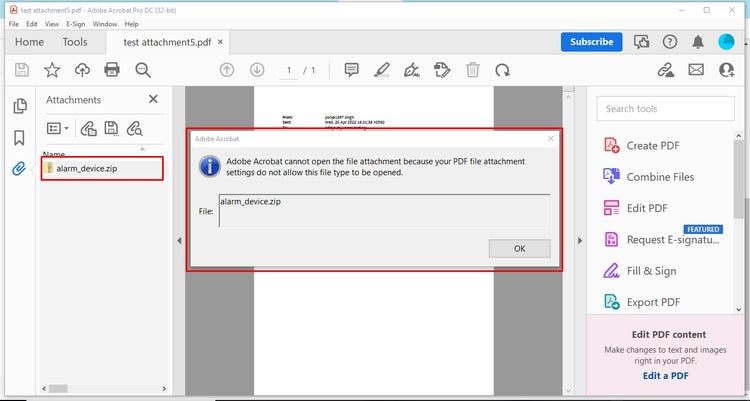
A ZIP file is a compressed folder that contains one or more files grouped together to reduce storage size and make sharing easier. It is commonly used when sending multiple documents, images or folders as a single package. However, opening a ZIP file usually requires extraction software, which means the contents cannot always be viewed directly on every device.
Why convert ZIP files to PDF?
Converting a ZIP file to a PDF makes the contents easier to view, print and share without needing to extract or install any additional software. PDF is widely supported across laptops, mobiles and browsers, and is often preferred for official submissions, forms and documentation. Converting to PDF can also help improve document security and reduce the risk of files being altered or misplaced.
How to convert ZIP files to PDF.
Follow these steps to convert ZIP files to PDF using Adobe Acrobat:
Step 1: Open Adobe Acrobat on your computer.
Step 2: Select ‘Create’ from the main toolbar then choose ‘PDF from File’.
Step 3: Browse and select the ZIP file you want to convert.
Step 4: Acrobat will extract the files and display a preview of the contents that will be included in the PDF.
Step 5: Choose ‘Create’ or ‘Convert’ to generate the PDF.
Step 6: Save your PDF to your preferred folder.
Once converted, you can review the PDF in Acrobat and use features such as annotations, bookmarks and content editing. You can also combine multiple extracted PDFs, reorganise pages and secure your document with password protection if required.
How to convert ZIP files to PDF on mobile.
You can convert ZIP files to PDF on your mobile phone using Adobe Acrobat without needing extra extraction apps. The steps are simple and work across Android and iOS devices.
Step 1: Open Adobe Acrobat on your mobile device.
Step 2: Tap Files, then browse and select the ZIP file you want to convert.
Step 3: Acrobat will extract and display the contents for preview.
Step 4: Tap Convert to PDF, then choose where to Save your document.
You can view and comment on the PDF for free. Editing or combining pages requires an Adobe Acrobat Pro subscription.
Advantages of converting ZIP to PDF.
The only advantage ZIP files have over PDFs is that they save space and facilitate easier sharing. Listed below are some points that list why you should convert ZIP files to PDF.
- Most computers are not enabled with software to support ZIP files.
- In case of corruption of the ZIP file/folder, you cannot recover the data, and all your data is lost.
- ZIP files are most prone to information misuse, and scammers use them to retrieve valuable information.
- PDFs can be viewed easily on laptops, mobiles and browsers without installing additional software.
- PDFs can easily be modified, unlike ZIP files, which cannot be modified once created.
- Converting ZIP files to PDF ensures that documents can be circulated and accessed easily.
- Converting ZIP files to PDF also helps maintain document formatting, making it easier to submit official forms, reports and educational documents.
In short, converting ZIP to PDF makes your files simpler to share, safer to open and easier to access across devices.
Comparing online ZIP to PDF converters.
When considering an online ZIP file to PDF converter, it is important to weigh the advantages and disadvantages of their features to make the right choice. Not all converters handle file extraction, formatting and document security in the same way. You must acquaint yourself with factors like:
- File size limitations: most converters have maximum file size limits for conversion.
- Data privacy & security: online ZIP files to PDF converters should be adept at handling sensitive information along with secure storage practices.
- Output quality: there are distortions in the resulting PDF documents, from formatting & font discrepancy to poor image quality.
- Support for mobile conversion: some tools may not work smoothly on smartphones or may require additional apps.
Most online converters offer an easy and simplistic conversion experience and are sufficient for occasional use. For users who prefer complete control, reliability, quality and security over urgency, you could consider dedicated software solutions like Adobe Acrobat.
Wrapping up ZIP to PDF conversion.
Converting a ZIP file to a PDF is a rather simple task that can be accomplished in just a few clicks using reliable tools like Adobe Acrobat. ZIP files are like ‘super folders’ that can store different files from doc, docx, JPEG, and PNG, and then can be compressed and free up a lot of your space.
Whether it is a personal or professional document, converting a ZIP file to a PDF ensures easy viewing and sharing across devices without the need for extraction software. PDF files can also be reviewed, commented on or securely saved, depending on your workflow needs.
This allows you to handle documents more efficiently, especially when submitting forms, sharing project files or creating organised records.