How to separate PDF files
Create multiple files from a single PDF by following these easy steps:
- Click the "Select a file" button or drag and drop a PDF into the designated area.
- Choose the PDF file that you want to split.
- Wait for Acrobat to upload your file. Then, sign in to continue.
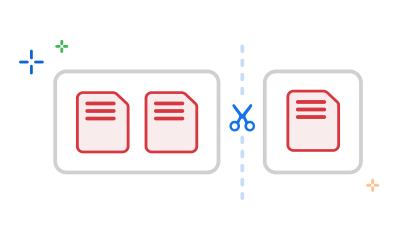
- You can now select divider lines to specify the page ranges for each split PDF file you require.
- Click "Continue" and choose a folder to save the newly created split PDF files.
Try Adobe Acrobat free online PDF splitter tool
Split PDFs to create up to 20 files
The Acrobat PDF splitter tool allows you to split a single PDF into 20 unique files. Add up to 19 divider lines to customise your page ranges. After signing in, you can even select and delete specific page thumbnails.
Preserve file formats even after splitting
With split PDF, the original document's properties, page orientation, file structure, and format are preserved, including attributes such as images, bold text, and heading tags.
Reuse your content and save time
Repurpose your PDF content by splitting a PDF file, then use other Acrobat online tools to rearrange or add pages to your split PDFs.
Easy to download and share your PDFs
Acrobat makes it easy to download your newly split PDF files effortlessly and share them with others for comment. Streamline your work by collecting all feedback in a single PDF.
Use the tool on any device
The Acrobat online PDF splitter is fully compatible with all major browsers, including Microsoft Edge and Google Chrome. You can use them seamlessly on your desktop, laptop, or smartphone.
The best online PDF splitter
As the creator of the PDF file format, Adobe offers exceptional online tools to split PDF files. Keep your projects moving from anywhere, anytime.
Split different types of PDF files
Financial documents
Split large, complex financial documents, reports, bank statements, tax filings and more for better organisation, storage & sharing purposes.
Invoices
Manage your bills and invoices smoothly by splitting lengthy billing statements into manageable files.
Study materials and textbooks
Easily digest study material, PDF textbooks, lecture notes, research papers and more by splitting them into bite-sized documents.
Legal Documents
Legal documents encompass a range of papers such as contracts, agreements, court orders, and other sensitive materials. Simplify the process of categorising these documents by splitting PDFs based on their types and occasions.
Split PDF FAQs.
The Acrobat Split PDF online tool lets you quickly split and separate PDF pages into up to 20 new PDF files without downloading additional software.
Here are the steps to split a PDF using the Acrobat Split PDF online tool:
1. Start by selecting a PDF of 1,500 pages or less and sign in to Acrobat.
2. Then, insert as many as 19 divider lines to determine the number of pages desired in each split PDF file.
3. Finally, click Save.
Acrobat will split PDF into pages based on the divider lines and save your new split PDF files on your device.
After you select pages and set up separator lines, click Save. Acrobat saves the split PDFs in an Adobe cloud storage folder within your Acrobat account. You can rename, download or share the new PDFs with others.
If you need to do more with PDFs beyond splitting files, you can try Adobe Acrobat Pro for Mac or Windows for free for seven days. The Acrobat PDF editor tools let you edit PDFs, merge PDFs, reorder individual pages, extract pages, delete pages, rotate PDF pages, reduce file size, set passwords and permissions and add bookmarks. You can also convert images like PNGs or JPGs and convert PDFs to and from Microsoft Word, PowerPoint (PPT) and Excel.
Use Acrobat tools for free
- Sign in to try 25+ tools, like convert or compress
- Add comments, fill in forms and sign PDFs for free
- Store your files online to access from any device
Create a free account | Create free account Adobe Acrobat Sign in