Adobe Acrobat
How to convert WhatsApp images to PDF.
WhatsApp is widely used in India for personal and business communications, often storing important chats and images. Learn how to easily convert your WhatsApp images and chats into PDF files for easy sharing and archiving.

Published by Adobe Acrobat India on 16 March 2026
WhatsApp has become one of the most widely used communication tools in India. It is used by everybody for personal conversations, work updates, school notices, and even for sharing important documents and images.
Because it is popular, it cannot be helped that over time, chats can contain valuable images, such as receipts, ID proofs, invoices, or screenshots that need to be stored securely or shared professionally. By converting these WhatsApp images to PDF, it is easier organise, archive, and access files across devices.
In this guide, you’ll learn how to convert WhatsApp images to PDF with ease. Let's begin.
Ways to convert WhatsApp image to PDF.
There are several practical ways to convert WhatsApp images to PDF, depending on whether you need to save a single image, preserve an entire chat, or combine multiple images into one document. Check them out, so you can choose the option that best fits your needs.
How to convert WhatsApp image to PDF.
If you only need to convert a single WhatsApp image to PDF quickly, your smartphone’s built-in features are often the simplest solution. Both Android and iOS devices offer native options that allow you to export images as PDFs without installing any additional apps. Here’s how:
- Save the image from WhatsApp to your phone's gallery.
- Open the image in your gallery, and then tap the three dots (menu).
- Select "Print" and then "Save as PDF".
How to convert WhatsApp chat to PDF via export.
One of the most common ways to convert WhatsApp images to PDF is by exporting the entire chat that contains those images. This method is especially useful if you want to preserve the images, the chat context, and order of media. Here’s how you can do this:
- Open WhatsApp and navigate to the chat you want to export.
- Tap on the contact or group name at the top.
- Select Export Chat from the menu. Choose Include Media to ensure images are part of the export.
- Share the exported file via email, Google Drive, or another app.
- Use a PDF converter tool like Adobe Acrobat to convert the exported content into a PDF file.
How to convert WhatsApp images to PDF using Adobe Acrobat.
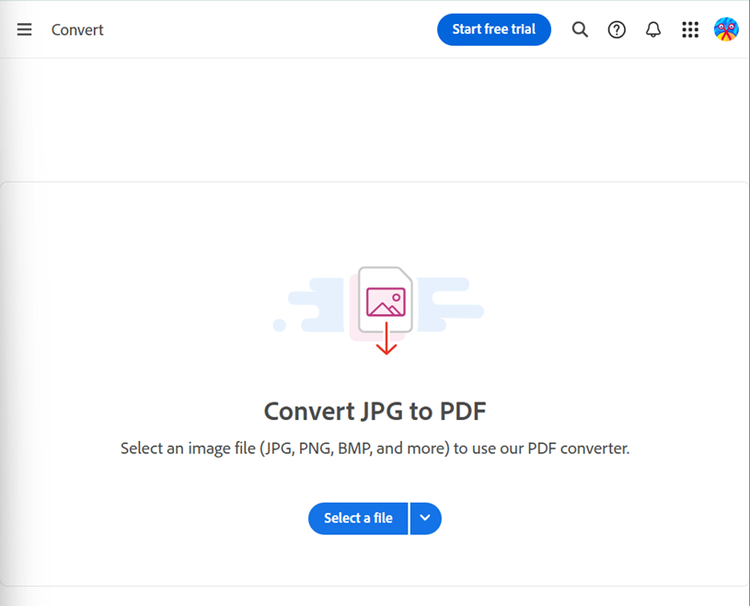
Another reliable way to convert WhatsApp images to PDF is to use Adobe Acrobat online services. With Acrobat, you can manually select images from WhatsApp and convert them into either into separate PDF file or combined into a single document. These are the steps you can follow:
- Download images from WhatsApp to your phone gallery by clicking on the image, tapping the three dots, and selecting Save option.
- Go to Adobe Acrobat’s online JPG to PDF converter.
- Click the Select a File button above or drag and drop files into the drop zone.
- Select the image file you want to convert to PDF.
- After uploading, Acrobat automatically converts the file from image to PDF.
- Download and save your compressed new PDF file with a unique file name or sign in to share it.
Why convert WhatsApp images to PDF?
WhatsApp has become an essential communication tool in India, not just for personal chats, but also for professional and official purposes. From sharing receipts, invoices, and certificates to sending study material, business contracts, or government forms, images on WhatsApp often contain important information that needs to be preserved in a reliable format. Converting these images to PDF ensures that your documents are organised, secure, and easy to access whenever needed.
Here are some key benefits of converting WhatsApp images to PDF:
- Better organisation: Instead of having dozens of separate images saved in your phone gallery, you can combine multiple WhatsApp images into a single PDF file. This keeps your records tidy and easy to navigate, especially when dealing with multiple conversations or long chat histories.
- Easy sharing: PDFs are widely supported across devices and apps. This compatibility simplifies sharing and reduces the chances of images being corrupted, misplaced, or misinterpreted.
- Professional format: For workplaces, schools, legal offices, or government interactions, PDFs are considered the standard document format. Converting WhatsApp images to PDF helps users present information in a professional and consistent manner and makes files ready for submission or archival.
- Preserved layout: PDFs maintain the original quality, order, and layout of images. This means that any text, signatures, stamps, or important details in the images are retained exactly as intended, without distortion or resizing.
- Long-term storage: Unlike individual image files, which can be accidentally deleted or lost in cloud backups, PDFs are easier to store securely. They can be saved on phones, external storage devices, cloud drives, or computers and can be quickly retrieved when needed as well.
Refine and organise WhatsApp PDFs using Adobe Acrobat.
After converting WhatsApp images or exported chats into a PDF, you may want to refine the file before sharing or storing it. Adobe Acrobat has powerful tools to turn all your bills, contracts, official notices, screenshots, and other converted WhatsApp files into well-structured, share-ready PDFs.
With Adobe Acrobat, you can:
- Clean up and edit text extracted from WhatsApp chats
- Reorder or remove pages created during chat or image conversion
- Merge multiple images into a single, organised document
- Compress large PDFs to meet upload or email size limits
Moreover, integrated within Adobe Acrobat are AI-powered tools that make working with PDFs faster and more intuitive. Features like Chat with PDF and the AI Assistant allow you to ask questions about long chat exports, summarise conversations, or quickly find key details without scrolling through pages of messages and images. There are also voice-assisted actions for some features to help you work on documents easily even when you’re on the go.
Try our online tools to enhance your PDF.
https://main--da-dc--adobecom.aem.page/in/dc-shared/fragments/roc/blog/online-tools/edit-pdf
https://main--da-dc--adobecom.aem.page/in/dc-shared/fragments/roc/blog/online-tools/merge-pdf
https://main--da-dc--adobecom.aem.page/in/dc-shared/fragments/roc/blog/online-tools/compress-pdf
How to share PDFs after converting WhatsApp images.
After converting your WhatsApp images or chats into PDF format, the next step is sharing them efficiently. PDFs are widely supported across devices and apps, so whether you want to email a PDF, upload it to cloud storage, or send it via messaging apps, you can expect a simple process:
- Email: PDFs can be attached directly to emails for colleagues, teachers, or official submissions.
- Messaging apps: PDFs can be sent via WhatsApp, Telegram, or other messaging platforms.
- Cloud storage and links: Upload your PDFs to Google Drive, OneDrive, or Dropbox.
- Adobe Acrobat sharing features: Use Acrobat’s built-in Share functionality to send PDFs directly from the app. You can send out a link to multiple viewers, give them edit and review access, and capture all feedback—all in one, organised place.

Tips for smooth WhatsApp image to PDF conversion.
To ensure a hassle-free experience when converting WhatsApp images to PDF, keep these tips in mind:
- Always select Include Media when exporting chats.
- Ensure you have enough storage space on your device.
- Rename PDFs clearly for easy identification later.
- Check file size limits when sharing large PDFs.
- Back up original WhatsApp images before converting.
Frequently asked questions.
More resources