PDF tools, now 100% free.

Try now

All the PDF tools you need, now 100% free.

Try now

All the PDF tools you need, now 100% free.

Try now

.

Adobe Acrobat

How to convert BMP to PDF.

BMP files provide crisp, uncompressed images, but their large size can be quite a challenge to manage. By converting BMP to PDF, you can streamline your workflows, share files more easily, and keep your images organised in a universally supported format.

Explore Adobe Acrobat

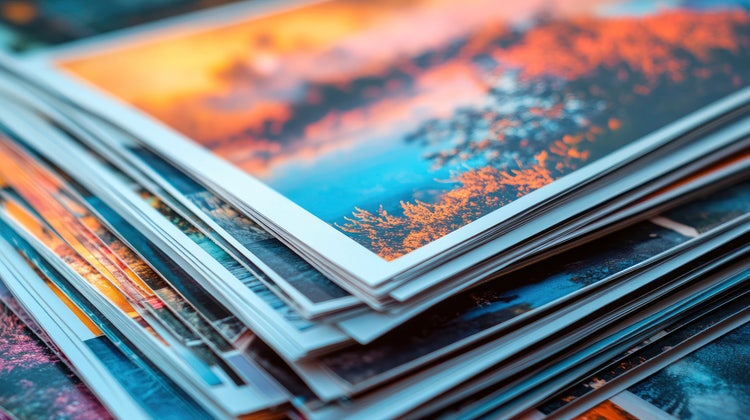
• A stack of printed high-quality photographs.

BMP files are often used to store high-quality images. However, they are not always easy to share, upload, or manage. Because BMP images are uncompressed, they can take up a lot of storage space and may not be supported by different platforms and devices. This is why many users look for ways to convert BMP to PDF, especially when they need a more portable and widely accepted file format.

In this guide, we’ll discuss how to convert BMP to PDF using simple, step-by-step instructions, so you can save your files in the format of your choice and make your workflows smoother.

What is a BMP file?

BMP, or Bitmap Image File, is an image file type developed by Microsoft for its Windows systems. It is a raster graphics format that stores image data pixel by pixel. BMP files are known for storing images without compression, which allow them to preserve a high level of detail and colour accuracy. Because of this, they tend to be much larger than other image formats like JPG or PNG, making them suitable for image editing and situations where image quality is more important than file size. However, their large size and limited compatibility make them less practical for sharing or uploading online.

Key characteristics of BMP files.

  • Uncompressed and lossless format: BMP files store image data in its original form, preserving full image quality. This results in sharp visuals but also leads to very large file sizes.
  • Wide colour support: BMP supports multiple colour depths, including 1-bit, 4-bit, 8-bit, 16-bit, 24-bit (true colour), and 32-bit.
  • High compatibility: BMP files are widely supported, especially on Windows systems, and can be opened using tools such as Adobe Photoshop, MS Paint, Apple Photos, and CorelDRAW.
  • No transparency support: Unlike PNG files, BMP does not support alpha channels, which limits its use in web and graphic design.

How to convert BMP to PDF.

Converting BMP files to PDF is quick and simple, and you don’t need any special software to do it. Adobe Acrobat’s online tools make it easy to turn your BMP images into PDFs suitable for sharing, printing, or uploading to Indian government or educational portals. Here’s how:

  1. Open Adobe Acrobat’s image-to-PDF converter.
  2. Click the “Select a file” button or drag and drop your BMP image into the designated drop zone.
  3. Once your file is uploaded, Acrobat automatically converts your BMP image into a PDF. There’s no need to adjust settings or manually start the conversion process. The tool also works on browser, mobile, and desktops, with no watermark added.
  4. After the conversion is complete, you can download the PDF to your computer or device. Your image is now in a format that’s easy to share, print, or archive.

How to merge multiple BMP files into one combined PDF.

Sometimes you may have several BMP images that you want to combine into a single PDF document, such as multiple screenshots, scanned certificates, admission forms, or assignment pages. Adobe Acrobat makes merging files fast and simple, so you can create a single PDF instead of managing multiple separate files.

Follow these steps to merge multiple BMP files into a single PDF:

  1. After you have converted all your BMP files into PDF, go to Adobe Acrobat’s online PDF merging tool.
  2. Click the “Select files” button on the Merge page or drag and drop your files into the drop zone.
  3. Reorder your files if needed.
  4. Click “Merge files.”
  5. Download your newly combined PDF.

Why convert BMP to PDF?

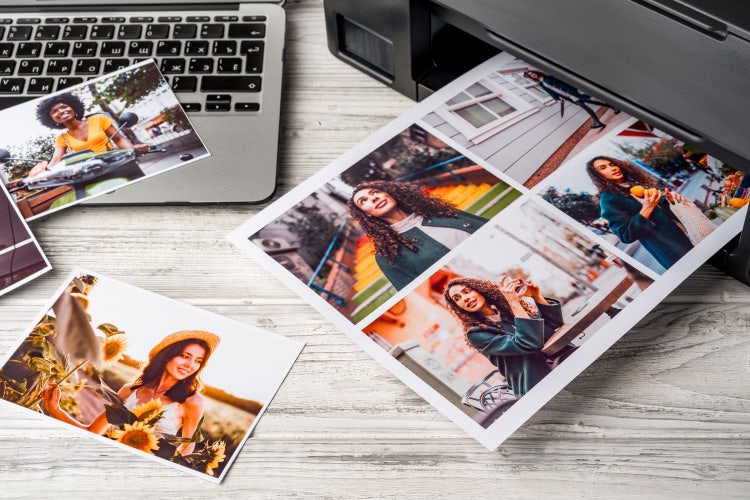
bmp to pdf photo printing process with color images coming out of a printer near a laptop on a wooden desk

Converting BMP to PDF offers several practical benefits, particularly when working with documents or sharing files. Here are some key reasons to save BMP to PDF:

  • Smaller file sizes: BMP images are uncompressed, which makes them large and cumbersome to store or send. Converting them to PDF reduces the file size while maintaining image quality, making your files easier to handle.
  • Easier sharing: PDFs are widely accepted across devices, email systems, and messaging apps like WhatsApp, Telegram, and Gmail. Unlike BMP files, which may not open on all platforms, PDF ensures your images can be viewed by anyone, anywhere, without compatibility issues.
  • Better compatibility with printers and document systems: PDFs preserve the layout and quality of your images, and work smoothly with printers, online forms, job portals, and government submission systems in India. This ensures your BMP images appear exactly as intended when printed or shared digitally.
  • Combine multiple images into one PDF: If you have several BMP files, you can merge them into a single PDF document. This is especially useful for creating reports, presentations, or portfolios, allowing you to keep all your images organised in one file.
  • Improved organisation and archiving: PDFs are easier to manage than separate BMP files. They support bookmarks, page numbers, and metadata, which makes storing, cataloguing, and retrieving your images more efficient, especially in professional or academic settings.

Try our online tools to enhance your PDF.

Edit PDF Edit PDF

Easily update text, images, and links in your PDF.

Compress PDF Compress PDF

Reduce file size without losing quality.

Protect PDF Protect PDF

Add passwords and permissions to secure your PDFs.

Insert PDF pages Insert PDF pages

Add new pages anywhere in your PDF with ease.

Tips to maintain image quality when converting BMP to PDF.

Maintaining image quality is one of the most important considerations when converting BMP files to PDF. BMP images are inherently high-resolution, but the conversion process can sometimes reduce clarity if certain settings are not optimised.

Here are some practical tips to keep your PDFs looking crisp and professional:

  • Use high-resolution BMP source files: Start with the highest quality version of your BMP image. Low-resolution or pixelated images will not improve during conversion and may appear blurry in the final PDF.
  • Avoid excessive compression: Some conversion tools allow you to compress PDFs to reduce file size. While compression can make files easier to share, too much compression can blur details or reduce colour accuracy. Opt for moderate or minimal compression when quality is a priority.
  • Choose standard or high-quality PDF settings: When converting or merging BMP files, select options like “Standard” or “High Quality” PDF output. These settings preserve image clarity, colour fidelity, and overall detail.
  • Preview your PDF before sharing or printing: Always check the converted PDF on your device or in a PDF viewer. Check to ensure text in Hindi, Tamil, or other regional languages appears correctly, and look for any loss of sharpness, colour issues, or misalignment. Previewing ensures that the final document meets your quality standards before distribution.
  • Consider merging BMPs carefully: If you’re combining multiple BMP images into one PDF, make sure each image maintains its original resolution. Proper ordering and consistent page size help prevent stretching or distortion.

By following these tips, you can be confident that your BMP-to-PDF conversions will retain the visual quality of your original images. This is especially important when sharing official documents, submitting assignments, or preparing files for printing, ensuring that every detail remains crisp and professional.

How to convert PDF back to an image format.

Sometimes, after working with PDFs, you may need to extract images or convert a PDF back into an image format. This can be useful if you want to edit the image, use it in a presentation, or include it in another document. Here’s how you can do it:

1.       Visit Adobe Acrobat’s online PDF-to-JPG converter.

2.      Click the Select a file button or drag and drop your PDF into the drop zone.

3.      Select the desired image file format. You can choose from JPG, PNG, or TIFF.

4.      Click Convert.

5.      Download your new image file or sign in to share it.

Frequently asked questions.

a text bubble, pencil icon and a stacked PDF icon representing free online Acrobat tools

Use Acrobat tools for free

  • Sign in to try 25+ tools, like convert or compress
  • Add comments, fill in forms and sign PDFs for free
  • Store your files online to access from any device

More resources

Adobe Acrobat

Browse all Acrobat plans.

Buy now Free trial