PDF tools, now 100% free.

Try now

All the PDF tools you need, now 100% free.

Try now

All the PDF tools you need, now 100% free.

Try now

.

Adobe Acrobat

How to customise PDF AI Assistant for better efficiency & productivity.

Working with PDFs doesn’t have to mean endless scrolling, searching, and manual summarising. With Adobe Acrobat’s AI Assistant, you can customise an AI assistant that understands your documents and adapts to the way you work.

Explore Acrobat AI Assistant

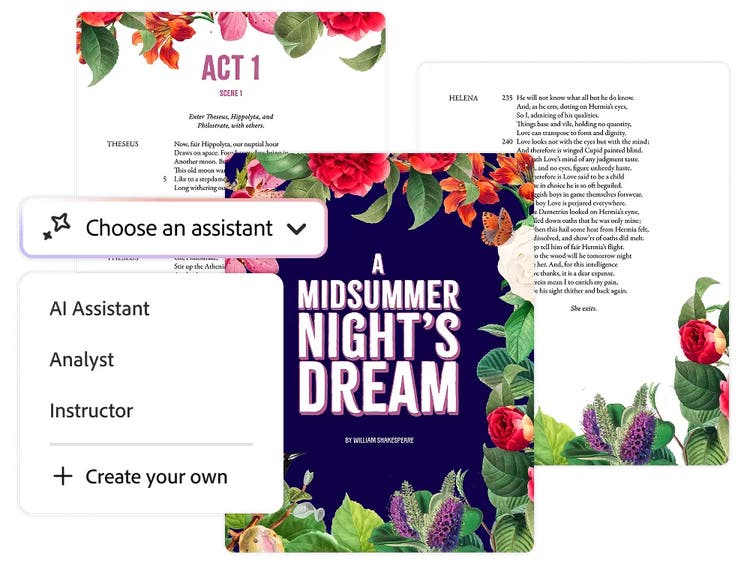
Choose an assistant menu in Adobe Acrobat showing different options: AI Assistant, Instructor, Analyst, and Create your own.

As documents remain at the centre of most business processes, the way AI interacts with files like PDFs is becoming just as important as the technology itself. This is where AI Assistants designed for document workflows come into play.

When an AI Assistant can understand, reference, and adapt to the documents you work with, it becomes a practical productivity tool rather than a generic add-on. By customising an AI assistant to suit specific tasks and preferences, teams across IT, consulting, banking, education, and government departments in India can work more efficiently with information, reduce manual effort, and get more value out of the documents they already rely on every day.

What is Adobe Acrobat’s AI Assistant?

Adobe Acrobat’s AI Assistant is a conversational, document-centric AI tool designed to help you work more efficiently with PDFs. Instead of treating documents as static files, AI Assistant allows you to interact directly with your content to uncover insights, clarify details, and generate useful outputs in seconds. You can ask questions, request summaries, or turn document content into emails, presentation talking points, or ideas for next steps.

How to create a personalised AI Assistant in Adobe Acrobat.

Creating a personalised AI assistant in Adobe Acrobat is designed to be simple and intuitive to allow anyone to tailor AI to their unique document workflows even without technical expertise. A custom AI assistant can focus on the tasks that matter most to you, whether that’s summarising reports, drafting emails from PDFs, generating presentation talking points, or extracting key insights from policies and contracts. Here’s how to set one up:

  1. Select AI Assistant from the top bar of the Insights page and then select Create your own.

    This opens the creation interface in Acrobat Studio, giving you access to a guided setup where you can start defining your AI assistant’s purpose and functionality.

  2. In the dialog box that opens, enter a name and a brief description for the AI Assistant.

    Choose a name that clearly reflects the assistant’s role and provide a description that outlines its goal. For example, use “Contract Analyst” for an assistant that extracts clauses from vendor agreements or “HR Briefing Assistant” for one that summarises policies. This step helps you and your team quickly identify the assistant’s focus.

  3. To customize your AI Assistant further, select Generate new instructions, review the auto-generated content, and edit it if needed.

    Acrobat Studio uses AI to suggest instructions based on your description. You can refine these instructions to match your preferred tone, style, and workflow. For instance, you can specify that summaries should be concise, emails should be professional, or outputs should include citations for validation. This ensures your assistant provides consistent and relevant results every time.

  4. Select Save and apply to activate your personalised AI Assistant.

    Once saved, your AI assistant is ready to use across your PDFs. You can immediately start interacting with documents, asking questions, generating summaries, or drafting content tailored to your workflow. Over time, you can revisit and update the instructions to further fine-tune performance and make your personalised AI assistant increasingly effective.

By following these steps, anyone can create a fully customised AI assistant that works seamlessly within Adobe Acrobat, helping to streamline document-heavy tasks and enhance productivity.

Reasons to create your own AI Assistant.

While pre-built AI assistants are useful, they may not fully reflect how you work or the types of documents you handle most often. Creating a personalised AI Assistant in Adobe Acrobat offers several key benefits over pre-built options:

  • Tailored to your workflow: A custom AI assistant reflects the way you work and the types of documents you handle most often.
  • Define purpose, tone, and behaviour: You can set clear goals, preferred writing style, and how the assistant responds, ensuring outputs are relevant to your role.
  • Focus on high-value tasks: Personalised assistants can specialise in summarising contracts, drafting emails or internal communications, analysing reports, or other tasks critical to your work.
  • Reduce repeated instructions: Once customised, your AI assistant remembers guidance, which reduces the need to explain instructions or refine prompts repeatedly.
  • Increase accuracy and efficiency: Over time, a personalised AI assistant produces more consistent, accurate outputs, further streamlining workflows for document-heavy tasks.
  • Enhance daily productivity: Professionals who work with PDFs regularly benefit from smoother, faster, and more reliable AI-assisted processes.

Pre-built AI Assistants in Adobe Acrobat.

Adobe Acrobat does have several pre-built AI Assistants, each one tailored to different tasks and working styles. These ready-made options allow users to quickly experience the benefits of AI without setting up custom instructions. They also serve as a starting point for those who later want to create their own AI assistant.

You can choose from the following options:

  • AI Assistant: This offers general assistance for a wide range of everyday document tasks. You can use it when you need a quick summary, help drafting emails, or answers to questions in a PDF. It is versatile and user-friendly, making it a great option for anyone just learning how to use an AI Assistant for document workflows.
  • Analyst: This is designed for reviewing data, research, or complex reports. It excels at summarising findings, extracting key insights, and helping users make sense of large or technical documents. This makes it especially useful for finance, legal, or research teams that rely on accurate document analysis.
  • Entertainer: This is ideal for creative storytelling or engaging content generation. Whether you’re brainstorming ideas, drafting presentations, or crafting compelling narratives, you can rely on it to generate imaginative outputs while still grounding them in the document content.
  • Instructor: This is perfect for explaining concepts, teaching material, or training documents. It can be used to help break down complex information into digestible explanations, making it valuable for educators, HR teams, or anyone creating learning resources from PDFs.

Already an existing Acrobat customer?

If you already have an Acrobat Reader, Standard or Pro plan, simply sign in on your Acrobat or Acrobat Reader app and try AI Assistant today.

How to use your AI Assistant effectively: real-world applications you can try.

Adobe Acrobat’s AI Assistant is a versatile tool that can completely level up the way you work with PDFs. Knowing how to use it effectively goes beyond asking basic questions; it’s about leveraging its capabilities to extract insights, generate summaries, and speed up workflows. Here are some of the most powerful ways to make the most of your AI Assistant:

Summarise lengthy documents

Lengthy reports, contracts, or research papers can take hours to read and analyse. AI Assistant allows you to summarise these documents quickly and accurately. By asking for concise overviews, you can get the key points, highlights, and takeaways without manually scanning hundreds of pages. This not only saves time but also helps you focus on decision-making rather than data extraction.

Surface information in an instant

You can use AI Assistant to surface specific information instantly. Whether you need a particular clause in a contract or a key statistic from a report, simply ask the AI Assistant to find it. Using targeted prompts like “Show me the key points about compliance requirements” ensures you get precise results quickly, turning lengthy documents into actionable information.

Generate insights

Beyond summarising, AI Assistant can generate insights that show trends, patterns, or critical points. For example, when reviewing a research report, it can identify recurring themes, compare data points, or flag unusual findings. This feature transforms raw document content into meaningful insights that you can act upon immediately to make your workflow more strategic and less manual.

Use AI prompts

The quality of the assistant’s output depends on how you prompt it. Clear, specific instructions produce better results than vague questions. You can guide your AI Assistant by specifying format, tone, or focus area. Using prompts effectively helps the AI assistant deliver precise, relevant, and actionable content. You can check out this prompt guide to get started.

AI AssistantAsk

Executive summary

Summarise this presentation so my manager can read it in less than a minute.
Copy
AI AssistantAnalyse

Pro/Con list

Give me a pros and cons list for implementing this strategy.
Copy
AI AssistantBrainstorm

Webinar ideas

Give me some potential webinar ideas based on this presentation.
Copy
AI AssistantGenerate

Email highlights

Write an email in a professional tone that highlights the 5 main takeaways.
Copy

Frequently asked questions.

More resources

Adobe Acrobat

Browse all Acrobat plans.

Buy now Free trial