
Acrobat
How to repair a PDF file: Simple solutions for fixing corrupted PDFs.
Learn how to identify, recover, and manage corrupted PDF files using simple, reliable solutions.


Acrobat
Learn how to identify, recover, and manage corrupted PDF files using simple, reliable solutions.

Published by Adobe Acrobat India on 15 July 2025
JUMP TO SECTION
How can I repair a corrupted PDF without downloading software?
What does it mean when a PDF is corrupted?
What causes a PDF file to become corrupted?
Can Adobe Acrobat fix partially opening or blank PDFs?
Why won’t my repaired PDF open in my current viewer?
What should I do if I see an error while trying to open the file?
Can I avoid this problem in the future?
Are there tools to help convert, combine or reduce the size of fixed PDFs?
A corrupted PDF can be frustrating, especially when it contains important documents, contracts, or records. Whether you're trying to access a report, an e-invoice, or a scanned file, encountering an error can feel like hitting a dead end. Fortunately, there are several effective and simple ways to fix corrupted PDFs, often without needing to download or install anything. In this guide, we'll explore how to repair damaged files quickly and how tools like Adobe Acrobat can help, using only trusted, secure features.
Many users want a quick, no-install solution to fix their PDF files. While Adobe doesn’t offer a dedicated online repair tool, you can still manage and recover files using Acrobat’s suite of features. Here’s what you can do:
A corrupted PDF is a file that has been damaged in such a way that it cannot be opened or displayed correctly. This may result in missing content, unreadable data, or an inability to open the file at all. Here’s how you can tell if your PDF is corrupted:
PDFs can become corrupted due to a range of issues during file handling or transfer. These include:
Yes, Adobe Acrobat tools can help resolve issues where a PDF opens but does not display correctly. Here are the steps you can try:
Sometimes, the issue lies not in the PDF but in the software you’re using. If your file has been repaired but still won’t open:
Error messages can vary, but most relate to file corruption or incompatibility. To address them:
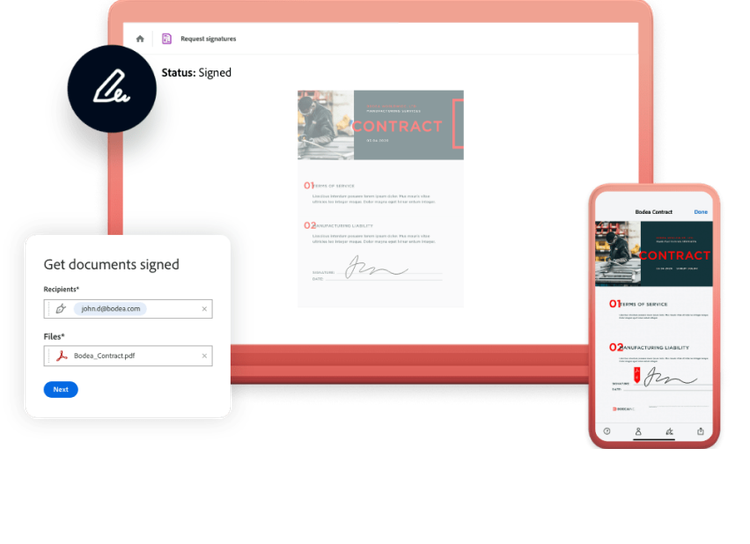
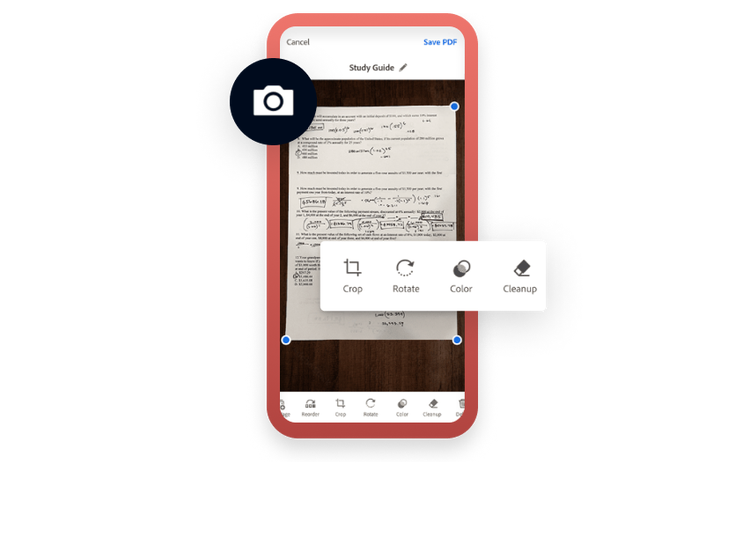
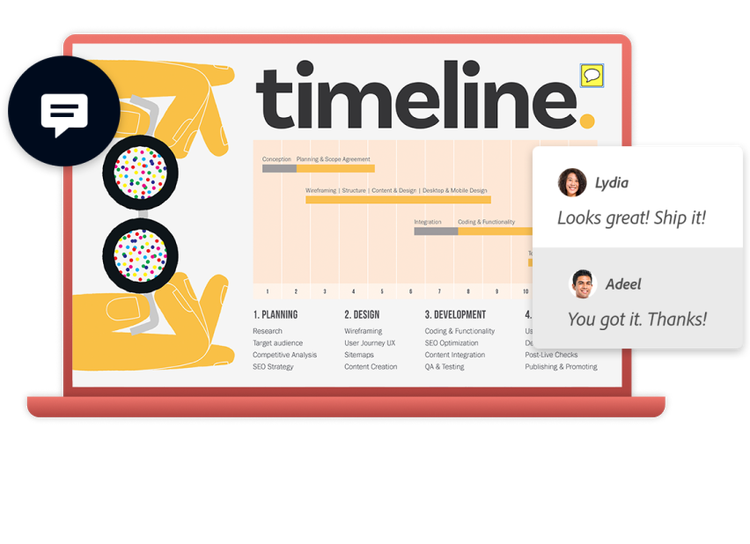
Edit PDFs with minimal effort from anywhere, on any device. With Acrobat, you have instant access to the essential PDF tools you need — across desktop, mobile devices and the web. See how easy it is to edit, create, share, organise and e-sign PDFs on the go.

Yes, there are several good practices to help prevent PDF corruption:
Yes, once your file is working again, Adobe Acrobat allows you to further manage and refine it:
Once your PDF is working again, you might want to make notes, highlight sections or update information:
Free PDF viewer that can open and interact with all types of PDF content, on desktop or mobile.