{{PHOTOSHOP-FEATURES}}
How to merge layers in {{adobe-photoshop}}.
Layers are the fundamental building blocks of photo editing and design in {{photoshop}}. Merge them to reduce file size and make images easier to work with.
Get free app | Get free app Photoshop View plans and pricing | View plans and pricing Photoshop
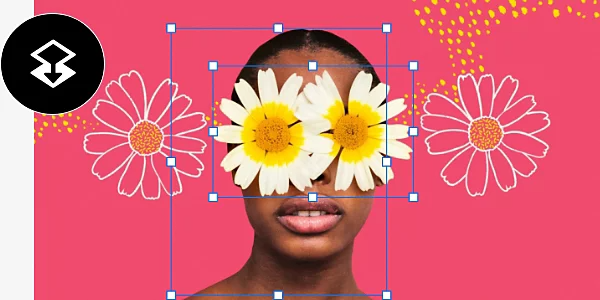
What it means to merge layers.
5 ways to merge layers.
1. Use the Merge Layers keyboard shortcut.
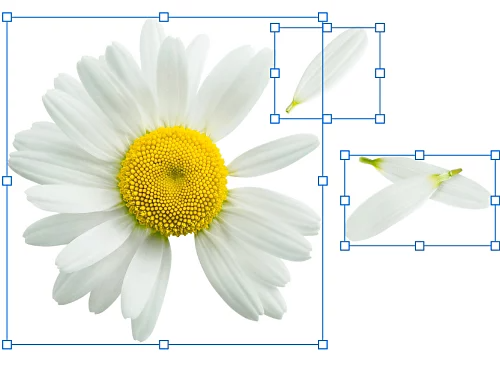
The easiest way to merge layers is to click one layer, hold Shift and click another. Then press Ctrl+E on Windows or Command+E on Mac to merge the two layers.
2. Use the Merge Layers tool.
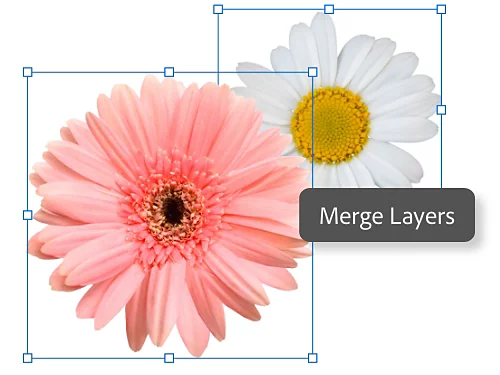
To use the Merge Layers tool, simply select one layer and then another using the method above. Then, instead of using the keyboard shortcut, go to the Layers panel and select Layers › Merge Layers.
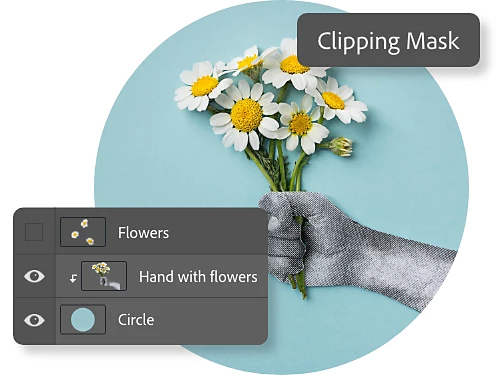
3. Merge all layers falling within a specific shape.
You can merge layers with a Clipping Mask, which is a layer that defines the shape and boundaries of a group of layers. A triangular clipping mask, for instance, will define the same triangular boundaries to all of the layers grouped within it. First, hide any layers that you don’t want to merge. Then select the base layer in the Clipping Mask. Finally, go to the menu and choose Layers › Clipping Mask.
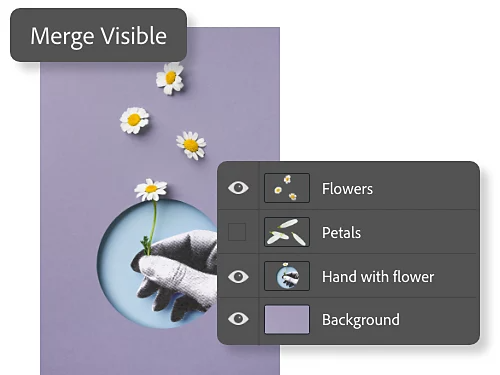
4. Merge all visible layers and layer groups.
As you work, you toggle the eye icon on and off to make certain layers appear and disappear from your project. To merge all visible layers, use the eye icon to ensure all your desired layers are visible. Then go to the menu and select Layers › Merge Visible.
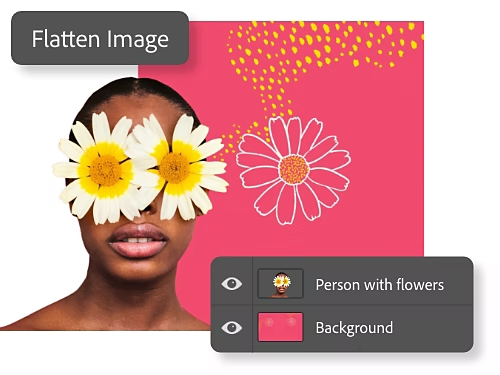
5. Combine multiple layers to create a background.
When you flatten layers in {{photoshop}}, you merge several visible layers into a single background layer. To do so, make sure all the layers you want to flatten are visible and then choose Layers › Flatten Image from the menu.
Keep in mind that merging layers is what’s known as a “destructive” editing method. You can’t go back and change it when you’re done. Make sure that you back up your layers if you want to work with them again.
Reasons to merge layers.
Reduce image file size.
Layers can contain immense amounts of data. Merging layers reduces the size of an image file and can also speed up your workflow.
Better apply filters.
The Camera Raw filter works on only one layer at a time. Merge layers so you can more easily apply the Camera Raw filter to everything you want to work with.
Edit your background.
Merge several background layers into a new one to create a single background layer that’s easier to work with than many linked layers.
Improve organisation.
Reduce the clutter of your project and keep better track of layers by merging multiple layers into one.
Best practices for merging layers.
- Stay organised by naming your layers and adhering to a consistent naming scheme. When you merge existing layers into a new one, rename the new layer accordingly.
- Keep in mind that merging layers does not work for adjustment or fill layers.
- Certain tools can work only on non-vector or rasterised layers. If an individual layer or group of layers won’t merge, try rasterising the layers first so they are compatible. To do so, select the layer you want to rasterise and select Layer › Rasterise.
- Once you have merged layers, they are merged permanently. As always with destructive edits, make sure you’re happy with your work before saving.
Learn more about working with layers.
Explore what you can do with these versatile features of {{photoshop}}.
Change the background of a photo.
Work with selection tools and layers to change out the background of an image.
Create a stunning photo collage.
Use the Object Selection tool and layer masking in Photoshop to make a surreal photo composite.