

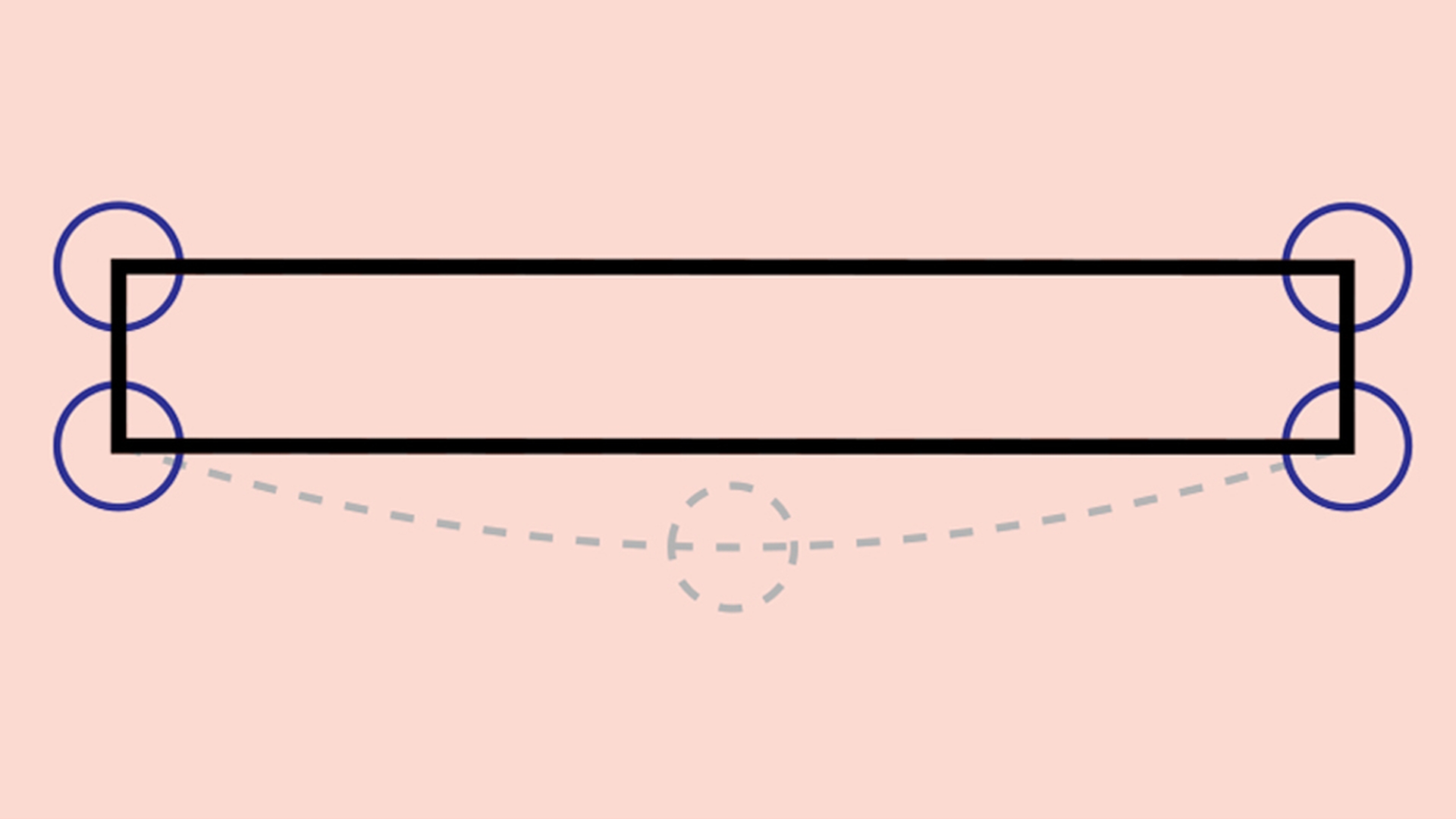


Scopri le nozioni di base sugli strumenti di disegno di Adobe Illustrator e impara ad esempio come usare gli strumenti Matita e Curvatura, come modificare i tracciati e tanto altro.
I tracciati sono costituiti da punti di ancoraggio collegati a segmenti di linee.
Seleziona i tracciati da modificare con lo strumento Selezione nel pannello Strumenti. Compare un rettangolo di selezione attorno all'intero tracciato da trasformare.
Lo strumento Selezione diretta nel pannello Strumenti consente di selezionare i punti di ancoraggio e i tracciati.
Un tracciato curvo è controllato da un punto di ancoraggio tramite le maniglie di direzione. Queste ultime controllano la forma della curva.
Le forme sono tracciati chiusi, dato che tutti i punti di ancoraggio del tracciato sono connessi tra loro.
2
Disegnare con lo strumento Matita
Impara a disegnare tracciati dritti e a mano libera con lo strumento Matita.
Cosa hai imparato: come disegnare con lo strumento Matita
Fai clic e tieni premuto sullo strumento Pennello nel pannello Strumenti e poi seleziona lo strumento Matita nel menu che verrà visualizzato.
Fai doppio clic sullo strumento Matita per configurarne le opzioni.
Trascina il cursore nel documento per creare un tracciato con lo strumento Matita.
Durante il trascinamento, torna all'inizio del tracciato per chiuderlo e creare una forma.
Posiziona lo strumento Matita sul tracciato per ridisegnarlo parzialmente. Trascina per ridisegnare, finendo sul tracciato.
Per disegnare un tracciato dritto con lo strumento Matita, trascina il cursore tenendo premuto il tasto Alt (Windows) o il tasto Opzione (macOS).
3
Disegnare con lo strumento curvatura
Scopri come disegnare tipi diversi di tracciati utilizzando lo strumento Curvatura.
Cosa hai imparato: come disegnare con lo strumento Curvatura
Seleziona lo strumento Curvatura nel pannello Strumenti.
Fai clic per impostare i punti di ancoraggio di un tracciato. Per impostazione predefinita, i punti di ancoraggio creano tracciati curvi.
Per creare un tracciato dritto con lo strumento Curvatura, fai doppio clic per impostare un punto di ancoraggio oppure fai doppio clic su un punto di ancoraggio esistente per raddrizzare il tracciato.
Per aggiungere punti a un tracciato, sposta il puntatore sul tracciato. Quando compare un segno Più (+) accanto al puntatore, fai clic per impostare un punto.
Trascina i punti di ancoraggio per spostarli.
4
Modificare tracciati e forme
Scopri come modificare i tracciati con gli strumenti Curvatura e Selezione diretta.
Cosa hai imparato: come modificare i tracciati
Seleziona lo strumento Selezione nel pannello Strumenti. Fai clic o trascina il cursore su una forma per selezionarla.
Seleziona lo strumento Selezione diretta nel pannello Strumenti per modificare i punti di ancoraggio di un tracciato. Fai clic sul bordo di un tracciato per visualizzare i relativi punti di ancoraggio. Trascina un punto di ancoraggio per vederne l’effetto sulla forma. Nel caso di un tracciato curvo, trascinalo per regolarne la curva. Nel caso di un tracciato dritto, trascinalo per spostarlo.
Seleziona lo strumento Curvatura nel pannello Strumenti per modificare i tracciati esistenti. Fai doppio clic su un punto di ancoraggio per convertire un tracciato da dritto a curvo e viceversa. Sposta il puntatore su un tracciato e fai clic sul segno Più (+) che appare accanto al puntatore per aggiungere un punto di ancoraggio.
5
Unire più elementi grafici per combinare i tracciati
Scopri come unire più tracciati utilizzando il comando Unisci.
Cosa hai imparato: come unire i tracciati
Seleziona due tracciati e fai clic su Oggetto > Tracciato > Unisci per unire le estremità più vicine tra loro.

You can control how Adobe websites use cookies and similar technologies by making choices below. But note that if you disable cookies and similar technologies entirely, Adobe websites may not function properly.
Cookies are small text files stored by your web browser when you use websites. There are also other technologies that can be used for similar purposes like HTML5 Local Storage and local shared objects, web beacons, and embedded scripts. These technologies help us do things like remembering you and your preferences when you return to our sites, measure how you use the website, conduct market research, and gather information about the ads you see and interact with.
You can make choices in the menu below about what cookies and other technologies you want us to use on Adobe sites when you visit them from this browser. You can always change those choices later by clicking on the Cookie Preferences link at the bottom of the page.
If enabled:
We can improve your experience by tailoring the site and the content to things we think might be of interest
We can better keep track of your preferences — like what language you prefer to use
We will better understand your likely interests so we can provide you more relevant Adobe ads and content on non-Adobe websites and in non-Adobe apps
It will help us improve the performance of our website and those of our partners who use the Adobe Experience Cloud
If disabled:
We won’t be able to remember you from session to session so the experience may not be tailored to your interests
You’ll still have access to the content of the site but certain features that depend on cookies may not function
You’ll still see ads, they just may not be as relevant to you
General information
You can control how Adobe websites use cookies and similar technologies by making choices below. But note that if you disable cookies and similar technologies entirely, Adobe websites may not function properly.
Cookies are small text files stored by your web browser when you use websites. There are also other technologies that can be used for similar purposes like HTML5 Local Storage, web beacons, and embedded scripts. These technologies help us do things like remembering you and your preferences when you return to our sites, measure how you use the website, conduct market research, and gather information about the ads you see and interact with.
You can make choices in the menu below about what cookies and other technologies you want us to use on Adobe sites when you visit them from this browser. You can always change those choices later by clicking on the Cookie Preferences link at the bottom of the page.
If enabled:
We can improve your experience by tailoring the site and the content to things we think might be of interest
We can better keep track of your preferences — like what language you prefer to use
We will better understand your likely interests so we can provide you more relevant Adobe ads and content on non-Adobe websites and in non-Adobe apps
It will help us improve the performance of our website and those of our partners who use the Adobe Experience Cloud
If disabled:
We won’t be able to remember you from session to session so the experience may not be tailored to your interests
We’ll still count your use of our site and services
You’ll still have access to the content of the site but certain features that depend on cookies may not function
You’ll still see ads, they just may not be as relevant to you
Operate the site and core servicesOperate site and measure engagement
Always active
These cookies are required, and they are used to enable the site and related services core functionality. Without them the site could not operate, so they cannot be disabled.
These cookies enable the site and related services’ core functionality and collect statistics about user engagement, such as counting active use to help us understand trends. These cookies cannot be disabled.
Measure performance
These cookies are used to analyze site usage to measure and improve performance. Without them Adobe cannot know what content is most valued and how often unique visitors return to the site, making it hard to improve information we offer to you.
These cookies are used to analyze site usage to measure and improve performance. Without them Adobe cannot know what content is most valued, making it hard to improve information we offer to you.
Extend functionality
These cookies are used to enhance the functionality of Adobe sites such as remembering your settings and preferences to deliver a personalized experience; for example, your username, your repeated visits, preferred language, your country, or any other saved preference.
Personalize advertising
These cookies are used to enable Adobe and our partners to serve ads more relevant to your interests. Without them you will still see ads, but they might not be as relevant to you.
Personalize advertising
These cookies are used to enable Adobe and our partners to serve ads more relevant to your interests. Without them you will still see ads, but they might not be as relevant to you.