
1. Scarica ifile di esercitazione e apri "poster.psd" in Photoshop. Troverai un’immagine di sfondo che simula le venature della carta e un livello con un’altra texture.
Come fondere le texture
2. Seleziona il livello "Black Texture", poi fai clic sullo strumento Selezione rettangolare (M) e seleziona parte della texture nera.
3. Fai clic su Aggiungi maschera di livello nella parte inferiore del pannello Livelli per creare una maschera.
4. Seleziona lo strumento Sposta (V) e posiziona il rettangolo con la texture nera nell’angolo inferiore destro.
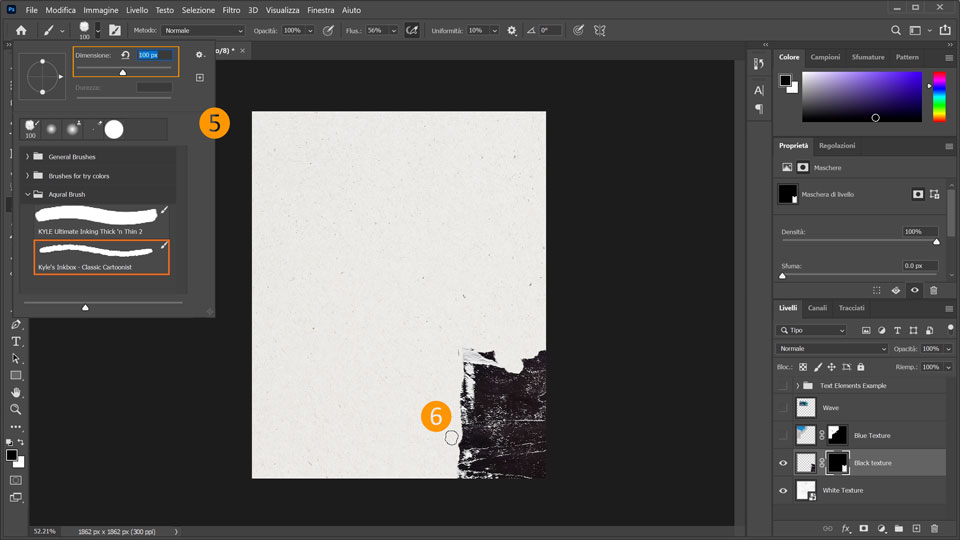
5. Con la miniatura della maschera di livello ancora selezionata, fai clic sul Pennello (B) e poi sulla piccola freccia accanto alla sua icona nella barra superiore per configurarlo. Seleziona "Kyles Inkbox - Classic cartoonist" nella cartella Aquarel brush e imposta la dimensione a 100 px. Verifica che il colore di primo piano sia impostato sul nero.
6. Ora usa il pennello con la texture nera per nascondere alcune parti dell’immagine e creare un bordo frastagliato.
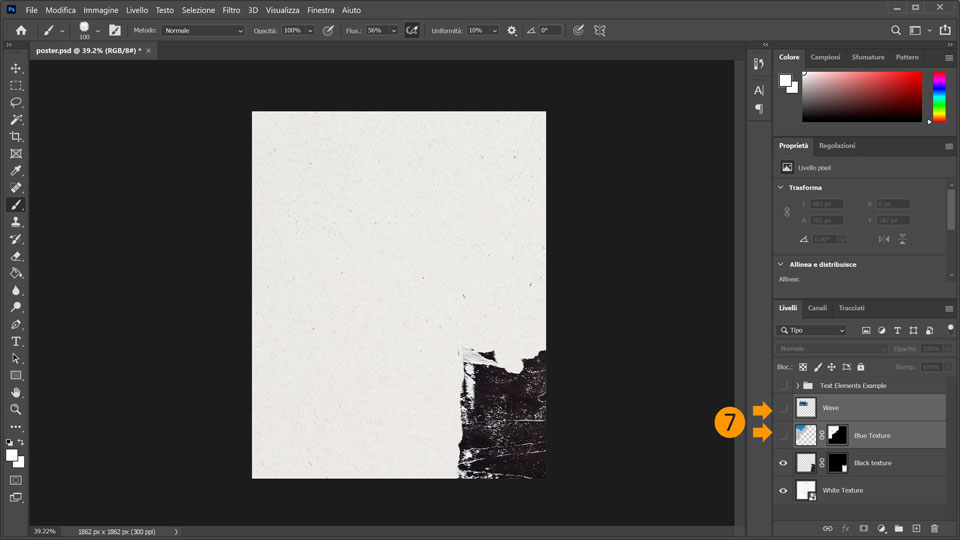
7. Seleziona il livello "Blue Texture" e rendilo visibile facendo clic sul quadrato a sinistra della sua miniatura. Esegui la stessa operazione con il livello "Wave" (verrà visualizzata l'icona a forma di occhio a indicare che il livello è visibile).
Come creare la scritta
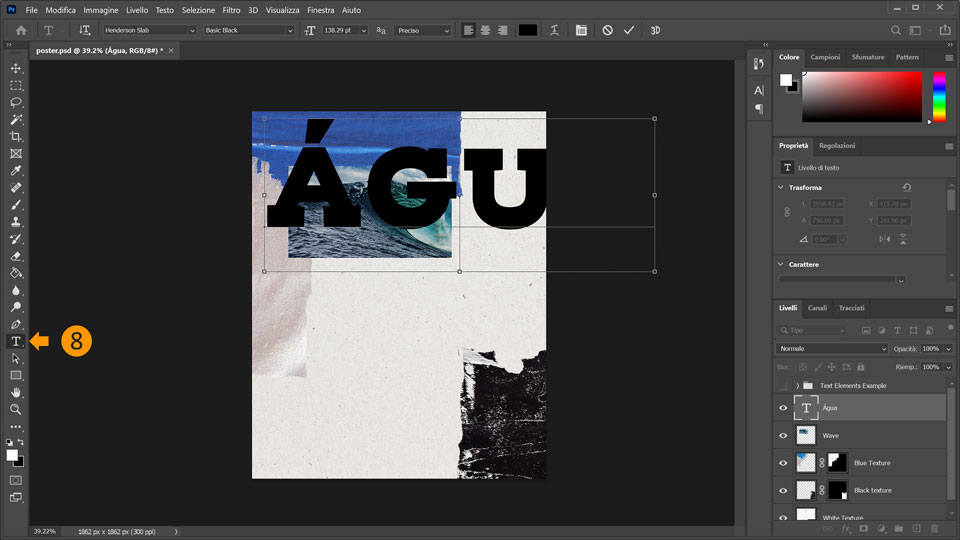
8. Ora aggiungi il testo alla composizione. Scegli lo strumento Testo
(T) e seleziona un font che ti piace. Araújo ha sincronizzato ‘Henderson Slab ’ da Adobe Fonts. Imposta la dimensione del font a 550 px e digita la parola ÁGUA.
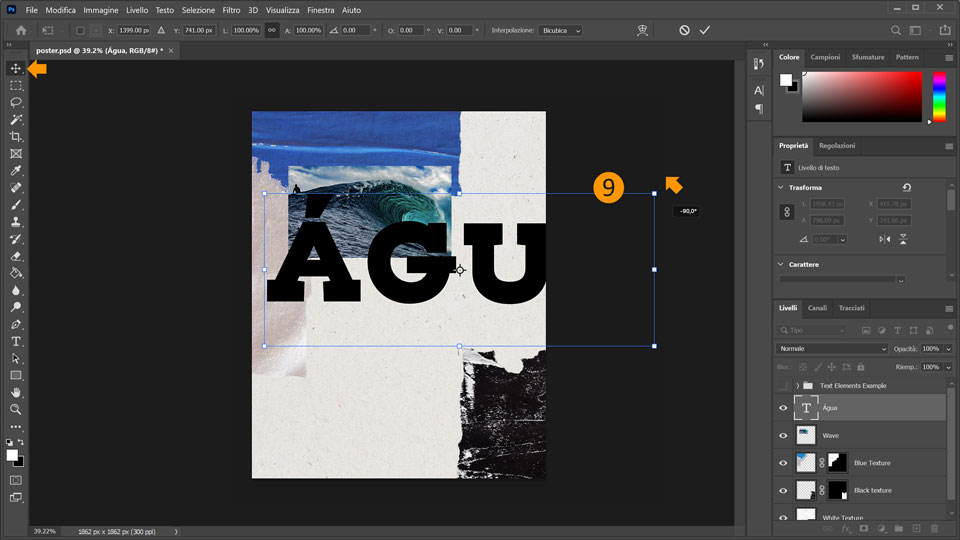
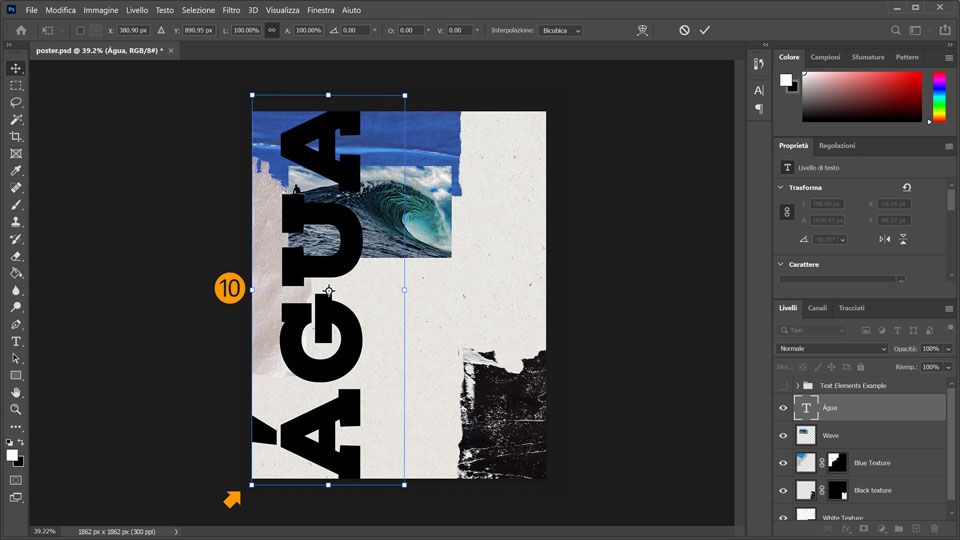
9. Fai clic sullo strumento Sposta (V) e porta il testo al centro del poster. Dopodiché, posiziona il mouse vicino all'angolo superiore destro del blocco di testo finché non si trasforma in un cursore a due frecce curve. Ora tieni premuto il tasto Maiusc e ruota il testo di 90 gradi.
10. Posiziona il testo in verticale a sinistra.
11. Apri il file "water ripple.psd" e seleziona Modifica > Copia.
12. Torna nel documento "poster.psd" e seleziona Modifica > Incolla.
13. Fai clic con il pulsante destro del mouse sul livello "Water Ripple" e scegli Crea maschera di ritaglio
per aggiungere un effetto ondulato al testo.
14. Aggiungi altro testo alla tua composizione e fai qualche prova con le dimensioni, l’interlinea, il posizionamento e altri effetti decorativi. Se vuoi attenerti al nostro esempio, fai clic sul quadrato a sinistra della freccia e dell’icona della cartella "Text Elements Example" per rendere visibile il gruppo.
Ecco fatto!
Ora tocca a te creare un poster con Photoshop. Scarica le risorse disponibili oppure usa le tue e condividi il risultato finale su Facebook, Twitter e Instagram con l’hashtag #MadewithPhotoshop per ricevere commenti e restare in contatto con le altre menti creative della nostra community.
Behance:https://www.behance.net/live Segui i nostri streaming dal vivo tenuti da professionisti del settore, su progetti reali in tempo reale e trova l’ispirazione giusta.

23 luglio 2022
Prova questi tutorial con Photoshop
Modifica foto per creare nuove immagini e grafici.
You can control how Adobe websites use cookies and similar technologies by making choices below. But note that if you disable cookies and similar technologies entirely, Adobe websites may not function properly.
Cookies are small text files stored by your web browser when you use websites. There are also other technologies that can be used for similar purposes like HTML5 Local Storage and local shared objects, web beacons, and embedded scripts. These technologies help us do things like remembering you and your preferences when you return to our sites, measure how you use the website, conduct market research, and gather information about the ads you see and interact with.
You can make choices in the menu below about what cookies and other technologies you want us to use on Adobe sites when you visit them from this browser. You can always change those choices later by clicking on the Cookie Preferences link at the bottom of the page.
If enabled:
We can improve your experience by tailoring the site and the content to things we think might be of interest
We can better keep track of your preferences — like what language you prefer to use
We will better understand your likely interests so we can provide you more relevant Adobe ads and content on non-Adobe websites and in non-Adobe apps
It will help us improve the performance of our website and those of our partners who use the Adobe Experience Cloud
If disabled:
We won’t be able to remember you from session to session so the experience may not be tailored to your interests
You’ll still have access to the content of the site but certain features that depend on cookies may not function
You’ll still see ads, they just may not be as relevant to you
General information
You can control how Adobe websites use cookies and similar technologies by making choices below. But note that if you disable cookies and similar technologies entirely, Adobe websites may not function properly.
Cookies are small text files stored by your web browser when you use websites. There are also other technologies that can be used for similar purposes like HTML5 Local Storage, web beacons, and embedded scripts. These technologies help us do things like remembering you and your preferences when you return to our sites, measure how you use the website, conduct market research, and gather information about the ads you see and interact with.
You can make choices in the menu below about what cookies and other technologies you want us to use on Adobe sites when you visit them from this browser. You can always change those choices later by clicking on the Cookie Preferences link at the bottom of the page.
If enabled:
We can improve your experience by tailoring the site and the content to things we think might be of interest
We can better keep track of your preferences — like what language you prefer to use
We will better understand your likely interests so we can provide you more relevant Adobe ads and content on non-Adobe websites and in non-Adobe apps
It will help us improve the performance of our website and those of our partners who use the Adobe Experience Cloud
If disabled:
We won’t be able to remember you from session to session so the experience may not be tailored to your interests
We’ll still count your use of our site and services
You’ll still have access to the content of the site but certain features that depend on cookies may not function
You’ll still see ads, they just may not be as relevant to you
Operate the site and core servicesOperate site and measure engagement
Always active
These cookies are required, and they are used to enable the site and related services core functionality. Without them the site could not operate, so they cannot be disabled.
These cookies enable the site and related services’ core functionality and collect statistics about user engagement, such as counting active use to help us understand trends. These cookies cannot be disabled.
Measure performance
These cookies are used to analyze site usage to measure and improve performance. Without them Adobe cannot know what content is most valued and how often unique visitors return to the site, making it hard to improve information we offer to you.
These cookies are used to analyze site usage to measure and improve performance. Without them Adobe cannot know what content is most valued, making it hard to improve information we offer to you.
Extend functionality
These cookies are used to enhance the functionality of Adobe sites such as remembering your settings and preferences to deliver a personalized experience; for example, your username, your repeated visits, preferred language, your country, or any other saved preference.
Personalize advertising
These cookies are used to enable Adobe and our partners to serve ads more relevant to your interests. Without them you will still see ads, but they might not be as relevant to you.
Personalize advertising
These cookies are used to enable Adobe and our partners to serve ads more relevant to your interests. Without them you will still see ads, but they might not be as relevant to you.