Lege fest, auf welche Bildbereiche in Adobe Photoshop eine Einstellungsebene angewendet wird.

Benötigte Materialien
In der Anwendung üben
Mit Einstellungsebenen verfügst du über mehr Kontrolle und Flexibilität bei der Bildbearbeitung als mit direkten Anpassungen. Du kannst verlustfreie Farb- und Tonwertkorrekturen vornehmen und die Einstellungsebenen weiter bearbeiten, ohne die Bildpunkte immer wieder zu verändern. Anpassungen gefallen dir nicht mehr? Kein Problem – verberge oder verwerfe die Einstellungsebene, um zum Originalbild zurückzukehren.
Die betroffenen Ebenen einer Einstellungsebene bestimmen.
Einstellungsebenen wirken sich standardmäßig auf alle Ebenen aus, die im Bedienfeld „Ebenen“ unter ihnen aufgeführt sind. In diesem Beispiel wurde eine Einstellungsebene für Farbton/Sättigung verwendet, um die Sättigung einer vollständigen Komposition mit zwei Ebenen zu reduzieren.
Auf der Seite
Bildqualität optimieren findest du ein Video zur Anpassung von Farbton und Sättigung.
Du kannst vorgeben, dass sich eine Einstellungsebene nur auf die direkt unter ihr liegende Ebene auswirkt.
Vergewissere dich, dass das Bedienfeld „Eigenschaften“ angezeigt wird. Wähle ggf. „Fenster > Eigenschaften“. Wähle die Einstellungsebene im Bedienfeld „Ebenen“ aus. Klicke unten im Bedienfeld „Eigenschaften“ auf das Symbol „Schnittmaske erstellen“, um die Einstellung nur auf die darunter liegende Ebene anzuwenden.
Um die Einstellungsebene auf alle folgenden Ebenen anzuwenden, wähle erneut die Einstellungsebene aus. Klicke dann im Bedienfeld „Eigenschaften“ auf das Symbol „Schnittmaske erstellen“.
Selektive Bildbearbeitung.
Jede Einstellungsebene beinhaltet eine Ebenenmaske. Ist die Ebenenmaske komplett weiß, wird die Einstellung auf das gesamte Bild angewendet. Enthält sie auch schwarze Bereiche, wird die Einstellungsebene nur an den Stellen auf das Bild angewendet, an denen die Ebenenmaske weiß ist.
In diesem Tutorial haben wir einen Teil der Komposition ausgewählt. Der entsprechende Bereich der Ebenenmaske wird schwarz gefüllt. Die Entsättigung wird dadurch auf die Bereiche des Bildes angewendet, die in der Maske weiß dargestellt sind.
Die Anpassungen verändern.
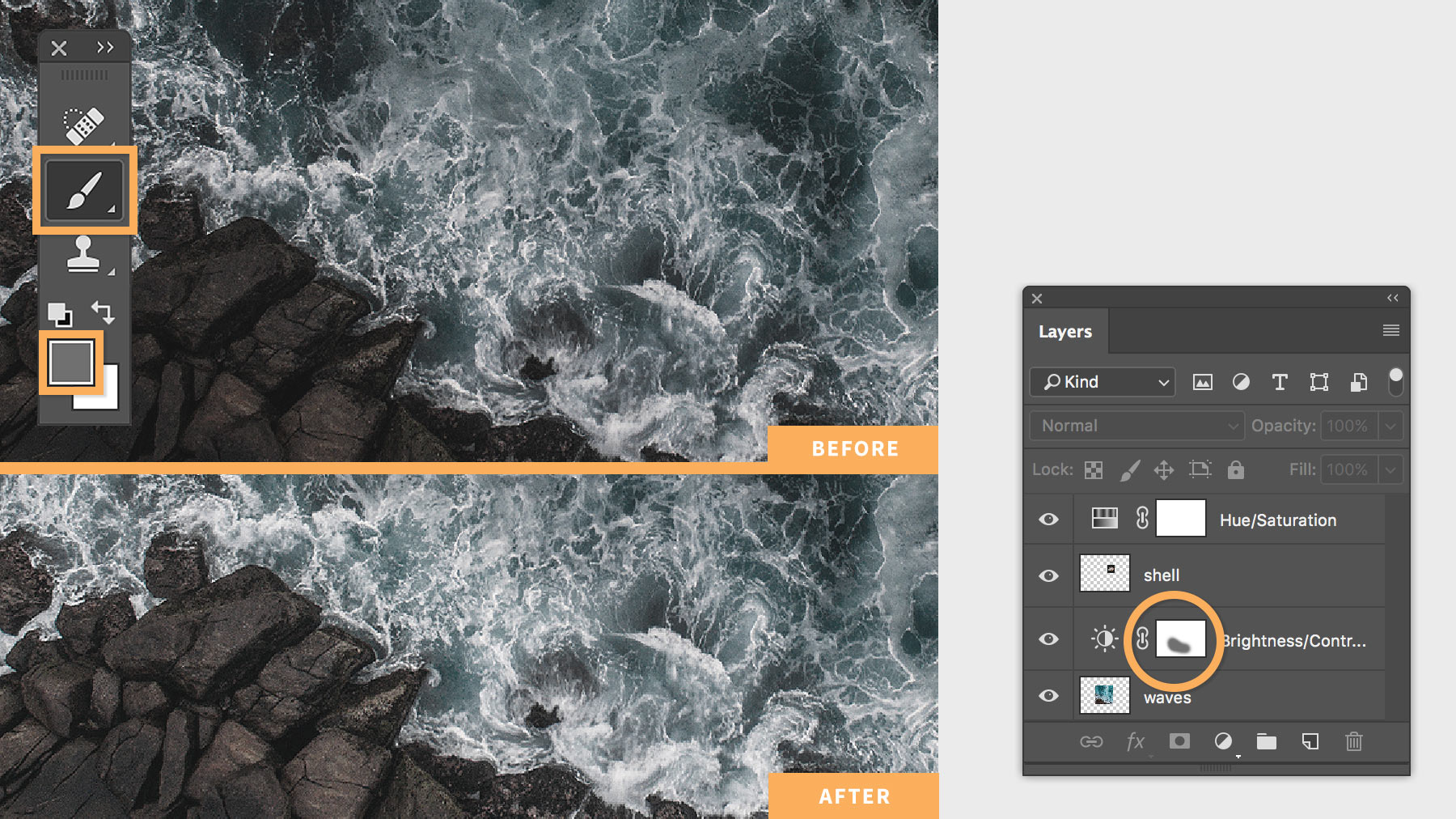
Zeichne mit einem beliebigen Zeichenwerkzeug in unterschiedlichen Grauschattierungen über die Einstellungsebene. Die Anpassungen werden in unterschiedlicher Intensität angewendet: Weiße Bereiche stehen für die höchste Intensität, in grauen Bereichen wird eine abgeschwächte Einstellung vorgenommen und in schwarzen Bereichen bleibt der Effekt verborgen.
Auf die untere Ebene wurden verschiedene Farb- und Tonwertkorrekturen angewendet, um den gewünschten Effekt zu erzielen: zuerst eine Farbton/Sättigung-Einstellungsebene, die die Sättigung der gesamten Szene reduzierte, dann eine Helligkeit/Kontrast-Einstellungsebene, mit der Helligkeit und Kontrast gesenkt wurden (siehe Vorher-Bild). Um zu verhindern, dass die Felsen zu dunkel werden, haben wir mit einem großen, weichen Pinsel grau über die Ebenenmaske gemalt (siehe Nachher-Bild).
Wir hoffen, das Tutorial hat dich auf den Geschmack gebracht. Viel Spaß beim Ausprobieren an deinen eigenen Fotos.

21. Februar 2018
Probiere diese Tutorials mit Photoshop aus
Fotos bearbeiten, um neue Bilder und Grafiken zu schaffen
You can control how Adobe websites use cookies and similar technologies by making choices below. But note that if you disable cookies and similar technologies entirely, Adobe websites may not function properly.
Cookies are small text files stored by your web browser when you use websites. There are also other technologies that can be used for similar purposes like HTML5 Local Storage and local shared objects, web beacons, and embedded scripts. These technologies help us do things like remembering you and your preferences when you return to our sites, measure how you use the website, conduct market research, and gather information about the ads you see and interact with.
You can make choices in the menu below about what cookies and other technologies you want us to use on Adobe sites when you visit them from this browser. You can always change those choices later by clicking on the Cookie Preferences link at the bottom of the page.
If enabled:
We can improve your experience by tailoring the site and the content to things we think might be of interest
We can better keep track of your preferences — like what language you prefer to use
We will better understand your likely interests so we can provide you more relevant Adobe ads and content on non-Adobe websites and in non-Adobe apps
It will help us improve the performance of our website and those of our partners who use the Adobe Experience Cloud
If disabled:
We won’t be able to remember you from session to session so the experience may not be tailored to your interests
You’ll still have access to the content of the site but certain features that depend on cookies may not function
You’ll still see ads, they just may not be as relevant to you
General information
You can control how Adobe websites use cookies and similar technologies by making choices below. But note that if you disable cookies and similar technologies entirely, Adobe websites may not function properly.
Cookies are small text files stored by your web browser when you use websites. There are also other technologies that can be used for similar purposes like HTML5 Local Storage, web beacons, and embedded scripts. These technologies help us do things like remembering you and your preferences when you return to our sites, measure how you use the website, conduct market research, and gather information about the ads you see and interact with.
You can make choices in the menu below about what cookies and other technologies you want us to use on Adobe sites when you visit them from this browser. You can always change those choices later by clicking on the Cookie Preferences link at the bottom of the page.
If enabled:
We can improve your experience by tailoring the site and the content to things we think might be of interest
We can better keep track of your preferences — like what language you prefer to use
We will better understand your likely interests so we can provide you more relevant Adobe ads and content on non-Adobe websites and in non-Adobe apps
It will help us improve the performance of our website and those of our partners who use the Adobe Experience Cloud
If disabled:
We won’t be able to remember you from session to session so the experience may not be tailored to your interests
We’ll still count your use of our site and services
You’ll still have access to the content of the site but certain features that depend on cookies may not function
You’ll still see ads, they just may not be as relevant to you
Operate the site and core servicesOperate site and measure engagement
Always active
These cookies are required, and they are used to enable the site and related services core functionality. Without them the site could not operate, so they cannot be disabled.
These cookies enable the site and related services’ core functionality and collect statistics about user engagement, such as counting active use to help us understand trends. These cookies cannot be disabled.
Measure performance
These cookies are used to analyze site usage to measure and improve performance. Without them Adobe cannot know what content is most valued and how often unique visitors return to the site, making it hard to improve information we offer to you.
These cookies are used to analyze site usage to measure and improve performance. Without them Adobe cannot know what content is most valued, making it hard to improve information we offer to you.
Extend functionality
These cookies are used to enhance the functionality of Adobe sites such as remembering your settings and preferences to deliver a personalized experience; for example, your username, your repeated visits, preferred language, your country, or any other saved preference.
Personalize advertising
These cookies are used to enable Adobe and our partners to serve ads more relevant to your interests. Without them you will still see ads, but they might not be as relevant to you.
Personalize advertising
These cookies are used to enable Adobe and our partners to serve ads more relevant to your interests. Without them you will still see ads, but they might not be as relevant to you.