In Photoshop Bilder zusammenfügen – Tutorial für Fotomontagen
In diesem interaktiven Photoshop Tutorial lernst du Schritt für Schritt, wie du Bilder in Photoshop zusammenfügen kannst. Fotografin Laura Zalenga zeigt dir, wie du mit einer präzisen Auswahl und einer Ebenenmaske eine Doppelgängerin in das Foto einfügst – mit wenigen Klicks, realistisch und kreativ.
Benötigte Materialien
In der Anwendung üben
Das lernst du in diesem Tutorial
Präzise Objektauswahl mit der Funktion Motiv auswählen
Eine Ebenenmaske erstellen und bearbeiten, um die Doppelgängerin nahtlos einzufügen
Mit dem Verschieben-Werkzeug die zweite Person perfekt positionieren
Auswahl verfeinern mit dem Pinsel-Werkzeug
Schritt-für-Schritt-Anleitung
1. Objekt auswählen
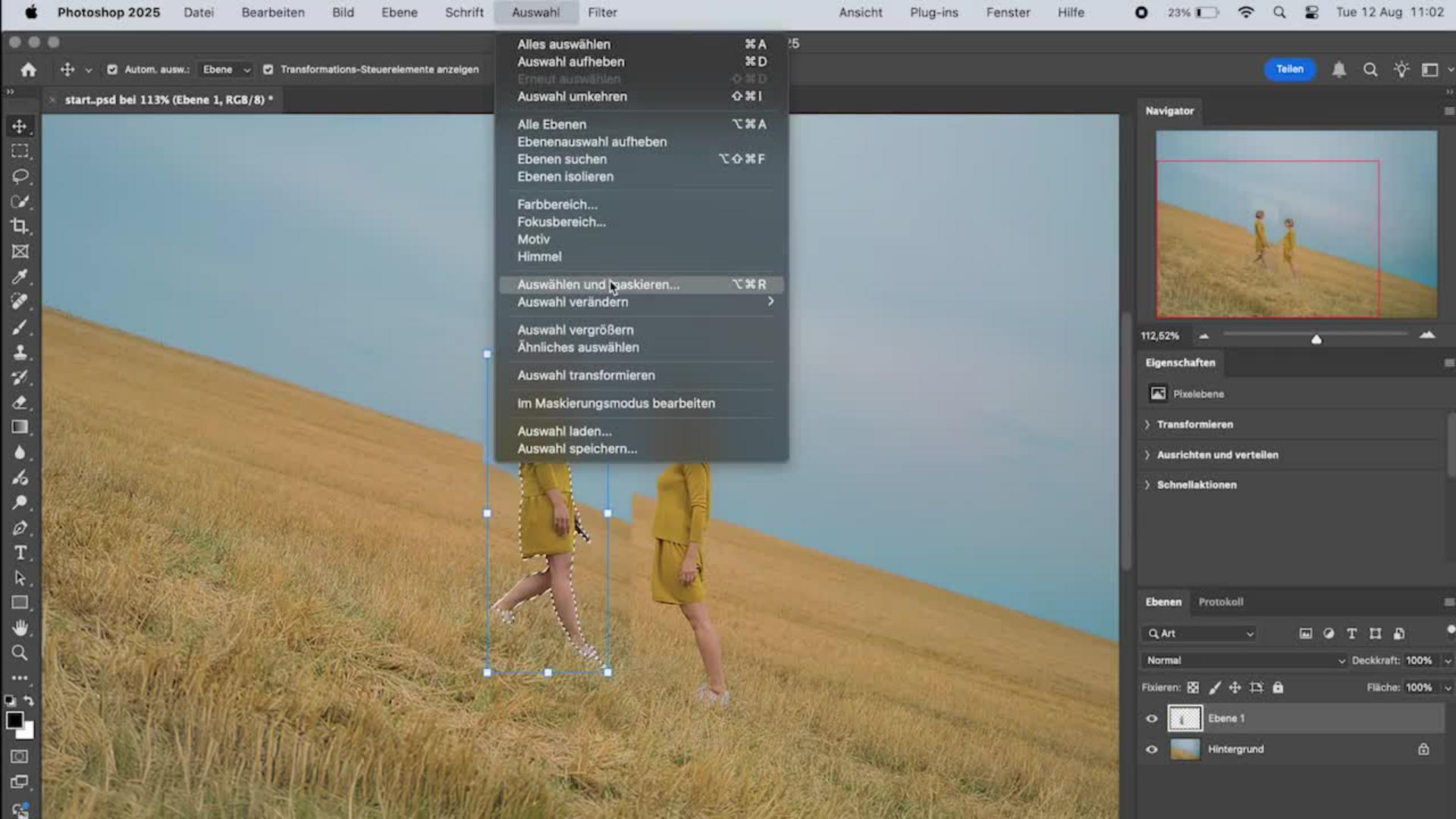
Mithilfe der Motiv-Auswählen-Funktion markierst du die Person im Bild. So gelingt eine saubere Freistellung, die die Basis für das spätere Zusammenfügen ist.
Stelle sicher, dass im Ebenenbedienfeld die richtige Ebene aktiv ist.
Gehe auf Auswahl > Motiv, um die Person automatisch zu erkennen.
Mit Auswahl > Auswählen und maskieren... erstellst du eine Maske mit weichen Kanten.
2. Auswahl verfeinern
Gerade bei Haaren, Händen oder Übergängen zwischen Vordergrund und Hintergrund ist Feinarbeit gefragt.
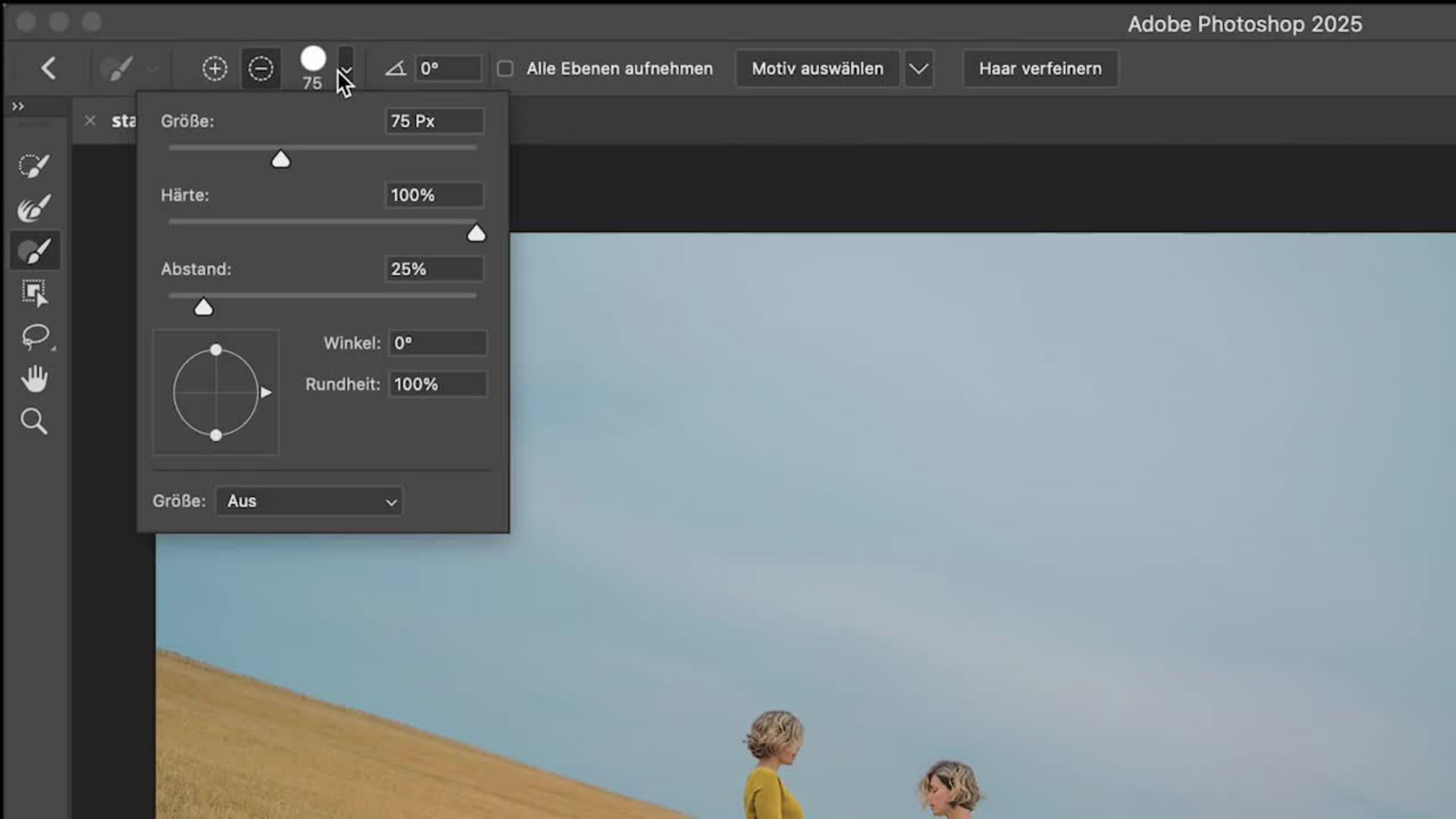
Nutze das Pinselwerkzeug im Menü, um Pixel genau zu bearbeiten.
Über das Rechtsklickmenü kannst du Größe, Härte und Deckkraft anpassen.
Mit gedrückter Shift-Taste malst du gerade Linien nach.
Tipp: Die KI in Adobe Photoshop erkennt immer mehr Details automatisch und erleichtert dir die Arbeit enorm.
3. Ebenenmaske erstellen
Die Ebenenmaske macht nur das sichtbar, was du behalten möchtest.
Erstelle eine Ebenenmaske über Menü: Ebene > Ebenenmaske > Auswahl einblenden
Mit einem schwarzen Pinsel blendest du Elemente aus, mit Weiß machst du sie sichtbar
So kannst du auch nachträglich deine Auswahl bearbeiten oder Überlagerungen anpassen.
Ein Beispiel: Möchtest du ein Porträt mit zusätzlichem Objekt kombinieren, kannst du die Maske flexibel nachjustieren.
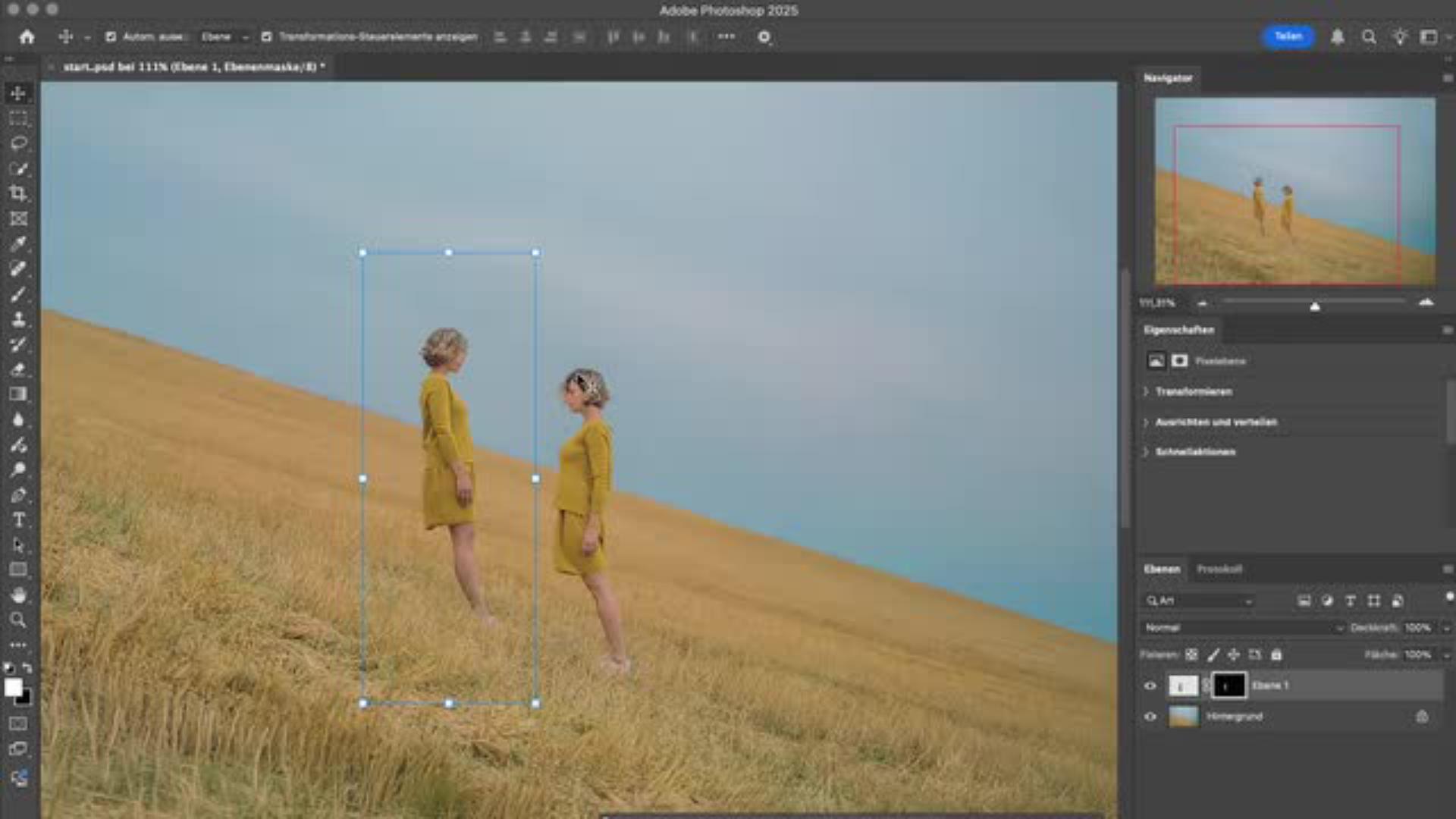
4. Doppelgängerin positionieren
Jetzt kommt der kreative Teil:
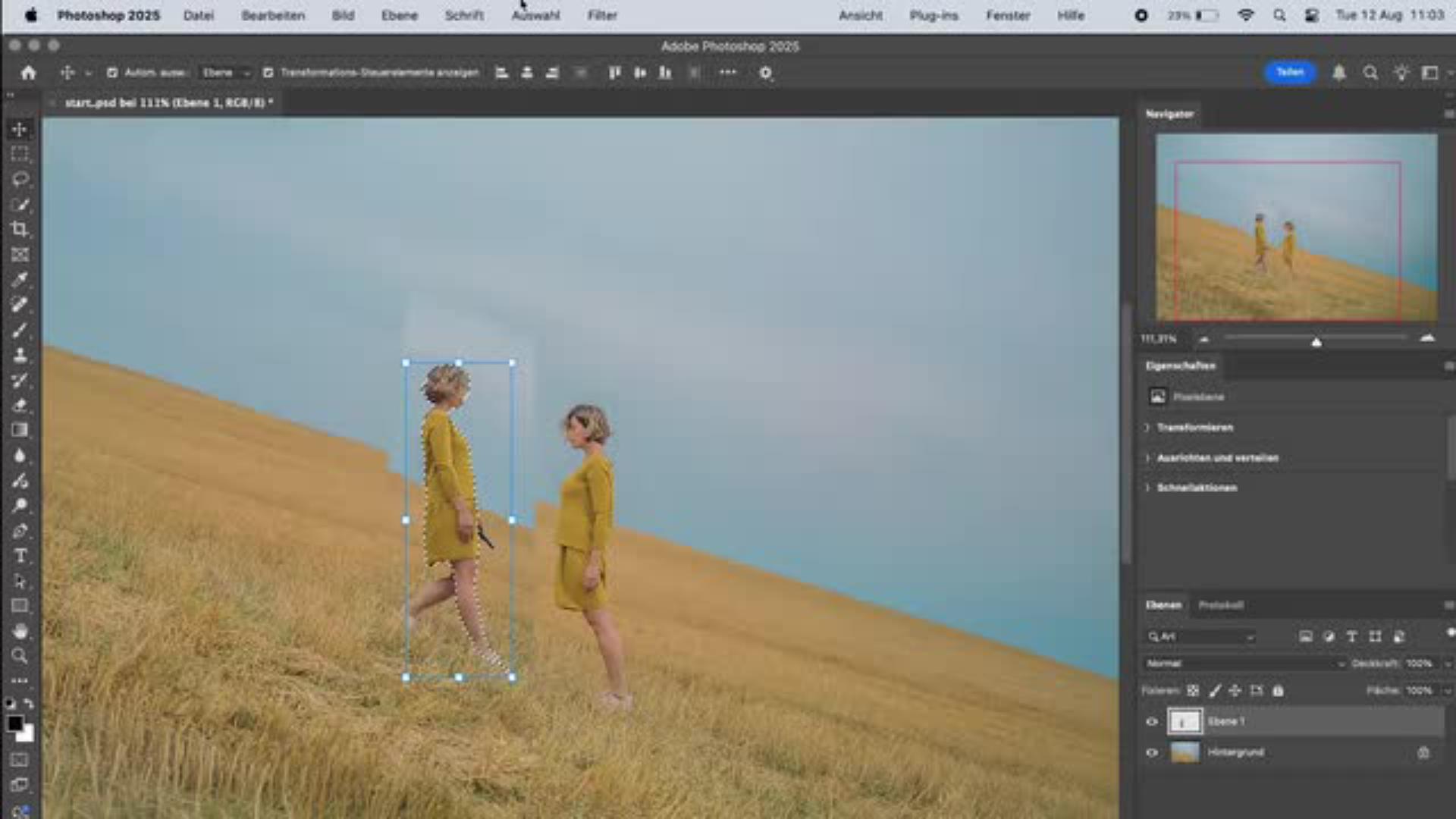
Aktiviere das Verschieben-Werkzeug in der Werkzeugleiste
Ziehe die zweite Person an die gewünschte Stelle
Passe die Größe oder den Modus an, bis das Ergebnis natürlich wirkt
Das Zusammenfügen mehrerer Fotos funktioniert nicht nur mit Personen, sondern auch mit Grafiken, Produkten oder ganzen Panorama-Aufnahmen.
Probiere es doch einfach selbst aus und öffne das Tutorial mit der Übungsdatei in deiner Photoshop-App. Den Button findest du oben auf der Seite.
Warum in Photoshop Bilder zusammenfügen?
Mit der professionellen Bildbearbeitungssoftware Adobe Photoshop eröffnen sich unzählige Möglichkeiten:
Bilder zusammenfügen, um kreative Fotomontagen zu erstellen
Personen oder Objekte duplizieren
Farben anpassen und harmonische Übergänge schaffen
Realistische Kanten und feine Details erhalten
Gerade für Social Media oder E-Commerce sind solche Montagen von großem Wert: Sie lassen Produkte, Fotos oder Porträts einzigartig erscheinen. Mit ein paar Tipps & Tricks kannst auch du beeindruckende Ergebnisse erzielen – egal, ob auf Windows oder Mac.
Über die Künstlerin
Die Fotografin Laura Zalenga (*1990) ist bekannt für ihre klaren Bildsprachen und kreativen Fotomontagen. Seit 2009 arbeitet sie als Autodidaktin mit digitaler Fotografie und tritt oft selbst als Motiv vor die Kamera. Ihre Arbeiten bewegen sich zwischen Realität und Inszenierung, wobei sie mit digitaler Bildbearbeitung in Photoshop atmosphärische Dichte schafft.
Zalenga arbeitete bereits mit Adobe, Disney, Facebook, Huawei und Sony zusammen und verfügt über eine große Fangemeinde in den sozialen Netzwerken. Mit ihrem Ideenreichtum zählt sie zu den jungen Fotografinnen, die die Bildwahrnehmung der Gegenwart entscheidend mitprägen.
Über Ebenen, Masken und das Verschieben-Werkzeug lassen sich Objekte, Personen oder Elemente realistisch kombinieren.
Kann ich Bilder auch automatisch zusammenfügen?
Ja, mit Befehlen wie Motiv auswählen oder KI-gestützten Funktionen bietet Photoshop schnelle Methoden. Für Panoramen gibt es zudem spezielle Automatik-Optionen.
Was tun, wenn Übergänge nicht sauber wirken?
Nutze das Pinselwerkzeug auf der Ebenenmaske, passe die Deckkraft an und arbeite an feinen Rändern – so entstehen saubere Ergebnisse.
Kann ich mit Photoshop auch Grafiken oder JPEGs kombinieren?
Ja, du kannst alle gängigen Dateiformate (JPG, PNG, TIFF) importieren und in einer Datei zusammenfügen.

Probiere diese Tutorials mit Photoshop aus
Fotos bearbeiten, um neue Bilder und Grafiken zu schaffen
You can control how Adobe websites use cookies and similar technologies by making choices below. But note that if you disable cookies and similar technologies entirely, Adobe websites may not function properly.
Cookies are small text files stored by your web browser when you use websites. There are also other technologies that can be used for similar purposes like HTML5 Local Storage and local shared objects, web beacons, and embedded scripts. These technologies help us do things like remembering you and your preferences when you return to our sites, measure how you use the website, conduct market research, and gather information about the ads you see and interact with.
You can make choices in the menu below about what cookies and other technologies you want us to use on Adobe sites when you visit them from this browser. You can always change those choices later by clicking on the Cookie Preferences link at the bottom of the page.
If enabled:
We can improve your experience by tailoring the site and the content to things we think might be of interest
We can better keep track of your preferences — like what language you prefer to use
We will better understand your likely interests so we can provide you more relevant Adobe ads and content on non-Adobe websites and in non-Adobe apps
It will help us improve the performance of our website and those of our partners who use the Adobe Experience Cloud
If disabled:
We won’t be able to remember you from session to session so the experience may not be tailored to your interests
You’ll still have access to the content of the site but certain features that depend on cookies may not function
You’ll still see ads, they just may not be as relevant to you
General information
You can control how Adobe websites use cookies and similar technologies by making choices below. But note that if you disable cookies and similar technologies entirely, Adobe websites may not function properly.
Cookies are small text files stored by your web browser when you use websites. There are also other technologies that can be used for similar purposes like HTML5 Local Storage, web beacons, and embedded scripts. These technologies help us do things like remembering you and your preferences when you return to our sites, measure how you use the website, conduct market research, and gather information about the ads you see and interact with.
You can make choices in the menu below about what cookies and other technologies you want us to use on Adobe sites when you visit them from this browser. You can always change those choices later by clicking on the Cookie Preferences link at the bottom of the page.
If enabled:
We can improve your experience by tailoring the site and the content to things we think might be of interest
We can better keep track of your preferences — like what language you prefer to use
We will better understand your likely interests so we can provide you more relevant Adobe ads and content on non-Adobe websites and in non-Adobe apps
It will help us improve the performance of our website and those of our partners who use the Adobe Experience Cloud
If disabled:
We won’t be able to remember you from session to session so the experience may not be tailored to your interests
We’ll still count your use of our site and services
You’ll still have access to the content of the site but certain features that depend on cookies may not function
You’ll still see ads, they just may not be as relevant to you
Operate the site and core servicesOperate site and measure engagement
Always active
These cookies are required, and they are used to enable the site and related services core functionality. Without them the site could not operate, so they cannot be disabled.
These cookies enable the site and related services’ core functionality and collect statistics about user engagement, such as counting active use to help us understand trends. These cookies cannot be disabled.
Measure performance
These cookies are used to analyze site usage to measure and improve performance. Without them Adobe cannot know what content is most valued and how often unique visitors return to the site, making it hard to improve information we offer to you.
These cookies are used to analyze site usage to measure and improve performance. Without them Adobe cannot know what content is most valued, making it hard to improve information we offer to you.
Extend functionality
These cookies are used to enhance the functionality of Adobe sites such as remembering your settings and preferences to deliver a personalized experience; for example, your username, your repeated visits, preferred language, your country, or any other saved preference.
Personalize advertising
These cookies are used to enable Adobe and our partners to serve ads more relevant to your interests. Without them you will still see ads, but they might not be as relevant to you.
Personalize advertising
These cookies are used to enable Adobe and our partners to serve ads more relevant to your interests. Without them you will still see ads, but they might not be as relevant to you.