


Photoshop Dodge and Burn Tutorial – Hautretusche einfach erklärt
Mit der Photoshop Dodge and Burn Technik lassen sich Hautunreinheiten sanft ausgleichen, ohne die natürliche Struktur zu verlieren. In diesem interaktiven Tutorial zeigt Fotokünstlerin Amelie Satzger, wie du mithilfe von Gradationskurven, Abwedler- und Nachbelichter-Werkzeug sowie smarten Ebenenmethoden Haut glättest und einen atmosphärischen Vintage-Look kreierst.
Das lernst du im interaktiven Dodge & Burn-Tutorial
Hautunreinheiten mit Reparaturpinsel & Stempel entfernen
Dodge and Burn Ebenen mit Gradationskurven oder grauen Ebenen erstellen
Haut sanft und natürlich glätten
Mit Farbkorrekturen einen Vintage-Look gestalten
Tipps für Fotografen und Bildbearbeiter, wie man Dodge & Burn in der Praxis einsetzt
Benötigte Materialien
In der Anwendung üben
Schritt-für-Schritt: Hautretusche mit Dodge & Burn in Photoshop
1. Unreinheiten korrigieren
Mit dem Reparaturpinsel und dem Klon-Stempel entfernst du auf einer separaten Ebene grobe Hautfehler – der erste Schritt zu einem sauberen Retusche-Ergebnis mit der Dodge and Burn Technik. So bereitest du das Bild für präzises Abwedeln und Nachbelichten vor.
2. Dodge & Burn Ebenen anlegen
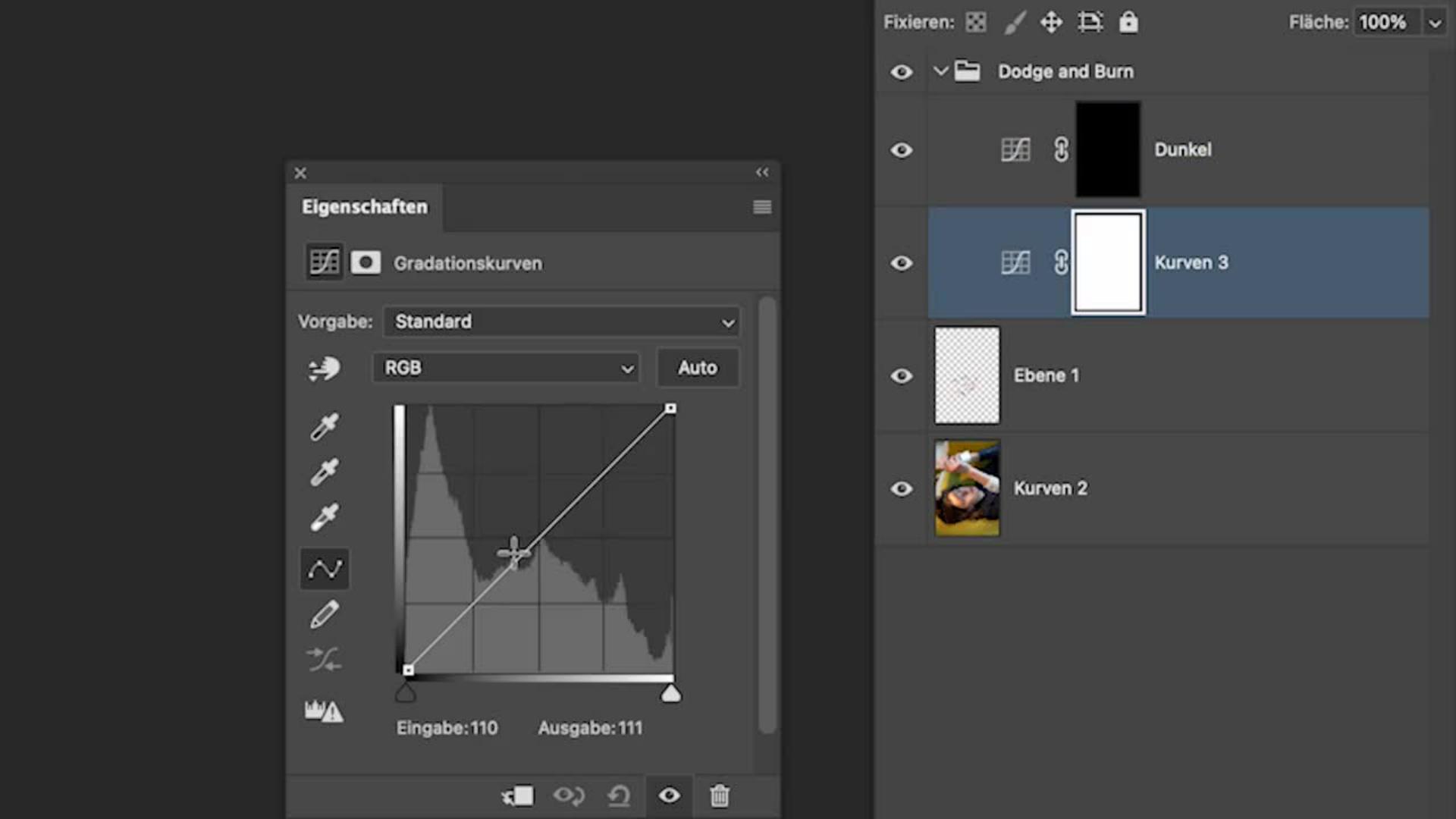
Das Herzstück von Dodge & Burn in Adobe Photoshop CC sind zwei Gradationskurven oder alternativ eine graue Ebene im Modus „Ineinanderkopieren“:
eine Ebene zum Aufhellen (Dodge)
eine Ebene zum Abdunkeln (Burn)
Amelie erklärt dir im interaktiven Tutorial, wie du in Photoshop eine neue Ebene mit neutraler Farbe füllst. Anschließend malst du mit einer weichen Pinselspitze Licht und Schatten selektiv ins Bild. So kontrollierst du die Wirkung einzelner Bildbereiche ganz gezielt.
3. Haut natürlich glätten
Mit geringer Deckkraft arbeitest du dich Schritt für Schritt vor. Dodge & Burn sorgt dafür, dass Poren und Strukturen erhalten bleiben – im Gegensatz zu Weichzeichner-Techniken. So entsteht eine weiche, natürliche Haut ohne sichtbare Halos.
4. Vintage-Look hinzufügen
Zum Abschluss bringst du mit Belichtungskorrekturen, Farbton/Sättigung und Farbbalance Wärme und Stimmung ins Porträt. Der sanfte Lichtschleier verleiht dem Bild Tiefe und erinnert an analoge Fotopapier-Entwicklungen.
Benötigte Materialien
In der Anwendung üben
Über die Künstlerin
Amelie Satzger ist eine Fotokünstlerin und Videografin, die mit ihren farbenfrohen, inszenierten Bildern in surreale Welten entführt. Ihre Werke erzählen Geschichten, die oft autobiografische Elemente enthalten, und lassen Worte aus Literatur und Songtexten in visuelle Kunstwerke verwandeln.
Ihre Fotografien wurden bereits international ausgestellt, u. a. bei der Fotofever in Paris und der United Photo Industries Gallery in New York. Als Speakerin und Workshop-Leiterin gibt sie Einblicke in kreative Bildgestaltung und zeigt, wie sie mit Photoshop, Dodge & Burn und weiteren Retusche-Techniken neue Wirklichkeiten erschafft.
Was ist Dodge and Burn in Photoshop? Eine Bildbearbeitungstechnik, bei der man gezielt Hautstellen aufhellt (Dodge) oder abdunkelt (Burn), um Unreinheiten zu kaschieren, Strukturen zu verstärken und Lichtführung zu optimieren.
Ist Dodge and Burn besser als das Weichzeichner-Werkzeug für die Haut-Retusche? Ja – weil die Hautstruktur erhalten bleibt. Dodge & Burn sorgt für sanftes Glätten und wirkt viel natürlicher als das reine Verwischen oder Weichzeichnen.
Welche Methoden gibt es für Dodge & Burn? Du kannst mit Gradationskurven arbeiten oder eine graue Ebene im Modus „Ineinanderkopieren“ anlegen. Zusätzlich gibt es die klassischen Abwedler- und Nachbelichter-Werkzeuge.
Kann man mit Dodge and Burn auch Looks gestalten? Definitiv. Viele Fotografen nutzen Dodge & Burn nicht nur für Retusche, sondern auch für künstlerische Looks. Mit Farbkorrekturen entstehen verschiedenste Bild-Stimmungen – ob super clean oder verträumter Vintage-Look.
Tipps für Fotografinnen und Bildbearbeiter
Graue Ebene vs. Gradationskurven
Beide Methoden haben Vorteile. Während die Kurven flexible Korrekturen ermöglichen, fühlt sich die graue Ebene für viele Bildbearbeiter wie „Malen auf Karton“ an – sehr direkt und intuitiv.
Abwedler- und Nachbelichter-Werkzeuge
Photoshop bietet eigene Werkzeuge dafür. Viele Profis bevorzugen aber Ebenentechniken, da sie zerstörungsfrei arbeiten.
Dodging & Burning in der Porträtfotografie
Mit gezielten Lichtakzenten lässt sich der Blick des Betrachters lenken. Schatten und Highlights modellieren das Gesicht subtil, sodass es plastischer wirkt.
Workflow optimieren
Arbeite mit einer kleinen Pinselspitze und reduzierter Deckkraft. Weniger ist mehr – schon kleine Anpassungen verändern den gesamten Eindruck.

Probiere diese Tutorials mit Photoshop aus
Fotos bearbeiten, um neue Bilder und Grafiken zu schaffen
You can control how Adobe websites use cookies and similar technologies by making choices below. But note that if you disable cookies and similar technologies entirely, Adobe websites may not function properly.
Cookies are small text files stored by your web browser when you use websites. There are also other technologies that can be used for similar purposes like HTML5 Local Storage and local shared objects, web beacons, and embedded scripts. These technologies help us do things like remembering you and your preferences when you return to our sites, measure how you use the website, conduct market research, and gather information about the ads you see and interact with.
You can make choices in the menu below about what cookies and other technologies you want us to use on Adobe sites when you visit them from this browser. You can always change those choices later by clicking on the Cookie Preferences link at the bottom of the page.
If enabled:
We can improve your experience by tailoring the site and the content to things we think might be of interest
We can better keep track of your preferences — like what language you prefer to use
We will better understand your likely interests so we can provide you more relevant Adobe ads and content on non-Adobe websites and in non-Adobe apps
It will help us improve the performance of our website and those of our partners who use the Adobe Experience Cloud
If disabled:
We won’t be able to remember you from session to session so the experience may not be tailored to your interests
You’ll still have access to the content of the site but certain features that depend on cookies may not function
You’ll still see ads, they just may not be as relevant to you
General information
You can control how Adobe websites use cookies and similar technologies by making choices below. But note that if you disable cookies and similar technologies entirely, Adobe websites may not function properly.
Cookies are small text files stored by your web browser when you use websites. There are also other technologies that can be used for similar purposes like HTML5 Local Storage, web beacons, and embedded scripts. These technologies help us do things like remembering you and your preferences when you return to our sites, measure how you use the website, conduct market research, and gather information about the ads you see and interact with.
You can make choices in the menu below about what cookies and other technologies you want us to use on Adobe sites when you visit them from this browser. You can always change those choices later by clicking on the Cookie Preferences link at the bottom of the page.
If enabled:
We can improve your experience by tailoring the site and the content to things we think might be of interest
We can better keep track of your preferences — like what language you prefer to use
We will better understand your likely interests so we can provide you more relevant Adobe ads and content on non-Adobe websites and in non-Adobe apps
It will help us improve the performance of our website and those of our partners who use the Adobe Experience Cloud
If disabled:
We won’t be able to remember you from session to session so the experience may not be tailored to your interests
We’ll still count your use of our site and services
You’ll still have access to the content of the site but certain features that depend on cookies may not function
You’ll still see ads, they just may not be as relevant to you
Operate the site and core servicesOperate site and measure engagement
Always active
These cookies are required, and they are used to enable the site and related services core functionality. Without them the site could not operate, so they cannot be disabled.
These cookies enable the site and related services’ core functionality and collect statistics about user engagement, such as counting active use to help us understand trends. These cookies cannot be disabled.
Measure performance
These cookies are used to analyze site usage to measure and improve performance. Without them Adobe cannot know what content is most valued and how often unique visitors return to the site, making it hard to improve information we offer to you.
These cookies are used to analyze site usage to measure and improve performance. Without them Adobe cannot know what content is most valued, making it hard to improve information we offer to you.
Extend functionality
These cookies are used to enhance the functionality of Adobe sites such as remembering your settings and preferences to deliver a personalized experience; for example, your username, your repeated visits, preferred language, your country, or any other saved preference.
Personalize advertising
These cookies are used to enable Adobe and our partners to serve ads more relevant to your interests. Without them you will still see ads, but they might not be as relevant to you.
Personalize advertising
These cookies are used to enable Adobe and our partners to serve ads more relevant to your interests. Without them you will still see ads, but they might not be as relevant to you.