Wer behauptet, dass man für professionelles Design Profi sein muss? Experimentiere mit einigen Funktionen. Du wirst überrascht sein, wie einfach Adobe Photoshop zu bedienen ist.

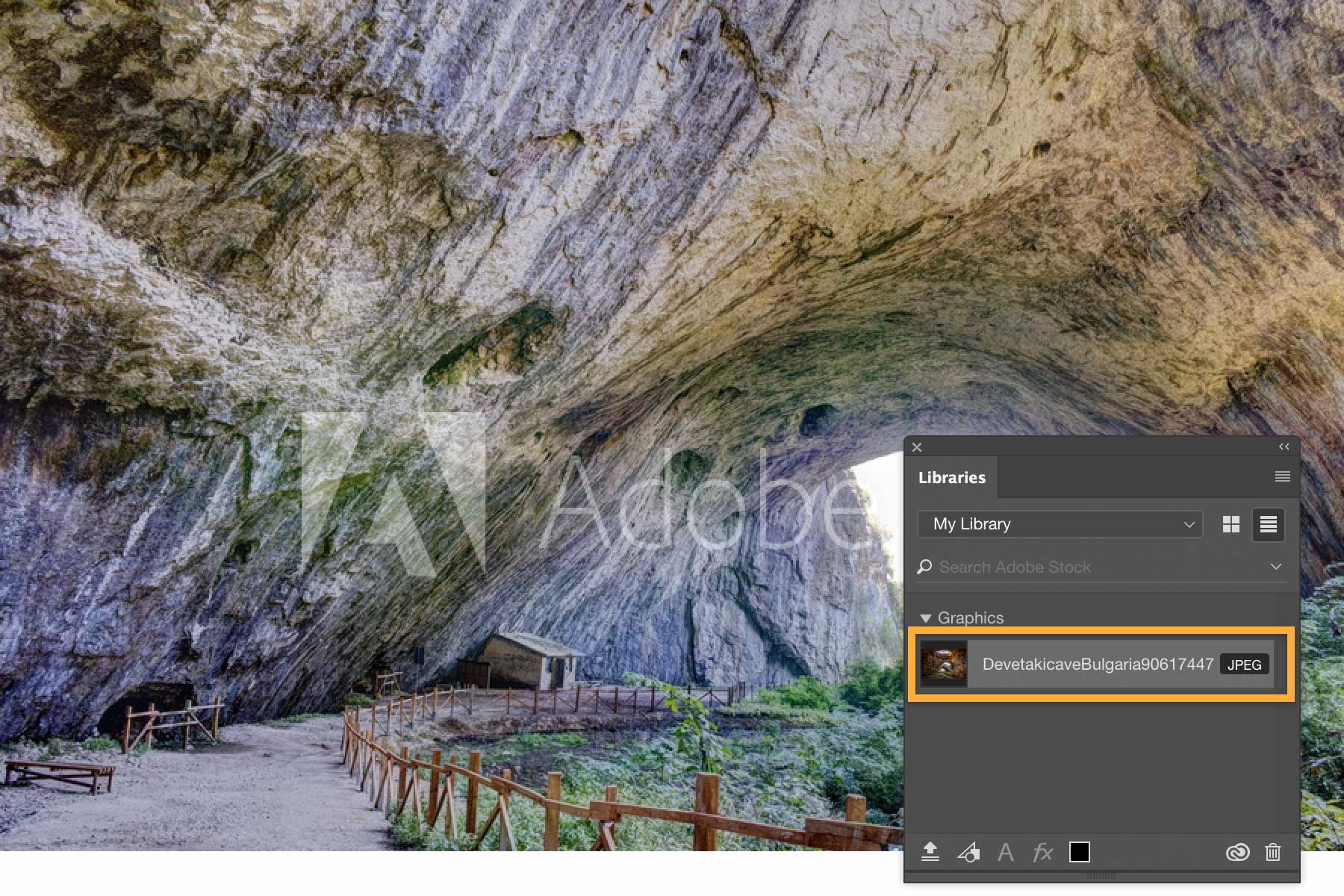
Öffne Photoshop, und klicke auf das Symbol zum Suchen (das Vergrößerungsglas). Gib im Suchfeld einen Begriff ein. Klicke auf das Bild, das du verwenden möchtest. Das Bedienfeld „Bibliotheken“ mit einer Vorschauansicht des Bilds wird geöffnet. Das Bild ist mit einem Wasserzeichen versehen.
Doppelklicke im Bibliotheken-Bedienfeld auf das Bild, um es in deinem Dokument zu öffnen.
Den Look eines Bilds mithilfe von Einstellungsebenen ändern.
Um den Look des Originalbilds (links oben) zu ändern, wähle „Fenster > Korrekturen“, und klicke auf „Farbton/Sättigung“ (siehe Kreis).
Passe im Bedienfeld „Eigenschaften“ die Werte für Farbton, Sättigung und Helligkeit an. Aktiviere dann das Kontrollkästchen „Färben“, um einen duplexartigen Farbstich zu erzeugen.
3
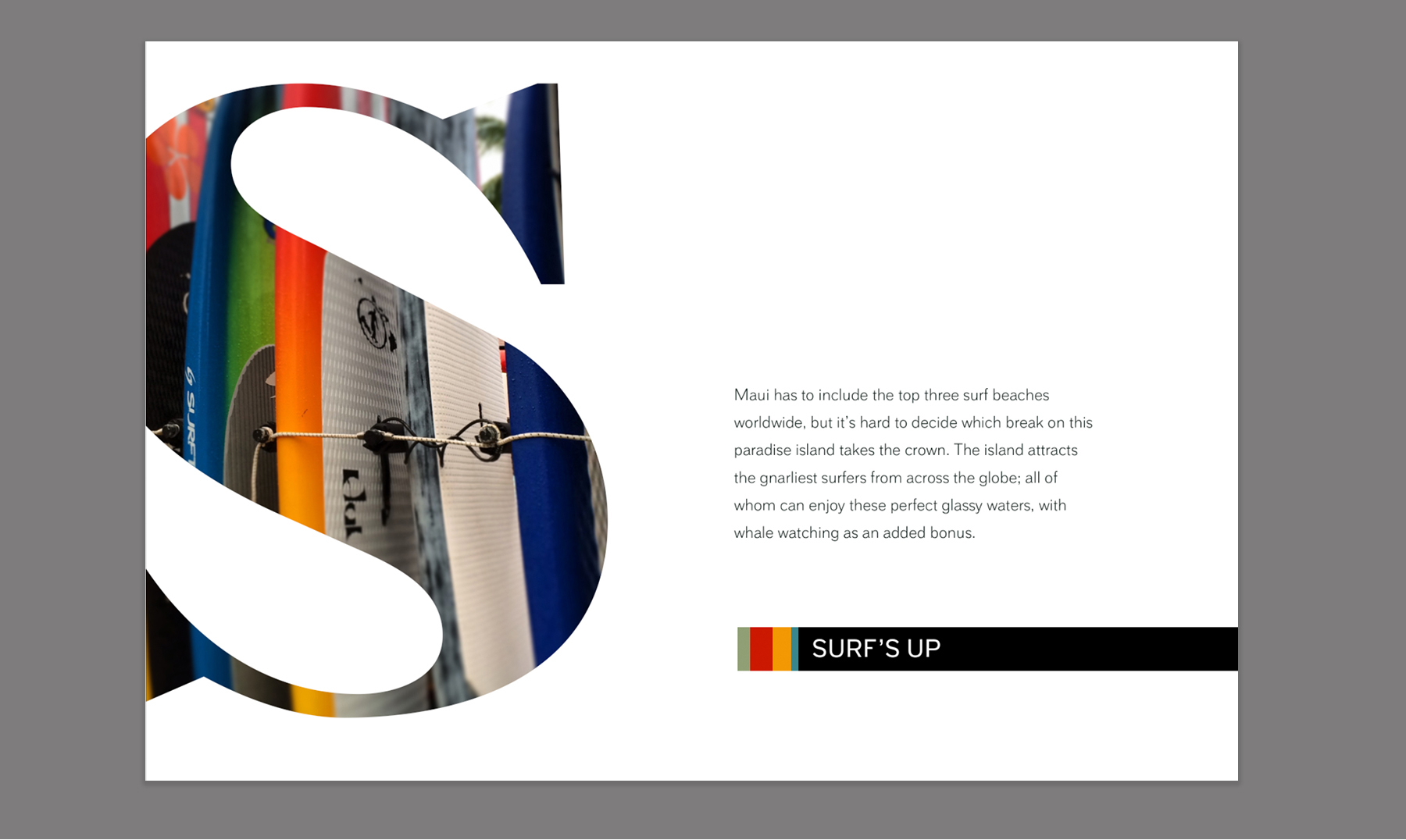
Text über Schnittmasken mit Effekten versehen.
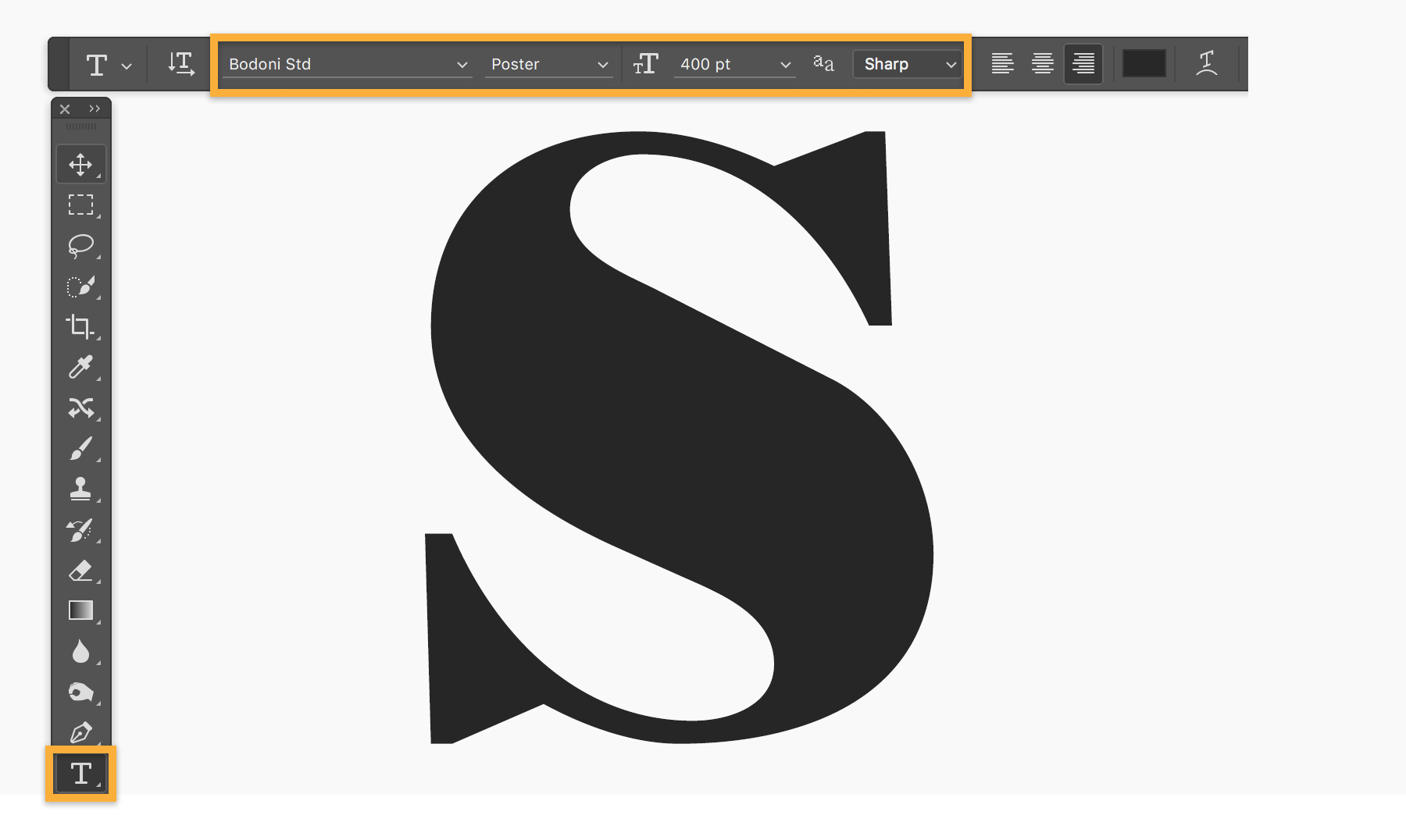
Erstelle ein neues Dokument. Wechsle zum Text-Werkzeug, und tippe einen Buchstaben oder ein ganzes Wort. Im Beispiel habe ich die Schriftart Bodoni Poster und als Größe 400 Punkt gewählt.
Klicke auf eine beliebige Stelle der Arbeitsfläche, um den Text zu platzieren.
Ziehe ein Bild von deiner Festplatte oder aus Adobe Stock über den gesamten Buchstaben bzw. das Wort.
Öffne das Bedienfeld „Ebenen“ („Fenster > Ebenen“).
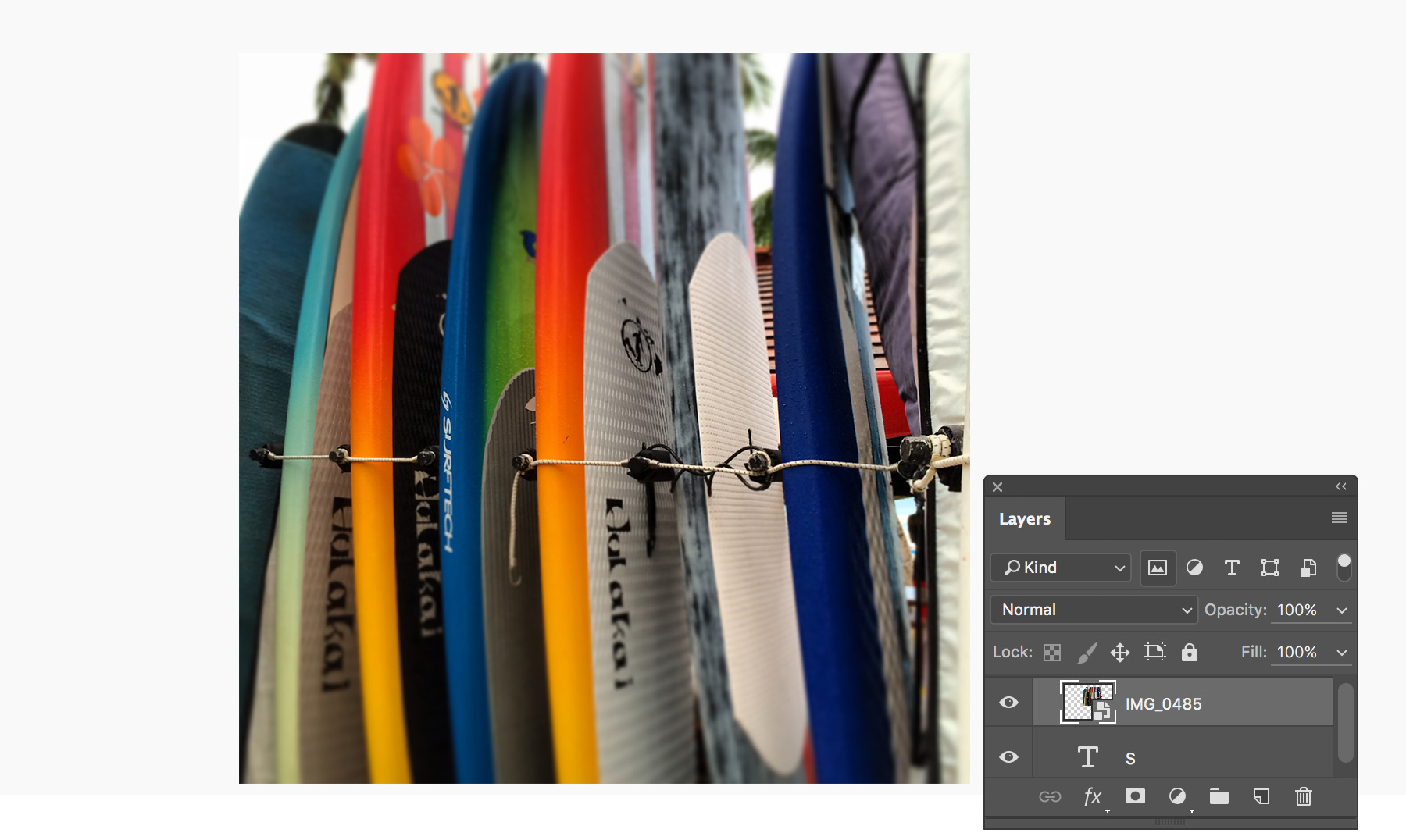
Wähle im Bedienfeld „Ebenen“ die Ebene mit dem Bild aus. Wähle dann „Ebene > Schnittmaske erstellen“, um einen Bildausschnitt zu erzeugen, der genauso geformt ist wie die Schrift. Lasse die Bildebene ausgewählt, und positioniere das Bild mit dem Verschieben-Werkzeug unter dem Text.
Du kannst nun weitere Elemente zur Komposition hinzufügen und dein Design fertigstellen.
4
Teile eines Bilds auswählen und zu einem anderen hinzufügen.
Um die Schritte in diesem Tutorial besser nachvollziehen zu können, lade bitte die zwei Bilder herunter, die du unter „Was du benötigst“ oben auf dieser Seite findest.
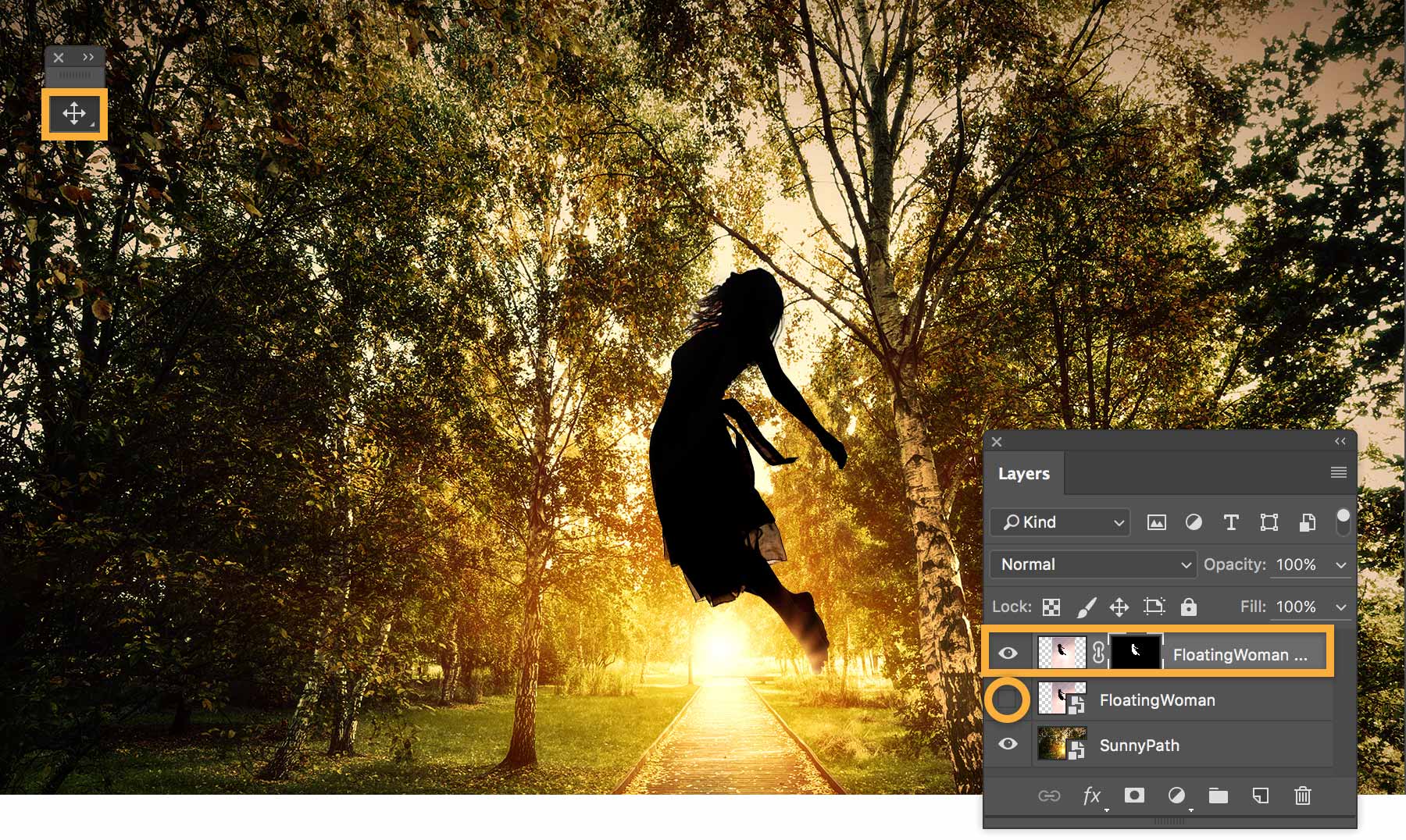
Öffne das Bild „SunnyPath“ in Photoshop, und füge das Bild „FloatingWoman“ hinzu. Es wird auf einer eigenen Ebene platziert. Falls du nicht sicher bist, wie du zwei Bilder auf separaten Ebenen platzierst, sieh dir das kurze Tutorial über dasHinzufügen und Anordnen von Bildern an.
Wähle „Fenster > Ebenen“, um das Bedienfeld „Ebenen“ zu öffnen. Klicke auf das Augensymbol, um das Bild „SunnyPath“ auszublenden.
Wähle „Auswahl > Auswählen und maskieren“.
Wähle mit dem Schnellauswahl-Werkzeug nur die Frau aus (ohne den Hintergrund).
Wenn du mit der erstellten Maske zufrieden bist, wechsle zum Bedienfeld „Eigenschaften“. Wähle „Ausgabe in: Neue Ebene mit Ebenenmaske“. Klicke auf „OK“, um zur normalen Ansicht zurückzukehren.
Klicke im Bedienfeld „Ebenen“ auf die Augensymbole, um die Originalebene „FloatingWoman“ aus- und die Ebene „SunnyPath“ einzublenden.
Aktiviere das Verschieben-Werkzeug. Wähle die Ebene „FloatingWoman“ mit der soeben erstellten Ebenenmaske aus, und positioniere sie so, dass die Frau über dem Weg zu schweben scheint.
Wenn dein Werk fertig ist, willst du es sicher auch teilen.
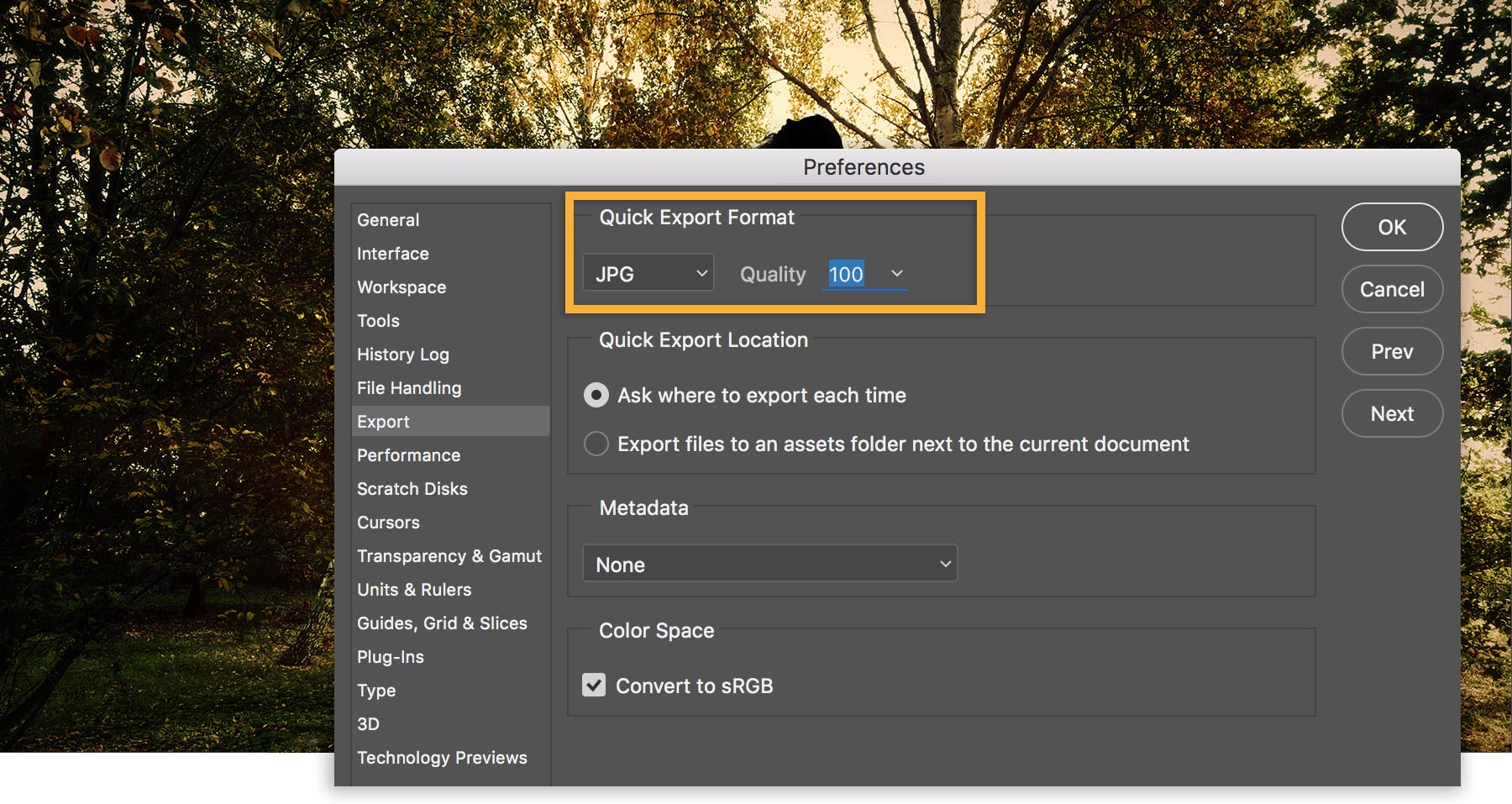
Um eine Datei zu exportieren, rufe „Datei > Exportieren > Export-Voreinstellungen“ auf.
Gib ein Format für den Schnell-Export an. Damit legst du deine bevorzugte Exporteinstellung ein. Wenn du deine Bilder meistens mit kleiner Dateigröße exportieren möchtest, weil du sie in sozialen Netzwerken oder per E-Mail teilst, wählst du das JPEG-Format und als Qualität 100.
Klicke auf „OK“. Wenn du später die gleiche Einstellung verwenden möchtest, wählst du einfach „Datei > Exportieren > Schnell-Export“.
Falls du andere Einstellungen benötigst, wählst du „Datei > Exportieren > Exportieren als“. Erfahre mehr über die Optionen zum
Exportieren .

Beitrag von:
Photocreo Bednarek
Michael Jarrott
Christin Lola
2. November 2016
Probiere diese Tutorials mit Photoshop aus
Fotos bearbeiten, um neue Bilder und Grafiken zu schaffen
You can control how Adobe websites use cookies and similar technologies by making choices below. But note that if you disable cookies and similar technologies entirely, Adobe websites may not function properly.
Cookies are small text files stored by your web browser when you use websites. There are also other technologies that can be used for similar purposes like HTML5 Local Storage and local shared objects, web beacons, and embedded scripts. These technologies help us do things like remembering you and your preferences when you return to our sites, measure how you use the website, conduct market research, and gather information about the ads you see and interact with.
You can make choices in the menu below about what cookies and other technologies you want us to use on Adobe sites when you visit them from this browser. You can always change those choices later by clicking on the Cookie Preferences link at the bottom of the page.
If enabled:
We can improve your experience by tailoring the site and the content to things we think might be of interest
We can better keep track of your preferences — like what language you prefer to use
We will better understand your likely interests so we can provide you more relevant Adobe ads and content on non-Adobe websites and in non-Adobe apps
It will help us improve the performance of our website and those of our partners who use the Adobe Experience Cloud
If disabled:
We won’t be able to remember you from session to session so the experience may not be tailored to your interests
You’ll still have access to the content of the site but certain features that depend on cookies may not function
You’ll still see ads, they just may not be as relevant to you
General information
You can control how Adobe websites use cookies and similar technologies by making choices below. But note that if you disable cookies and similar technologies entirely, Adobe websites may not function properly.
Cookies are small text files stored by your web browser when you use websites. There are also other technologies that can be used for similar purposes like HTML5 Local Storage, web beacons, and embedded scripts. These technologies help us do things like remembering you and your preferences when you return to our sites, measure how you use the website, conduct market research, and gather information about the ads you see and interact with.
You can make choices in the menu below about what cookies and other technologies you want us to use on Adobe sites when you visit them from this browser. You can always change those choices later by clicking on the Cookie Preferences link at the bottom of the page.
If enabled:
We can improve your experience by tailoring the site and the content to things we think might be of interest
We can better keep track of your preferences — like what language you prefer to use
We will better understand your likely interests so we can provide you more relevant Adobe ads and content on non-Adobe websites and in non-Adobe apps
It will help us improve the performance of our website and those of our partners who use the Adobe Experience Cloud
If disabled:
We won’t be able to remember you from session to session so the experience may not be tailored to your interests
We’ll still count your use of our site and services
You’ll still have access to the content of the site but certain features that depend on cookies may not function
You’ll still see ads, they just may not be as relevant to you
Operate the site and core servicesOperate site and measure engagement
Always active
These cookies are required, and they are used to enable the site and related services core functionality. Without them the site could not operate, so they cannot be disabled.
These cookies enable the site and related services’ core functionality and collect statistics about user engagement, such as counting active use to help us understand trends. These cookies cannot be disabled.
Measure performance
These cookies are used to analyze site usage to measure and improve performance. Without them Adobe cannot know what content is most valued and how often unique visitors return to the site, making it hard to improve information we offer to you.
These cookies are used to analyze site usage to measure and improve performance. Without them Adobe cannot know what content is most valued, making it hard to improve information we offer to you.
Extend functionality
These cookies are used to enhance the functionality of Adobe sites such as remembering your settings and preferences to deliver a personalized experience; for example, your username, your repeated visits, preferred language, your country, or any other saved preference.
Personalize advertising
These cookies are used to enable Adobe and our partners to serve ads more relevant to your interests. Without them you will still see ads, but they might not be as relevant to you.
Personalize advertising
These cookies are used to enable Adobe and our partners to serve ads more relevant to your interests. Without them you will still see ads, but they might not be as relevant to you.