
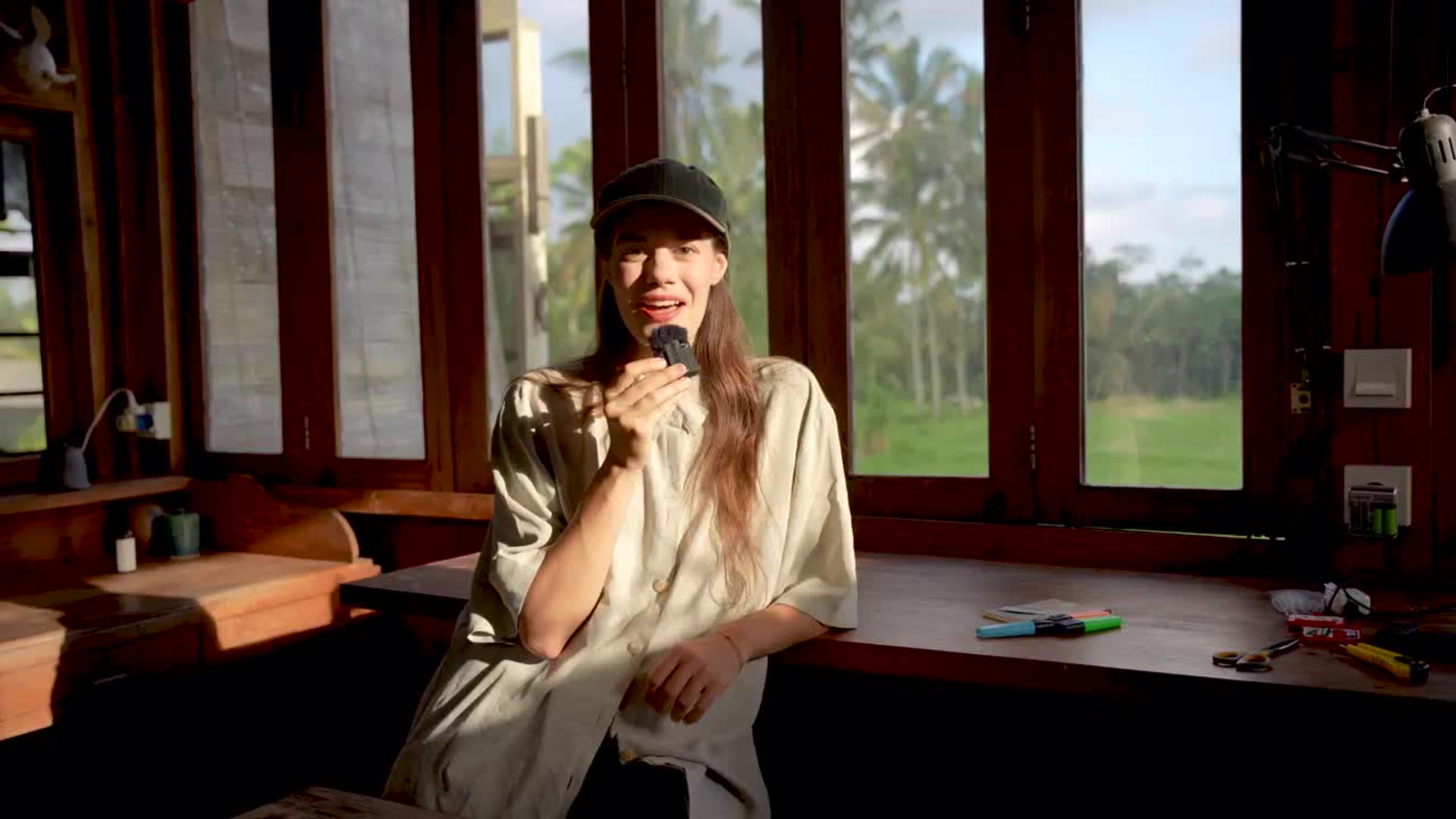


In diesem interaktiven Photoshop-Tutorial lernst du, wie du mit wenigen Klicks den Hintergrund entfernen und dein Bild mit Generative Fill kreativ erweitern kannst. Von realistischen Strukturen bis hin zu surrealen Elementen – Photoshop und Künstlerin Amelie Satzger machen es möglich.
Das lernst du in diesem Tutorial
Hintergrund mit Generative Fill nahtlos erweitern
Den Raum kreativ füllen, zum Beispiel mit vielen kleinen Vögeln
Hauttöne professionell korrigieren
Benötigte Materialien
In der Anwendung üben
Schritt-für-Schritt-Anleitung
1. Stuhlreihen im Hintergrund erweitern
Der dunkle Theatersaal auf dem Originalfoto wirkt durch die Menschen im Hintergrund und den sichtbaren Randbereich beengt. Entferne mit Photoshop Generative Fill den Hintergrund, um ihn optisch zu vergrößern.
Wähle mit dem Lasso-Werkzeug die obere Bildhälfte aus, in der die Stuhlreihen enden.
Gehe auf Generatives Füllen.
Gib als Beschreibung „Stuhlreihen“ ein und klicke auf Generieren.
Wähle die beste Variante aus oder wiederhole den Vorgang für neue Vorschläge.
2. Kreative Objekte hinzufügen: Gelbe Vögel
Bühnenreife Bildwelten entstehen, wenn du den leeren Hintergrund nicht nur entfernst, sondern neu bestückst:
Wähle mit dem Lasso-Werkzeug eine Stelle in den Stuhlreihen aus.
Gehe auf Generatives Füllen und tippe „sitzender gelber Vogel“ ein.
Wiederhole den Schritt für mehrere Vögel, z. B. auch einen fliegenden Vogel über dem Kopf von Amelie Satzger.
Skaliere die Auswahl größer oder kleiner, um die Vogelgröße zu steuern.
3. Hautfarbe korrigieren
Schwaches Licht führt oft zu verfälschten Hauttönen – das kannst du leicht ändern:
Wähle Gesicht und Hände mit dem Objektauswahl-Werkzeug aus.
Lege eine Gradationskurven-Ebene an und helle die Haut auf.
Ergänze eine Ebene für Selektive Farbkorrektur und passe Rot-, Cyan- und Gelbtöne an. So wirken Porträts sofort natürlicher.
Photoshop Hintergrund entfernen: Alle Möglichkeiten im Überblick
Es gibt in Adobe Photoshop mehrere Wege, um Hintergründe schnell und sauber zu entfernen:
Schnellaktionen: Über das Eigenschaften-Bedienfeld kannst du mit nur einem Klick „Hintergrund entfernen“ auswählen. Perfekt für schnelle Freistellungen.
Objektauswahlwerkzeug & Zauberstab: Mit diesen Tools lassen sich Motive wie Personen, Tiere oder Produkte automatisch erfassen. Besonders hilfreich bei klaren Kontrasten.
Manuelles Freistellen mit Pinsel-Werkzeug:
Für komplexe Kanten wie Haare oder Fell kannst du mit Masken und Pinsel präzise nacharbeiten.
Plugins & Erweiterungen: Externe Tools oder Photoshop-Neuerungen bieten zusätzliche Methoden, um auch schwierige Hintergründe mühelos zu entfernen.
Ob du eine einfache JPEG-Datei, ein PNG mit transparentem Hintergrund oder hochauflösende Fotos bearbeitest – mit den richtigen Methoden klappt die Freistellung ohne großen Aufwand.
Über die Künstlerin
Amelie Satzger ist eine Fotokünstlerin und Videografin, die mit ihren farbenfrohen, inszenierten Bildern in surreale Welten entführt. Ihre Werke erzählen Geschichten, die oft autobiografische Elemente enthalten. Ihre Fotografien wurden bereits international ausgestellt, darunter bei der Fotofever in Paris und der United Photo Industries Gallery in New York. Als Speakerin und Workshop-Leiterin gibt sie Einblicke in ihre kreative Bildgestaltung und zeigt, wie sie mit Photoshop und KI-gestützter Bildbearbeitung neue Wirklichkeiten erschafft.
Photoshop Hintergrund entfernen für verschiedene Einsätze
Produktfotos: Entferne störende Hintergründe, um Produkte freizustellen und auf ein neutrales Farbfeld zu setzen – ideal für E-Commerce.
Portraits: Mit einem Klick störende Objekte im Hintergrund entfernen und gegen eine neue Szene austauschen.
Kreative Montagen: Ersetze den Hintergrund durch surrealistische Formen, Strukturen oder Texturen.
Social Media Content: Mit wenig Aufwand außergewöhnliche Bildwelten erschaffen, die sofort Aufmerksamkeit erzeugen.
Tipps für perfekte Ergebnisse
Rand anpassen: Nutze im Menü Auswählen und Maskieren die Option „Kante verbessern“, um feine Details wie Haare, Schatten oder Reflexionen präzise zu erhalten.
Dateigröße beachten: Gerade bei großen Bilddateien im JPG- oder PNG-Format kann die Bearbeitung rechenintensiv sein.
Schatten realistisch halten: Entferne nicht automatisch alles – manchmal wirken Bilder natürlicher, wenn leichte Schatten bestehen bleiben.
Creative Cloud Vorteile: Über die Adobe Creative Cloud App kannst du deine Dateien synchronisieren, Tutorials abrufen und von exklusiven Angeboten profitieren.
FAQ – Photoshop Hintergrund entfernen
Wie kann ich in Photoshop den Hintergrund entfernen? Über „Motiv auswählen“ oder mit Generative Fill lassen sich Hintergründe schnell entfernen oder ersetzen.
Kann Photoshop leere Bereiche automatisch füllen? Ja, mit Generative Fill ergänzt Photoshop Hintergründe oder Objekte realistisch.
Funktioniert Photoshop Hintergrund entfernen auch bei Haaren und feinen Details? Ja, mit Auswählen und Maskieren kannst du auch feine Kanten präzise bearbeiten.
Welche Dateiformate sind ideal für Freistellungen? Für transparente Hintergründe empfiehlt sich PNG. JPG ist nützlich für kleinere Dateigrößen, bietet aber keine Transparenz.

Probiere diese Tutorials mit Photoshop aus
Fotos bearbeiten, um neue Bilder und Grafiken zu schaffen
You can control how Adobe websites use cookies and similar technologies by making choices below. But note that if you disable cookies and similar technologies entirely, Adobe websites may not function properly.
Cookies are small text files stored by your web browser when you use websites. There are also other technologies that can be used for similar purposes like HTML5 Local Storage and local shared objects, web beacons, and embedded scripts. These technologies help us do things like remembering you and your preferences when you return to our sites, measure how you use the website, conduct market research, and gather information about the ads you see and interact with.
You can make choices in the menu below about what cookies and other technologies you want us to use on Adobe sites when you visit them from this browser. You can always change those choices later by clicking on the Cookie Preferences link at the bottom of the page.
If enabled:
We can improve your experience by tailoring the site and the content to things we think might be of interest
We can better keep track of your preferences — like what language you prefer to use
We will better understand your likely interests so we can provide you more relevant Adobe ads and content on non-Adobe websites and in non-Adobe apps
It will help us improve the performance of our website and those of our partners who use the Adobe Experience Cloud
If disabled:
We won’t be able to remember you from session to session so the experience may not be tailored to your interests
You’ll still have access to the content of the site but certain features that depend on cookies may not function
You’ll still see ads, they just may not be as relevant to you
General information
You can control how Adobe websites use cookies and similar technologies by making choices below. But note that if you disable cookies and similar technologies entirely, Adobe websites may not function properly.
Cookies are small text files stored by your web browser when you use websites. There are also other technologies that can be used for similar purposes like HTML5 Local Storage, web beacons, and embedded scripts. These technologies help us do things like remembering you and your preferences when you return to our sites, measure how you use the website, conduct market research, and gather information about the ads you see and interact with.
You can make choices in the menu below about what cookies and other technologies you want us to use on Adobe sites when you visit them from this browser. You can always change those choices later by clicking on the Cookie Preferences link at the bottom of the page.
If enabled:
We can improve your experience by tailoring the site and the content to things we think might be of interest
We can better keep track of your preferences — like what language you prefer to use
We will better understand your likely interests so we can provide you more relevant Adobe ads and content on non-Adobe websites and in non-Adobe apps
It will help us improve the performance of our website and those of our partners who use the Adobe Experience Cloud
If disabled:
We won’t be able to remember you from session to session so the experience may not be tailored to your interests
We’ll still count your use of our site and services
You’ll still have access to the content of the site but certain features that depend on cookies may not function
You’ll still see ads, they just may not be as relevant to you
Operate the site and core servicesOperate site and measure engagement
Always active
These cookies are required, and they are used to enable the site and related services core functionality. Without them the site could not operate, so they cannot be disabled.
These cookies enable the site and related services’ core functionality and collect statistics about user engagement, such as counting active use to help us understand trends. These cookies cannot be disabled.
Measure performance
These cookies are used to analyze site usage to measure and improve performance. Without them Adobe cannot know what content is most valued and how often unique visitors return to the site, making it hard to improve information we offer to you.
These cookies are used to analyze site usage to measure and improve performance. Without them Adobe cannot know what content is most valued, making it hard to improve information we offer to you.
Extend functionality
These cookies are used to enhance the functionality of Adobe sites such as remembering your settings and preferences to deliver a personalized experience; for example, your username, your repeated visits, preferred language, your country, or any other saved preference.
Personalize advertising
These cookies are used to enable Adobe and our partners to serve ads more relevant to your interests. Without them you will still see ads, but they might not be as relevant to you.
Personalize advertising
These cookies are used to enable Adobe and our partners to serve ads more relevant to your interests. Without them you will still see ads, but they might not be as relevant to you.