
File must be JPEG, JPG, or PNG and up to 40MB
https://main--cc--adobecom.aem.live/cc-shared/assets/img/upload-white.svg Upload your photo

By uploading your image or video, you agree to the Adobe
Terms of Use and Privacy Policy
File must be JPEG, JPG, or PNG and up to 40MB
https://main--cc--adobecom.aem.live/cc-shared/assets/img/upload-white.svg Upload your photo
By uploading your image or video, you agree to the Adobe
Terms of Use and Privacy Policy
to try it today
File must be JPEG, JPG or PNG and up to 40MB
https://main--cc--adobecom.aem.live/cc-shared/assets/img/upload-white.svg Upload your photo
By uploading your image or video, you agree to the Adobe
Terms of Use and Privacy Policy
- File size larger than 40MB
- Unable to process the request
- We are unable to process this file type. Please try again.
- Only one file can be uploaded at a time.
- Image exceeds maximum dimensions (8,000 x 8,000 pixels). Please resize and try again.
- promoid=TG8SL5C4&mv=other
How to use the Photo Eraser in Photoshop.
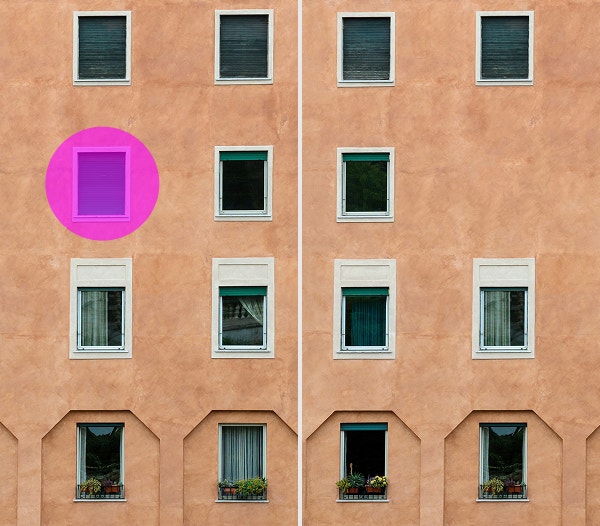
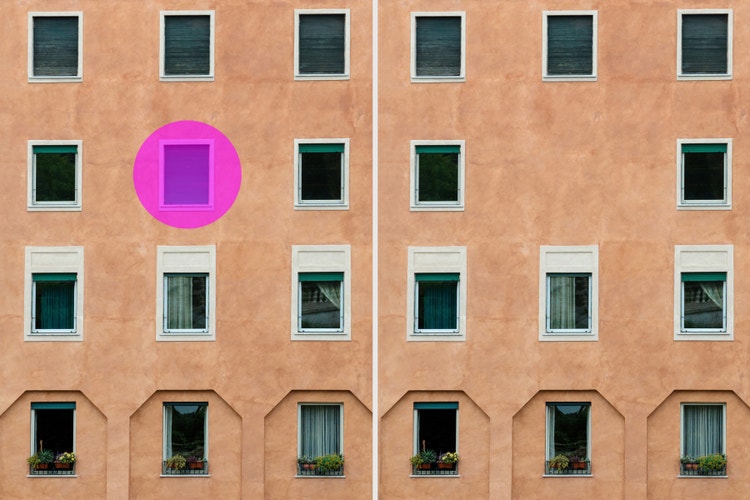
The Photo Eraser in Photoshop makes it easy to erase objects, people, or backgrounds, no advanced editing skills required. Whether you’re cleaning up a busy composition or removing unwanted distractions, the AI photo eraser helps you quickly and seamlessly erase part of an image.
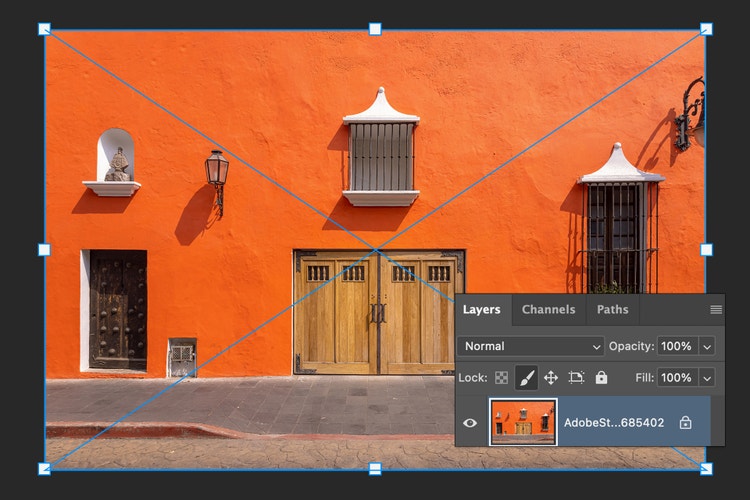
1. Upload your image in Photoshop
Open your file in Photoshop and make sure the layer you want to edit is unlocked. You can use the image eraser on portraits, landscapes, product shots, or any photo that needs a quick cleanup.
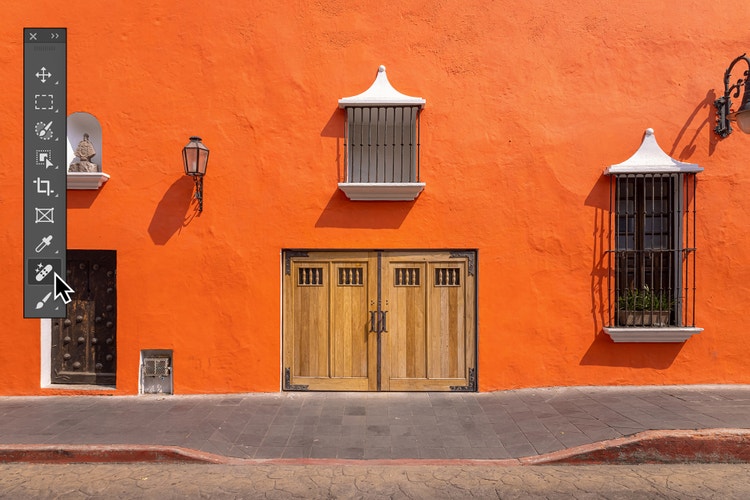
2. Select the Photo Eraser tool.
Find the Photo Eraser in the toolbar. The AI photo eraser uses smart detection to blend surrounding pixels and cleanly remove unwanted elements.
3. Adjust your brush and paint to erase.
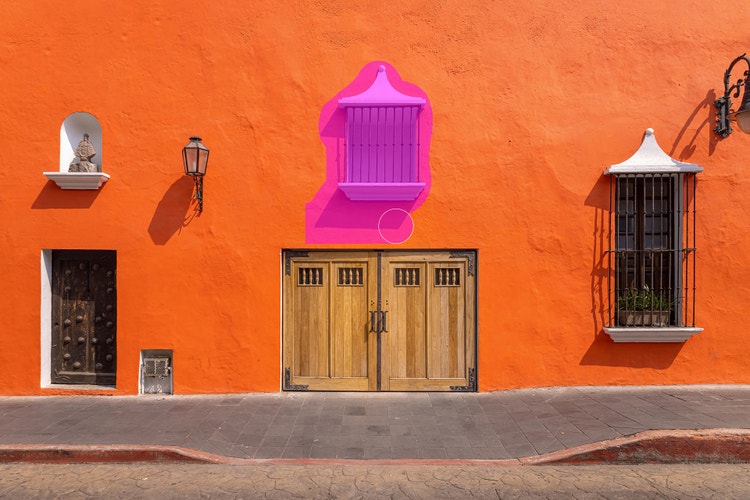
Customize the brush size and softness depending on what you’re removing, then drag over the area to erase. The tool will automatically fill in the background to clean up the picture.
Erase photos online in seconds.
The Photo Eraser in Adobe Photoshop is a powerful AI image eraser tool that can remove unwanted parts of a photo with just a few clicks. Whether you’re looking to delete a stray object, erase a person from the background, or clean up a distracting detail, the tool automatically blends the surrounding area for natural-looking results. It’s fast, simple, and precise, so you can spend less time editing and more time creating.

Simple, powerful image clean up with Photo Eraser.
The Photo Eraser tool makes it easy for anyone to polish a photo — whether you’re a pro retoucher or a beginner. Its AI-powered design lets you quickly remove distractions, fix background clutter, or refine small details. You can use it on its own for light edits or pair it with other Photoshop AI tools for more advanced retouching. It’s a fast, flexible way to clean up your images with results that look seamless and professional.
Clean up image distractions with precision.
The Photo Eraser gives you precise control when removing photo elements and distractions, big or small. Clean up background clutter in product shots, remove unwanted people or objects from travel photos, or fine-tune portraits by erasing stray hairs or lint. Even small touch-ups, like makeup smudges or skin imperfections, are easy to fix with the Photo Eraser using the Remove tool. From subtle edits to full cleanups, the AI photo eraser can help you perfect your images.

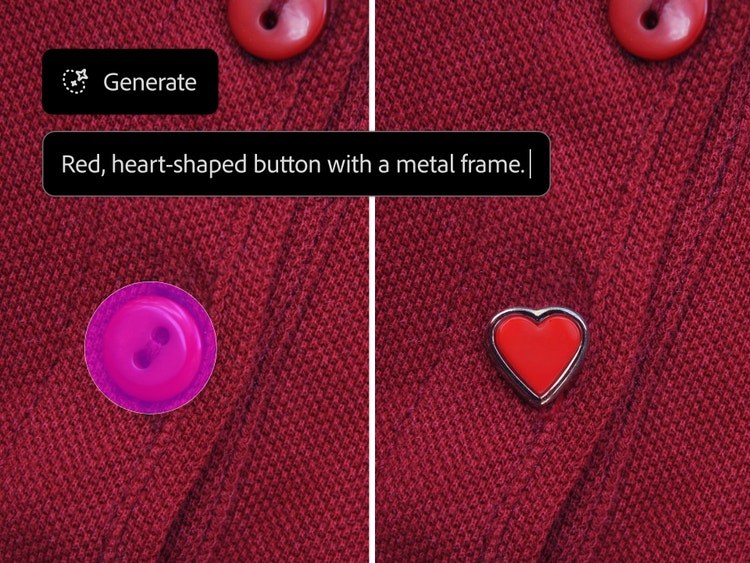
Replace erased photo objects with new content.
You can do more than just erase part of an image with the Photo Eraser tool in Photoshop. Once you’ve cleaned up your pictures by removing unwanted elements, you can fill those empty areas with something new like a texture, pattern, or even an AI-generated scene. Use any selection tool to select a part of your image, then try generative fill to create custom content that blends seamlessly with your image. Whether you’re going for a polished look or something playful and creative, AI-powered tools give you endless ways to reimagine your photos.
Use Photo Eraser online from anywhere.
Whether you’re working from home, on location, or editing between photoshoots, the Photo Eraser tool fits right into your workflow. Use the Photoshop app on your phone or tablet to clean up images on the spot, or access the Photo Eraser tool in Photoshop online — no download needed. Wherever you go, you’ll get professional results with quick, seamless edits.
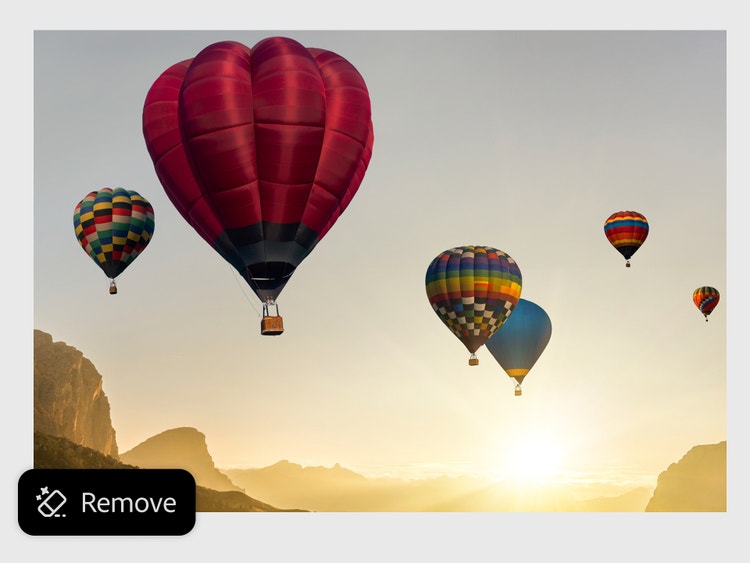
Erase images and edit faster with the Photo Eraser.
Whether you’re a professional designer or just editing for fun, the Photo Eraser works seamlessly across all types of projects. Photoshop is flexible enough to support everything from commercial workflows to creative personal use. Use it to remove objects, clean up distractions, or prep images for the next stage of your design.
Try the AI photo eraser tool to:
- Edit photos to make room for text, branding, or a logo.
- Refine product shots by removing distractions and cleaning up the background.
- Remove clutter from candid snapshots and family photos before sharing.
- Get creative with personal projects like digital collages or vision boards.
How to erase something from a picture in Photoshop.
Removing unwanted elements from photos is easy with the online Photo Eraser tool. Whether you’re cleaning up a product shot or removing background distractions from a vacation photo, the AI photo eraser gives you professional-looking results anytime, anywhere.
Here’s how to clean up images with the Photo Eraser:
- Upload the photo you want to erase in Photoshop.
Open your image in Photoshop or use the Photo Eraser tool directly in your browser with Photoshop online. Make sure your image layer is unlocked so you can make edits. - Select the Remove tool.
In the toolbar, choose the Remove tool, which powers the Photo Eraser workflow. This AI Photo Eraser detects and blends surrounding pixels to help remove objects seamlessly. - Choose your eraser size and hardness.
Use the brush settings to adjust size and edge softness depending on what you’re removing. Smaller, softer brushes are great for fine details, while larger, harder brushes can speed up bigger cleanups. - Drag over the area of the photo you want to erase.
Carefully paint over the object or section you’d like to remove. Using the Remove tool, the Photo Eraser will automatically fill in the space using nearby image data, making the edit look natural and polished. - Review, refine, and clean up your image.
Once you’ve erased the unwanted content, use additional Photoshop tools like the blemish remover, healing brush, or generative fill to fine-tune your photo and bring your vision to life.