Desde la página principal de Acrobat, selecciona la opción Ver todas las herramientas
, situada cerca de la parte superior de la pantalla, para abrir la vista Todas las herramientas y después selecciona la herramienta Combinar archivos. Si ya tienes un documento abierto, puedes encontrar la herramienta Combinar archivos en el panel Todas las herramientas de la izquierda.
2
Añade los archivos que quieras combinar
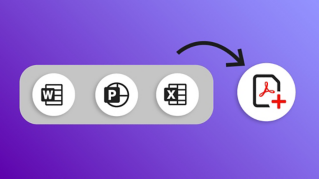
Elige entre diferentes tipos de archivo (archivos PDF, documentos de Microsoft Word, hojas de cálculo de Microsoft Excel, presentaciones de Microsoft PowerPoint, imágenes JPEG, otros formatos de imagen, correos electrónicos y mucho más) para combinar en un único PDF.
Selecciona Agregar archivos y ve hasta la ubicación de los archivos que quieras añadir. Puedes añadir archivos o una carpeta desde tu ordenador, o añadir contenido desde un escáner, una página web o tu portapapeles.
Selecciona uno o más archivos que quieras añadir. A partir de los archivos de muestra, selecciona la presentación de PowerPoint Bodea Pricing Plans.pptx y el archivo PDF Bodea Survey.pdf.
Haz clic en el botón
Agregar archivos.
Repite estos pasos tantas veces como sea necesario para incluir todo el contenido que quieras combinar en tu PDF final. Otra opción es arrastrar y soltar los archivos que quieras combinar desde tu ordenador o sistema de almacenamiento.
3
Previsualiza los contenidos del documento
Una vez que hayas añadido todos tus archivos PDF y otros documentos, puedes colocar el ratón sobre una de las miniaturas de los archivos y hacer clic en la lupa para obtener una vista previa ampliada.
Haz clic en la X situada en la esquina superior derecha para cerrar la vista previa.
4
Organiza páginas en documentos de varias páginas
Puedes expandir documentos de varias páginas haciendo clic en el icono de expansión que aparece en la parte superior derecha de la miniatura del archivo cuando pasas el cursor sobre él. Al hacer clic en el icono, verás miniaturas de cada página del archivo que te permitirán comprobar las páginas que quieres añadir al PDF combinado.
5
Elimina páginas
Para eliminar páginas o archivos no deseados, haz clic en el archivo o en la vista previa de la página y, a continuación, en el icono de papelera Eliminar.
Nota: Usa el atajo Mayús+ clic para seleccionar una serie de páginas que quieras eliminar. Usa el atajo Cmd (Mac) + clic o Ctrl (Windows) + clic para seleccionar páginas concretas que quieras eliminar. Cuando seleccionas páginas, estas solo se eliminan del archivo PDF combinado. El archivo original permanece intacto.
6
Reordena las páginas
Para reordenar las páginas, haz clic en la miniatura de la página y arrástrala a su nueva ubicación. Una línea azul indica dónde se colocará la página una vez que dejes de presionar el botón.
7
Haz clic en Combinar para fusionar los archivos
Cuando acabes, haz clic en Combinar. Acrobat asigna un nombre automáticamente (por ejemplo, Binder1.pdf) y abre el nuevo archivo PDF combinado una vez que termine de procesarse. Desde aquí, puedes guardar, cambiar el nombre, editar y revisar el nuevo documento según sea necesario. Obtén más información sobre cómocombinar archivos en un único documento PDF .
You can control how Adobe websites use cookies and similar technologies by making choices below. But note that if you disable cookies and similar technologies entirely, Adobe websites may not function properly.
Cookies are small text files stored by your web browser when you use websites. There are also other technologies that can be used for similar purposes like HTML5 Local Storage and local shared objects, web beacons, and embedded scripts. These technologies help us do things like remembering you and your preferences when you return to our sites, measure how you use the website, conduct market research, and gather information about the ads you see and interact with.
You can make choices in the menu below about what cookies and other technologies you want us to use on Adobe sites when you visit them from this browser. You can always change those choices later by clicking on the Cookie Preferences link at the bottom of the page.
If enabled:
We can improve your experience by tailoring the site and the content to things we think might be of interest
We can better keep track of your preferences — like what language you prefer to use
We will better understand your likely interests so we can provide you more relevant Adobe ads and content on non-Adobe websites and in non-Adobe apps
It will help us improve the performance of our website and those of our partners who use the Adobe Experience Cloud
If disabled:
We won’t be able to remember you from session to session so the experience may not be tailored to your interests
You’ll still have access to the content of the site but certain features that depend on cookies may not function
You’ll still see ads, they just may not be as relevant to you
General information
You can control how Adobe websites use cookies and similar technologies by making choices below. But note that if you disable cookies and similar technologies entirely, Adobe websites may not function properly.
Cookies are small text files stored by your web browser when you use websites. There are also other technologies that can be used for similar purposes like HTML5 Local Storage, web beacons, and embedded scripts. These technologies help us do things like remembering you and your preferences when you return to our sites, measure how you use the website, conduct market research, and gather information about the ads you see and interact with.
You can make choices in the menu below about what cookies and other technologies you want us to use on Adobe sites when you visit them from this browser. You can always change those choices later by clicking on the Cookie Preferences link at the bottom of the page.
If enabled:
We can improve your experience by tailoring the site and the content to things we think might be of interest
We can better keep track of your preferences — like what language you prefer to use
We will better understand your likely interests so we can provide you more relevant Adobe ads and content on non-Adobe websites and in non-Adobe apps
It will help us improve the performance of our website and those of our partners who use the Adobe Experience Cloud
If disabled:
We won’t be able to remember you from session to session so the experience may not be tailored to your interests
We’ll still count your use of our site and services
You’ll still have access to the content of the site but certain features that depend on cookies may not function
You’ll still see ads, they just may not be as relevant to you
Operate the site and core servicesOperate site and measure engagement
Always active
These cookies are required, and they are used to enable the site and related services core functionality. Without them the site could not operate, so they cannot be disabled.
These cookies enable the site and related services’ core functionality and collect statistics about user engagement, such as counting active use to help us understand trends. These cookies cannot be disabled.
Measure performance
These cookies are used to analyze site usage to measure and improve performance. Without them Adobe cannot know what content is most valued and how often unique visitors return to the site, making it hard to improve information we offer to you.
These cookies are used to analyze site usage to measure and improve performance. Without them Adobe cannot know what content is most valued, making it hard to improve information we offer to you.
Extend functionality
These cookies are used to enhance the functionality of Adobe sites such as remembering your settings and preferences to deliver a personalized experience; for example, your username, your repeated visits, preferred language, your country, or any other saved preference.
Personalize advertising
These cookies are used to enable Adobe and our partners to serve ads more relevant to your interests. Without them you will still see ads, but they might not be as relevant to you.
Personalize advertising
These cookies are used to enable Adobe and our partners to serve ads more relevant to your interests. Without them you will still see ads, but they might not be as relevant to you.