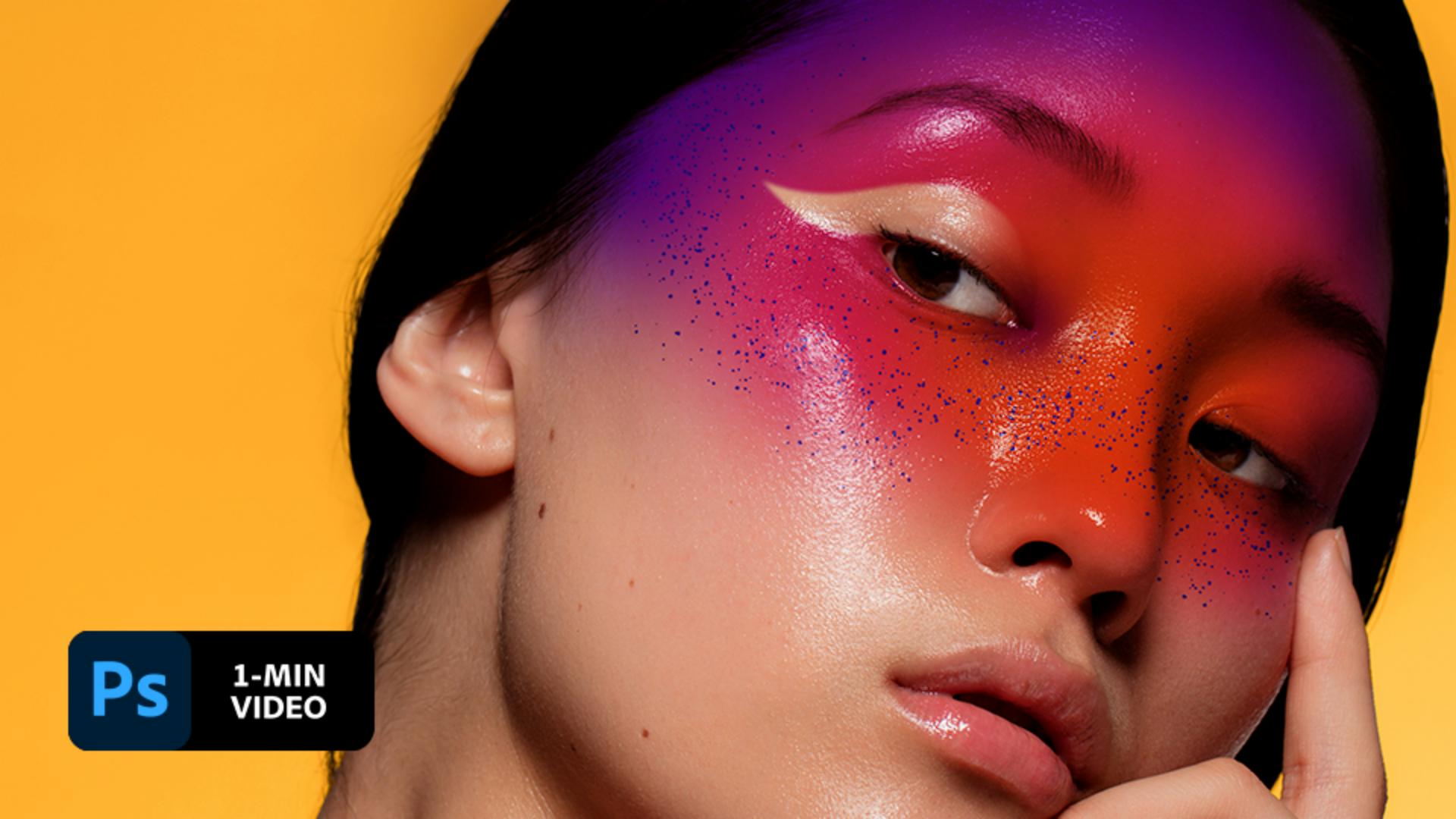
Erica Larson creates dramatic digital makeup using brushes, masks, and the Curvature Pen tool to design colorful face paint in Adobe Photoshop.
View tutorial in Photoshop
Follow along in the app
Graphic artist Erica Larson dreams up inspired designs every day as an associate creative director on the Adobe Studio team. In other words, she makes stuff that makes others want to make stuff.
This sample file has Adobe Stock images you can use to practice what you learn in this tutorial. If you want to use the sample file beyond this tutorial, you can purchase a license onAdobe Stock. Check out the ReadMe file in the folder for the terms that apply to your use of this sample file.
1
Find a model
Larson worked with a photo that focused on a model’s face. She specifically looked for an image that showed dewiness or detail in the skin to achieve the results she wanted.

2
Paint your design
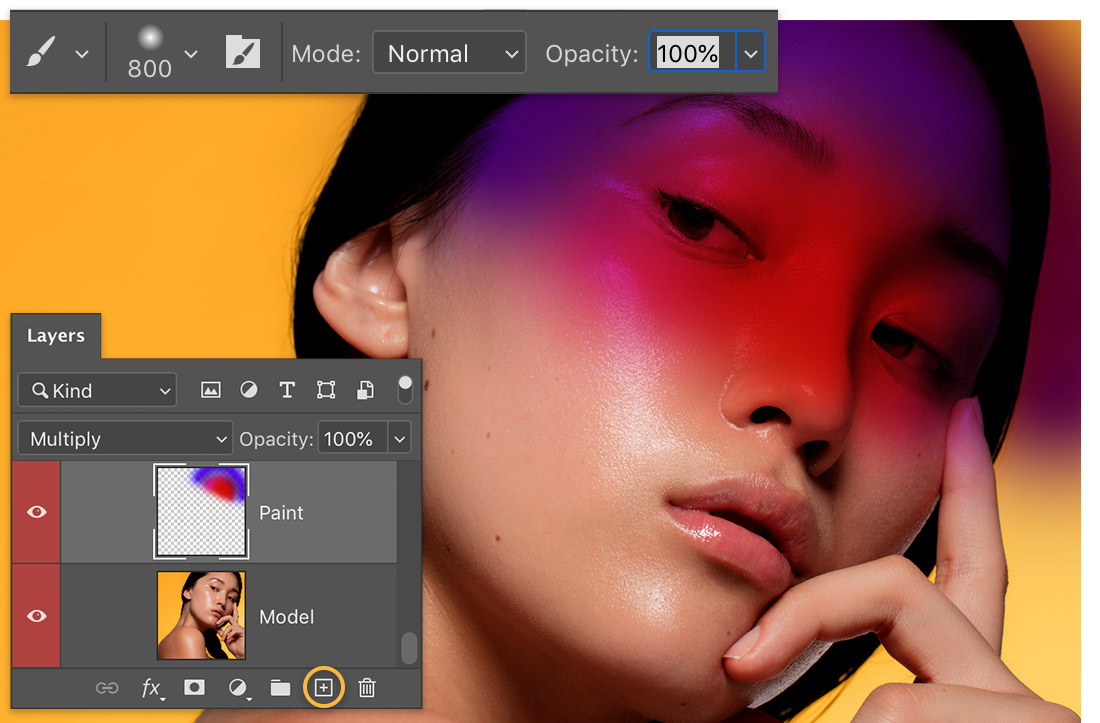
To design the art for the face paint, Larson chose the Brush (B) tool and set it to a soft round tip with increased Opacity. She set the layer blend mode to Multiply so the paint would “melt” into the skin. Then she brushed with different colors to paint a design over the model’s face.
3
Make it glitter
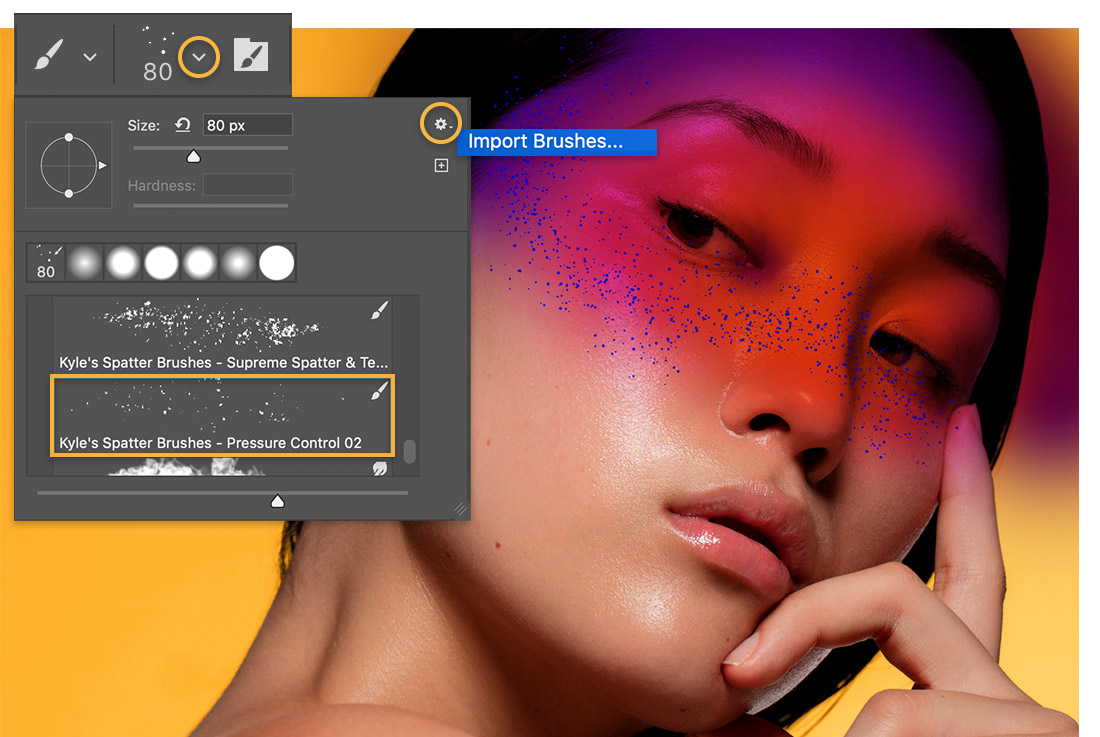
Larson imported brushes to add design elements to her art. For this composition, she painted with a spatter brush to add a glitter effect to the cheeks and bridge of the nose. If you’d like to use the same custom brush, click the Gear icon from the Brush properties dialog, select Import Brushes, and find the spatter_brushes.abr file in the practice files. When you import the brushes, they will appear under a category called spatter_brushes.
4
Add a mask
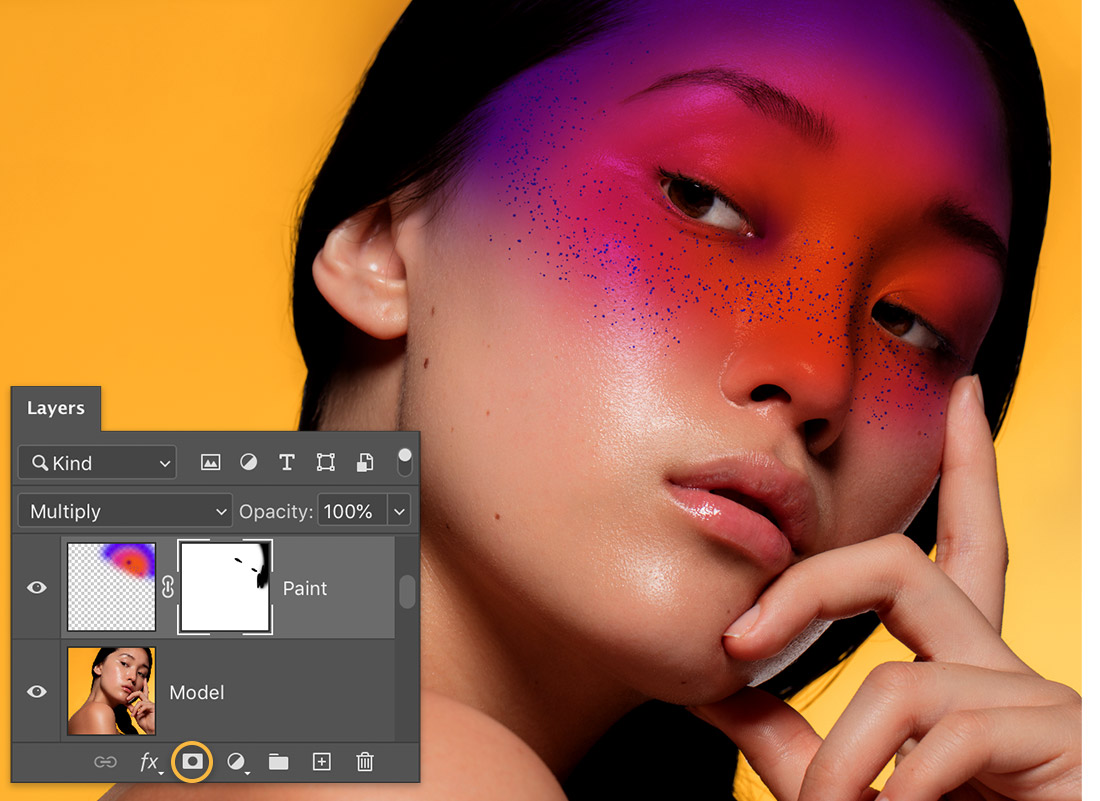
The paint spread beyond the model’s face. To fix this, Larson applied a mask to the art layer, then brushed on the mask with black to hide areas of the art — eyes, hair, and finger — so the original image would show through. She used the [ ] keys to adjust the brush size as she worked.
5
Highlight for emphasis
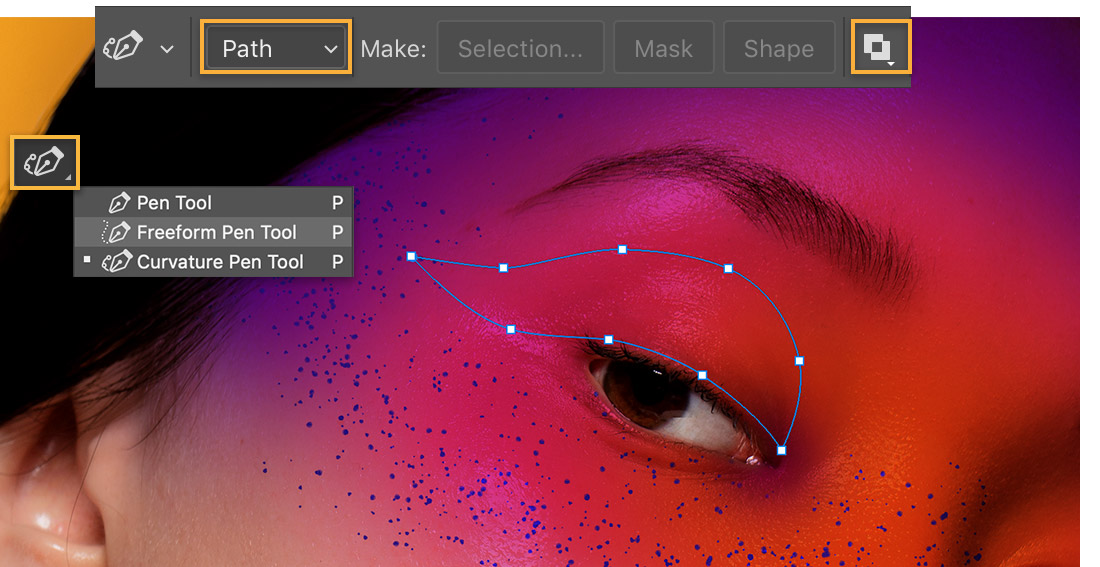
Larson used the Curvature Pen tool and set the mode to Path and the Path operation to Exclude Overlapping Shapes to create a custom path around one of the eyes. She clicked to add points for a curved path and double-clicked to create corners. She closed the path by clicking on the original point.
6
Create a cutout
With the path defined, Larson right-clicked, chose Make Selection, and set Feather Radius to 4. She made sure the mask thumbnail was still selected on the Paint layer then painted with a black brush inside the selection leaving the right side soft for a smoother blend.
7
Perfect the style
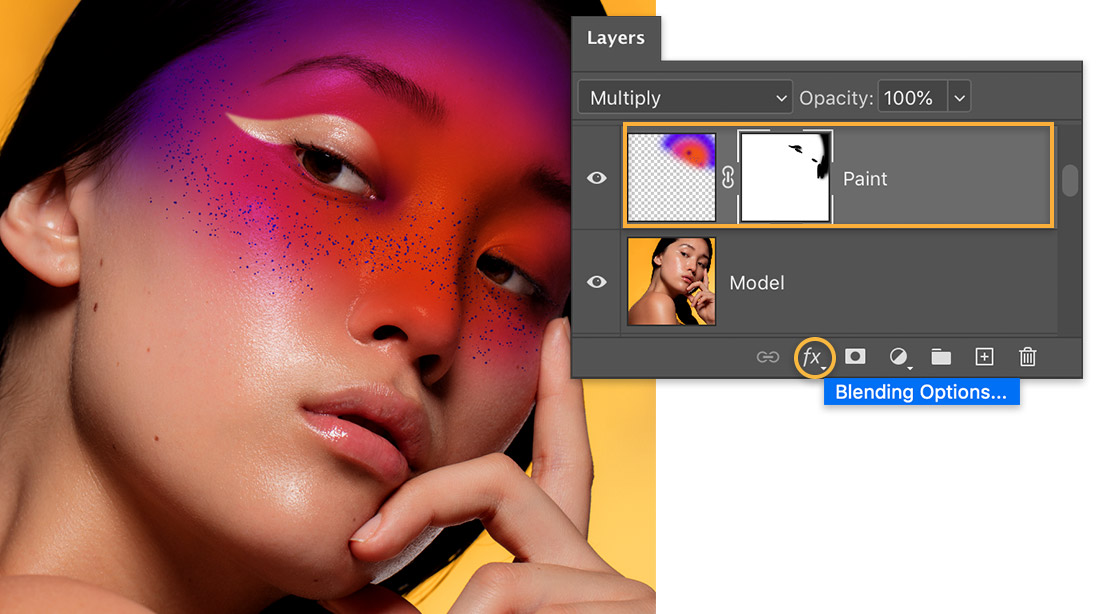
Larson wanted the digital paint to look more realistic, as if it were painted directly on the model’s skin. To create this effect, she added a Blending Options layer style from the Layers panel.
8
Blend it better
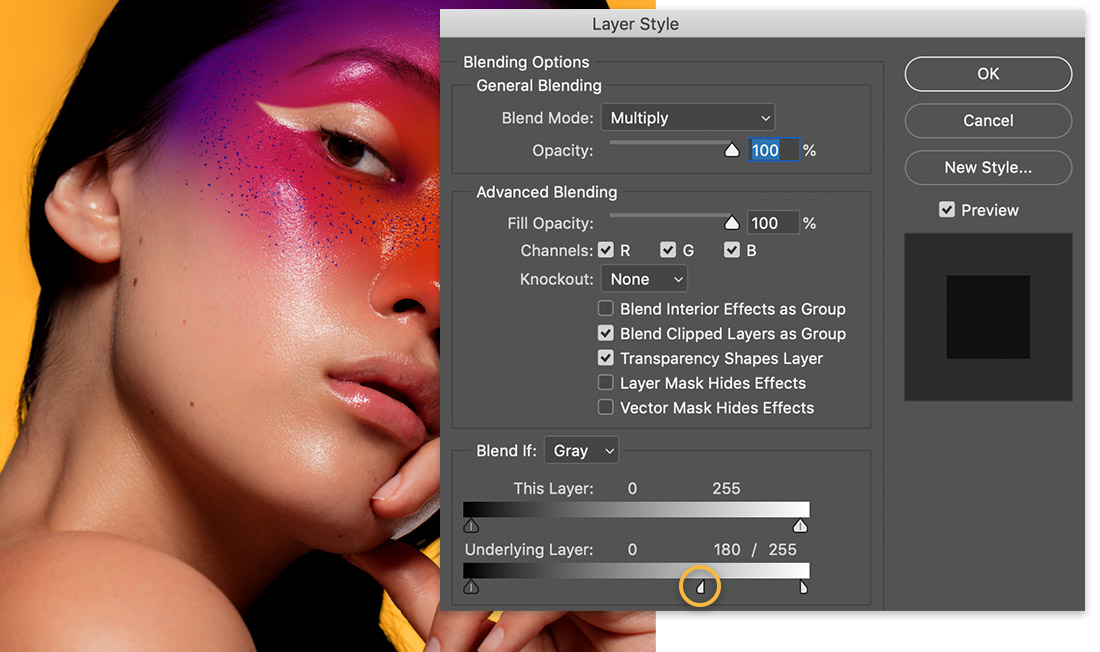
She fine-tuned the effect by using Alt (Windows) or Option (macOS)+click on the Underlying Layer slider and dragged it to the left.
Paint your look
Take your digital makeup artist skills to a whole new level and create dazzling face paint designs with Photoshop brushes and colors.

Note: Project files included with this tutorial are for practice purposes only.

You can control how Adobe websites use cookies and similar technologies by making choices below. But note that if you disable cookies and similar technologies entirely, Adobe websites may not function properly.
Cookies are small text files stored by your web browser when you use websites. There are also other technologies that can be used for similar purposes like HTML5 Local Storage and local shared objects, web beacons, and embedded scripts. These technologies help us do things like remembering you and your preferences when you return to our sites, measure how you use the website, conduct market research, and gather information about the ads you see and interact with.
You can make choices in the menu below about what cookies and other technologies you want us to use on Adobe sites when you visit them from this browser. You can always change those choices later by clicking on the Cookie Preferences link at the bottom of the page.
If enabled:
We can improve your experience by tailoring the site and the content to things we think might be of interest
We can better keep track of your preferences — like what language you prefer to use
We will better understand your likely interests so we can provide you more relevant Adobe ads and content on non-Adobe websites and in non-Adobe apps
It will help us improve the performance of our website and those of our partners who use the Adobe Experience Cloud
If disabled:
We won’t be able to remember you from session to session so the experience may not be tailored to your interests
You’ll still have access to the content of the site but certain features that depend on cookies may not function
You’ll still see ads, they just may not be as relevant to you
General information
You can control how Adobe websites use cookies and similar technologies by making choices below. But note that if you disable cookies and similar technologies entirely, Adobe websites may not function properly.
Cookies are small text files stored by your web browser when you use websites. There are also other technologies that can be used for similar purposes like HTML5 Local Storage, web beacons, and embedded scripts. These technologies help us do things like remembering you and your preferences when you return to our sites, measure how you use the website, conduct market research, and gather information about the ads you see and interact with.
You can make choices in the menu below about what cookies and other technologies you want us to use on Adobe sites when you visit them from this browser. You can always change those choices later by clicking on the Cookie Preferences link at the bottom of the page.
If enabled:
We can improve your experience by tailoring the site and the content to things we think might be of interest
We can better keep track of your preferences — like what language you prefer to use
We will better understand your likely interests so we can provide you more relevant Adobe ads and content on non-Adobe websites and in non-Adobe apps
It will help us improve the performance of our website and those of our partners who use the Adobe Experience Cloud
If disabled:
We won’t be able to remember you from session to session so the experience may not be tailored to your interests
We’ll still count your use of our site and services
You’ll still have access to the content of the site but certain features that depend on cookies may not function
You’ll still see ads, they just may not be as relevant to you
Operate the site and core servicesOperate site and measure engagement
Always active
These cookies are required, and they are used to enable the site and related services core functionality. Without them the site could not operate, so they cannot be disabled.
These cookies enable the site and related services’ core functionality and collect statistics about user engagement, such as counting active use to help us understand trends. These cookies cannot be disabled.
Measure performance
These cookies are used to analyze site usage to measure and improve performance. Without them Adobe cannot know what content is most valued and how often unique visitors return to the site, making it hard to improve information we offer to you.
These cookies are used to analyze site usage to measure and improve performance. Without them Adobe cannot know what content is most valued, making it hard to improve information we offer to you.
Extend functionality
These cookies are used to enhance the functionality of Adobe sites such as remembering your settings and preferences to deliver a personalized experience; for example, your username, your repeated visits, preferred language, your country, or any other saved preference.
Personalize advertising
These cookies are used to enable Adobe and our partners to serve ads more relevant to your interests. Without them you will still see ads, but they might not be as relevant to you.
Personalize advertising
These cookies are used to enable Adobe and our partners to serve ads more relevant to your interests. Without them you will still see ads, but they might not be as relevant to you.