
1. Descarga lasimágenes de práctica . Descargaremos la plantilla Octavilla de rock independiente estilo periódico y la abriremos directamente en Photoshop.
2. Haz clic en Crearnuevo en el panel izquierdo de Photoshop.
3. En la ventana Nuevo Documento, elige la categoría Imprimir y, a continuación, haz clic en Ver todos los ajustes preestablecidos +.
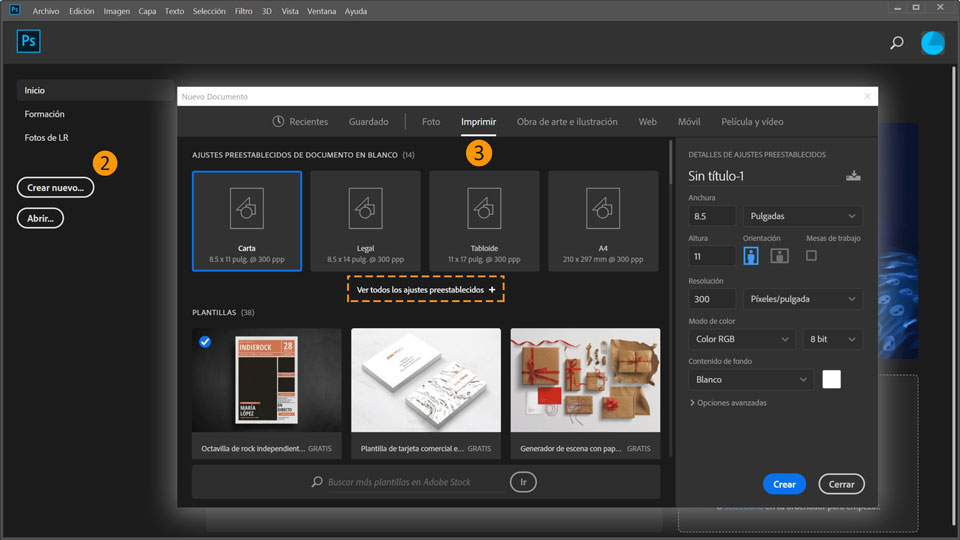
4. Desplázate hacia abajo para encontrar la plantilla Octavilla de rock independiente estilo periódico, haz clic en ella y selecciona Descargar. Una vez que la plantilla se ha descargado de Adobe Stock, el botón Descargar cambia al botón Abrir.
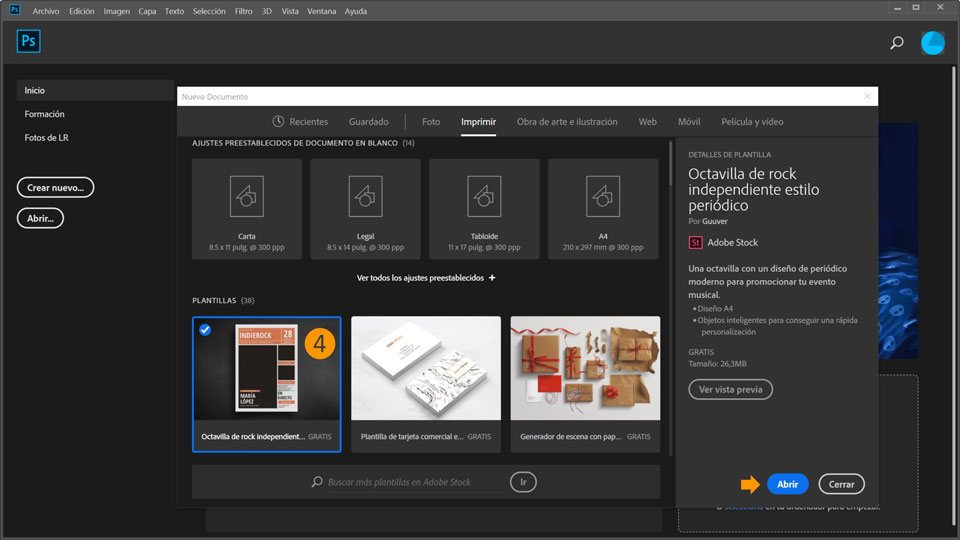
5. En caso de que en la plantilla se utilice una fuente que no esté disponible en tu ordenador, es posible que veas el cuadro de diálogo Fuentes no disponibles de Typekit. Haz clic en Resolver fuentes para descargar o sincronizar la fuente que falte en tu ordenador, si es necesario.
Sustituye el texto del titular
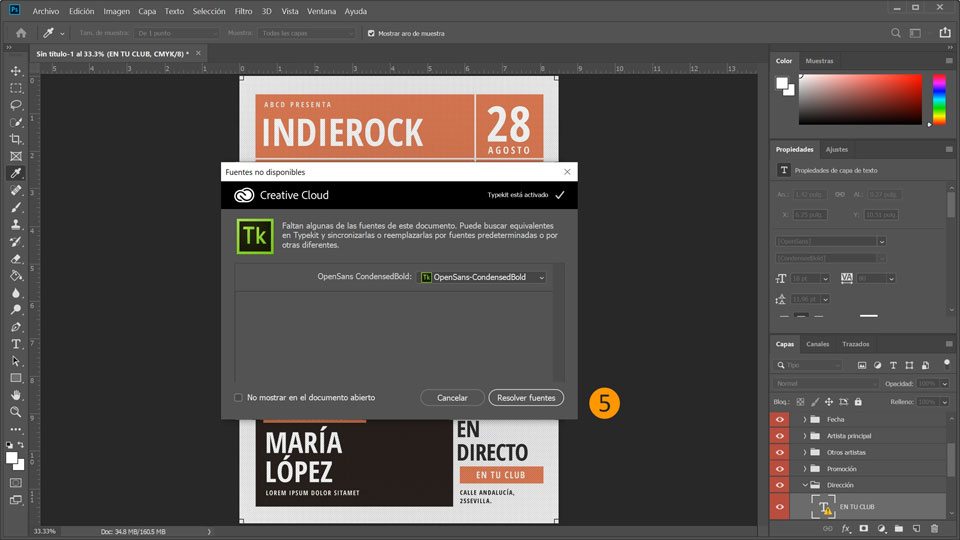
6. Selecciona la herramienta Texto en la barra de herramientas de la izquierda.
7. En el panel Capas de la derecha, busca el grupo de capas Texto y expande el grupo de capas Titular haciendo clic en la flecha pequeña. Después, selecciona la capa INDIEROCK.
8. Haz doble clic en el texto INDIEROCK para resaltarlo y escribe "THREE AT TEN".
9. El titular es demasiado grande para el espacio que hay, resalta el texto de nuevo y cámbiale el tamaño a 75 puntos.
Reemplaza los colores de fondo
10. Haz clic en la flecha pequeña del grupo de capas Texto para minimizarlo. Expande los grupos de capas Gráfico y Titular.
11. Haz doble clic en la miniatura de la capa Cuadro de encabezado para abrir el cuadro de diálogo Selector de color
. Utiliza los reguladores de la barra de colores para ir a la gama de color púrpura. Mueve el círculo de selección de color hasta que te guste la tonalidad y, a continuación, haz clic en OK.
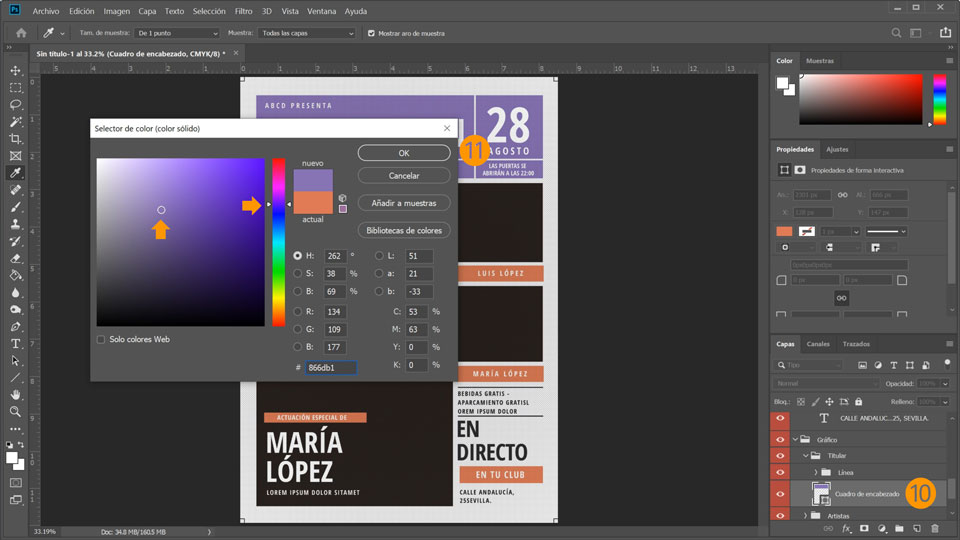
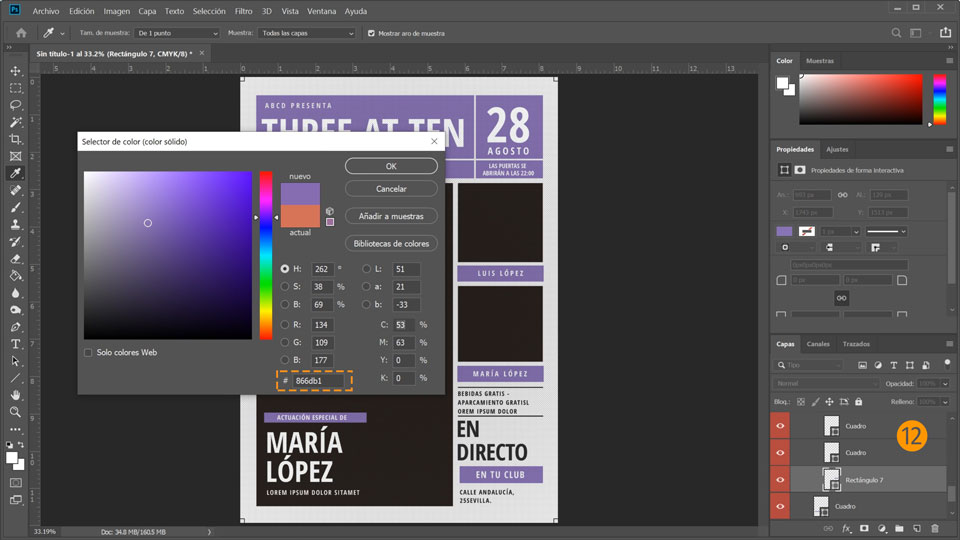
Consejo: Para aplicar exactamente el mismo color de fondo en otros elementos, abre de nuevo el cuadro de diálogo Selector de color y copia el código hexadecimal del campo # en el portapapeles.
12. Ahora expande el grupo de capas Artistas, haz doble clic en la miniatura de la capa Cuadro y pega el código de color en el campo #. Luego, haz clic en
OK. Expande el grupo de capas Cuadro y repite este paso con las tres capas del grupo.
Añade imágenes
13. Expande los grupos de capas Imágenes y Artista principal. Haz doble clic en la miniatura de objeto inteligente en la capa para abrir el objeto inteligente incrustado. Añade una foto en la capa [TU IMAGEN AQUÍ].
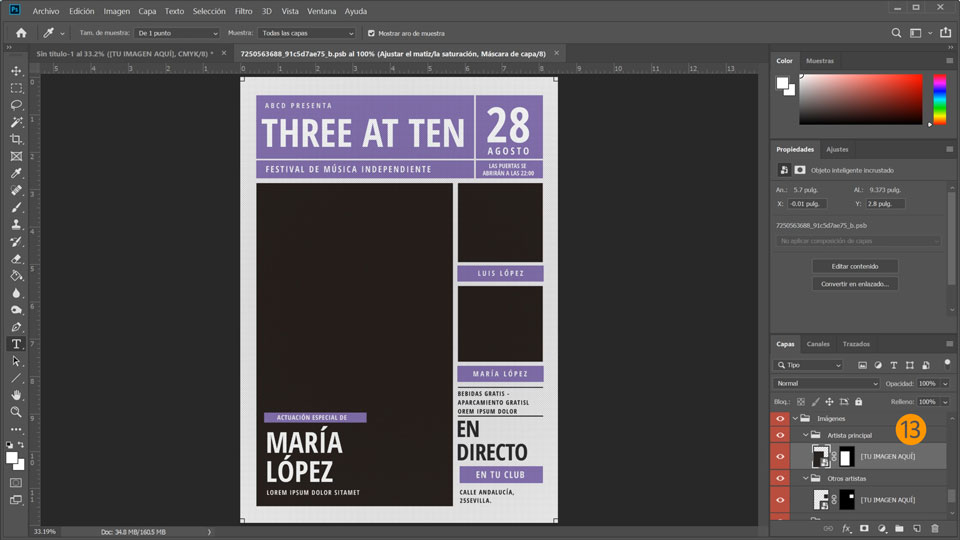
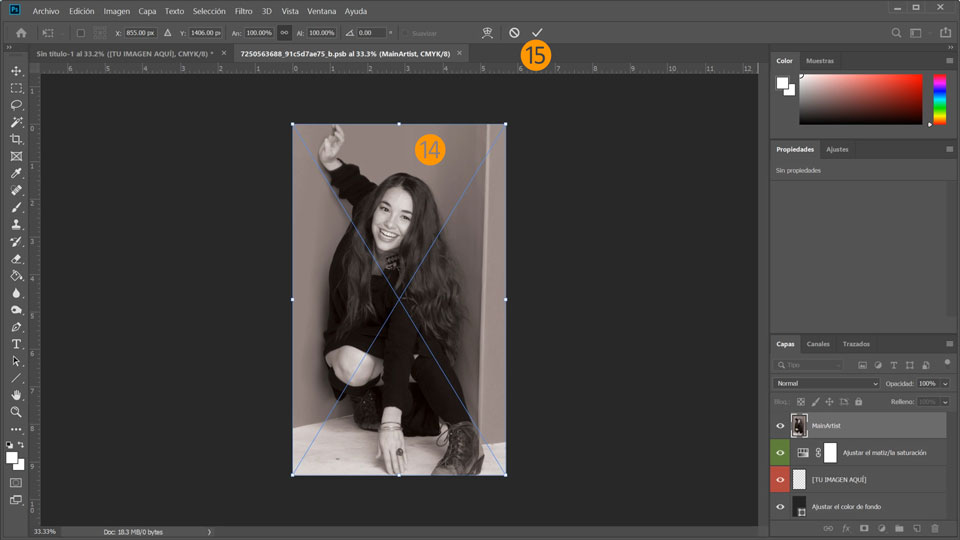
14. Arrastra la imagen MainArtist.jpg de los archivos de práctica que has descargado anteriormente, suéltala en el lienzo y pulsa Intro.
Consejo: Si la foto no encaja en el espacio dado del objeto inteligente, arrastra los controles de las esquinas para ajustar la foto al espacio y pulsa Intro.
15. Para guardar los cambios, pulsa Ctrl + S en Windows o Cmd + S en MacOS y cierra la ventana adicional del objeto inteligente. Repite este proceso con los grupos de capas Otros artistas y Otros artistas 2 usando las imágenes
OtherArtist1.jpg y OtherArtist2.jpg.
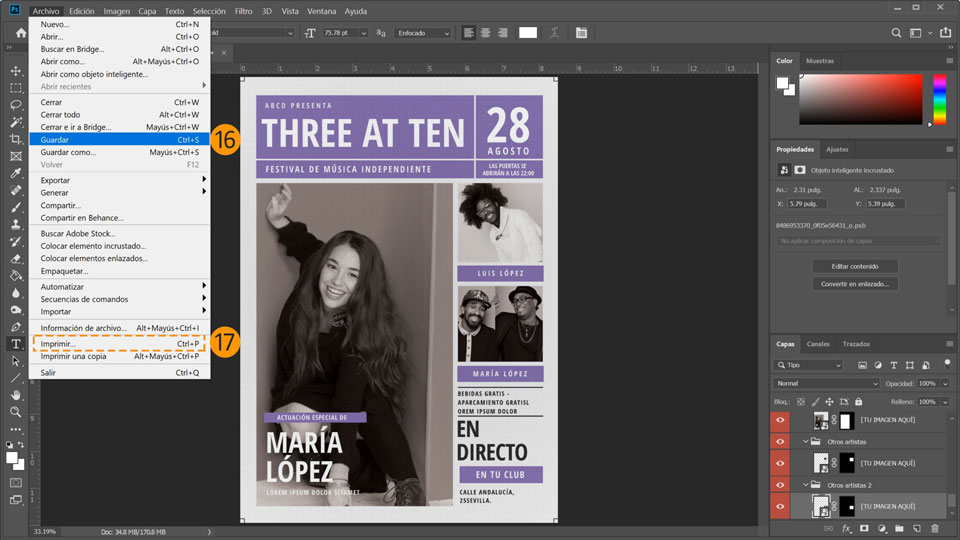
16. En el menú Archivo, selecciona Guardar como... para guardar el archivo con un nombre descriptivo en el ordenador.
17. Elige Imprimir... para imprimir el cartel desde el ordenador.
Consejo: Si quieres imprimir tu cartel en una imprenta, guarda la ilustración como un archivo Photoshop PDF en una memoria USB y selecciona [Impresión de alta calidad] en el cuadro de diálogo Guardar Adobe PDF.
¡Ya está! Ahora es tu turno: crea un cartel en 60 segundos con Photoshop. Descarga los recursos o utiliza los tuyos propios y comparte tu imagen en Facebook, Twitter e Instagram con #MadewithPhotoshop para recibir comentarios y conectar con otras mentes creativas.
Behance:https://www.behance.net/live Únete a nuestros livestreams en directo y encuentra inspiración con profesionales trabajando en proyectos reales en en tiempo real.

You can control how Adobe websites use cookies and similar technologies by making choices below. But note that if you disable cookies and similar technologies entirely, Adobe websites may not function properly.
Cookies are small text files stored by your web browser when you use websites. There are also other technologies that can be used for similar purposes like HTML5 Local Storage and local shared objects, web beacons, and embedded scripts. These technologies help us do things like remembering you and your preferences when you return to our sites, measure how you use the website, conduct market research, and gather information about the ads you see and interact with.
You can make choices in the menu below about what cookies and other technologies you want us to use on Adobe sites when you visit them from this browser. You can always change those choices later by clicking on the Cookie Preferences link at the bottom of the page.
If enabled:
We can improve your experience by tailoring the site and the content to things we think might be of interest
We can better keep track of your preferences — like what language you prefer to use
We will better understand your likely interests so we can provide you more relevant Adobe ads and content on non-Adobe websites and in non-Adobe apps
It will help us improve the performance of our website and those of our partners who use the Adobe Experience Cloud
If disabled:
We won’t be able to remember you from session to session so the experience may not be tailored to your interests
You’ll still have access to the content of the site but certain features that depend on cookies may not function
You’ll still see ads, they just may not be as relevant to you
General information
You can control how Adobe websites use cookies and similar technologies by making choices below. But note that if you disable cookies and similar technologies entirely, Adobe websites may not function properly.
Cookies are small text files stored by your web browser when you use websites. There are also other technologies that can be used for similar purposes like HTML5 Local Storage, web beacons, and embedded scripts. These technologies help us do things like remembering you and your preferences when you return to our sites, measure how you use the website, conduct market research, and gather information about the ads you see and interact with.
You can make choices in the menu below about what cookies and other technologies you want us to use on Adobe sites when you visit them from this browser. You can always change those choices later by clicking on the Cookie Preferences link at the bottom of the page.
If enabled:
We can improve your experience by tailoring the site and the content to things we think might be of interest
We can better keep track of your preferences — like what language you prefer to use
We will better understand your likely interests so we can provide you more relevant Adobe ads and content on non-Adobe websites and in non-Adobe apps
It will help us improve the performance of our website and those of our partners who use the Adobe Experience Cloud
If disabled:
We won’t be able to remember you from session to session so the experience may not be tailored to your interests
We’ll still count your use of our site and services
You’ll still have access to the content of the site but certain features that depend on cookies may not function
You’ll still see ads, they just may not be as relevant to you
Operate the site and core servicesOperate site and measure engagement
Always active
These cookies are required, and they are used to enable the site and related services core functionality. Without them the site could not operate, so they cannot be disabled.
These cookies enable the site and related services’ core functionality and collect statistics about user engagement, such as counting active use to help us understand trends. These cookies cannot be disabled.
Measure performance
These cookies are used to analyze site usage to measure and improve performance. Without them Adobe cannot know what content is most valued and how often unique visitors return to the site, making it hard to improve information we offer to you.
These cookies are used to analyze site usage to measure and improve performance. Without them Adobe cannot know what content is most valued, making it hard to improve information we offer to you.
Extend functionality
These cookies are used to enhance the functionality of Adobe sites such as remembering your settings and preferences to deliver a personalized experience; for example, your username, your repeated visits, preferred language, your country, or any other saved preference.
Personalize advertising
These cookies are used to enable Adobe and our partners to serve ads more relevant to your interests. Without them you will still see ads, but they might not be as relevant to you.
Personalize advertising
These cookies are used to enable Adobe and our partners to serve ads more relevant to your interests. Without them you will still see ads, but they might not be as relevant to you.