Introduction
[Glyn Dewis]: Distraction Removal in Lightroom uses AI to automatically detect and then remove distracting elements such as reflections and people from our photographs with one click, without needing manual healing or cloning.
Hi, I'm Glyn Dewis, and in this tutorial I'm really excited to show you the Distraction Removal feature in Lightroom, which we can use to effortlessly remove people from our photographs and even reflections of windows.
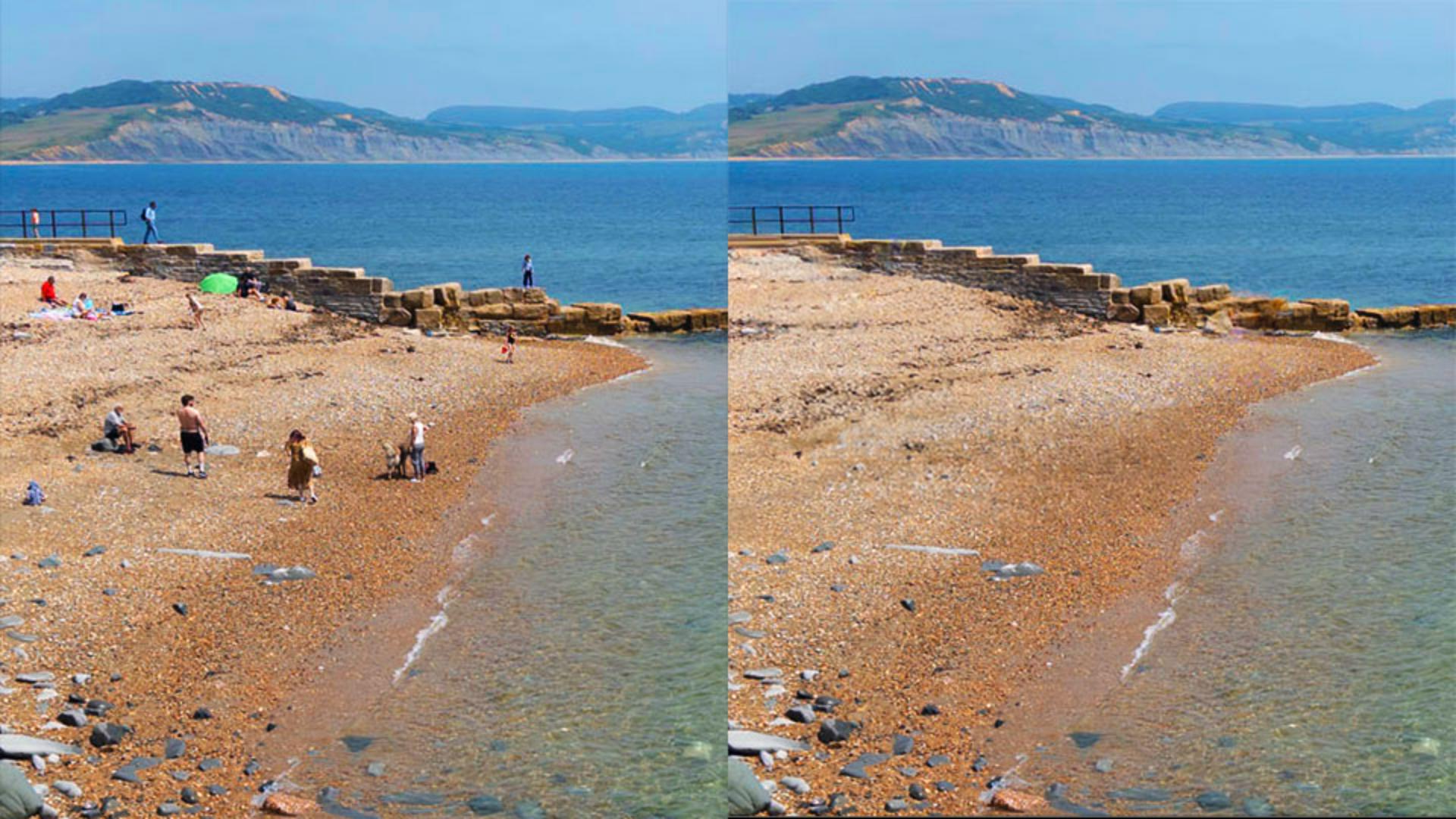
I'm going to start with this photograph here of a beach scene where there are a number of people that I just wish weren't there.
So, this is perfect for Distraction Removal in Lightroom.
Accessing distraction removal in the remove panel
I'll go to the extreme right-hand side of the screen and go to the Remove section.
In here we can see Distraction Removal with two options available to us: Reflections and People.
We'll look at Reflections in a moment, but for now, let's take a look at how we can remove the people off this beach.
I'll click where it says People,
Removing people automatically from a photo
and when I do, Lightroom immediately starts to analyze the photograph, and moments later we can see that it has indeed discovered people in the picture, and over each we now see this red overlay and a pin.
To remove the people, all I would need to do is click on Remove.
However, what if there were people I didn't want to be removed?
Well, if I zoom in over here, there's a statue of the famous paleontologist Mary Anning, which is kind of a person, but not.
But I certainly don't want the statue to be removed.
So all I need to do is to click on the pin and then press Delete.
When I do, the pin disappears, as does the red overlay.
That all looks good.
So I'll now click on the Remove button, and this is the result.
Fantastic.
Just one other thing to mention is that if you notice
Refining results and choosing alternate variations
that maybe an area where people have been removed doesn't look quite as good as you'd hope, then you can bring your cursor on top of the image, which then reveals the pins.
Simply click on the pin, which represents the location where the people were removed, and then click through the other variations to find one that you're happy with.
Now let's look at Reflection Removal, which never fails to blow my mind.
Removing window reflections with AI
This image here of a shopfront we can see has a very noticeable reflection.
We can clearly see the photographer taking the photograph.
So in the Remove section, I click on Reflections, and here we have a Quality setting where we can choose Preview, Standard, or Best.
The Reflection Removal feature supports raw and non-raw file types, and this Quality setting determines the resolution of the final result.
Preview is the lowest resolution suitable for sharing on social media and it's the fastest to process.
Standard is an intermediate resolution ideal for viewing photos at normal screen resolution.
But Best is the full resolution.
But it does take longer to process.
But through the magic of video editing, we can speed that up.
So, I'll choose Best and then tick to Apply.
And there's the result, which is incredible.
Let's try it on this image here.
With so much reflection, it almost looks like a composite of images blended together.
But I'll choose Best quality, tick to Apply, and it gives us this incredible result.
The Amount slider here, I can use to control how much of the reflection is visible, +100 means the reflection is removed.
Because I drag to the left, we start to see the reflection appearing.
But if I go all the way to the left to -100, we only see the reflection and not what was on the other side of the window.
Amazing.
We do need to manage expectations with this technology,
Understanding quality settings and best practices
because of course there will always be those occasions when we don't quite get the result that we want.
For example, this image here, when Lightroom tries to remove the reflection, we can see here that the numbers look a little fuzzy.
And this may be because of the extreme bright areas of these cars in the reflection.
It's worth knowing that there is a best practice for when to use this Distraction Removal technology.
And that would be very early on in your workflow.
But after using functions like Denoise, Raw Details, and Super Resolution.
But this kind of functionality is like being able to perform magic.
Photographs that might never have seen the light of day can literally be transformed with a single click.
Incredible.
You are going to love giving this a try.