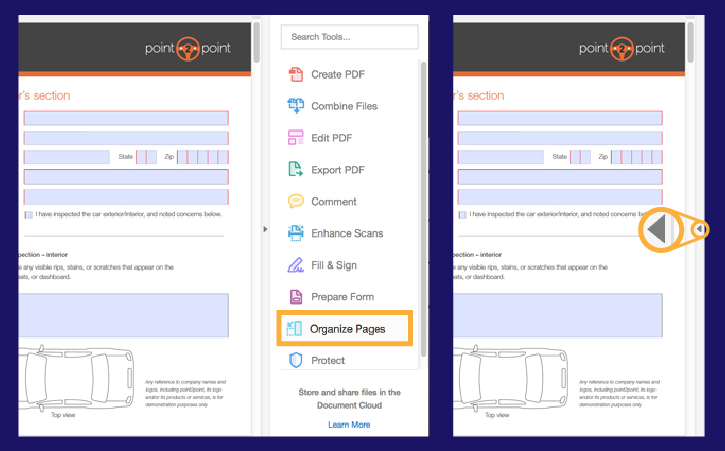
Open the organize_start.pdf sample file in Acrobat, or open your own multi-page PDF document.
In the right pane, select the Organize Pages tool.
Note: If the right pane is collapsed, you can click the small arrow on the far right to expand it.
2
Replace a page
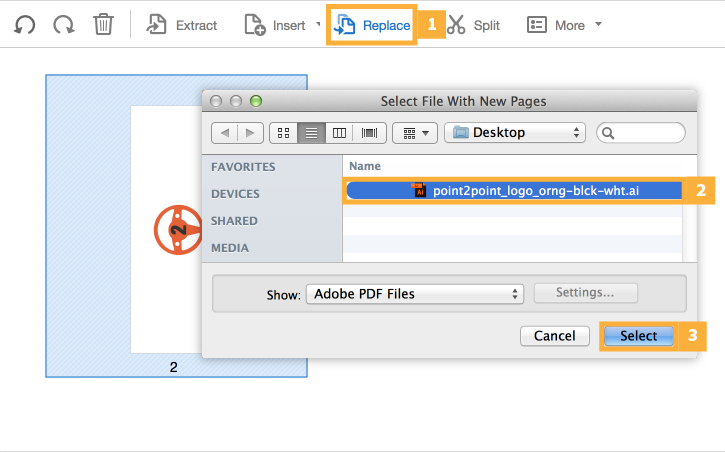
You may want to replace a page with a new or different version than the page that’s currently part of the PDF. Start by clicking the page 2 thumbnail of the organize_start.pdf sample file to select it as the page to replace.
Click the Replace option in the toolbar.
Browse to the location on your computer where you saved the sample files for this tutorial and select the point2point_logo_orng-blck-wht.ai file.
Click Select.
Note: Acrobat converts the Adobe Illustrator (.ai) file to PDF when it adds it to the document.
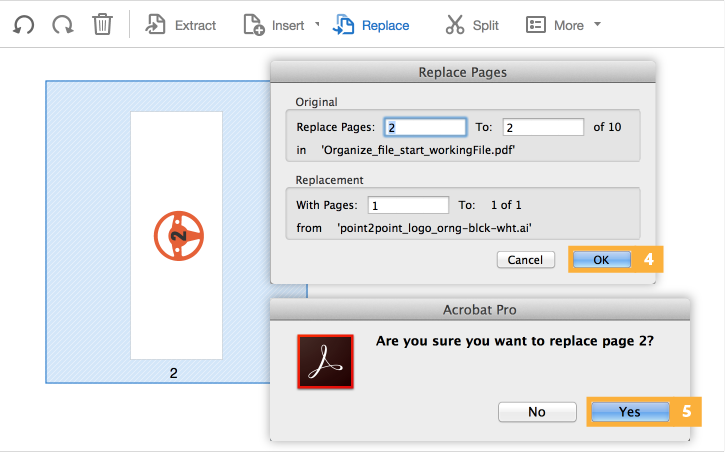
Make sure the Replace Pages dialog looks like the one below, so that you’re replacing page 2 in the PDF file with page 1 of the Illustrator file. Click OK.
Click Yes
when Acrobat prompts you to verify that you want to replace page 2.
3
Rotate a page
Your document may be a combination of pages in both landscape and portrait orientation. You can adjust the rotation on any of the pages as necessary.
Click the page 2 thumbnail and hover over it until the rotate icons appear.
Click the Rotate Clockwise icon to rotate the page 90 degrees to the right.
4
Delete a page
Use the Delete Pages option to remove unwanted pages from the final PDF.
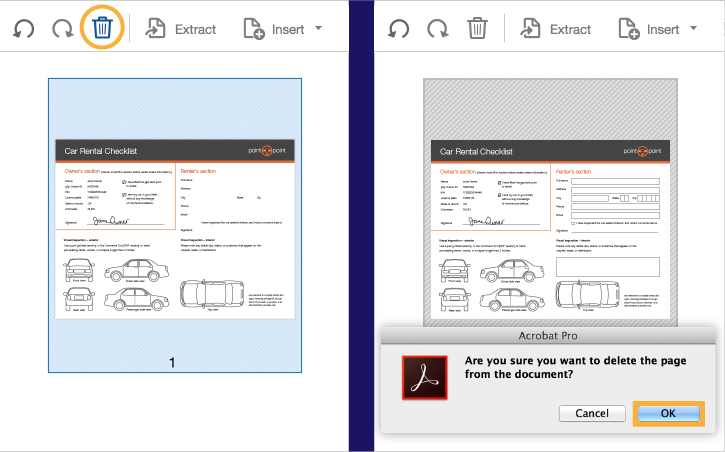
Select the thumbnail for page 1 and click the Delete Pages option to delete the selected page.
Click OK
to confirm that you want to delete this page.
5
Add a new page from an existing file
You can add pages to your document while working in the thumbnail preview.
Move your cursor to the right of the thumbnail for page 2 until the plus (+) icon appears.
Select Insert from File... and locate the 2015_survey.xslx
sample file.
Click Select to convert the file into PDF format and insert it into the document.
Note: If you don't see the file you’re looking for, make sure you can see all files instead of just PDF files. From the Show dropdown list, choose All Files to see the .xlsx file.
6
Reposition pages
Specify a range of pages to reorder them in the document.
Click the Enter Page Range menu to see the options for selecting pages.
Select Portrait Pages to select all of the pages that have a portrait layout — in this file, that’s pages 2 and 3.
With the pages still selected, drag the pages to the beginning of the document.
Drag the pages until the blue bar appears and shows where the pages will be inserted. When you’ve reached the correct location, release the mouse.
7
Create a new PDF from several pages
You can create a document from the pages in a PDF without removing the pages from the source document.
Reduce the size of the thumbnails by dragging the zoom bar to the left. Now you should be able to see more of your document’s pages.
Select page 4, then hold down the Shift key and click page 9 to select the range of pages.
Select the Extract tool, then click the Extract button.
Notice that the boxes for Delete Pages after extracting and Extract pages as separate files are NOT checked; this will generate a single new PDF file (instead of one new file for every page), and will leave the original document intact.
8
Save the new file
Acrobat creates a new document when you extract pages from a PDF. Select File > Save As to save the newly created file.
You now have two separate documents. Your new PDF contains only the pages you selected and extracted from the original file, and that original file is still intact for whenever you need to access the full document. Learn more aboutadding and manipulating pages in a PDF .
You can control how Adobe websites use cookies and similar technologies by making choices below. But note that if you disable cookies and similar technologies entirely, Adobe websites may not function properly.
Cookies are small text files stored by your web browser when you use websites. There are also other technologies that can be used for similar purposes like HTML5 Local Storage and local shared objects, web beacons, and embedded scripts. These technologies help us do things like remembering you and your preferences when you return to our sites, measure how you use the website, conduct market research, and gather information about the ads you see and interact with.
You can make choices in the menu below about what cookies and other technologies you want us to use on Adobe sites when you visit them from this browser. You can always change those choices later by clicking on the Cookie Preferences link at the bottom of the page.
If enabled:
We can improve your experience by tailoring the site and the content to things we think might be of interest
We can better keep track of your preferences — like what language you prefer to use
We will better understand your likely interests so we can provide you more relevant Adobe ads and content on non-Adobe websites and in non-Adobe apps
It will help us improve the performance of our website and those of our partners who use the Adobe Experience Cloud
If disabled:
We won’t be able to remember you from session to session so the experience may not be tailored to your interests
You’ll still have access to the content of the site but certain features that depend on cookies may not function
You’ll still see ads, they just may not be as relevant to you
General information
You can control how Adobe websites use cookies and similar technologies by making choices below. But note that if you disable cookies and similar technologies entirely, Adobe websites may not function properly.
Cookies are small text files stored by your web browser when you use websites. There are also other technologies that can be used for similar purposes like HTML5 Local Storage, web beacons, and embedded scripts. These technologies help us do things like remembering you and your preferences when you return to our sites, measure how you use the website, conduct market research, and gather information about the ads you see and interact with.
You can make choices in the menu below about what cookies and other technologies you want us to use on Adobe sites when you visit them from this browser. You can always change those choices later by clicking on the Cookie Preferences link at the bottom of the page.
If enabled:
We can improve your experience by tailoring the site and the content to things we think might be of interest
We can better keep track of your preferences — like what language you prefer to use
We will better understand your likely interests so we can provide you more relevant Adobe ads and content on non-Adobe websites and in non-Adobe apps
It will help us improve the performance of our website and those of our partners who use the Adobe Experience Cloud
If disabled:
We won’t be able to remember you from session to session so the experience may not be tailored to your interests
We’ll still count your use of our site and services
You’ll still have access to the content of the site but certain features that depend on cookies may not function
You’ll still see ads, they just may not be as relevant to you
Operate the site and core servicesOperate site and measure engagement
Always active
These cookies are required, and they are used to enable the site and related services core functionality. Without them the site could not operate, so they cannot be disabled.
These cookies enable the site and related services’ core functionality and collect statistics about user engagement, such as counting active use to help us understand trends. These cookies cannot be disabled.
Measure performance
These cookies are used to analyze site usage to measure and improve performance. Without them Adobe cannot know what content is most valued and how often unique visitors return to the site, making it hard to improve information we offer to you.
These cookies are used to analyze site usage to measure and improve performance. Without them Adobe cannot know what content is most valued, making it hard to improve information we offer to you.
Extend functionality
These cookies are used to enhance the functionality of Adobe sites such as remembering your settings and preferences to deliver a personalized experience; for example, your username, your repeated visits, preferred language, your country, or any other saved preference.
Personalize advertising
These cookies are used to enable Adobe and our partners to serve ads more relevant to your interests. Without them you will still see ads, but they might not be as relevant to you.
Personalize advertising
These cookies are used to enable Adobe and our partners to serve ads more relevant to your interests. Without them you will still see ads, but they might not be as relevant to you.