#1E1E1E
Learning How to Add an Image to a PDF
You’ve set up your PDF and realise that an image is missing. You don’t have time to restart or you might not have the original document to change and re-save it as a PDF. Luckily for you, we have the how-to guide to insert an image into a PDF.

Quick list: Insert Photo into a PDF.
Follow these steps to add your image into a PDF quickly.
- Where to start. Get your PDF and open it in Acrobat.
- What to press. Click Tools, then edit PDF and add image. Select the image you want to use and where you want it to go.
- Wrapping up. Your image will be in the right place and you can click-drag to make it the right size.
In detail: Add an Image to a PDF Step by Step.
- You want to add this image into a PDF. The PDF will be open in Adobe Acrobat, ready for you to start editing. Click the edit button at the top of the page. Scroll to Edit PDF and then to Add Image. Click Add Image.
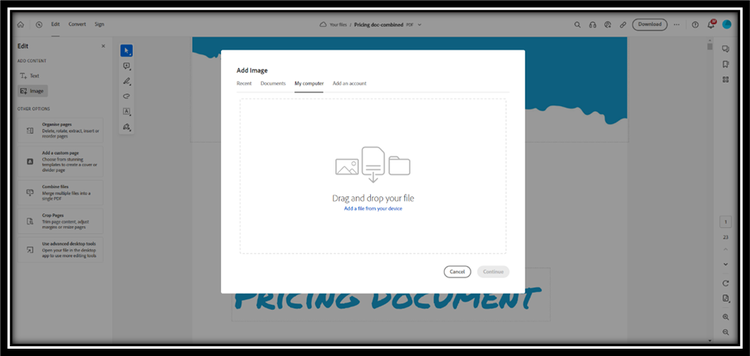
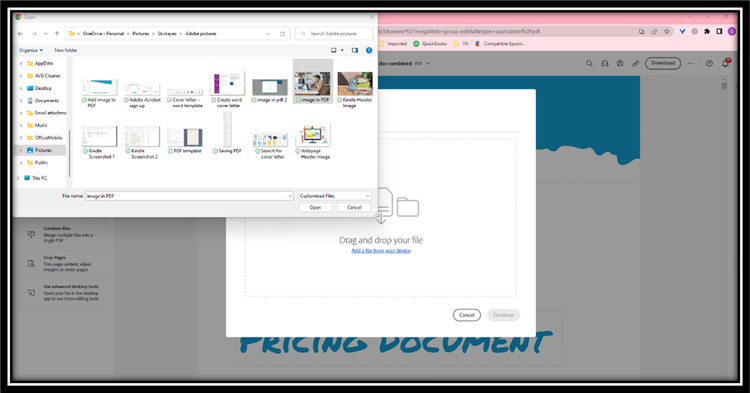
- Make sure that you know where the picture you want to add is saved somewhere and easily accessible. When you click Add Image, a dialogue box will open where you’ll be able to navigate to the folder where your image is saved. Once found, click the image and then click open.
- Click the PDF where you want to place your image and then you can resize it as necessary. Your image will appear on the page in the same resolution as the original image.
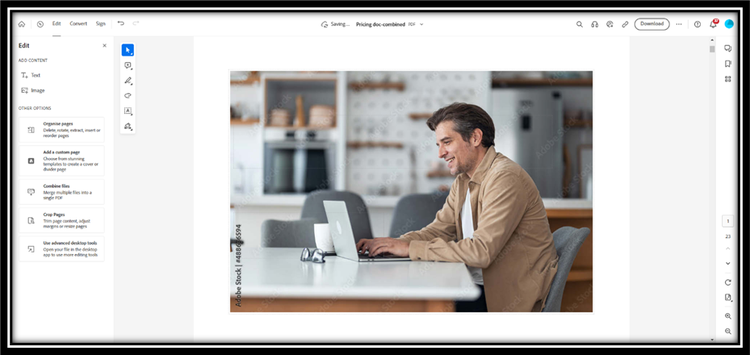
- Your PDF will now have the image inserted. You’ll be able to use the tools panel to flip, rotate or crop the image as you see fit.
How to Add an Image to PDF online.
Adding an image to a PDF online is a straightforward process with Adobe Acrobat online tools.
- Using the programme’s PDF Editor, select the Edit text & images option.
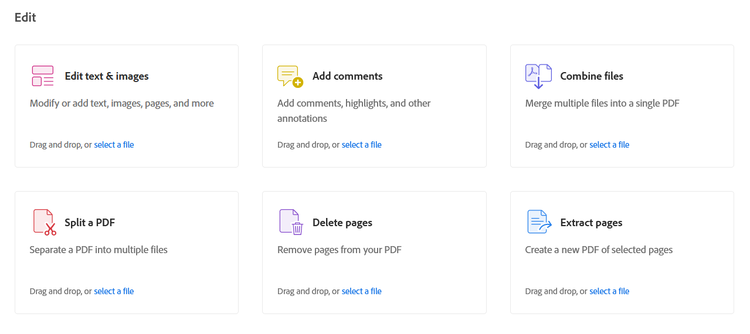
- Selecting this option will trigger a dialogue box that allows you to locate the image file you want to add. Click the file and click Open.
- The image will appear on your PDF. From here, you can move to image around the PDF or re-size it.
FAQs
What image formats can I insert into a PDF?
With Adobe Acrobat Pro, you can make basic edits to images in a PDF, such as resizing, rotating, cropping, or repositioning them. More advanced image editing may require using an image‑editing application before adding the image to your PDF.
Will I be able to edit an image when it’s in the PDF?
If images aren’t displaying in your PDF, make sure you’re opening the file in the latest version of Adobe Acrobat and that the images were added correctly. You can also check that the PDF file isn’t corrupted and that your display settings allow images to render properly.
Why is my PDF not displaying the images?
You can add images to a PDF using Adobe Acrobat’s online PDF editing tools. Some features may be available with free use, while others require a subscription. To add an image online, open the PDF Editor, select Edit text & images, and insert the image where needed.
Can I add an image to a PDF online for free?
Yes, with Adobe Acrobat Pro, you can add multiple images to a single PDF page by inserting each image individually. You can then move and resize each image to suit the layout of your document.
Can I add multiple images to a single PDF page?
Using Adobe Acrobat Pro, you can resize or reposition images directly in a PDF. Select the image to move it, resize it using the selection handles, or rotate, crop, replace, or delete it as needed.
How do I resize or position an image in a PDF?
Adding images to a PDF online is convenient for quick edits directly in your browser. Desktop versions of Adobe Acrobat Pro offer more advanced editing controls and precision, which can be useful for more complex or detailed documents.
What are the differences between adding images to PDFs on desktop vs. online?
If you experience issues when adding images, ensure you’re using the latest version of Adobe Acrobat and that the image file format is supported. Reopening the PDF or re‑adding the image can also help confirm it was inserted correctly.
How do I troubleshoot issues when adding images to a PDF?
Yes, with Adobe Acrobat Pro, you can add transparent images or watermarks to a PDF. Open the file, select Edit, then choose Watermark > Add to set the image, size, position, and transparency.
Can I add transparent images or watermarks to a PDF?
To help preserve image quality, use high‑resolution source images and avoid unnecessary compression when saving your PDF in Adobe Acrobat. You can choose high‑quality or print‑ready output settings depending on how the PDF will be used.
How do I ensure the image quality is preserved when adding it to a PDF?
Adobe Acrobat doesn’t set a fixed limit on image file sizes, but adding very large images can significantly increase the overall PDF size. Larger PDFs may be harder to open, share, or upload, so optimising images beforehand can help.
Are there any file size limitations when adding images to a PDF?
Yes, provided you have permission to edit the file and the correct password, you can add images to a password‑protected PDF in the same way as any other editable PDF.
Can I add an image to a password-protected PDF?
Adobe Acrobat provides tools for adding images to PDFs, whether you’re working online or on desktop. Depending on your needs, Acrobat allows you to insert, move, and resize images, with more advanced features available through a subscription.
Related Acrobat content.
Need more expert guides on getting the most from Adobe Acrobat? Check out these other handy pages:
title
Learning How to Add an Image to a PDF
cardImageAltText
Learn how to insert an image into a PDF in this simple step-by-step guide. Easy process with clear instructions - get the best of Adobe PDF tools.
cardImage
primaryTag
caas:content-type/article
Tags
caas:content-type/article,caas:products/acrobat,caas: topic/add-pages-to-pdf /acrobat,caas: topic/compress-pdf