Why can’t I edit a PDF?
A PDF is a secure document that you can use for a range of projects, both personal and professional. They’re great for displaying content and, unlike Word documents, formatting doesn’t move and shift depending on how and where you open it.
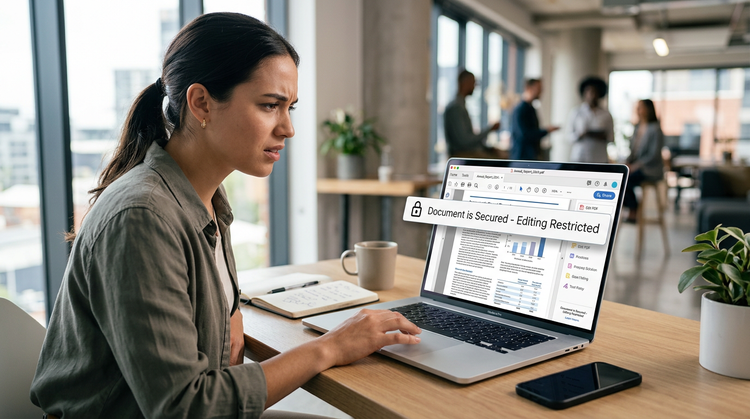
However, you may find that you can’t edit a PDF depending on who owns the file and how it was created. In this guide, we’ll explore how to enable editing on a PDF, plus some helpful tips when it comes to creating and securing your documents.
Key takeaways.
- Common reasons why you can’t edit a PDF may include security measures, being image-based, or using a PDF reader.
- You can often enable editing by removing passwords, using OCR for scanned documents, or using PDF editing tools, like Acrobat.
- Make sure you have the correct passwords, editing rights and software to unlock and modify PDFs.
What are the benefits of a PDF?
There are many benefits to creating and using PDFs. Whether you’re creating important documents for work, using them for school or university, or just for a personal project, the PDF has plenty to offer.
For example:
- Cross-device compatibility. Whatever device or platform you open a PDF on, the layout and formatting remain consistent.
- Secure file format. You can encrypt and password-protect PDFs, so only authorised people and accounts can access them.
- Compact file size. PDFs are made for easy sharing and storage. They can also be compressed further if you want to send larger documents over email.
- High document quality. If you’re looking to share or print your document, PDFs are considered the standard as they preserve high image quality.
- Free to view. Most devices allow you to view and make minor edits to PDFs for free, regardless of whether you have Acrobat installed.
Common issues and solutions if you can’t edit a PDF.
There are many reasons why you may not be able to edit a PDF. The exact solution will differ depending on the problem. Below, we explore a few reasons and their simple solutions.
1. Password protection.
PDFs can be password-protected or made as read-only documents for security reasons. For example, if you’ve been sent an important document at work that contains sensitive information, chances are you’re going to need a password to access it.
You can’t edit a PDF that’s protected by a password. If it’s not your file, you’ll need to contact the owner to ask them to remove password protection.
If it is your file, you’ll need to unlock it using Acrobat. Simply:
- Open your PDF and sign in to Acrobat.
- Head to the ‘Unlock’ tool via Tools > Protect > Encrypt > Remove Security.
- Remove the password by entering it in the dialogue box, then clicking ‘OK’.
2. You only have a PDF reader.
A common reason why you can’t edit a PDF in Acrobat is that you only have a PDF reader installed. To make changes to a document, you’ll need to use the PDF Editor, or an online editing tool, rather than just a reader.
You’ll need to either sign up for Adobe Acrobat Pro, or use the free drag-and-drop online PDF Editor tool.
3. The PDF is image-based.
If the PDF has been scanned, it may have been saved as a flat image rather than a document. This means you can’t easily edit your PDF by simply unlocking it, as it’s not the original version of the document.
In this case, you’ll need to use Optical Character Recognition (OCR) technology to convert the image into editable text. You can use the free Adobe Acrobat OCR PDF tool to do this. Simply select and upload your file, and your PDF will be converted in seconds.
4. Incorrect or outdated software.
If your PDF has been created with the wrong or outdated software, this can make it harder to access and edit. In some cases, you may be able to use an OCR converter tool to enable editing on the PDF. In others, you may have to convert it to a more flexible format, like Microsoft Word, to make your edits.
To do this, simply use a PDF to Word converter, like the one offered by Adobe Acrobat.
5. The document has a digital signature.
In some instances, if a PDF has been signed digitally, the document will be locked down to keep that signature safe. This means that you can’t edit that version of the PDF – you’ll need to use the pre-signed version.
With this in mind, it’s a good idea to ensure all edits are in place for official documents before you send them off to be signed.
6. You don’t have administrative rights.
The creator of the PDF may have turned off editing capabilities for other users, so it may appear as ‘read only’. If this is the case, you’ll need to contact the owner of the document and ask them to change this.
To check if this is the case, you can:
- Open the PDF.
- Right-click and select ‘Properties’.
- In the ‘General’ tab, check if the file is labelled as ‘Read-only’.
Why can’t I edit a PDF in Acrobat?
Adobe Acrobat allows you to access, read and edit PDFs so you can create and make changes to documents wherever you are. Whether you’re sending an important contract to a client or building out your dissertation, Acrobat is secure, all-in-one software that has everything you need.
You should be able to edit PDF when you’re signed into your Acrobat account no problem. However, if you can’t edit your PDF, make sure that:
- Acrobat is properly installed on your device
- You have a valid Adobe Acrobat subscription
- It’s your default PDF viewer and editor
- There aren’t any updates you need to install
- The document isn’t read-only or password-protected.
Learn more about why you might be unable to edit a PDF in Acrobat
Edit a PDF with Acrobat’s online tools.
Even without an Adobe Acrobat subscription, you can use a range of free online tools to edit, convert and change your PDFs. For example, the drag-and-drop PDF Editor tool allows you to edit text, add comments, annotate, and fill & sign PDF documents.
There are also tools to combine, compress and reorder your PDFs, all without needing to download any extra software. Just select your file, upload it, and make your changes online in minutes.
FAQs.
What tips can help you avoid PDF editing errors?
The key to avoiding PDF editing errors is to make sure you’re using the right PDF editing software – for example, Adobe Acrobat. You can also use a variety of online Adobe tools to make secure changes to your documents. Another tip is to always have a backup of your file, so you can always revert back if you’re not happy with any edits.
How to enable editing on a PDF document?
To enable editing on a PDF document, you’ll need to be using a PDF editor, rather than just a reader. To do this, sign up to Adobe Acrobat Pro, or use the online PDF Editor tools from Adobe to make smaller edits like adding comments, annotations and signing.
Why would a PDF be locked?
A PDF may be locked – e.g. created as a read-only document or password-protected – by its owner to ensure the integrity of the information in the document. PDFs also lock after they’ve been signed to secure a person’s signature.
To unlock a PDF, you’ll need to contact the original owner of the document to remove password protection or make it editable. If it’s your own document, head to the ‘Unlock’ tool via Tools > Protect > Encrypt > Remove Security.
More resources.
- How to Edit a PDF on iPhone
- How to Make Adobe Your Default PDF Viewer
- How to Open and Edit a PDF on Mac
- How to Write on a PDF
Useful PDF tools.
Sign up for Adobe Acrobat online to access a wide range of professional PDF editing tools.