How to Save a PDF on an iPad
The latest iPad models make it easy to do things like download an audio book, edit a document in Microsoft Word or save a PDF. Want to take advantage of this flexibility?
Discover how to save a PDF on an iPad in our handy guide.
Quick List: How to Save a PDF on an iPad.
Saving a PDF on your iPad is easy. Just follow these steps.
- Find your file. Open the PDF in the Safari web browser.
- Share and store. Tap on the share button at the top of the screen, then select the app where you would like to store the PDF.
- Save and view. Click Save File to and then click Add.
- You can now view your PDF document on iPad.
In Detail: Saving a PDF on an iPad Step by Step.
Saving a PDF on iPad is usually a simple process to follow, assuming the document in question is already a PDF. When viewing a PDF document in Safari, you can take these steps to save it to your iPad’s local storage
1. Ensure that you are using the Safari browser to open the PDF. Safari is the browser native to Apple products and will make it easier for you to save the document without taking multiple steps.
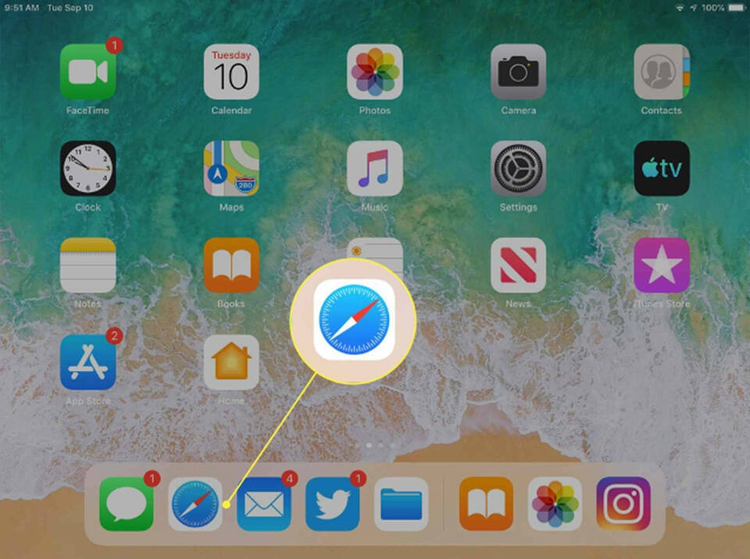
2. Once you have opened the PDF you want in Safari, tap the Share button. This button looks like a half square with an arrow facing upwards. It is usually located at the bottom of the screen on iPhone but at the top of the screen when saving PDF to iPad.
3. If the Share button doesn't appear at the top of your screen, all you need to do is start scrolling back up towards the top of the PDF and it should appear.

4. Now it's time to select the app that you would like to save the PDF to. If you only want to read the PDF, then the best option is to click save to Books. Books is a pre-existing app on iPad that enables you to easily view all e-books, articles, magazines, PDFs and other publications.

5. When saving a PDF file to books, the Books app will automatically categorise it in a PDF section, making it easy to locate the PDFs you have saved.
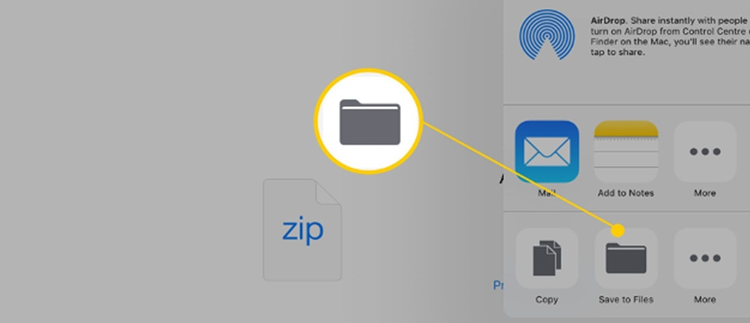
6. If you will need to edit the PDF and access it on another device or send it to others, then it's best to save the doc to your files. To do this, tap on the Save to files option and then choose the location where you want to save PDF on your iPad.
7. Now you should be able to access the PDFs, even if you are off-line and have no access to Wi-Fi.
Benefits of Using PDFs on Your iPad.
Discover why it's worth learning how to save PDF to an iPad.
- Convenience. By saving PDF to iPad, you can access all the files you need remotely - without needing to carry around a laptop, desktop or another bulky device.
- Keep important documents safe. From saving PDF event tickets, to retaining booking information on a recently booked holiday - once saved on your iPad, you will be able to recall the docs you need on most of your Apple devices.
- It's easy to print. Need to print a PDF on the fly? By saving PDF on iPad, you can quickly and easily print the document using the iPad airdrop feature and a compatible printer.
FAQs
Still got questions? These FAQs should give you all the extra information you need.
Can I edit a PDF once it is saved to my iPad?
Editing a PDF on iPad is simple and can be achieved by following these simple steps:
- Open the PDF file.
- Tap on the top right of the screen and then click the Central outlines tab.
- Tap Edit in the top right.
- Tap Add. Now, the outline item links to the current page.
- Rename the outline item.
- Tap Done.
Can I print a PDF from my iPad?
To print a PDF on iPad, open the PDF up and hit the share button. Now select the Print option and then choose your nearest printer by clicking Select printer. If the printer does not come up in the list, it could either be that it is not switched on or that you are not close enough to the device.
Related Acrobat content.
Get more out of Acrobat with our tips and guides.