How to write a review on Facebook.
Craft authentic reviews that build trust.





Why should you leave reviews on Facebook?
Leaving a review on Facebook helps both businesses and customers. For businesses, reviews build credibility and increase visibility on one of the world’s most active platforms. When someone searches for a café, local service or shop, positive reviews make that business stand out. A steady flow of authentic reviews shows potential customers that people enjoy the experience and trust the brand. For customers, writing a review is your way to share your story, highlight great service, and help others make informed choices. It’s a simple but powerful way to support businesses you care about and to give back to a community that collectively identifies the best businesses where people may want to spend their money. Reviews can hugely strengthen local communities and help small and growing brands connect with people who genuinely value their work.
Whether you’re praising a local bakery or giving constructive feedback to a new service, your words help shape their reputation. You can even create graphics or share snippets of your review across social media using Adobe Express. Design standout posts, banners, and testimonial cards that share your message visually, all with easy-to-edit templates that look professional in minutes.
How to log in and find the right business page to leave your review.
To write a Facebook review, first make sure you’re logged in to your Facebook account. Open Facebook on your browser or mobile app and use the search bar at the top to find the business page you want to review. Make sure it’s the correct business. Sometimes pages have similar names, so look for the logo, address, and contact details to confirm that you’ve found what you’re looking for. Once you’re on the right business page, look for the “Reviews” tab, which is usually on the left-hand menu or near the top of the page. If the business has reviews enabled, you’ll see an option to “Do you recommend this business?” Click “Yes” or “No” depending on your experience, and Facebook will open a box for you to write your review.
If the business doesn’t have reviews turned on, you can still support them by tagging their page in a post, story or recommendation. Remember to keep your message clear and polite. You can use Adobe Express to create a post image that features any photos along with your testimonial. Start with red or gold Facebook post templates. Sometimes pictures are better than words, and photos of a delicious café brunch or a beautiful piece of handmade jewellery can be a quick and easy way to share your support and literally show others what products or services you’ve enjoyed. Remember that if you do accidentally post your review to the wrong page, it’s best if you remove it and repost it to the right business page. That way, your review will be accurate and fair, helping both the business and the customers see what you liked and disliked about the business.
recipe
What to include in your review on Facebook.
A great Facebook review balances honesty, detail and clarity. Start by mentioning what you—not others—purchased or experienced. You can set the scene, as this gives readers helpful context (“We visited this hotel for my sister’s hen party”), but don’t go into too much irrelevant detail. Instead, highlight what made your experience with the business positive or negative. Did you encounter friendly staff? Did you enjoy a quick and easy service? Did you find the quality or uniqueness of the product especially good? Be specific about what stood out to you, as this helps others understand why they might enjoy it too.
If you’ve not had a good experience and plan on leaving a negative review, try to prevent your review from turning into one big rant. If there’s room for improvement, share it constructively. Businesses—and other potential customers—value fair, balanced feedback that helps them understand the pros and cons of the service or product. Instead of focusing on what went wrong, explain what could make the experience better next time. For example: “The service was friendly, but delivery took longer than expected. Earlier updates would help.”
If you’re feeling angry or upset about the experience, put that in the review. “Was quite upset at how small the product was, as the images on the website made it appear larger. Would also have been nicer if the product packaging was better quality, too.” Thoughtful comments like these help businesses grow and improve. Avoid leaving any kind of review that is a personal attack on an individual, and be courteous in your descriptions of what went wrong and who you interacted with. Ultimately, your review is an opportunity to advise others of what your experience has been like and to advise businesses of what they could do better. If you want to make a complaint, use these complaint letter templates to help you.
recipe
Choosing the right words for your Facebook review.
When writing your review, tone matters as much as content. Keep it conversational, like you’re talking to a friend. Avoid overly formal, elaborate or emotional language. People respond best to simple, honest statements. For example: “I’ve ordered from here twice, and both times the food was fresh and delicious. Would recommend the two main chicken dishes and the veggie starter.” Focus on clear adjectives that match your experience. Words like “reliable,” “friendly,” “creative” or “excellent quality” convey your point effectively. If your review is negative, stick to facts. Describe what happened without personal criticism, and end on a helpful note if you can. A fair review might read something like: “Bit disappointing as the restaurant is lovely but unfortunately dishes were cold and service was a bit chaotic. I probably wouldn’t recommend, but the manager did apologise and offer us discounts when we talked to her.” This way, people can easily understand that whilst the manager was courteous, dinner service could still be chaotic if they were to visit.
Before you post, read it aloud once. If it sounds natural and kind, or at least fair, then you’ve got it right. If you want to upload videos or photos to go alongside your review, Adobe Express makes it easy to adjust fonts, colours, and layouts so your visuals match your tone. A consistent, well-designed post can give your feedback more credibility and help it reach more people. If posting to your own timeline and tagging the business, use blue or rose Facebook templates to make your review pop.
recipe
Create powerful reviews and testimonials using Adobe Express.
If you’re a business owner or a brand ambassador, then you might want to take some positive Facebook reviews and turn them into a shareable, branded testimonial for distribution across other channels. Doing this with Adobe Express is easy. Simply start by choosing a review or testimonial template. There are hundreds available for social posts, stories, flyers and posters. Then upload your logo, apply your brand styles and add customers’ words directly to your design.
If you run a business, it’s really important that you regularly use customer reviews in your own marketing. You might want to get feedback by sending out a quick customer survey. You can then create a carousel post that showcases your best customer feedback or design a digital “wall of love” using multiple quotes. You can also transform positive comments into thank you posts for your followers. The easy-to-use editor from Adobe Express lets you resize, animate and personalise your content for each platform. Whether it’s for Facebook, Instagram or your website, you can highlight authentic voices that build trust. With a few clicks, your best reviews can become part of your brand story: polished, visual, and ready to share.
recipe
How to encourage others to write Facebook reviews for your business.
If you’re a small business owner, encouraging happy customers to leave reviews can help boost your visibility and reputation. Start by asking at the right moment, usually just after a successful purchase or a positive customer service interaction. A simple follow-up message or thank-you email can go a long way at catching people who are willing to share positive experiences. Use this feedback request letter template to help you get started.
In general, it’s a good idea to make it as easy as possible for people to leave feedback whenever they want. Include direct links to your Facebook reviews page in your social bios, emails and receipts. You could also create a “Share your thoughts” post using Adobe Express with a clickable link or QR code to guide people straight to your page. Remember to show your customers appreciation when they leave you any kind of review. Respond to reviews with a quick thank you, and share positive ones across your channels. For any negative ones, directly address the issue, apologise if necessary, and take the conversation off the public platform so you can resolve it privately. The more you engage with your community, the more likely others are to participate. With consistent, friendly communication, you’ll build a loyal community to help your business grow. Learn more about how to respond to negative customer reviews and how reputation management can help build trust in your brand.
recipe
Making the most of your Facebook presence.
Once you’ve gathered a few reviews, use them to strengthen your social media strategy. Pin your best reviews to the top of your Facebook page or turn them into social posts to highlight customer stories. Reviews are powerful social proof; they show new visitors what makes your business worth trying. You can design matching visuals in Adobe Express to accompany these posts, keeping your brand aesthetic consistent. Try adding your logo, colour scheme, and a short quote from the review for a polished, trustworthy look. This helps people instantly recognise your brand across Facebook, Instagram, and other platforms. Think of Facebook reviews as part of your wider marketing toolkit; they’re free, genuine, and effective. With a little design creativity and attention to detail, they can help your business look professional and feel approachable all year round.
How to bring your Facebook reviews to life.

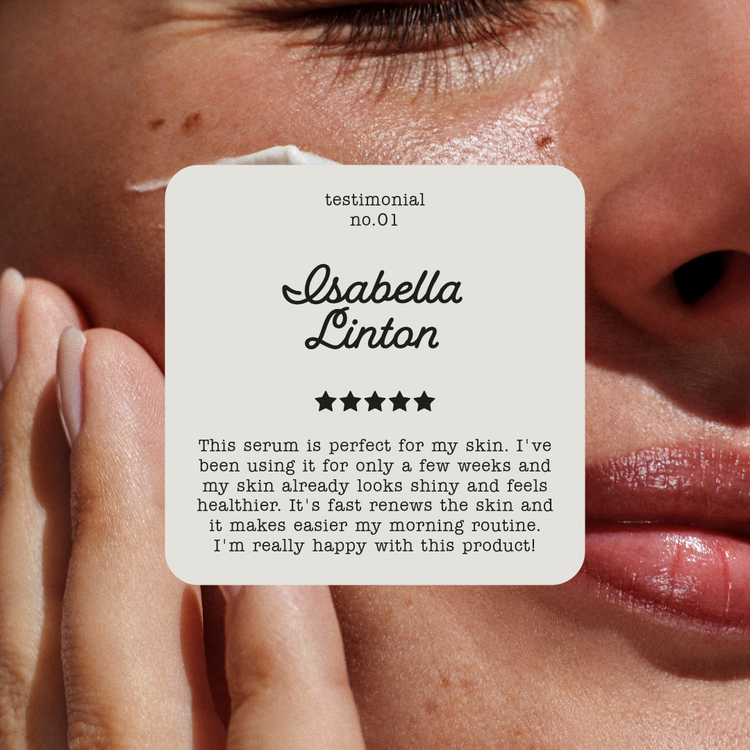
Adobe Express can help you.
Adobe Express has free templates to help you design professional-looking review graphics, thank-you posts, and testimonial layouts. Easily tweak colours, fonts, and styles to match your brand. Discover hundreds of templates that make sharing your feedback or promoting your business simple and creative. Start creating with Adobe Express today.