PHOTOSHOP FEATURES
How to feather edges in Adobe Photoshop.
Learn the tools and techniques you need to soften up your image when it’s rough around the edges.


PHOTOSHOP FEATURES
Learn the tools and techniques you need to soften up your image when it’s rough around the edges.
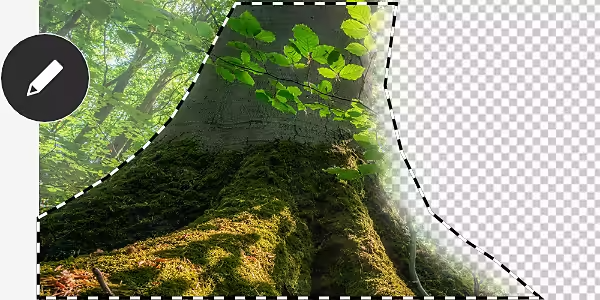
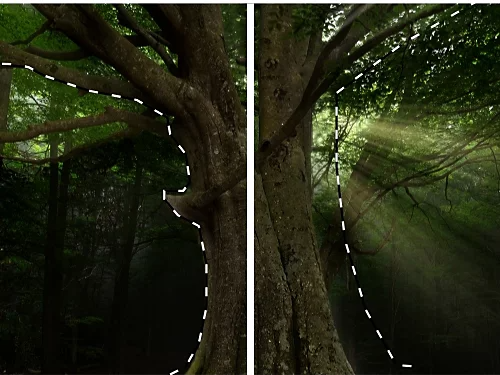
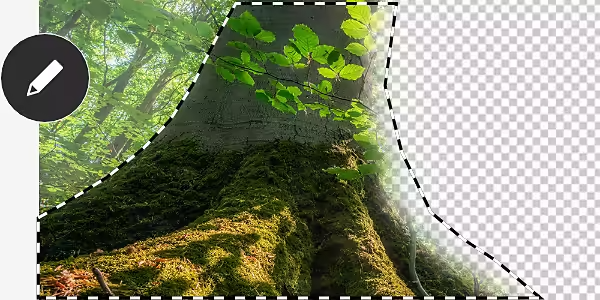
If you’ve made changes to a single selection of your image, you may notice a distinct or jagged edge where it stands out from the unaltered background colour. Feathering smooths those edges away.
A vignette effect is a way to highlight the subject of your image by fading and darkening the area around it. You can control how extreme this effect looks with a feather slide.
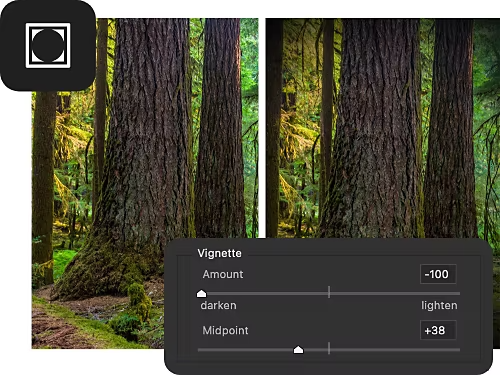
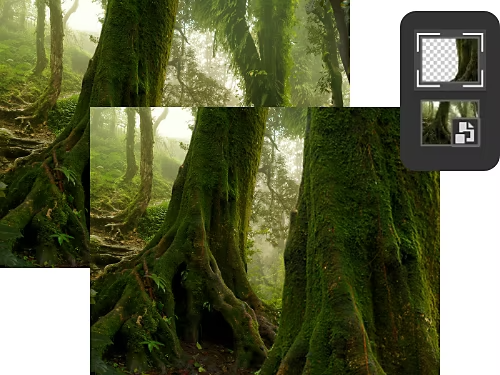
Feathering the border where a new layer meets the existing one can help to make them look like they’re both inhabiting the same space.
Photoshop doesn’t have a dedicated feathering tool, but you can create a feathered selection in three different ways.
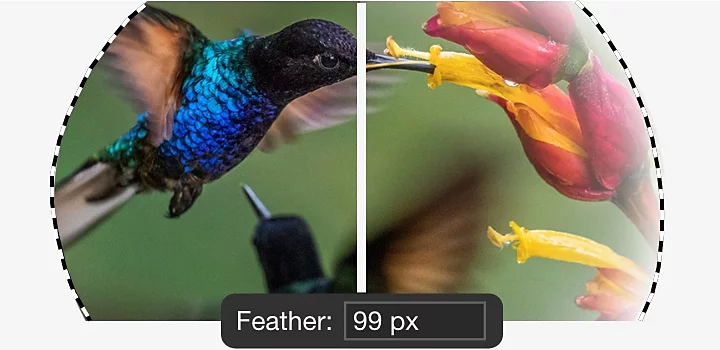
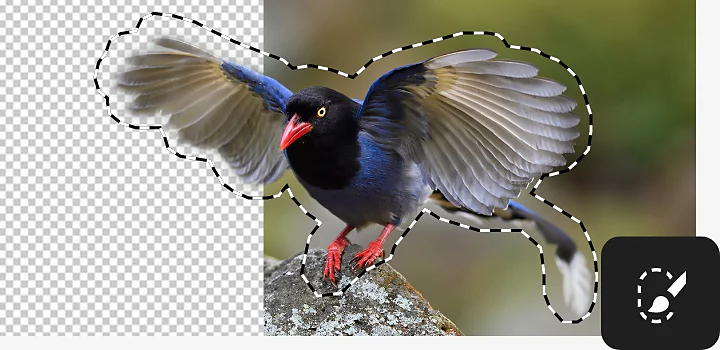
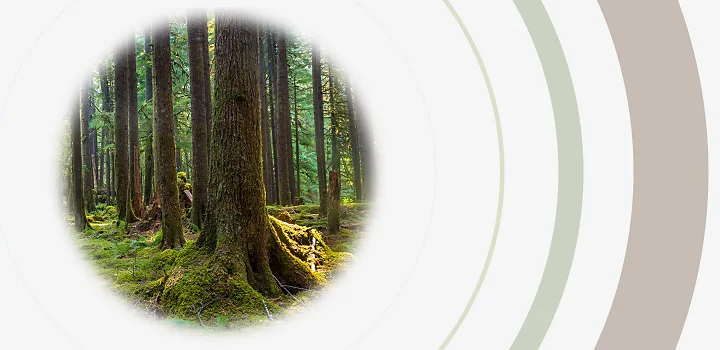
This is a more advanced option, ideal for when you’re trying to create a blur effect or apply filters.
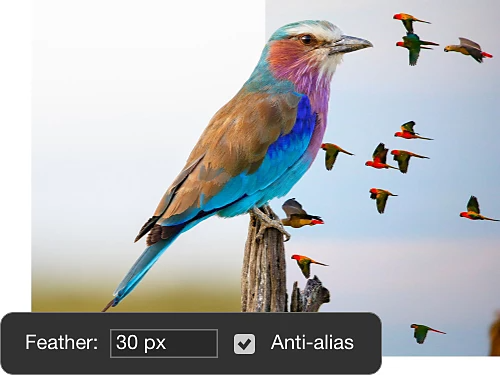
Unlike feathering, which changes pixels’ colour, anti-aliasing softens the opacity between edge and background pixels while maintaining the image’s clarity. Basically, it blends pixels to achieve the same smoothing effect as feathering but doesn’t blur edges. Just choose your selection tool, tick the box beside Anti-aliasing in the options bar at the top of the screen and then select the spot you want to smooth in your image.
The Blur tool is for advanced users who want to paint the smoothing effect directly onto the canvas using their cursor. Just zoom in on the edge you want to smooth, select the Blur tool, set its strength from the drop-down menu at the top of the screen and then run it over the edges that you want to soften.
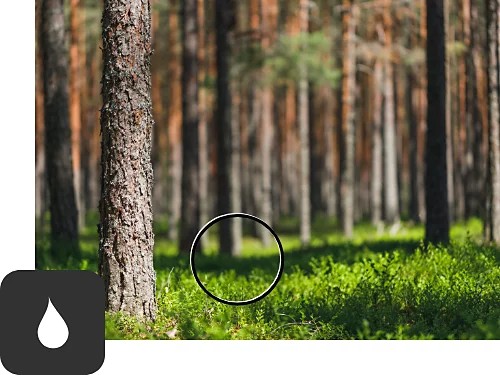
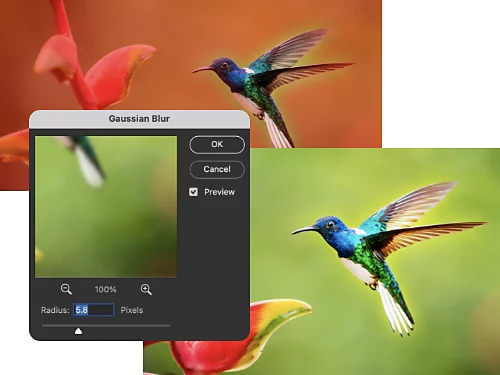
To make a targeted edit that’s feathered on the edges, like adding an angelic glow to the subject of a portrait, first select the area you want. The Select Subject tool will select the person in a portrait. Then press Q to open Quick Mask mode and go to Filter › Blur › Gaussian blur. Add blur with the slider and hit Q to leave Quick Mask mode. Finally, in the Layers panel, go to Adjustments to alter the Brightness/Contrast or other aspects of your newly blurred selection.
Photoshop can do so much more than just create soft, feathered edges. Discover step-by-step tutorials to help you to transform your original image into something completely new.
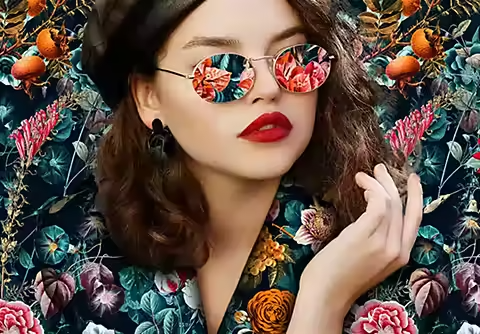
Use selections, masking and some carefully softened edges to create a composite image.
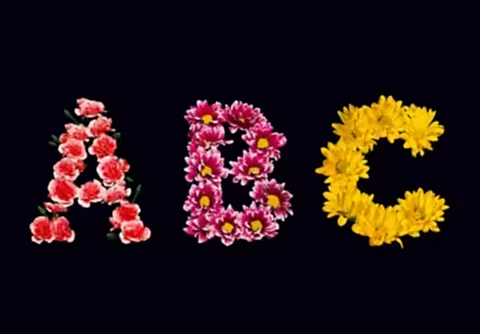
Explore how you can use Photoshop to turn colourful flower photographs into a customised typeface.
Annual, billed monthly
£21.98/moincl. VAT
Get Photoshop on desktop and iPad as part of Creative Cloud.
Get 20+ Creative Cloud apps, including Photoshop on desktop and iPad.
Annual, billed monthly
£16.24/moincl. VAT
Save over
Industry-leading creative apps with simple licence management.
Based on your location, we think you may prefer the United States website, where you'll get regional content, offerings, and pricing.