
Acrobat
Annual, billed monthly
Fee applies up to half your remaining annual commitment if you cancel 14 days after your free trial ends.


Product capabilities
Get the essential PDF toolkit, enhanced by AI.
Create, edit, sign, and manage PDFs with trusted Acrobat tools. Use AI Assistant to fly through document tasks — no learning curve required.
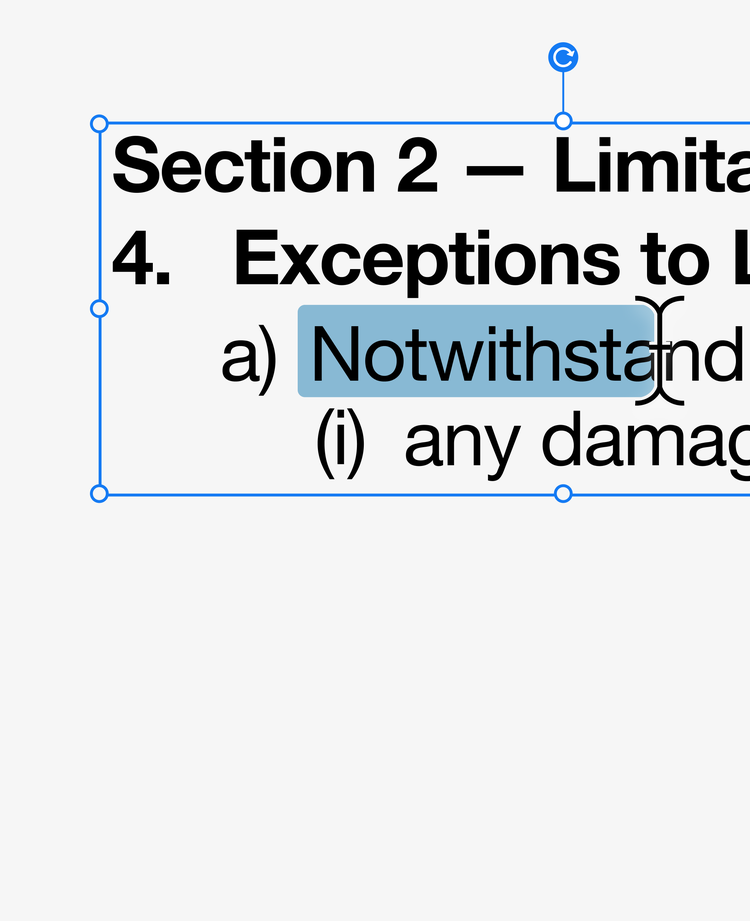
Edit PDFs in a few clicks.
Update text and images, rearrange content, organize pages, and more.
Quickly create and convert PDFs.
Turn Microsoft files, images, and more into high-fidelity PDFs, or convert PDFs to other formats.
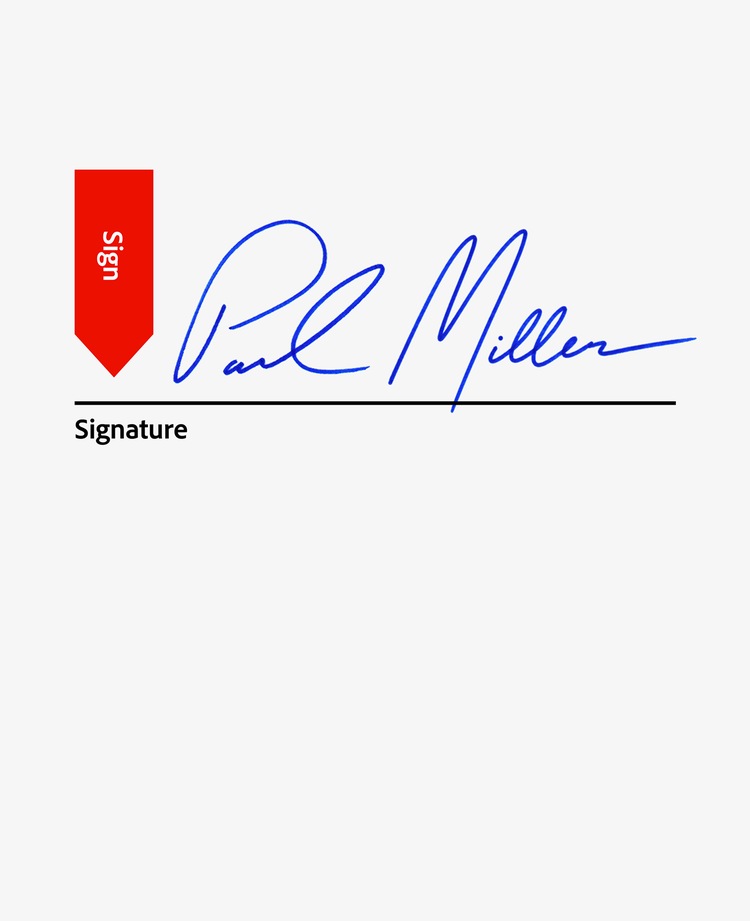
Speed up signature workflows.
Request e-signatures, track status, and set reminders to keep work flowing.
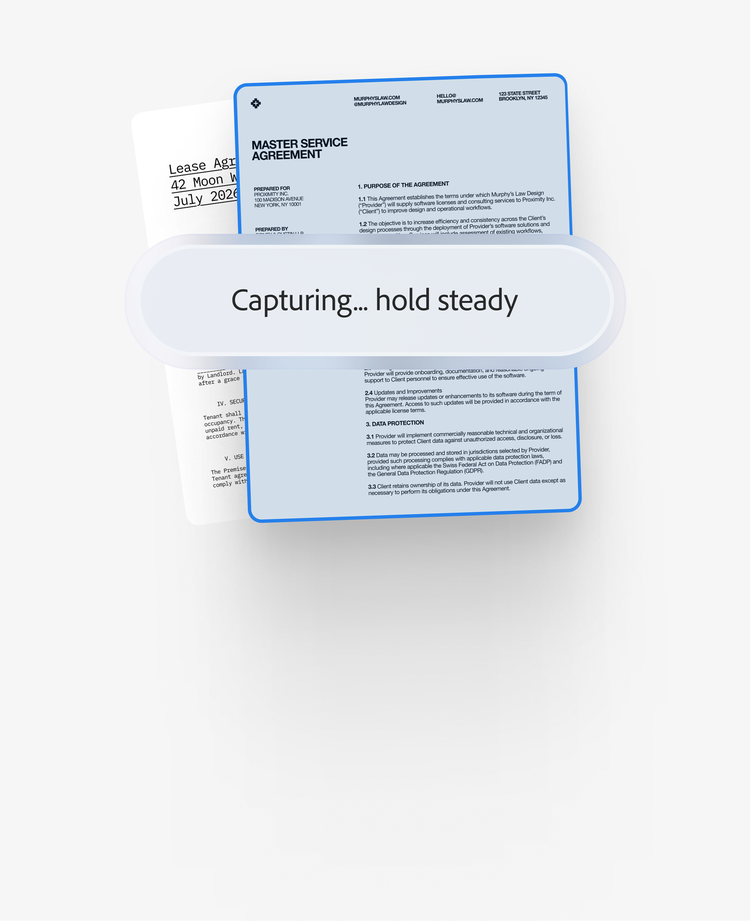
Go from print to digital.
Easily turn scanned paper docs into fully searchable and editable PDFs.
Protect sensitive info.
Add passwords and permissions, and permanently redact data in PDFs as needed.
Tell your docs what to do.
Use everyday language with AI Assistant to turn files into PDFs, make quick edits, ask your docs questions, and more.


PDF Spaces
Take your productivity to the next level with PDF Spaces.
Bring all your project files, PDFs, and links into one shareable AI-powered workspace that helps you and your team get more done together.
Comprehend faster.
Chat with your files, generate summaries, and get insights with precise citations in a click. Ask questions to get actionable answers and next steps.
Your plan comes with more than great tools.
- 1.Robust security features for protecting PDF content and controlling access
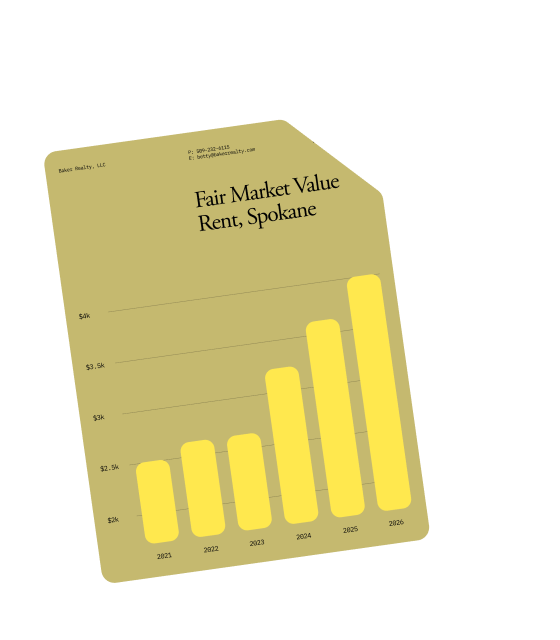
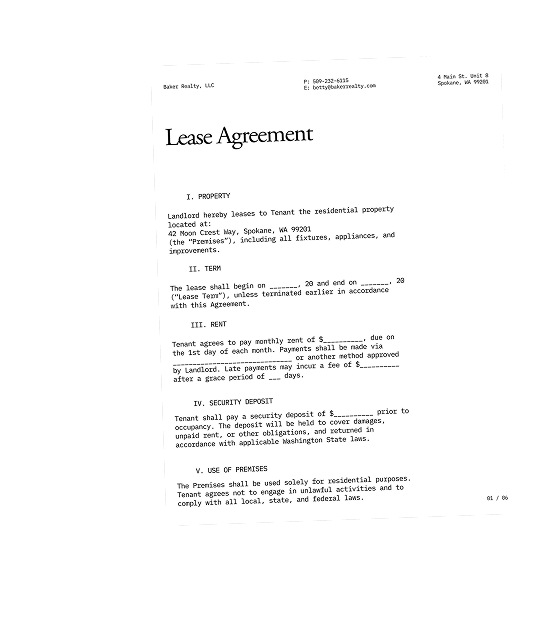
- 2.Responsible AI built to protect your work and data
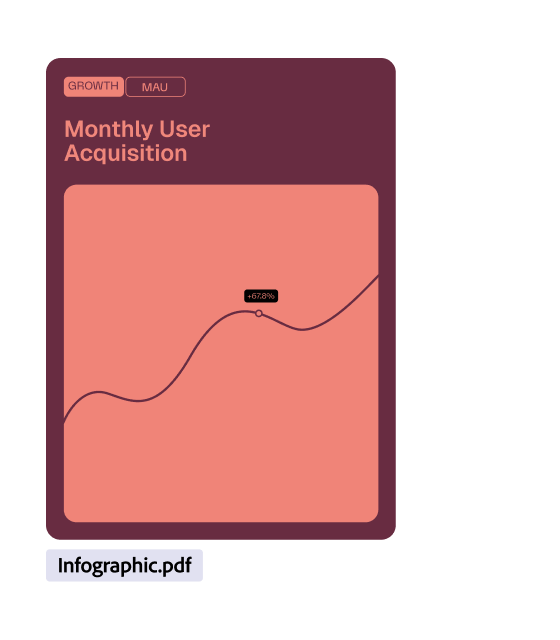
- 3.Integration with Microsoft 365, Dropbox, Adobe Creative Cloud, and more
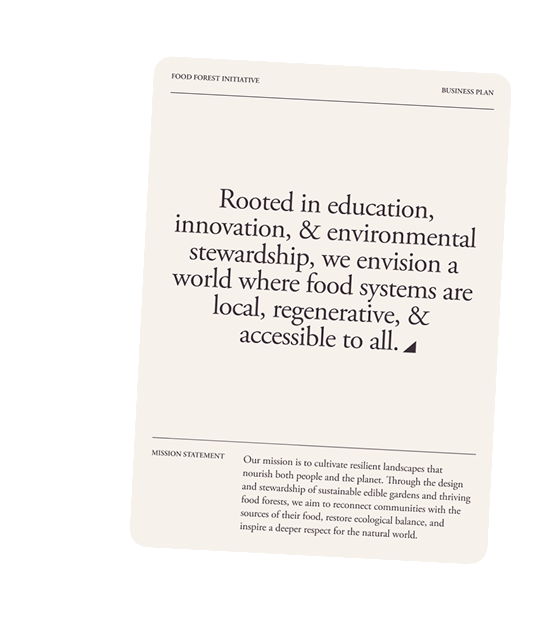


- 4.Binding and secure e-signatures
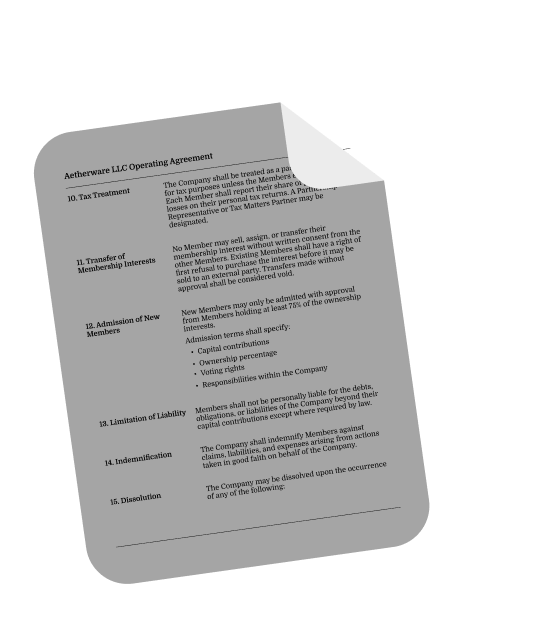
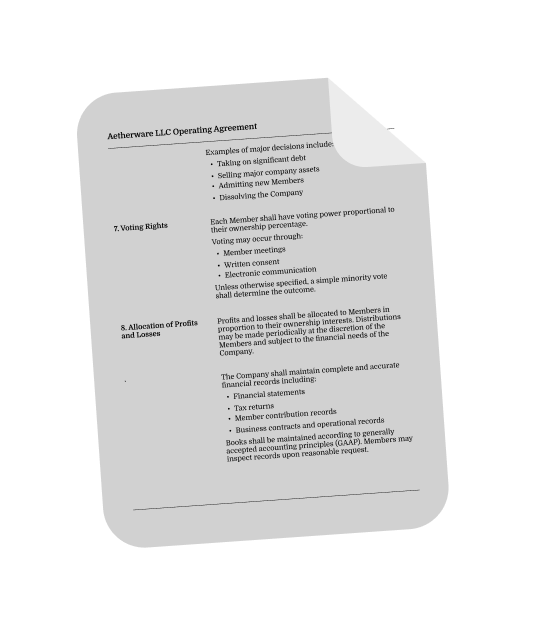
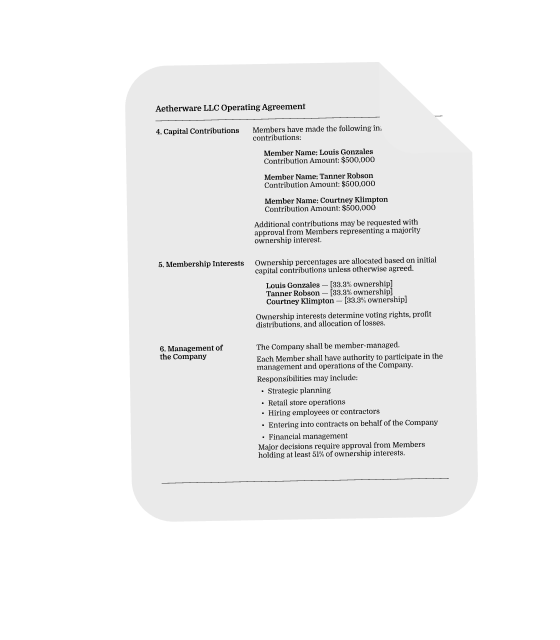
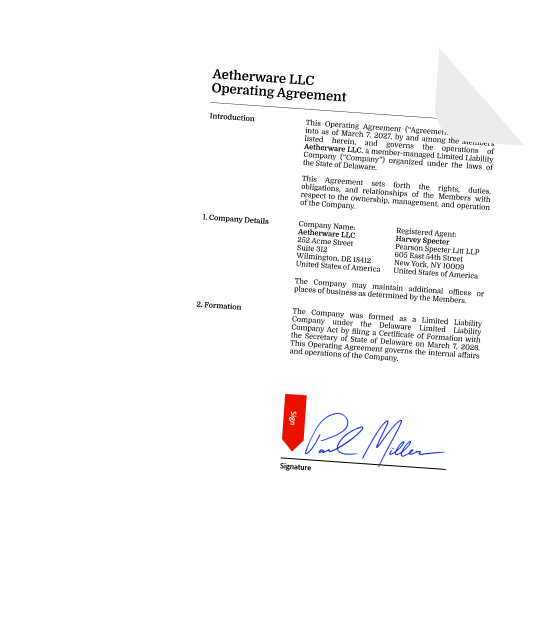
- 5.Access to new features and updates as soon as they’re available
- 6.Available on desktop, web, and mobile plus browser extensions

Features and releases
Explore what’s new in Acrobat.
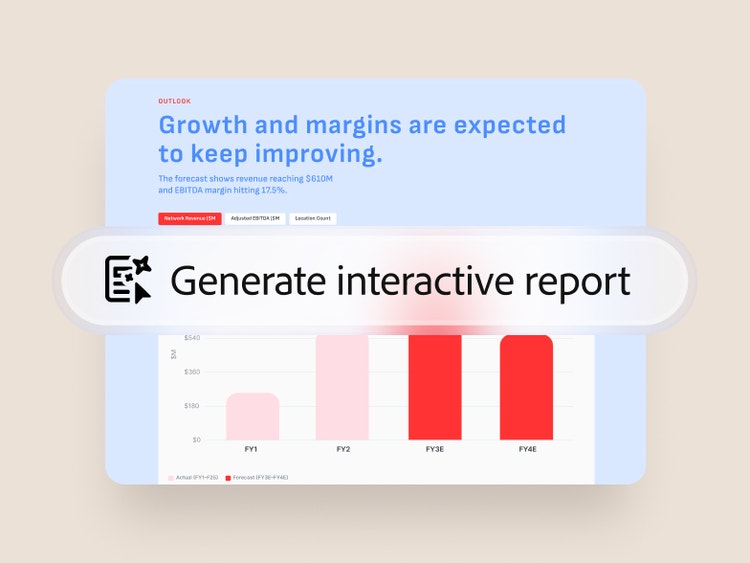
Make complex info easy and visual.
Make sense of your docs with interactive reports and presentations that bring key insights to life.
Learn more, listen to your docs.
Turn your files into engaging audio so you can find insights faster and understand information easier.

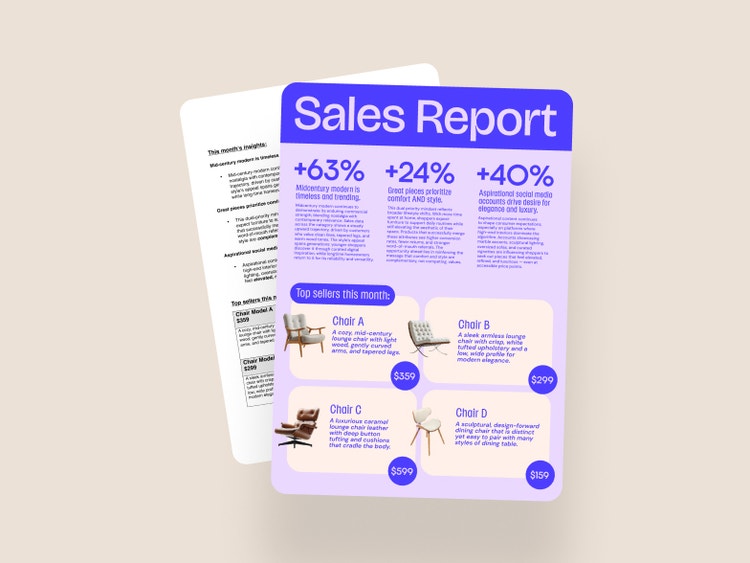
Go from plain to polished PDF. Fast.
Redesign resumes, reports, and other docs in a
click with stunning templates — without changing content.
“Acrobat has enabled me to streamline my workflows because I can finally keep all of my documents in one place.”

Choose a plan.
Choose your plan:

Acrobat Standard
Essential PDF tools
US$14.99/mo Fee applies up to half your remaining annual commitment if you cancel after 14 days.
Edit and convert documents with trusted PDF tools.
Fee applies up to half your remaining annual commitment if you cancel after 14 days.

- Create, edit, convert, export, and organize PDFs
- Collect e-signatures and track responses
- Fill, sign, and password-protect PDFs
Acrobat Pro
Advanced PDF toolset
US$19.99/mo Fee applies up to half your remaining annual commitment if you cancel after 14 days.
Create, edit, and sign PDFs with secure document and e-signature workflows.
Fee applies up to half your remaining annual commitment if you cancel after 14 days.
- Create, edit, convert, export, and organize PDFs
- Collect e-signatures and track responses
- Fill, sign, and password-protect PDFs
- Redact sensitive content
- Create web forms
- Turn scans into editable PDFs
Acrobat Studio
Everything in one plan
US$24.99/mo Fee applies up to half your remaining annual commitment if you cancel after 14 days.
Do it all with the AI-powered PDF and design solution for document workflows. Includes everything in Acrobat Pro, plus AI Assistant.
Fee applies up to half your remaining annual commitment if you cancel after 14 days.

- Create, edit, convert, export, and organize PDFs
- Collect e-signatures and track responses
- Fill, sign, and password-protect PDFs
- Redact sensitive content
- Create web forms
- Turn scans into editable PDFs

- Ask AI to edit, convert, and compress PDFs
- Get summaries, insights, and answers
- Organize, share, and collaborate with PDF Spaces

- Generate flyers, social content, and presentations from documents
Search
Filters
Sort
Popularity
Alphabetically
coll-no-results-text
Categories
REFINE YOUR RESULTS
Close
Special Offers - opens in a new window
filter by category
RESOURCES
1 result in
results in
coll-result-mobile-text
results in
1 result in
results for
1 result in
results in
Your search for did not yield any results
Your search for did not yield any results
Show more
coll-all-filters-text
coll-filters-category-text
coll-filters-applied-text
coll-filters-results-text
coll-filters-reset-text
countdown-timer-text
License|Licenses
Search
Filters
Sort
Popularity
Alphabetically
coll-no-results-text
Categories
REFINE YOUR RESULTS
Close
Special Offers - opens in a new window
filter by category
RESOURCES
1 result in
results in
coll-result-mobile-text
results in
1 result in
results for
1 result in
results in
Your search for did not yield any results
Your search for did not yield any results
Show more
coll-all-filters-text
coll-filters-category-text
coll-filters-applied-text
coll-filters-results-text
coll-filters-reset-text
countdown-timer-text
License|Licenses
Search
Filters
Sort
Popularity
Alphabetically
coll-no-results-text
Categories
REFINE YOUR RESULTS
Close
Special Offers - opens in a new window
filter by category
RESOURCES
1 result in
results in
coll-result-mobile-text
results in
1 result in
results for
1 result in
results in
Your search for did not yield any results
Your search for did not yield any results
Show more
coll-all-filters-text
coll-filters-category-text
coll-filters-applied-text
coll-filters-results-text
coll-filters-reset-text
countdown-timer-text
License|Licenses
Search
Filters
Sort
Popularity
Alphabetically
coll-no-results-text
Categories
REFINE YOUR RESULTS
Close
Special Offers - opens in a new window
filter by category
RESOURCES
1 result in
results in
coll-result-mobile-text
results in
1 result in
results for
1 result in
results in
Your search for did not yield any results
Your search for did not yield any results
Show more
coll-all-filters-text
coll-filters-category-text
coll-filters-applied-text
coll-filters-results-text
coll-filters-reset-text
countdown-timer-text
License|Licenses
Acrobat Standard
Essential PDF tools
US$179.88/yr No refund if you cancel after 14 days.
Edit and convert documents with trusted PDF tools.
No refund if you cancel after 14 days.
- Create, edit, convert, export, and organize PDFs
- Collect e-signatures and track responses
- Fill, sign, and password-protect PDFs
Acrobat Pro
Advanced PDF toolset
US$239.88/yr No refund if you cancel after 14 days.
Create, edit, and sign PDFs with secure document and e-signature workflows.
No refund if you cancel after 14 days.
- Create, edit, convert, export, and organize PDFs
- Collect e-signatures and track responses
- Fill, sign, and password-protect PDFs
- Redact sensitive content
- Create web forms
- Turn scans into editable PDFs
Acrobat Studio
Everything in one plan
US$299.88/yr No refund if you cancel after 14 days.
Do it all with the AI-powered PDF and design solution for document workflows. Includes everything in Acrobat Pro, plus AI Assistant.
No refund if you cancel after 14 days.
- Create, edit, convert, export, and organize PDFs
- Collect e-signatures and track responses
- Fill, sign, and password-protect PDFs
- Redact sensitive content
- Create web forms
- Turn scans into editable PDFs
- Ask AI to edit, convert, and compress PDFs
- Get summaries, insights, and answers
- Organize, share, and collaborate with PDF Spaces

- Generate flyers, social content, and presentations from documents
Search
Filters
Sort
Popularity
Alphabetically
coll-no-results-text
Categories
REFINE YOUR RESULTS
Close
Special Offers - opens in a new window
filter by category
RESOURCES
1 result in
results in
coll-result-mobile-text
results in
1 result in
results for
1 result in
results in
Your search for did not yield any results
Your search for did not yield any results
Show more
coll-all-filters-text
coll-filters-category-text
coll-filters-applied-text
coll-filters-results-text
coll-filters-reset-text
countdown-timer-text
License|Licenses
Search
Filters
Sort
Popularity
Alphabetically
coll-no-results-text
Categories
REFINE YOUR RESULTS
Close
Special Offers - opens in a new window
filter by category
RESOURCES
1 result in
results in
coll-result-mobile-text
results in
1 result in
results for
1 result in
results in
Your search for did not yield any results
Your search for did not yield any results
Show more
coll-all-filters-text
coll-filters-category-text
coll-filters-applied-text
coll-filters-results-text
coll-filters-reset-text
countdown-timer-text
License|Licenses
Search
Filters
Sort
Popularity
Alphabetically
coll-no-results-text
Categories
REFINE YOUR RESULTS
Close
Special Offers - opens in a new window
filter by category
RESOURCES
1 result in
results in
coll-result-mobile-text
results in
1 result in
results for
1 result in
results in
Your search for did not yield any results
Your search for did not yield any results
Show more
coll-all-filters-text
coll-filters-category-text
coll-filters-applied-text
coll-filters-results-text
coll-filters-reset-text
countdown-timer-text
License|Licenses
Search
Filters
Sort
Popularity
Alphabetically
coll-no-results-text
Categories
REFINE YOUR RESULTS
Close
Special Offers - opens in a new window
filter by category
RESOURCES
1 result in
results in
coll-result-mobile-text
results in
1 result in
results for
1 result in
results in
Your search for did not yield any results
Your search for did not yield any results
Show more
coll-all-filters-text
coll-filters-category-text
coll-filters-applied-text
coll-filters-results-text
coll-filters-reset-text
countdown-timer-text
License|Licenses
Acrobat Standard
Essential PDF tools
US$24.99/mo Cancel anytime, no fee.
Edit and convert documents with trusted PDF tools.
Cancel anytime, no fee.
- Create, edit, convert, export, and organize PDFs
- Collect e-signatures and track responses
- Fill, sign, and password-protect PDFs
Acrobat Pro
Advanced PDF toolset
US$29.99/mo Cancel anytime, no fee.
Create, edit, and sign PDFs with secure document and e-signature workflows.
Cancel anytime, no fee.
- Create, edit, convert, export, and organize PDFs
- Collect e-signatures and track responses
- Fill, sign, and password-protect PDFs
- Redact sensitive content
- Create web forms
- Turn scans into editable PDFs
Acrobat Studio
Everything in one plan
US$34.99/mo Cancel anytime, no fee.
Do it all with the AI-powered PDF and design solution for document workflows. Includes everything in Acrobat Pro, plus AI Assistant.
Cancel anytime, no fee.
- Create, edit, convert, export, and organize PDFs
- Collect e-signatures and track responses
- Fill, sign, and password-protect PDFs
- Redact sensitive content
- Create web forms
- Turn scans into editable PDFs
- Ask AI to edit, convert, and compress PDFs
- Get summaries, insights, and answers
- Organize, share, and collaborate with PDF Spaces
- Generate flyers, social content, and presentations from documents
Search
Filters
Sort
Popularity
Alphabetically
coll-no-results-text
Categories
REFINE YOUR RESULTS
Close
Special Offers - opens in a new window
filter by category
RESOURCES
1 result in
results in
coll-result-mobile-text
results in
1 result in
results for
1 result in
results in
Your search for did not yield any results
Your search for did not yield any results
Show more
coll-all-filters-text
coll-filters-category-text
coll-filters-applied-text
coll-filters-results-text
coll-filters-reset-text
countdown-timer-text
License|Licenses
Search
Filters
Sort
Popularity
Alphabetically
coll-no-results-text
Categories
REFINE YOUR RESULTS
Close
Special Offers - opens in a new window
filter by category
RESOURCES
1 result in
results in
coll-result-mobile-text
results in
1 result in
results for
1 result in
results in
Your search for did not yield any results
Your search for did not yield any results
Show more
coll-all-filters-text
coll-filters-category-text
coll-filters-applied-text
coll-filters-results-text
coll-filters-reset-text
countdown-timer-text
License|Licenses
Search
Filters
Sort
Popularity
Alphabetically
coll-no-results-text
Categories
REFINE YOUR RESULTS
Close
Special Offers - opens in a new window
filter by category
RESOURCES
1 result in
results in
coll-result-mobile-text
results in
1 result in
results for
1 result in
results in
Your search for did not yield any results
Your search for did not yield any results
Show more
coll-all-filters-text
coll-filters-category-text
coll-filters-applied-text
coll-filters-results-text
coll-filters-reset-text
countdown-timer-text
License|Licenses
Search
Filters
Sort
Popularity
Alphabetically
coll-no-results-text
Categories
REFINE YOUR RESULTS
Close
Special Offers - opens in a new window
filter by category
RESOURCES
1 result in
results in
coll-result-mobile-text
results in
1 result in
results for
1 result in
results in
Your search for did not yield any results
Your search for did not yield any results
Show more
coll-all-filters-text
coll-filters-category-text
coll-filters-applied-text
coll-filters-results-text
coll-filters-reset-text
countdown-timer-text
License|Licenses
Choose your plan:
Acrobat Standard for teams
Essential PDF tools
US$16.99/moper license Fee applies of half your remaining annual commitment if you cancel after 14 days. Up to 10 licenses with free trial.
Edit and convert documents with trusted PDF tools, plus admin features.
Fee applies of half your remaining annual commitment if you cancel after 14 days. Up to 10 licenses with free trial.
- Create, edit, convert, export, and organize PDFs
- Collect e-signatures and track responses
- Fill, sign, and password-protect PDFs

- Admin console, 24x7 tech support, and more
- 1
- 2
- 3
- 4
- 5
- 6
- 7
- 8
- 9
- 10
Acrobat Pro for teams
Advanced PDF toolset
US$23.99/moper license Fee applies of half your remaining annual commitment if you cancel after 14 days. Up to 10 licenses with free trial.
Create, edit, and sign PDFs with secure document and e-signature workflows, plus admin features.
Fee applies of half your remaining annual commitment if you cancel after 14 days. Up to 10 licenses with free trial.
- Create, edit, convert, export, and organize PDFs
- Collect e-signatures and track responses
- Fill, sign, and password-protect PDFs
- Redact sensitive content
- Create web forms
- Turn scans into editable PDFs
- Admin console, 24x7 tech support, and more
- 1
- 2
- 3
- 4
- 5
- 6
- 7
- 8
- 9
- 10
Acrobat Studio for teams
Everything in one plan
US$29.99/moper license Fee applies of half your remaining annual commitment if you cancel after 14 days. Up to 10 licenses with free trial.
Do it all with the AI-powered PDF and design solution for document workflows. Includes everything in Acrobat Pro, plus AI Assistant and admin features.
Fee applies of half your remaining annual commitment if you cancel after 14 days. Up to 10 licenses with free trial.
- Create, edit, convert, export, and organize PDFs
- Collect e-signatures and track responses
- Fill, sign, and password-protect PDFs
- Redact sensitive content
- Create web forms
- Turn scans into editable PDFs
- Ask AI to edit, convert, and compress PDFs
- Get summaries, insights, and answers
- Organize, share, and collaborate with PDF Spaces
- Generate flyers, social content, and presentations from documents
- Admin console, 24x7 tech support, and more
- 1
- 2
- 3
- 4
- 5
- 6
- 7
- 8
- 9
- 10
Search
Filters
Sort
Popularity
Alphabetically
coll-no-results-text
Categories
REFINE YOUR RESULTS
Close
Special Offers - opens in a new window
filter by category
RESOURCES
1 result in
results in
coll-result-mobile-text
results in
1 result in
results for
1 result in
results in
Your search for did not yield any results
Your search for did not yield any results
Show more
coll-all-filters-text
coll-filters-category-text
coll-filters-applied-text
coll-filters-results-text
coll-filters-reset-text
countdown-timer-text
License|Licenses
Search
Filters
Sort
Popularity
Alphabetically
coll-no-results-text
Categories
REFINE YOUR RESULTS
Close
Special Offers - opens in a new window
filter by category
RESOURCES
1 result in
results in
coll-result-mobile-text
results in
1 result in
results for
1 result in
results in
Your search for did not yield any results
Your search for did not yield any results
Show more
coll-all-filters-text
coll-filters-category-text
coll-filters-applied-text
coll-filters-results-text
coll-filters-reset-text
countdown-timer-text
License|Licenses
Acrobat Standard for teams
Essential PDF tools
US$203.88/yr No refund if you cancel after 14 days. Up to 10 licenses with free trial
Edit and convert documents with trusted PDF tools, plus admin features.
No refund if you cancel after 14 days. Up to 10 licenses with free trial
- Create, edit, convert, export, and organize PDFs
- Collect e-signatures and track responses
- Fill, sign, and password-protect PDFs
- Admin console, 24x7 tech support, and more
- 1
- 2
- 3
- 4
- 5
- 6
- 7
- 8
- 9
- 10
Acrobat Pro for teams
Advanced PDF toolset
US$287.88/yrper license No refund if you cancel after 14 days. Up to 10 licenses with free trial
Create, edit, and sign PDFs with secure document and e-signature workflows, plus admin features.
No refund if you cancel after 14 days. Up to 10 licenses with free trial
- Create, edit, convert, export, and organize PDFs
- Collect e-signatures and track responses
- Fill, sign, and password-protect PDFs
- Redact sensitive content
- Create web forms
- Turn scans into editable PDFs
- Admin console, 24x7 tech support, and more
- 1
- 2
- 3
- 4
- 5
- 6
- 7
- 8
- 9
- 10
Acrobat Studio for teams
Everything in one plan
US$359.88/yrper license No refund if you cancel after 14 days. Up to 10 licenses with free trial
Do it all with the AI-powered PDF and design solution for document workflows. Includes everything in Acrobat Pro, plus AI Assistant and admin features.
No refund if you cancel after 14 days. Up to 10 licenses with free trial
- Create, edit, convert, export, and organize PDFs
- Collect e-signatures and track responses
- Fill, sign, and password-protect PDFs
- Redact sensitive content
- Create web forms
- Turn scans into editable PDFs
- Ask AI to edit, convert, and compress PDFs
- Get summaries, insights, and answers
- Organize, share, and collaborate with PDF Spaces
- Generate flyers, social content, and presentations from documents
- Admin console, 24x7 tech support, and more
- 1
- 2
- 3
- 4
- 5
- 6
- 7
- 8
- 9
- 10
Search
Filters
Sort
Popularity
Alphabetically
coll-no-results-text
Categories
REFINE YOUR RESULTS
Close
Special Offers - opens in a new window
filter by category
RESOURCES
1 result in
results in
coll-result-mobile-text
results in
1 result in
results for
1 result in
results in
Your search for did not yield any results
Your search for did not yield any results
Show more
coll-all-filters-text
coll-filters-category-text
coll-filters-applied-text
coll-filters-results-text
coll-filters-reset-text
countdown-timer-text
License|Licenses
Search
Filters
Sort
Popularity
Alphabetically
coll-no-results-text
Categories
REFINE YOUR RESULTS
Close
Special Offers - opens in a new window
filter by category
RESOURCES
1 result in
results in
coll-result-mobile-text
results in
1 result in
results for
1 result in
results in
Your search for did not yield any results
Your search for did not yield any results
Show more
coll-all-filters-text
coll-filters-category-text
coll-filters-applied-text
coll-filters-results-text
coll-filters-reset-text
countdown-timer-text
License|Licenses
Choose your plan:
Acrobat Pro for students and teachers
Advanced PDF toolset
US$19.99/mo Fee applies up to half your remaining annual commitment if you cancel after 14 days.
Create, edit, and sign PDFs with secure PDF and e-signature workflows.
Fee applies up to half your remaining annual commitment if you cancel after 14 days.
- Create, edit, convert, export, and organize PDFs
- Collect e-signatures and track responses
- Fill, sign, and password-protect PDFs
- Redact sensitive content
- Create web forms
- Turn scans into editable PDFs
Acrobat AI Assistant
Add AI Assistant to your Acrobat plan for US$1.99/moUS$1.99/mo.
Add AI Assistant to your Acrobat plan for US$19.99/yrUS$19.99/yr.

Creative Cloud Pro for students and teachers
All-in-one creative toolkit
Fee applies up to half your remaining annual commitment if you cancel after 14 days.
Save 71% on 20+ apps including Acrobat Pro, plus Firefly creative AI for images, video, and audio. Pay US$19.99/mo the first year and US$39.99/mo after that.
Fee applies up to half your remaining annual commitment if you cancel after 14 days.
- Create, edit, convert, export, and organize PDFs
- Collect e-signatures and track responses
- Fill, sign, and password-protect PDFs
- Redact sensitive content
- Create web forms
- Turn scans into editable PDFs

- Acrobat Pro
- Photoshop, Illustrator, Premiere, and more apps for photo, design, and video
- 4,000 monthly generative credits to create images, video, and audio with top AI models
- Generate flyers, social content, and presentations from documents
Acrobat AI Assistant
Add AI Assistant to your Acrobat plan for US$1.99/moUS$1.99/mo.
Add AI Assistant to your Acrobat plan for US$19.99/yrUS$19.99/yr.
Search
Filters
Sort
Popularity
Alphabetically
coll-no-results-text
Categories
REFINE YOUR RESULTS
Close
Special Offers - opens in a new window
filter by category
RESOURCES
1 result in
results in
coll-result-mobile-text
results in
1 result in
results for
1 result in
results in
Your search for did not yield any results
Your search for did not yield any results
Show more
coll-all-filters-text
coll-filters-category-text
coll-filters-applied-text
coll-filters-results-text
coll-filters-reset-text
countdown-timer-text
License|Licenses
Acrobat Pro for students and teachers
Advanced PDF toolset
US$239.88/yr No refund if you cancel after 14 days.
Create, edit, and sign PDFs with secure PDF and e-signature workflows.
No refund if you cancel after 14 days.
- Create, edit, convert, export, and organize PDFs
- Collect e-signatures and track responses
- Fill, sign, and password-protect PDFs
- Redact sensitive content
- Create web forms
- Turn scans into editable PDFs
Acrobat AI Assistant
Add AI Assistant to your Acrobat plan for US$1.99/moUS$1.99/mo.
Add AI Assistant to your Acrobat plan for US$19.99/yrUS$19.99/yr.
Creative Cloud Pro for students and teachers
All-in-one creative toolkit
No refund if you cancel after 14 days.
Save 69% on 20+ apps including Acrobat Pro, plus Firefly creative AI for images, video, and audio. Pay US$239.88/yr the first year and US$479.88/yr after that.
No refund if you cancel after 14 days.
- Create, edit, convert, export, and organize PDFs
- Collect e-signatures and track responses
- Fill, sign, and password-protect PDFs
- Redact sensitive content
- Create web forms
- Turn scans into editable PDFs
- Acrobat Pro
- Photoshop, Illustrator, Premiere, and more apps for photo, design, and video
- 4,000 monthly generative credits to create images, video, and audio with top AI models
- Generate flyers, social content, and presentations from documents
Acrobat AI Assistant
Add AI Assistant to your Acrobat plan for US$1.99/moUS$1.99/mo.
Add AI Assistant to your Acrobat plan for US$19.99/yrUS$19.99/yr.
Search
Filters
Sort
Popularity
Alphabetically
coll-no-results-text
Categories
REFINE YOUR RESULTS
Close
Special Offers - opens in a new window
filter by category
RESOURCES
1 result in
results in
coll-result-mobile-text
results in
1 result in
results for
1 result in
results in
Your search for did not yield any results
Your search for did not yield any results
Show more
coll-all-filters-text
coll-filters-category-text
coll-filters-applied-text
coll-filters-results-text
coll-filters-reset-text
countdown-timer-text
License|Licenses
Frequently asked questions
What is Adobe Acrobat?
Acrobat is a productivity and collaboration platform that brings together powerful PDF tools, AI features, content creation, and seamless sharing to help you get your best work done. With an Acrobat desktop subscription, you get access to Acrobat desktop software, Acrobat online tools, the Acrobat Reader mobile app, and the Adobe Scan app — all so you can work more securely and efficiently from almost anywhere, on any device.
What’s the difference between Acrobat Standard, Acrobat Pro, and Acrobat Studio?
Acrobat Standard includes basic PDF features, allowing you to:
- Edit and organize PDFs.
- Convert documents to and from PDF.
- Fill out forms, sign documents, and request e-signatures.
- Password-protect files.
Acrobat Pro includes everything in Acrobat Standard, plus enhanced PDF tools and e-signature capabilities. With these advanced features, you can:
- Turn scanned documents into editable, searchable PDFs.
- Compare PDFs to review differences.
- Redact sensitive information from PDFs.
- Brand your agreements by adding a logo and custom URL.
- Create web forms and reusable e-sign templates.
- Receive and track multiple e-signatures by sending in bulk.
Acrobat Studio includes everything in Acrobat Pro, plus PDF Spaces, AI Assistant for Acrobat, and Adobe Express Premium. Additional features include:
- Chat with your documents and get fast answers.
- Summarize documents with one click.
- Ask questions using voice prompts on your mobile device.
- Unlock insights across PDFs, Microsoft 365 files, and web links with PDF Spaces.
- Easily remix docs into presentations with AI, create content from over 500,000 professional templates, and generate custom images — all powered by Adobe Express.
- Use AI-powered PDF Actions to complete top tasks in no time.
- Share a PDF Space with a prebuilt or personalized AI Assistant.
You can see how the Acrobat offerings compare.
What’s included in my Acrobat desktop subscription?
Your subscription to Acrobat includes desktop software, online access, and mobile apps, letting you effortlessly sync files across computers and devices.
- Acrobat desktop software: Use Acrobat on your desktop, with tools to edit, convert, protect, and sign documents. You can also integrate Acrobat with other productivity tools.
- Acrobat online: Use PDF and e-signature tools in any web browser. Our prebuilt integrations for Microsoft OneDrive, Google Drive, and more make it easy to store and share files online. You can even send documents for e-signature and track responses in real time.
- Acrobat Reader mobile app: The world’s most trusted PDF reader and editor with more than 635 million installs. View, share, annotate, add comments, and sign documents – all in one app.
- Acrobat Scan mobile app: Turn your mobile device into a powerful scanner that recognizes text automatically (OCR) and allows you to create, save, and organize your paper documents as digital files.
How does a subscription work?
When you subscribe to Acrobat Studio, Acrobat Pro, or Acrobat Standard, you pay a monthly or annual fee based on the plan you choose. Regular updates will ensure you have the latest features available in Acrobat. You will not need to upgrade your product as long as your subscription is active.
Is there a perpetual version of Acrobat available?
No. Adobe discontinued selling perpetual versions of Acrobat after Acrobat 2020. However, if you would like a non-subscription version of Acrobat, Acrobat Pro 2024 desktop software is a one-time, upfront purchase that provides three years of access to Acrobat desktop. It includes quarterly security updates but does not include Acrobat feature enhancements or access to Acrobat online services via your web browser and mobile devices.
What are the minimum system requirements to run Acrobat Studio?
See the Acrobat system requirements page for information.
In what languages is Acrobat Studio available?
See the Acrobat system requirements page for information.
What’s the best way for my business to purchase Acrobat subscriptions?
Adobe offers plans for businesses of all sizes. For small businesses, Acrobat Teams subscriptions make it easy to purchase and manage multiple licenses through a centralized admin console. For larger organizations with more complex deployment and administrative needs, volume licensing options are available. Request a contact from Adobe’s sales team, or contact an Adobe Authorized Reseller.
To learn more, visit the Acrobat for business page.
Is my data safe when I use AI services?
Adobe does not use your documents or data to train AI models. Learn more here about Adobe’s content usage and handling practices. All AI features follow Adobe’s responsible AI principles.
What makes Acrobat a great collaboration tool?
Acrobat gives you seamless and highly secure sharing, real-time commenting, and PDF tools that make collaborating on documents easier than ever. You can create knowledge hubs in PDF Spaces where the entire team can add files and work together to build strong work. Custom AI agents come in handy to help you guide AI Assistant to provide the direction and output you need to push your project forward.
What’s the best way to integrate document workflows with cloud storage?
The best way to integrate document workflows with cloud storage is by using Acrobat’s built-in support for popular cloud services. Acrobat works seamlessly with:
- Acrobat Document Cloud: Access your files from anywhere, send links for review, and sync changes across devices.
- Third-party cloud storage: Connect to OneDrive, Google Drive, Dropbox, Box, and more directly within Acrobat.
Users can open and save files from cloud storage without leaving Acrobat – no need to download or upload manually. Real-time collaboration is enabled by sharing cloud-stored PDFs with others for commenting and review. Files can be organized and stored securely using version history and permission controls supported by your cloud provider.
How can Acrobat automate my PDF tasks?
Acrobat helps automate your PDF workflows by streamlining repetitive tasks and reducing manual effort through built-in tools and integrations. Key automation features include:
- Action Wizard (in Acrobat Pro): Create and run custom sequences of tasks, like OCR, redaction, watermarking and file conversion on multiple PDFs at once.
- Batch processing: Apply the same edits, optimizations, or security settings across multiple documents automatically.
- Cloud-based workflows: Use Acrobat online and Adobe Document Cloud to send, sign, and track documents from anywhere with automated notifications and reminders.
- Integrations with Microsoft 365 and other apps: Automate PDF creation, editing, and signing directly within tools you already use.
- AI-powered features: Auto-tagging for accessibility, content recognition, and smart form field detection to reduce setup time.
How do I streamline my document review process with Acrobat?
Acrobat makes it easy to manage and automate document review and collaboration, reducing the need for back-and-forth emails and manual edits. With Acrobat, you can:
- Share PDFs for review via a secure link, no attachments needed.
- Collect comments in one place, in real time, from multiple reviewers.
- Use automatic version tracking to keep everyone on the same page.
- Receive notifications when reviewers add feedback or complete their review.
- Work seamlessly with Microsoft Teams and Outlook to manage reviews within your existing workflow.
- Use AI Assistant to quickly review content and contracts, compare document versions, generate summaries, uncover insights and key data, and more.
Find what you’re looking for.
Use of this beta AI chatbot is subject to Adobe’s Privacy Policy. Don’t share sensitive data.
AI responses are not your Content, may be inaccurate and any offers provided are non-binding. Generative AI Terms.