In Adobe Illustrator lassen sich aus einfachen Vektorformen ganz leicht Grafiken erstellen. Durch Umformen, Kombinieren und Einfärben entstehen professionelle Illustrationen.

Benötigte Materialien
In der Anwendung üben
1
Einfache Formen zeichnen.
Mit den Illustrator-Werkzeugen für Vektorformen lassen sich zahlreiche einfache Formen erstellen. Klicke auf das Rechteck-Symbol auf der Werkzeugleiste und halte die Maustaste gedrückt, um alle Formwerkzeuge anzuzeigen. Wähle das Rechteck-Werkzeug aus. Ziehe mit gedrückter Maustaste über die Zeichenfläche, um ein Rechteck zu zeichnen. Achte beim Ziehen auf die diagonale, magentafarbene Hilfslinie. Sie wird angezeigt, wenn die Form ein Quadrat ist.
2
Ein beliebiges Vieleck (Polygon) zeichnen.
Klicke auf der Werkzeugleiste auf das Rechteck-Werkzeug und halte die Maustaste gedrückt. Wähle nun das Polygon-Werkzeug aus. Klicke mit dem Polygon-Werkzeug auf die Zeichenfläche. Ein Dialogfeld öffnet sich. Gib hier die Anzahl der Seiten an, die die Form haben soll, z. B. 6 für ein Sechseck.
Durch Ziehen des Seiten-Widgets lässt sich die Anzahl der Seiten dynamisch erhöhen oder reduzieren und beispielsweise das Sechseck in ein Dreieck umwandeln.
3
Formen mit den Formwerkzeugen einfach anpassen.
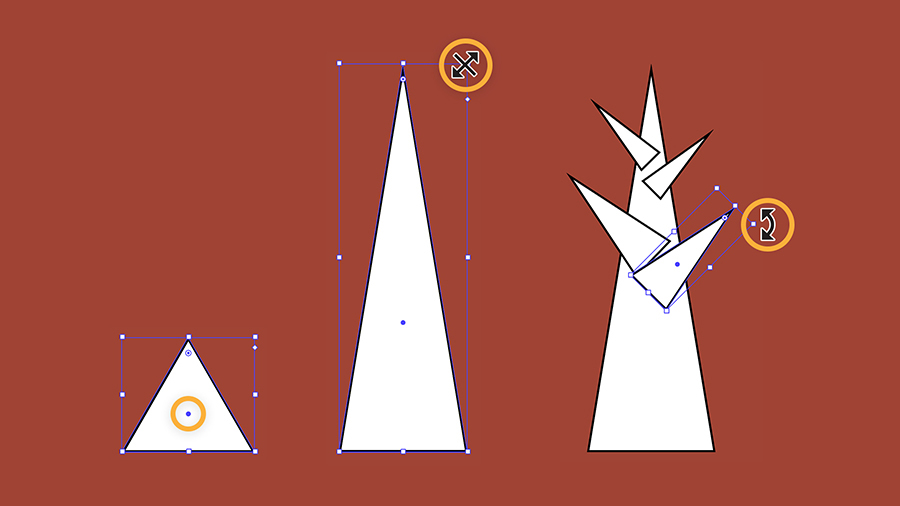
Ziehe am Mittelpunkt einer Form, um sie zu verschieben.
Ziehe einen Griff am Begrenzungsrahmen, um die Form zu vergrößern oder zu verkleinern. Wenn du das bei gedrückter Umschalttaste tust, bleiben die Proportionen der Form erhalten.
Wenn du das Verhältnis von Höhe und Breite verändern willst und beispielsweise ein hohes, schmales Dreieck zeichnen möchtest, ziehe eine der Ecken des Rahmens in die gewünschte Richtung. Die Höhe passt du mit Hilfe der oberen und unteren Griffpunkte an, die Breite mit den seitlichen Griffpunkten.
Wenn du den Cursor etwas von einem Griffpunkt wegbewegst, wird das Drehen-Symbol angezeigt. Durch Ziehen kannst du die Form nun drehen.
Mit nur wenigen Klicks lassen sich Formen zu neuen, komplexeren Formen kombinieren.
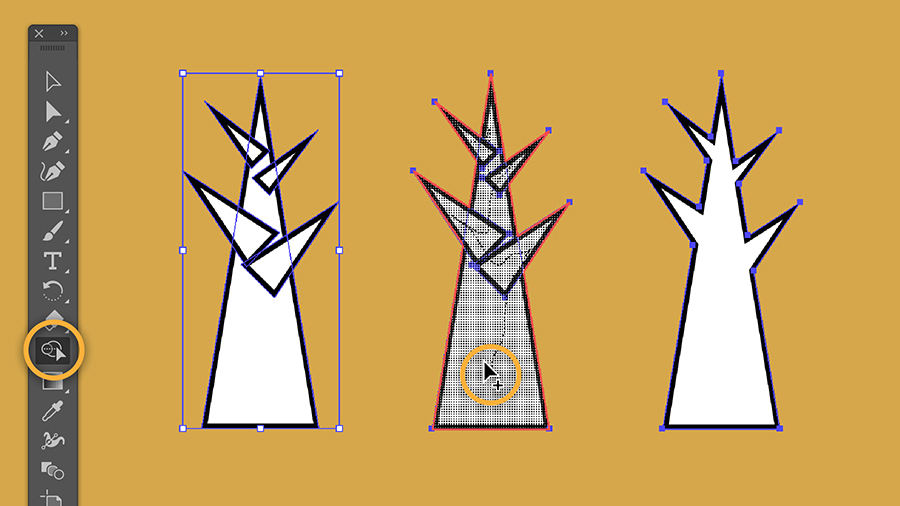
Zeichne einige Formen, die sich überlappen. Klicke auf das Auswahl-Werkzeug. Ziehe den Auswahlrahmen um alle Formen auf, sodass sie ausgewählt sind. Klicke auf das Formerstellung-Werkzeug. Zeichne eine Linie durch alle Formen, die die neue Form bilden sollen.
5
Formen zerlegen.
Genauso einfach lassen sich überlappende Formen wieder zerlegen und Teile davon entfernen. Wähle alle Formen aus. Klicke mit dem Formerstellung-Werkzeug auf die Teile der Form, die ausgestanzt, d. h. beibehalten, werden sollen. Auch wenn sich die Ansicht zunächst nicht verändert hat, ist die Form jetzt in ihre Einzelteile zerlegt.
Drücke auf die Wahltaste (macOS) bzw. Alt-Taste (Windows). Klicke auf oder ziehe mit dem Cursor über alle Bereiche, die entfernt werden sollen.
6
Mit Farben experimentieren.
Um Objekte einzufärben, werden ihnen Flächenfarben und/oder Konturfarben zugewiesen. Flächenfarben füllen Bereiche innerhalb von Pfaden oder Formen aus, wie in einem Malbuch. Konturfarben zeichnen den Rand einer Form nach.
Die Werkzeugleiste enthält Felder für Flächen- und Konturfarbe. Es kann immer nur ein Merkmal bearbeitet werden, wobei die aktuell aktive Option hervorgehoben ist. Wähle ein Objekt aus, und doppelklicke auf das Feld für Flächen- oder Konturfarbe.
Klicke auf „H“ (Hue, Farbton). Bewege den Regler der Farbskala (1) nach oben oder unten, um einen Farbbereich auszuwählen. Ziehe an dem Kreissymbol im Farbfeld links (2), um Helligkeit und Intensität anzupassen. Bestätige mit „OK“.
Du kannst Flächen- und Konturfarben jederzeit von einem Objekt entfernen. Klicke dazu auf die Schaltfläche mit der roten diagonalen Linie. Drücke auf „X“ oder auf den gebogenen Pfeil mit zwei Pfeilspitzen, um die für Fläche und Kontur ausgewählten Farben auszutauschen.
Zum Üben.
Mithilfe der hier erworbenen Fähigkeiten lassen sich alle Arten von Objekten zeichnen und in ausdrucksstarke Illustrationen verwandeln. Das TutorialText ändern und gestalten erläutert, wie Text in eine Illustration eingebunden wird.

You can control how Adobe websites use cookies and similar technologies by making choices below. But note that if you disable cookies and similar technologies entirely, Adobe websites may not function properly.
Cookies are small text files stored by your web browser when you use websites. There are also other technologies that can be used for similar purposes like HTML5 Local Storage and local shared objects, web beacons, and embedded scripts. These technologies help us do things like remembering you and your preferences when you return to our sites, measure how you use the website, conduct market research, and gather information about the ads you see and interact with.
You can make choices in the menu below about what cookies and other technologies you want us to use on Adobe sites when you visit them from this browser. You can always change those choices later by clicking on the Cookie Preferences link at the bottom of the page.
If enabled:
We can improve your experience by tailoring the site and the content to things we think might be of interest
We can better keep track of your preferences — like what language you prefer to use
We will better understand your likely interests so we can provide you more relevant Adobe ads and content on non-Adobe websites and in non-Adobe apps
It will help us improve the performance of our website and those of our partners who use the Adobe Experience Cloud
If disabled:
We won’t be able to remember you from session to session so the experience may not be tailored to your interests
You’ll still have access to the content of the site but certain features that depend on cookies may not function
You’ll still see ads, they just may not be as relevant to you
General information
You can control how Adobe websites use cookies and similar technologies by making choices below. But note that if you disable cookies and similar technologies entirely, Adobe websites may not function properly.
Cookies are small text files stored by your web browser when you use websites. There are also other technologies that can be used for similar purposes like HTML5 Local Storage, web beacons, and embedded scripts. These technologies help us do things like remembering you and your preferences when you return to our sites, measure how you use the website, conduct market research, and gather information about the ads you see and interact with.
You can make choices in the menu below about what cookies and other technologies you want us to use on Adobe sites when you visit them from this browser. You can always change those choices later by clicking on the Cookie Preferences link at the bottom of the page.
If enabled:
We can improve your experience by tailoring the site and the content to things we think might be of interest
We can better keep track of your preferences — like what language you prefer to use
We will better understand your likely interests so we can provide you more relevant Adobe ads and content on non-Adobe websites and in non-Adobe apps
It will help us improve the performance of our website and those of our partners who use the Adobe Experience Cloud
If disabled:
We won’t be able to remember you from session to session so the experience may not be tailored to your interests
We’ll still count your use of our site and services
You’ll still have access to the content of the site but certain features that depend on cookies may not function
You’ll still see ads, they just may not be as relevant to you
Operate the site and core servicesOperate site and measure engagement
Always active
These cookies are required, and they are used to enable the site and related services core functionality. Without them the site could not operate, so they cannot be disabled.
These cookies enable the site and related services’ core functionality and collect statistics about user engagement, such as counting active use to help us understand trends. These cookies cannot be disabled.
Measure performance
These cookies are used to analyze site usage to measure and improve performance. Without them Adobe cannot know what content is most valued and how often unique visitors return to the site, making it hard to improve information we offer to you.
These cookies are used to analyze site usage to measure and improve performance. Without them Adobe cannot know what content is most valued, making it hard to improve information we offer to you.
Extend functionality
These cookies are used to enhance the functionality of Adobe sites such as remembering your settings and preferences to deliver a personalized experience; for example, your username, your repeated visits, preferred language, your country, or any other saved preference.
Personalize advertising
These cookies are used to enable Adobe and our partners to serve ads more relevant to your interests. Without them you will still see ads, but they might not be as relevant to you.
Personalize advertising
These cookies are used to enable Adobe and our partners to serve ads more relevant to your interests. Without them you will still see ads, but they might not be as relevant to you.