Eine häufig gestellte Frage, wenn es um Schriften geht
Du hast eine tolle Typo in einem Design entdeckt und fragst dich wie sie heißt und wo du sie finden kannst? Kein Problem! Die Schriftkünstlerin Rosa Kammermeier gibt dir Infos und Tipps, wie du mit der KI-Funktion „Retype“ in der Illustrator-App Schriften identifizieren und durch ähnliche – zudem kostenlose – Adobe Fonts ersetzen kannst. Diese Funktion ist eine tolle Erweiterung deines Workflows und sorgt für mehr Glück beim Finden der passenden Schriftart. Damit kannst du die Idee für dein Design perfekt umsetzen.
Hi.
Ich bin Rosa Kammermeier, bin Grafikdesignerin und Illustratorin aus Berlin.
Ich arbeite häufig mit Typografie oder handgemachten Letterings und kombiniere diese mit farbenfrohen Illustrationen.
In diesem Tutorial zeige ich euch heute, wie ihr mithilfe der neuen AI Tools super easy die passende Schriftart für euer Design findet.
Viel Spaß beim Tutorial.
Let's go.
Benötigte Materialien
In der Anwendung üben
Fonts identifizieren – mit Unterstützung der Creative Cloud
Platziere deine Schrift-Inspiration
Retype ist ein Tool, mit dem du Fonts identifizieren kannst, die in Rasterbildern oder als vektorisierte Schrift vorliegen. Wenn dich ein Design besonders inspiriert hat, weil dir dessen Typografie ins Auge gefallen ist, kannst du einfach einen Screenshot oder ein Foto machen und die Bilddatei in dein Illustrator-Dokument einfügen.
Nutze Rosas Vorlagen
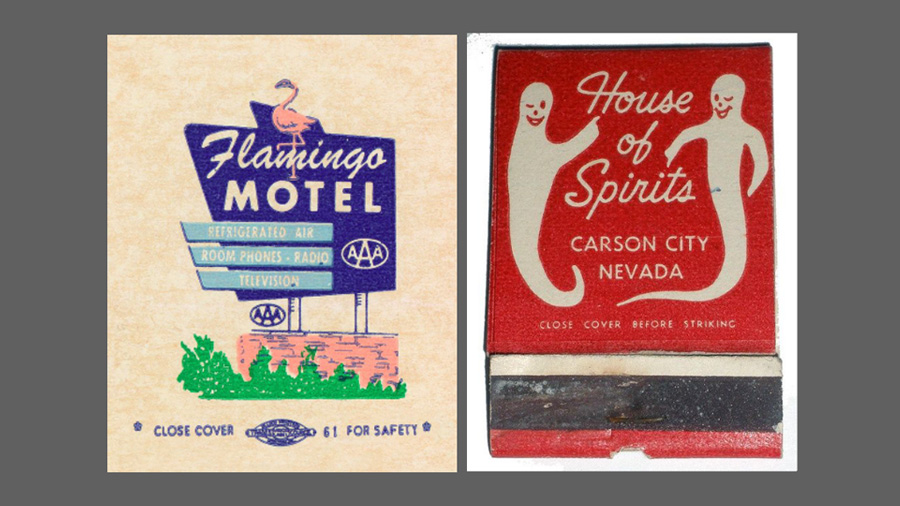
Alternativ stellt Rosa dir zum Thema "Vintage" Design-Inspirationen zur Nutzung bereit. Aus diesen kannst du dir die Schriftarten automatisch heraussuchen lassen. So hast du eine ideale Grundlage, um verschiedene Schriftstile zu erkunden und gezielt zu vergleichen.
Mit dem Font Finder "Retype" die perfekte Schrift finden
Bild anwählen
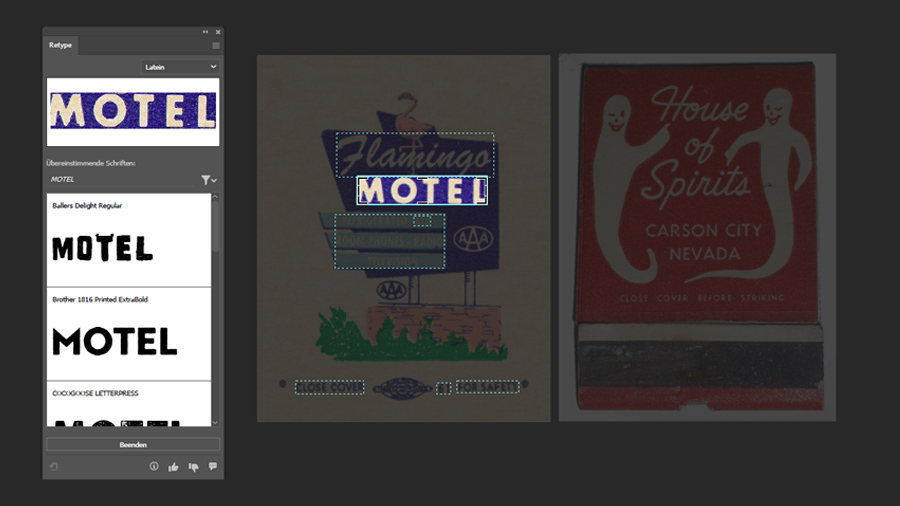
Retype identifiziert die Schriften aus deinen Bildern und schlägt dir Fonts vor, die du direkt einsetzen kannst. Wähle dazu ein Bild an und klicke im Fenster „Retype“ auf den Button „Passende Schriften suchen“.
Schrift eingrenzen
Alle im Bild erkannten Wörter werden anschließend mit einer gestrichelten Linie markiert. Du kannst den Rahmen der Schrifterkennung anpassen und gezielt das Wort auswählen, das du analysieren möchtest – so erhältst du ein treffendes Ergebnis. Durch die automatische Erkennung der Buchstaben und Zeichen lässt sich die Schrift schnell zuordnen.
Schriftvorschläge von Retype
Retype präsentiert dir zehn passende Schriftvorschläge, die nach ihrer Ähnlichkeit zur ursprünglichen Schrift sortiert sind. Scrolle in der Liste nach unten und prüfe, welche Schrift dir am besten gefällt. Wenn du noch mehr Auswahl möchtest, klicke einfach auf „Weitere passende Schriften suchen“ und lasse dir zusätzliche Treffer anzeigen.
Schrift auswählen
Über das kleine Filter-Symbol kannst du festlegen, ob Retype nur Schriften aus Adobe Fonts oder auch aus deiner eigenen Sammlung berücksichtigen soll. Wenn dir eine Schrift gefällt, klicke auf die Wolke neben dem Namen, um sie direkt zu installieren und in deinem Projekt zu verwenden.
Typografische Variationen
Für spannende typografische Kontraste bietet es sich an, als Alternative eine zweite Schriftart aus einer anderen Kategorie zu wählen. Wiederhole dazu den Vorgang mit einem weiteren Bild und experimentiere mit verschiedenen Kombinationen, bis ein harmonischer Zusammenklang entsteht, der deinem Stil entspricht.
Verwende die Schrift im Design
Die passenden Schriften ins Design einbauen
Wenn du die Schriften deiner Wahl installiert hast, hast du die Möglichkeit sie in dein Design einzubauen. Teste in Ruhe aus, welche Schriftart an welcher Stelle am besten wirkt. Achte darauf, dass eine spannende und ausgewogene Schriftmischung entsteht.
Typografische Feinheiten anpassen
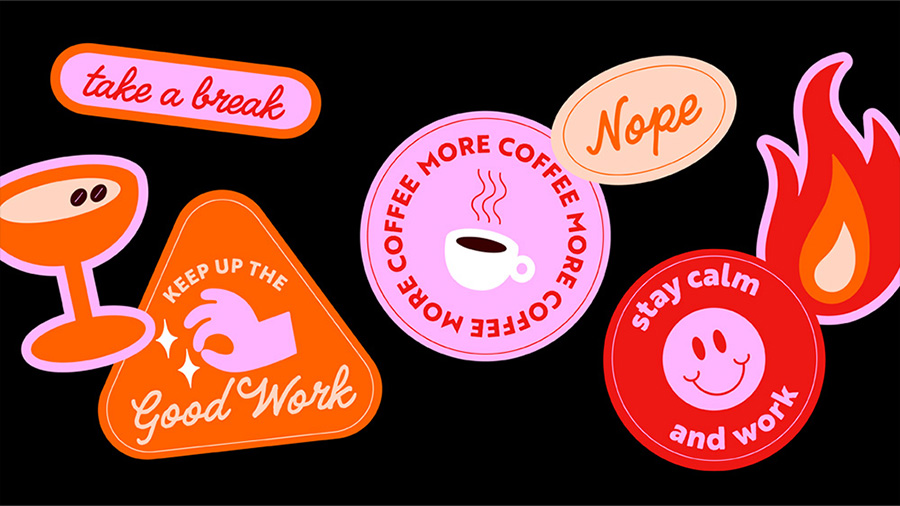
Im letzten Schritt geht es um den Feinschliff und die Details: Passe die Größe der Schriften von Hand etwas an, so dass alle Texte perfekt auf deinen Sticker oder dein Layout passen. Justiere bei Bedarf den Abstand zwischen Wörtern und Zeichen im Text, bis ein harmonisches Gesamtbild entsteht. So bringst du dein Design und deine Inhalte typografisch auf den Punkt – in deinem ganz eigenen Look.
Über die Künstlerin
Rosa Kammermeier ist Illustratorin, Grafikdesignerin und Schriftkünstlerin und lebt in Berlin. Sie arbeitet für Print- und Webprojekte, analoge und digitale Projekte, große Wandbilder und kleine Kalligrafien. Neben ihrer Arbeit als Designerin begeistert sie sich sehr für Musik und liebt es, diese Leidenschaften zu verbinden.
You can control how Adobe websites use cookies and similar technologies by making choices below. But note that if you disable cookies and similar technologies entirely, Adobe websites may not function properly.
Cookies are small text files stored by your web browser when you use websites. There are also other technologies that can be used for similar purposes like HTML5 Local Storage and local shared objects, web beacons, and embedded scripts. These technologies help us do things like remembering you and your preferences when you return to our sites, measure how you use the website, conduct market research, and gather information about the ads you see and interact with.
You can make choices in the menu below about what cookies and other technologies you want us to use on Adobe sites when you visit them from this browser. You can always change those choices later by clicking on the Cookie Preferences link at the bottom of the page.
If enabled:
We can improve your experience by tailoring the site and the content to things we think might be of interest
We can better keep track of your preferences — like what language you prefer to use
We will better understand your likely interests so we can provide you more relevant Adobe ads and content on non-Adobe websites and in non-Adobe apps
It will help us improve the performance of our website and those of our partners who use the Adobe Experience Cloud
If disabled:
We won’t be able to remember you from session to session so the experience may not be tailored to your interests
You’ll still have access to the content of the site but certain features that depend on cookies may not function
You’ll still see ads, they just may not be as relevant to you
General information
You can control how Adobe websites use cookies and similar technologies by making choices below. But note that if you disable cookies and similar technologies entirely, Adobe websites may not function properly.
Cookies are small text files stored by your web browser when you use websites. There are also other technologies that can be used for similar purposes like HTML5 Local Storage, web beacons, and embedded scripts. These technologies help us do things like remembering you and your preferences when you return to our sites, measure how you use the website, conduct market research, and gather information about the ads you see and interact with.
You can make choices in the menu below about what cookies and other technologies you want us to use on Adobe sites when you visit them from this browser. You can always change those choices later by clicking on the Cookie Preferences link at the bottom of the page.
If enabled:
We can improve your experience by tailoring the site and the content to things we think might be of interest
We can better keep track of your preferences — like what language you prefer to use
We will better understand your likely interests so we can provide you more relevant Adobe ads and content on non-Adobe websites and in non-Adobe apps
It will help us improve the performance of our website and those of our partners who use the Adobe Experience Cloud
If disabled:
We won’t be able to remember you from session to session so the experience may not be tailored to your interests
We’ll still count your use of our site and services
You’ll still have access to the content of the site but certain features that depend on cookies may not function
You’ll still see ads, they just may not be as relevant to you
Operate the site and core servicesOperate site and measure engagement
Always active
These cookies are required, and they are used to enable the site and related services core functionality. Without them the site could not operate, so they cannot be disabled.
These cookies enable the site and related services’ core functionality and collect statistics about user engagement, such as counting active use to help us understand trends. These cookies cannot be disabled.
Measure performance
These cookies are used to analyze site usage to measure and improve performance. Without them Adobe cannot know what content is most valued and how often unique visitors return to the site, making it hard to improve information we offer to you.
These cookies are used to analyze site usage to measure and improve performance. Without them Adobe cannot know what content is most valued, making it hard to improve information we offer to you.
Extend functionality
These cookies are used to enhance the functionality of Adobe sites such as remembering your settings and preferences to deliver a personalized experience; for example, your username, your repeated visits, preferred language, your country, or any other saved preference.
Personalize advertising
These cookies are used to enable Adobe and our partners to serve ads more relevant to your interests. Without them you will still see ads, but they might not be as relevant to you.
Personalize advertising
These cookies are used to enable Adobe and our partners to serve ads more relevant to your interests. Without them you will still see ads, but they might not be as relevant to you.