Probiere diese Tutorials mit Illustrator aus
Illustrationen und andere Grafiken mit Vektoren erstellen
Erfasse eine Form mit Adobe Capture, und wandle die Aufnahme mit Illustrator in eine bunte Grafik um.

Digitalisiere ein beliebiges Bild, und verwandle es mithilfe von Creative Cloud-Tools in ein beeindruckendes Popart-Kunstwerk. Deine Illustration kannst du anschließend als Poster oder auf Spezialpapier für Aufkleber oder Bügelbilder drucken. Oder speichere sie, um sie für einen Blog, eine Website oder ein anderes digitales Projekt zu verwenden.
Probiere diese einfache Technik mit unserem Beispielbild oder eigenen Bildern aus.
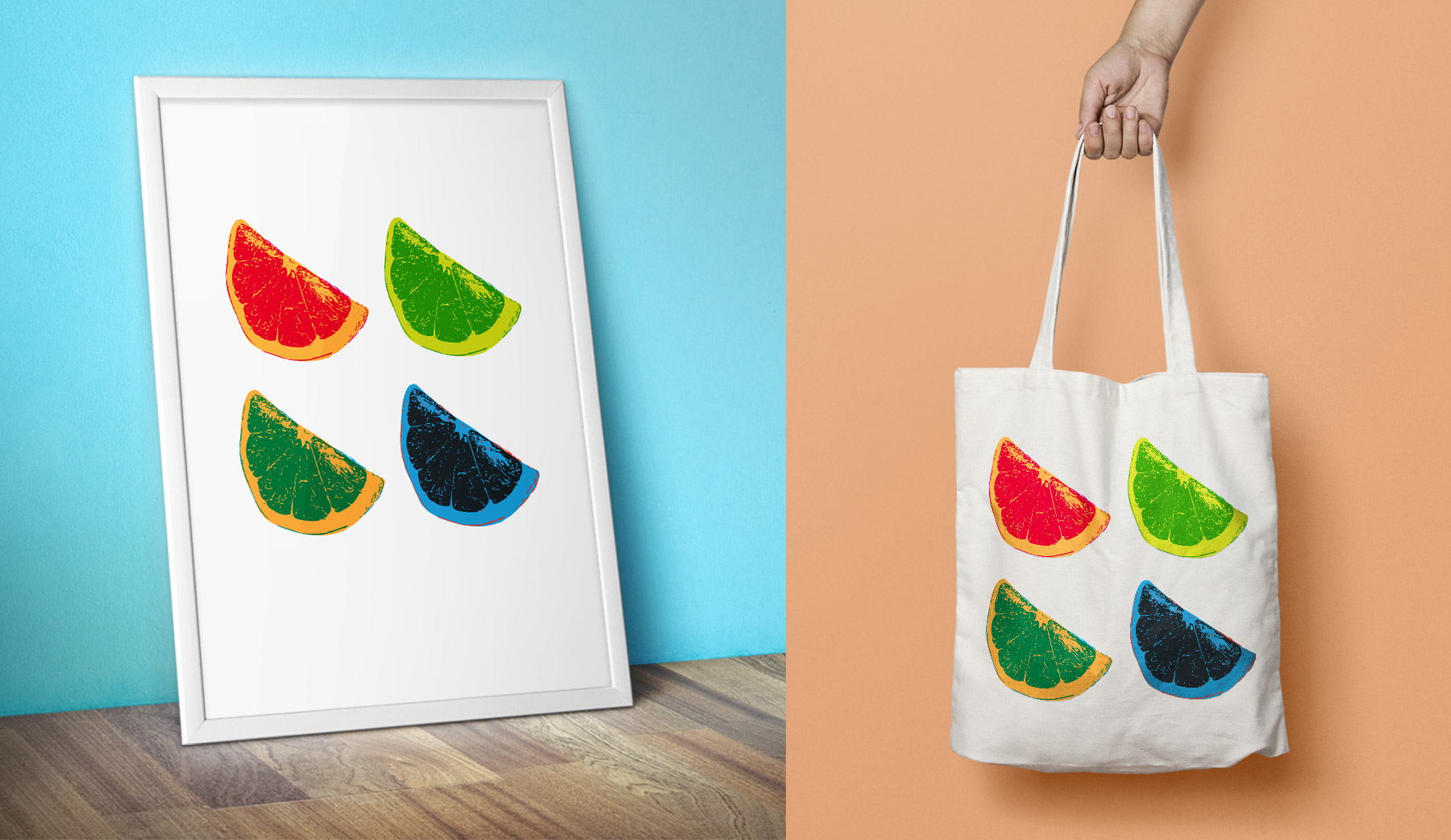
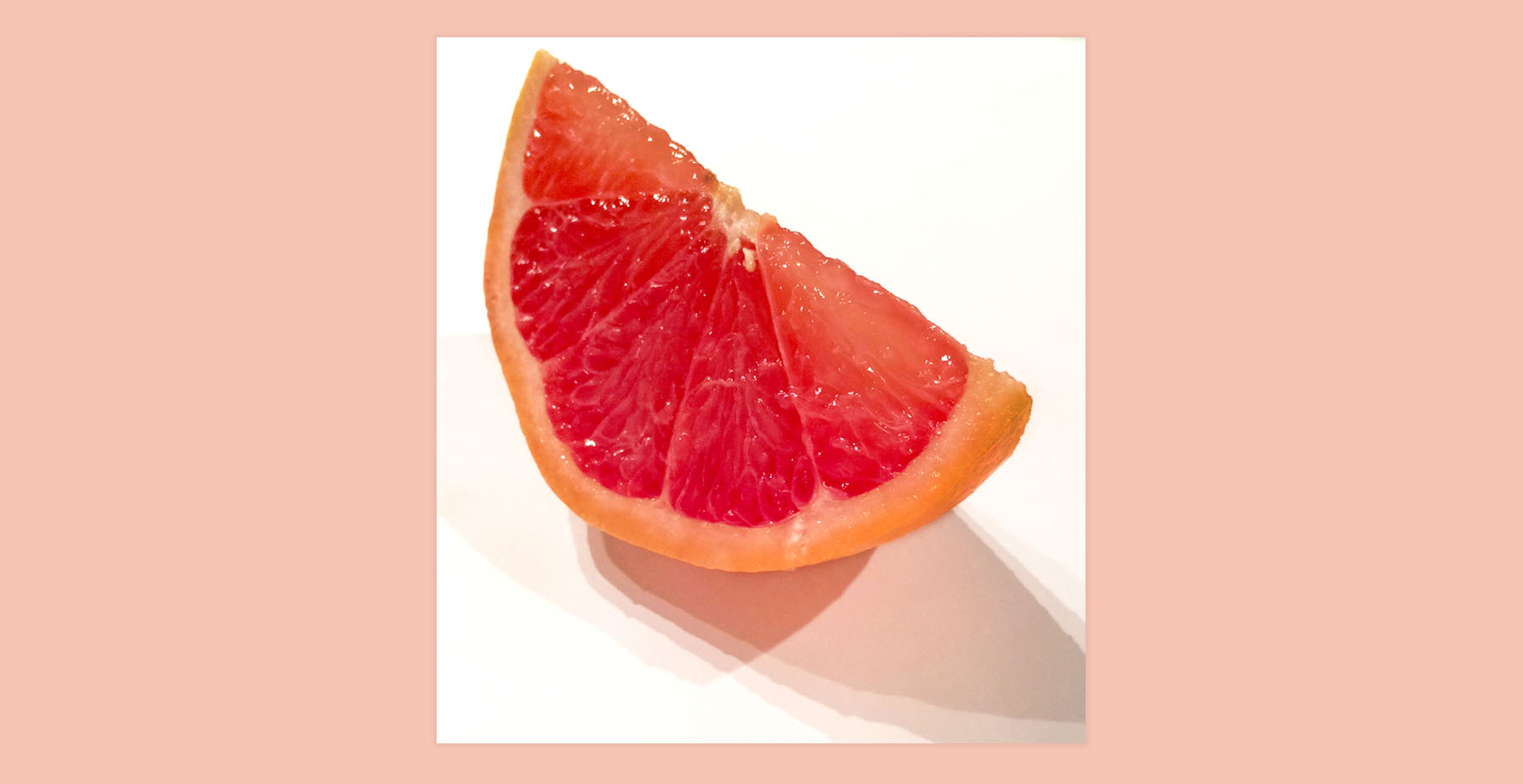
Um dieses Popart-Design zu erstellen, lade das Beispielfoto herunter. Speichere es auf deinem Smartphone oder Tablet. Verwende das Foto, um mit Capture eine Vektorgrafik zu erstellen, die du anschließend in Illustrator in eine Popart-Grafik umwandeln kannst.
Starte Adobe Capture auf deinem Smartphone oder Tablet.
Hinweis: Die Screenshots in dieser Schulung zeigen Capture auf einem iPhone. Die Benutzeroberfläche kann je nach Gerät variieren.
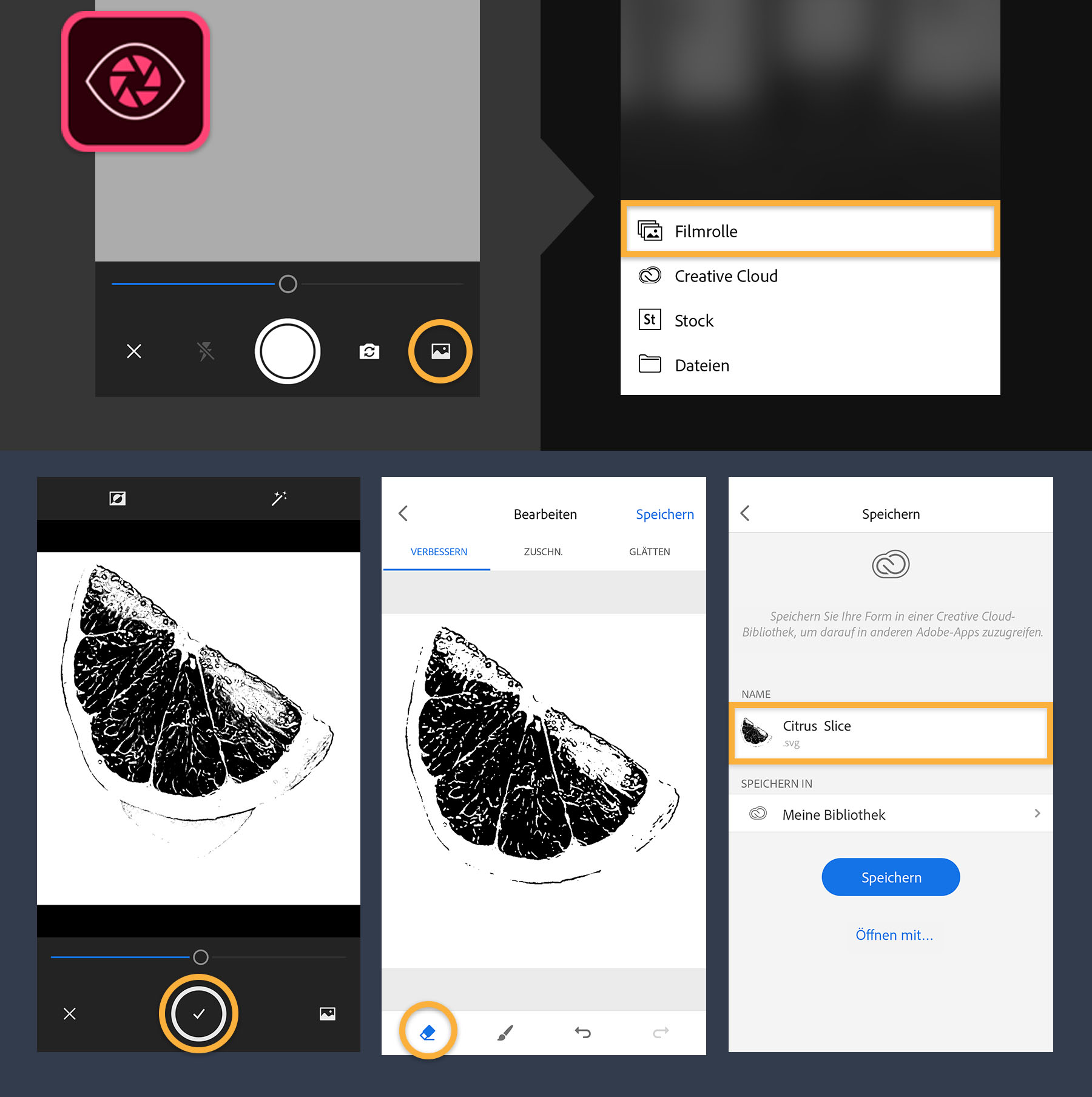
Tippe auf „Formen“ und anschließend auf das Pluszeichen (+). Tippe dann rechts unten auf das Symbol für „Aufnehmen von“. Wähle „Filmrolle“.
Wähle ein Foto aus. Capture importiert das Foto automatisch. Stelle die Detailgenauigkeit mit dem Regler ein.
Tippe auf den Button zum Erfassen (Kreis mit dem Häkchen), um die Grafik zu erfassen. Nun kannst du die Grafik verbessern, zuschneiden und glätten. Mit dem Finger lassen sich Teile der aufgenommenen Form entfernen. Mit dem Pinsel-Werkzeug kannst du Teile hinzufügen, indem du darüber zeichnest. Wähle „Speichern“. Du kannst die Form umbenennen, indem du auf den vorgegebenen Namen tippst und einen neuen eingibst. Speichere die Form in „Meine Bibliothek“. Wähle „Speichern“.
Starte Illustrator. Klicke auf dem Startbildschirm auf „Neu erstellen“, oder wähle „Datei > Neu“. Wähle „Druck“, und klicke auf das gewünschte Papierformat (im Beispiel: US Letter). Klicke auf „Erstellen“.
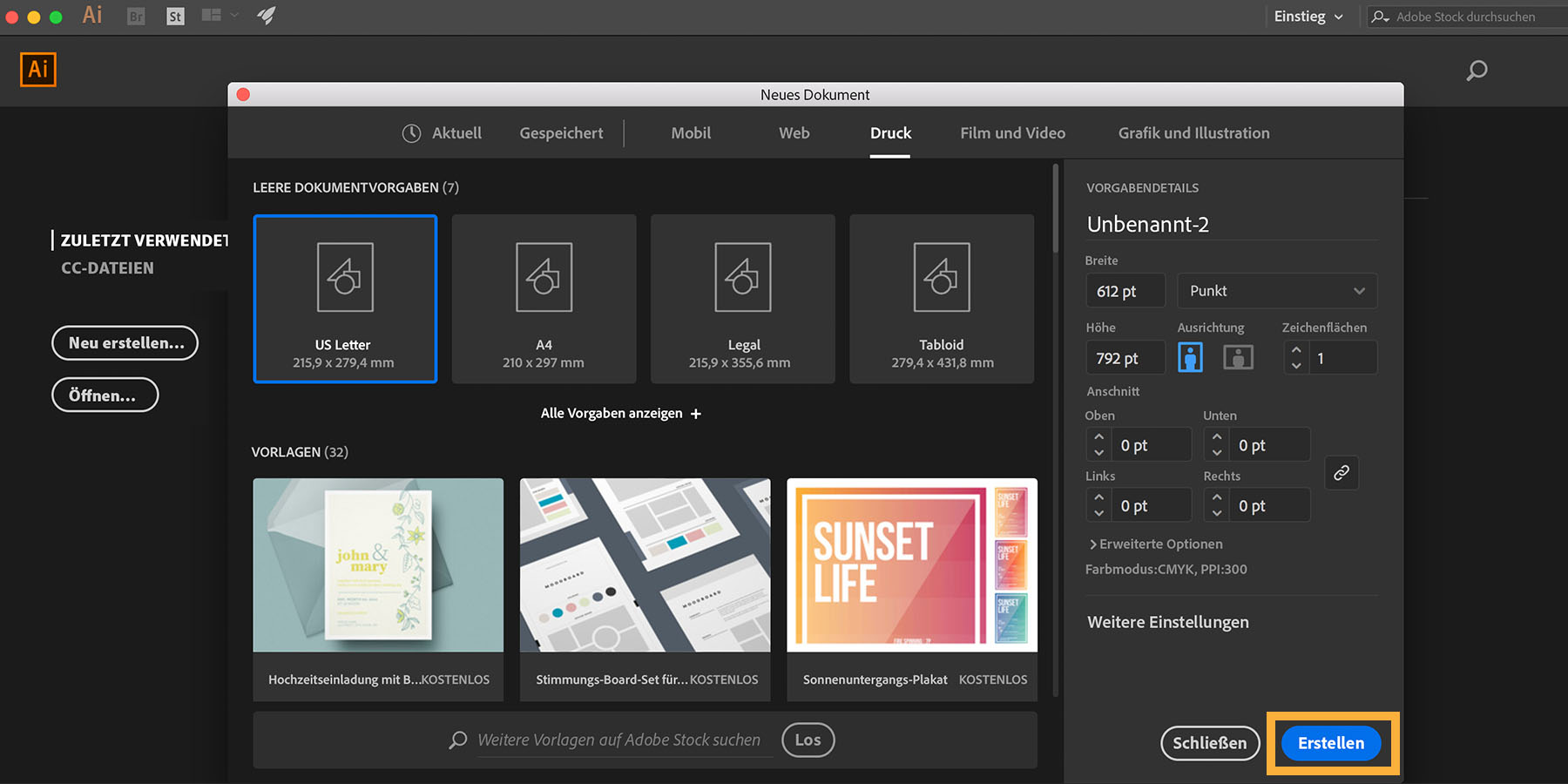
Öffne nun die eben erstellte Vektorform zur weiteren Bearbeitung.
Wähle „Fenster > Bibliotheken“, um auf deine Creative Cloud-Bibliotheken zuzugreifen. Wähle „Meine Bibliothek“ aus, und ziehe die erstellte Form auf die Zeichenfläche. Lasse die Maustaste los, um die Form zu platzieren.
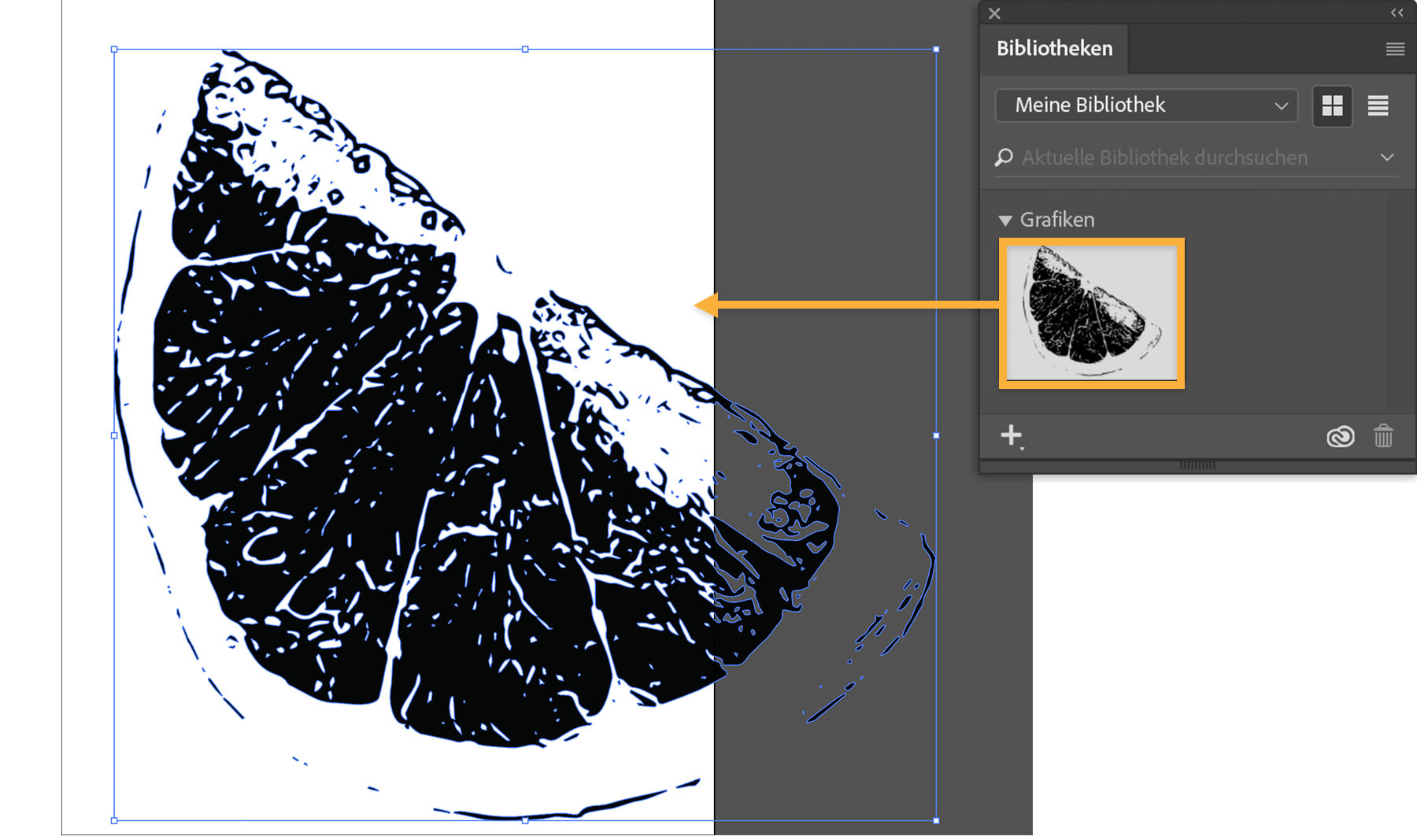
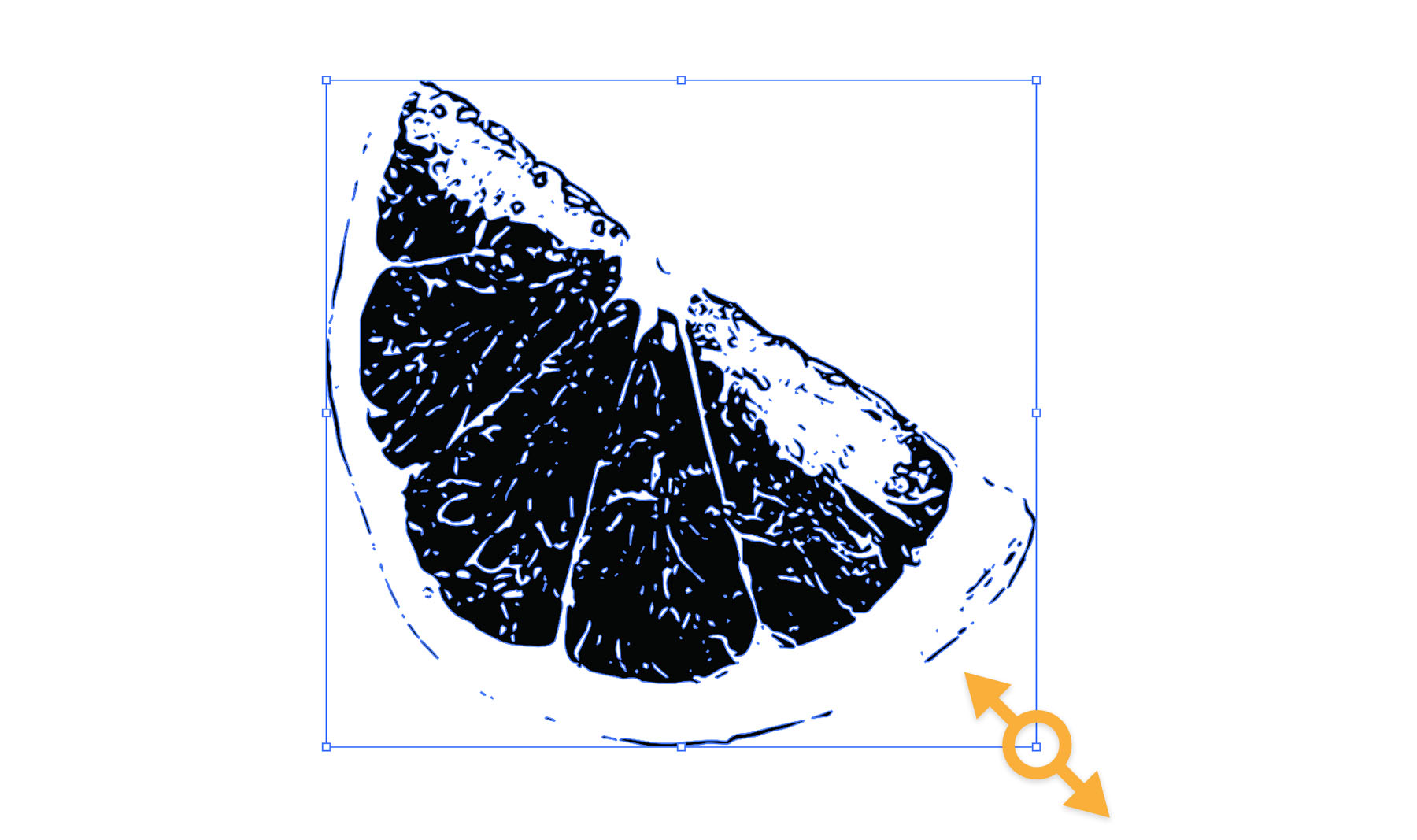
Ändere die Größe nach Bedarf. Halte dazu die Umschalttaste gedrückt, während du an einer Ecke des Begrenzungsrahmens ziehst. Lasse die Maustaste los, und ziehe an der Mitte der Form, um sie neu zu positionieren.
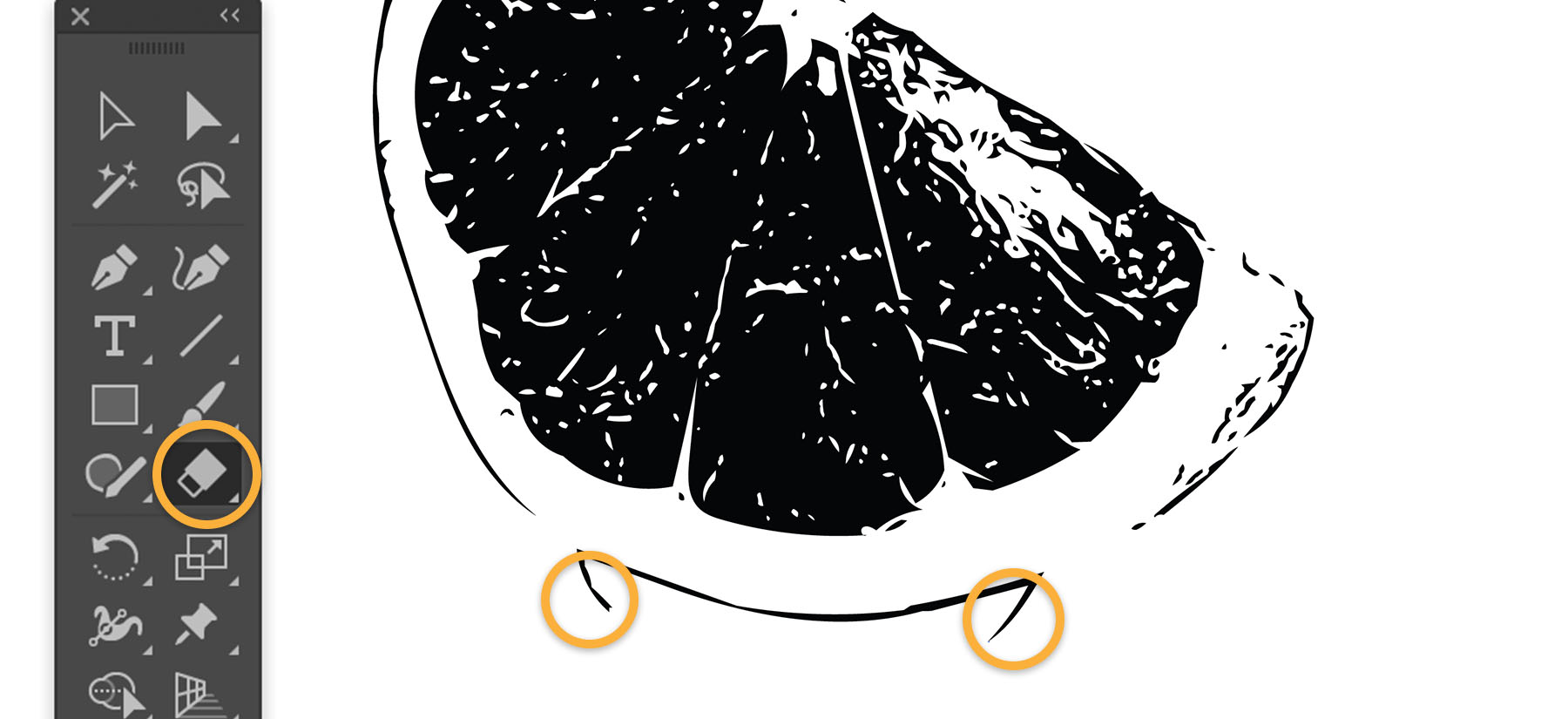
Du kannst unerwünschte Details ganz einfach aus deiner erfassten Form entfernen. Klicke zunächst einmal auf eine beliebige Stelle in der Zeichenfläche, um die Auswahl der Form aufzuheben. Wähle dann auf der Werkzeugleiste das Radiergummi-Werkzeug, und ziehe über die unerwünschten Bereiche, um sie zu löschen.
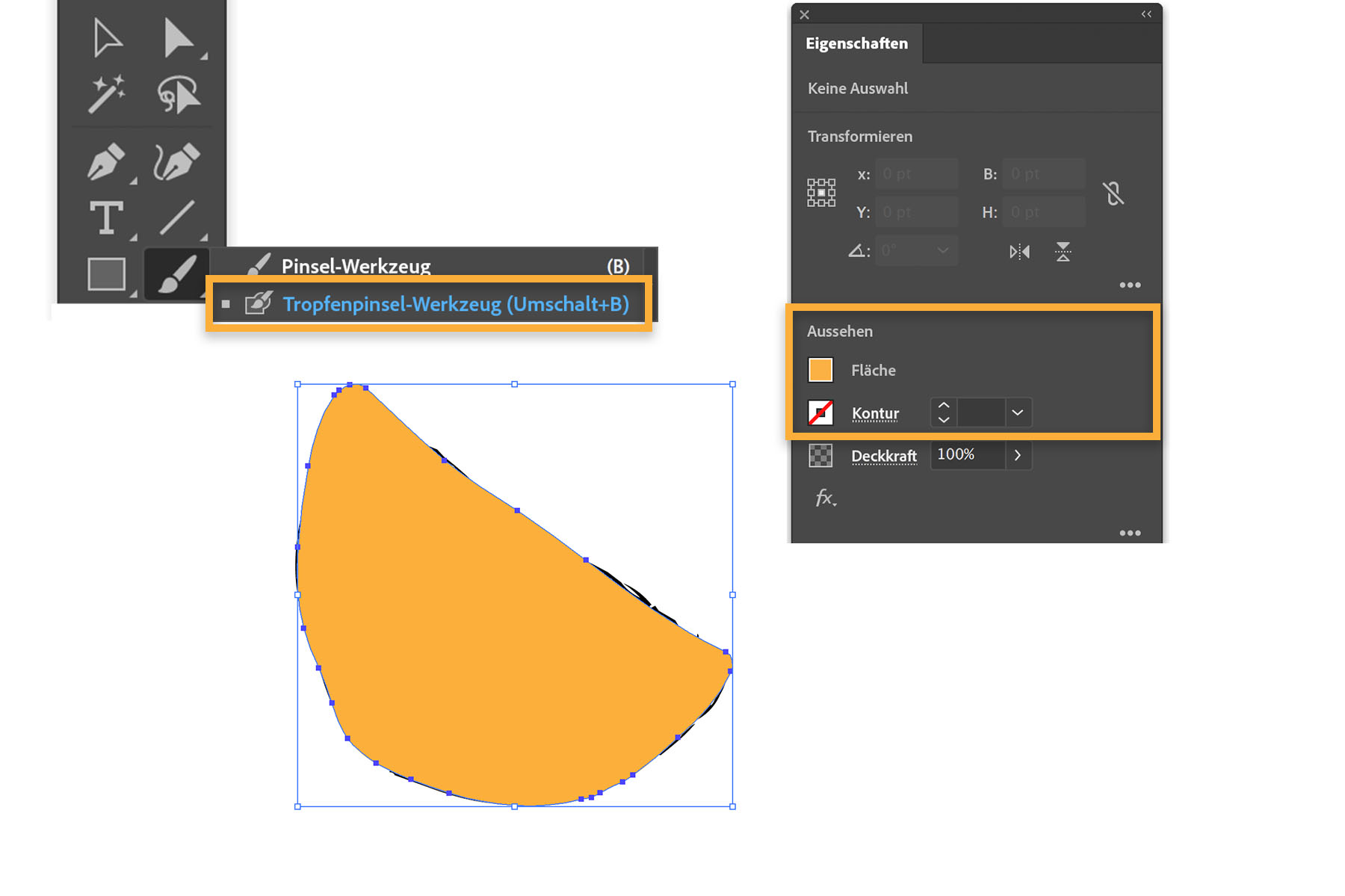
Klicke auf der Werkzeugleiste auf das Pinsel-Werkzeug, und halte die Maustaste gedrückt, um das Tropfenpinsel-Werkzeug auszuwählen.
Klicke auf die Registerkarte „Eigenschaften“, um das Bedienfeld anzuzeigen. Oder wähle „Fenster > Eigenschaften“. Klicke im Bedienfeld „Eigenschaften“ im Abschnitt „Aussehen“ auf das Symbol für die Flächenfarbe. Wähle eine Farbe aus. Klicke nun auf das Symbol für die Kontur, und wähle „Ohne“.
Male grob über die Form.
Tipp: Um die Pinselgröße beim Malen dynamisch zu ändern, verwende die Pfeiltasten.
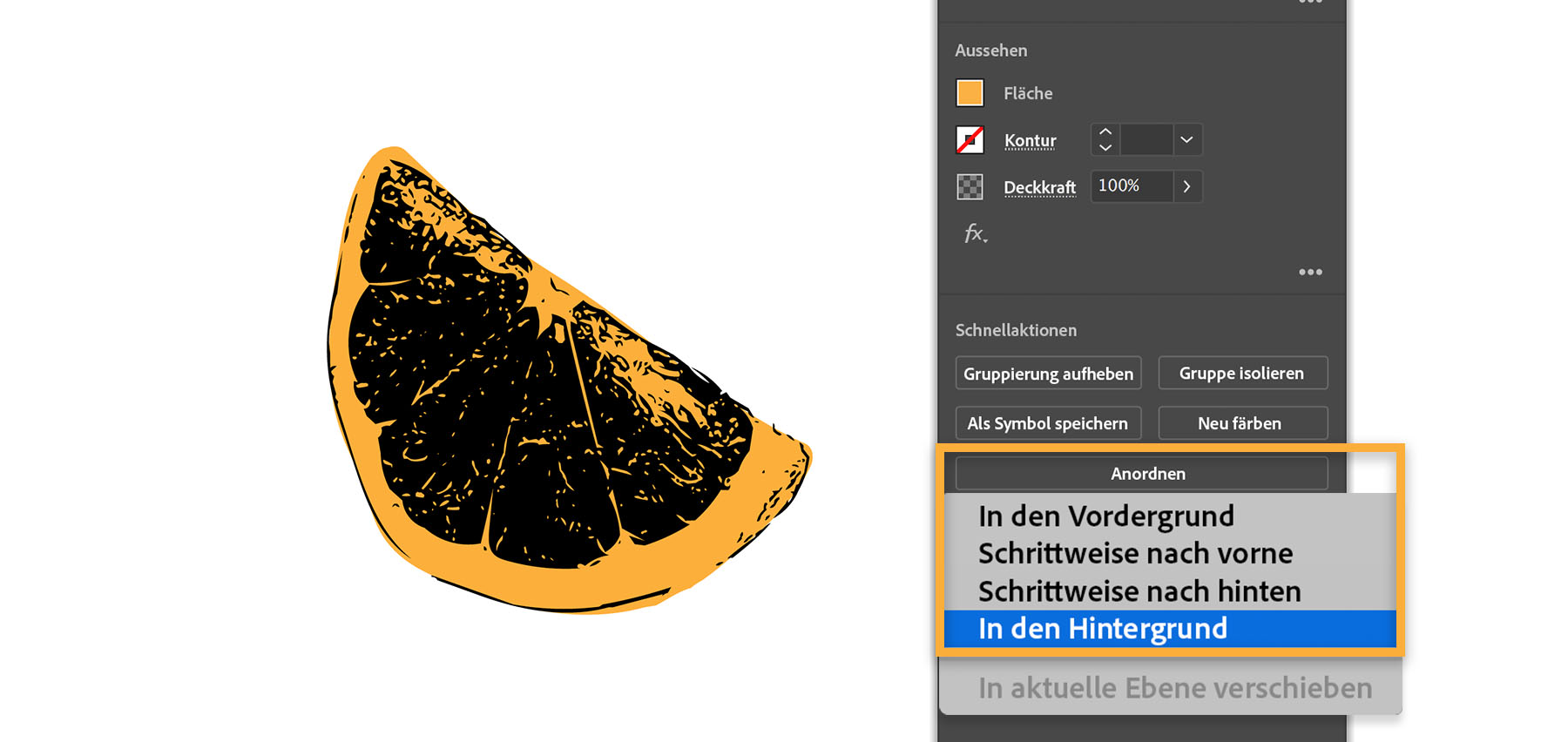
Rufe mit der V-Taste das Auswahl-Werkzeug auf, und klicke auf die gemalte Form. Klicke im Bedienfeld „Eigenschaften“ unter „Schnellaktionen“ auf „Anordnen“. Wähle „In den Hintergrund“, um die neue Form hinter der ursprünglichen zu platzieren.
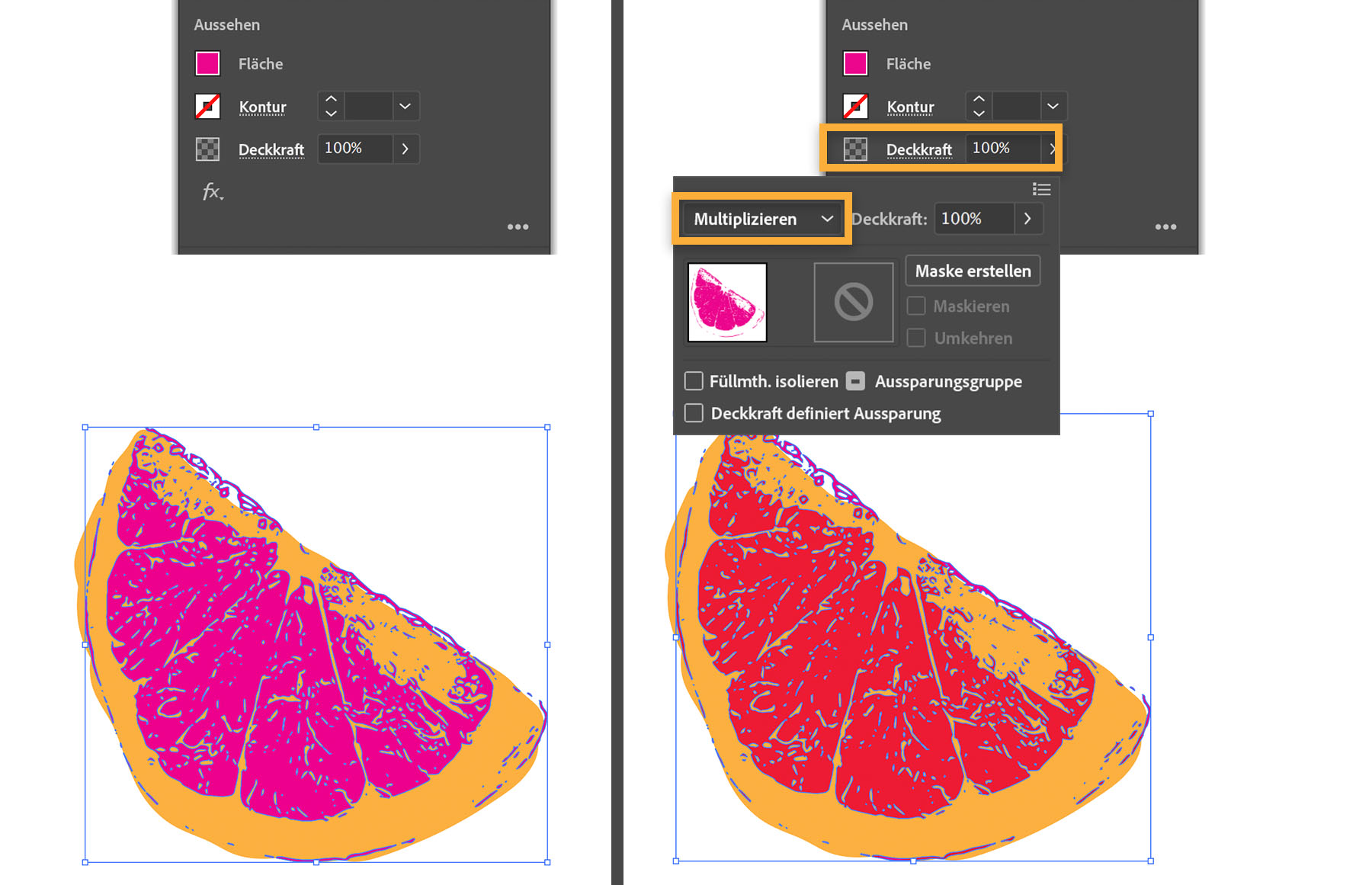
Wähle die erfasste Form per Mausklick aus. Klicke im Bedienfeld „Eigenschaften“ auf das Symbol für die Flächenfarbe. Wähle eine Kontrastfarbe aus.
Wähle dann „Deckkraft“ und eine der Füllmethoden aus, um spannende Farbeffekte zu erzeugen. Im Beispiel siehst du die Füllmethode „Multiplizieren“. Mit diesem Effekt wird das Zusammenspiel transparenter Farben simuliert. Die Ergebnisse variieren basierend auf den gewählten Farbkombinationen.
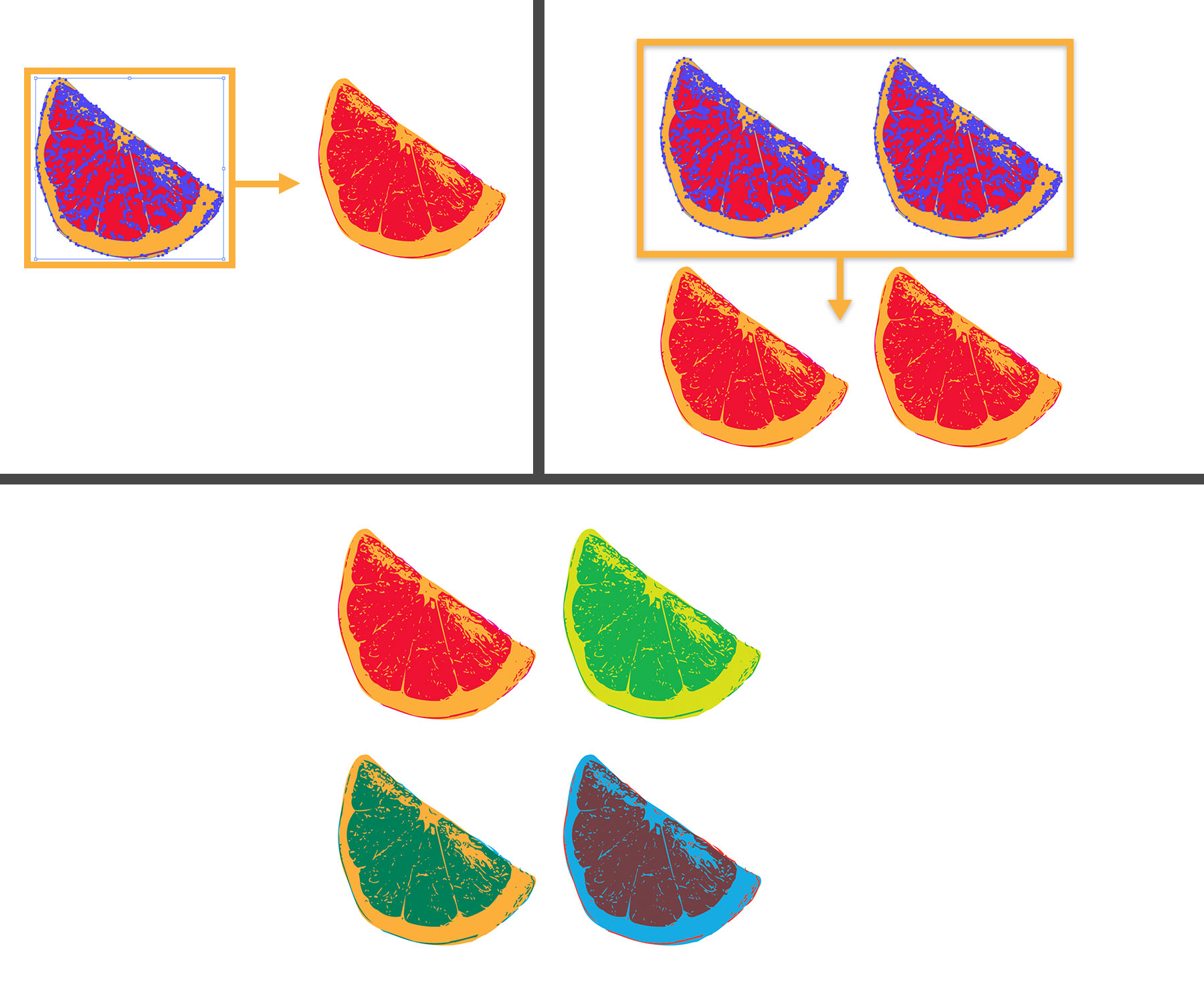
Platziere dein Design nun als Raster. Male ein Auswahlrechteck um die Formen, um beide auszuwählen. Drücke Alt+Umschalttaste (Windows) bzw. Wahl+Umschalttaste (macOS), und ziehe die Formen entlang einer Linie, um sie zu duplizieren. Lasse die Maustaste los, um die Kopie in der Nähe der ursprünglichen Form zu platzieren.
Wiederhole diesen Schritt, um eine weitere Kopie in derselben Zeile zu erstellen. Du kannst auch die gesamte Reihe auswählen und die Reihe nach unten duplizieren. Wenn du möchtest, kannst du die duplizierten Formen anders kolorieren.
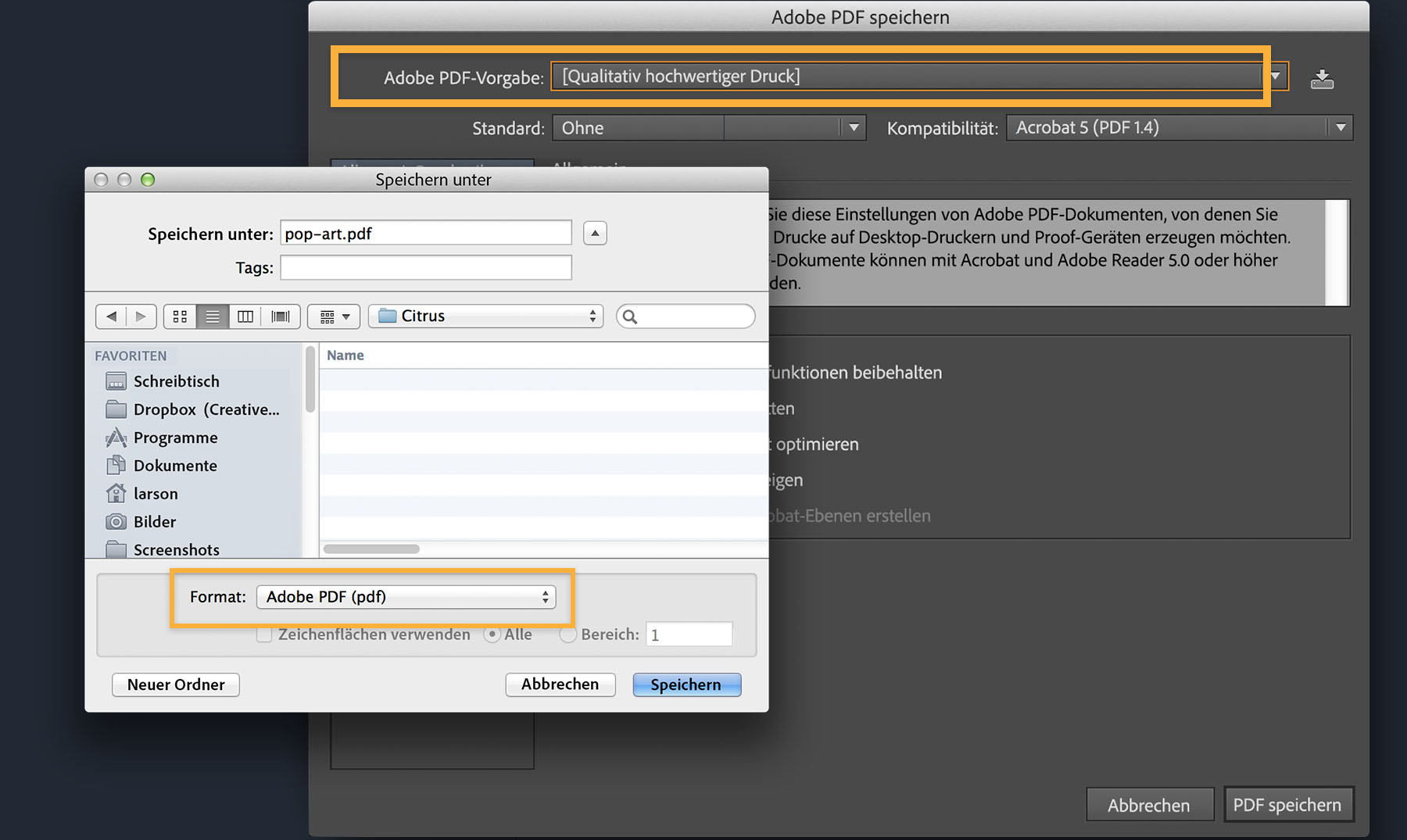
Um eine Illustration für den Druck oder E-Mail-Versand auszugeben, speichere sie als PDF-Datei. Wähle dazu „Datei > Speichern“ und „Adobe PDF“. Wähle unter „Adobe PDF-Vorgabe“ die Option „Qualitativ hochwertiger Druck“ oder „Druckausgabequalität“, je nach Empfehlung deines Druckdienstleisters.
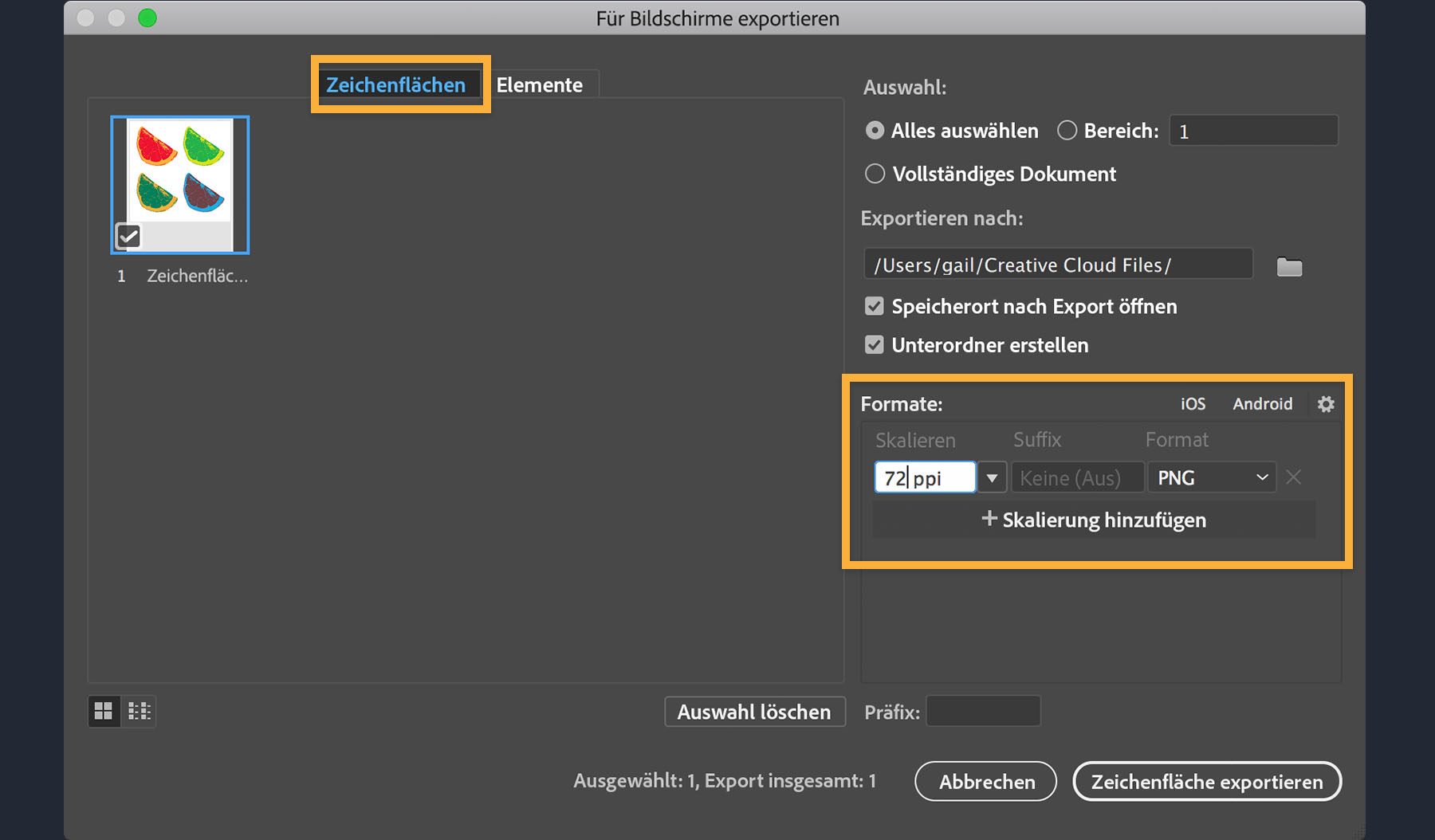
Um die Illustration bildschirmoptimiert zu speichern, wähle „Datei > Exportieren > Für Bildschirme exportieren“. Achte im Dialogfeld „Für Bildschirme exportieren“ darauf, dass „Zeichenflächen“ ausgewählt ist. Gib einen Speicherort und ein geeignetes Format wie PNG oder JPEG an. Klicke auf „Zeichenfläche exportieren“.
Wir hoffen, das Tutorial hat dich auf den Geschmack gebracht. Viel Spaß beim Experimentieren. Teile deine Kunstwerke unter dem Hashtag #adobepopart.


All Consent Allowed