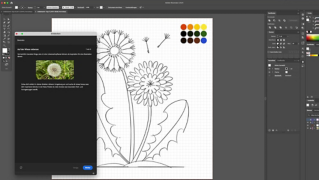
Hinterlasse einen bleibenden Eindruck. Wähle eine hochwertige Schrift aus, wende einen interessanten Schriftsatz an, und nutze eine einfache Technik zum Optimieren der Farbgebung.
Die Beispieldatei enthält Adobe Stock-Elemente, mit denen du die Schritte dieses Tutorials nachvollziehen kannst. In der ReadMe-Datei in diesem Ordner findest du die Bedingungen für die Verwendung dieser Beispieldatei.Adobe Stock bietet Zugriff auf viele Millionen lizenzfreie Bilder und Videos für gewerbliche Zwecke.Teste Adobe Stock einen Monat lang kostenlos – 10 Bilder gratis inklusive.
1
Ein neues Dokument anlegen.
Öffne Adobe Illustrator. Klicke auf der Startseite auf „Neu erstellen“.
Wähle im Fenster „Neues Dokument“ oben die Kategorie „Web“. Gib die gewünschten Abmessungen ein. Da wir eine Blog-Überschrift erstellen, verwenden wir eine Breite von 1040 Pixel und eine Höhe von 400 Pixel.
Klicke auf „Erstellen“.
2
Ein Hintergrundbild platzieren.
Zuerst fügst du ein Hintergrundbild hinzu. Wähle eine einfache Struktur oder ein Bild mit genügend Platz für Text.
Klicke auf „Datei > Platzieren“. Wähle ein eigenes Foto oder das bereitgestellte Beispielbild aus. Klicke auf „Platzieren“.
Während das Bild an deinen Cursor angeheftet ist, klicke und ziehe, bis sich das Foto über die gesamte Zeichenfläche erstreckt. Keine Sorge, wenn das platzierte Bild die Ränder der Zeichenfläche überschreitet: Wir korrigieren dies im letzten Schritt.
Wenn du das Bild nach dem Platzieren neu positionieren möchtest, ziehe bei aktiviertem Auswahl-Werkzeug in der Mitte des Fotos.
3
Einen Titel hinzufügen und formatieren.
Wähle das Text-Werkzeug aus. Klicke auf eine beliebige Stelle auf der Zeichenfläche, um eine Einfügemarke hinzuzufügen. Der Standardplatzhaltertext („Lorem ipsum“) wird angezeigt.
Wähle im Bedienfeld „Eigenschaften“ für „Zeichen“ einen hohen Schriftgrad aus (zum Beispiel 60 pt). Klicke für „Absatz“ auf das Symbol „Zentrieren“.
Ersetze den Standardtext durch eigenen Text. Drücke die Esc-Taste, um das Text-Werkzeug zu deaktivieren und das Textobjekt automatisch auszuwählen.
Klicke im Bedienfeld „Eigenschaften“ auf das Dropdown-Menü für die Schriftfamilie. Wähle eine installierte Schrift aus, oder füge eine neue aus Adobe Fonts hinzu. Klicke auf „Mehr suchen“, und scrolle in der Liste, um dir alle in deinem Creative Cloud-Abo enthaltenen Adobe Fonts-Schriften anzusehen.
Wähle die Schrift „Raleway Bold“ aus. Aktiviere sie durch einen Klick auf das Wolkensymbol.
Wähle im Schriftenmenü „Raleway Bold“ aus.
4
Den Titel farbig gestalten.
Du kannst ein Farbschema erstellen, indem du eine Farbe aus dem Hintergrundbild übernimmst.
Wähle auf der Werkzeugleiste das Pipette-Werkzeug aus. Klicke auf eine beliebige Stelle im Bild, um eine Farbe aufzunehmen und auf den ausgewählten Text anzuwenden.
Um die aufgenommene Farbe zu bearbeiten oder eine eigene Farbe auszuwählen, doppelklicke im unteren Bereich der Werkzeugleiste auf das Feld für Flächenfarbe, und wähle im Farbwähler einen anderen Farbton aus.
5
Dem Titel durch Typografie das gewisse Etwas verleihen.
Dein Titel nimmt allmählich Gestalt an. Jetzt kannst du mit den Buchstabenformen experimentieren. Klicke im Abschnitt „Zeichen“ auf die Schaltfläche „Mehr Optionen“ (drei Punkte).
Vergrößere den Abstand zwischen den Buchstaben, um den Titel lockerer und eleganter zu gestalten. Oder wende einen negativen Abstand an. Damit erhält der Text einen modernen Look. Experimentiere im Menü zum Einstellen der Laufweite mit Werten wie 50, -25 und -10.
Teste auch, wie der Titel in Großbuchstaben wirkt. Klicke hierfür einfach auf das entsprechende Symbol.
6
Einen grafischen Effekt hinzufügen.
In diesem Schritt fügst du einen Effekt hinzu, damit der Titel plastischer wirkt.
Wähle bei ausgewähltem Text „Effekt > (Illustrator-Effekte) Stilisierungsfilter > Schlagschatten“. Experimentiere mit verschiedenen Modi und mit den Einstellungen für Deckkraft, Versatz, Weichzeichnen oder Farbe. Aktiviere „Vorschau“, um dir die Effekte live vorab anzusehen, und klicke dann auf „OK“.
Für den hier abgebildeten Schlagschatten mit scharfen Kanten haben wir diese Einstellungen verwendet:
Modus: Multiplizieren
Deckkraft: 50 %
x- und y-Versatz: 4 px
Weichzeichnen: 0 px
7
Die Grafik für das Web exportieren.
Speichere nun dein Titel-Design in einem Web-Format.
Wähle „Datei > Exportieren > Für Bildschirme exportieren“. Lege einen Speicherort für die Datei fest. Wähle für eine optimale Qualität die Einstellung „JPG 100“. Klicke auf „Zeichenfläche exportieren“.
Designe mit Grafiken und Typografie einen Web-Titel, mit dem dir die Aufmerksamkeit deiner Zielgruppe sicher ist.
Speichern Sie Ihr Titel-Design in einem Web-Format.
Wählen Sie „Datei > Für Web speichern“.
Wählen Sie im Menü „Vorgabe“ die Option „JPEG Hoch“. Aktivieren Sie das Kontrollkästchen „Ganze Zeichenfläche exportieren“. Mit dieser Option werden die Bildbereiche entfernt, die über den Rand hinausgehen.
Optional: Wählen Sie im Pulldown-Menü „Glätten“ die Option „Schrift optimiert“, damit der Titel mit weichen Kanten angezeigt wird.
You can control how Adobe websites use cookies and similar technologies by making choices below. But note that if you disable cookies and similar technologies entirely, Adobe websites may not function properly.
Cookies are small text files stored by your web browser when you use websites. There are also other technologies that can be used for similar purposes like HTML5 Local Storage and local shared objects, web beacons, and embedded scripts. These technologies help us do things like remembering you and your preferences when you return to our sites, measure how you use the website, conduct market research, and gather information about the ads you see and interact with.
You can make choices in the menu below about what cookies and other technologies you want us to use on Adobe sites when you visit them from this browser. You can always change those choices later by clicking on the Cookie Preferences link at the bottom of the page.
If enabled:
We can improve your experience by tailoring the site and the content to things we think might be of interest
We can better keep track of your preferences — like what language you prefer to use
We will better understand your likely interests so we can provide you more relevant Adobe ads and content on non-Adobe websites and in non-Adobe apps
It will help us improve the performance of our website and those of our partners who use the Adobe Experience Cloud
If disabled:
We won’t be able to remember you from session to session so the experience may not be tailored to your interests
You’ll still have access to the content of the site but certain features that depend on cookies may not function
You’ll still see ads, they just may not be as relevant to you
General information
You can control how Adobe websites use cookies and similar technologies by making choices below. But note that if you disable cookies and similar technologies entirely, Adobe websites may not function properly.
Cookies are small text files stored by your web browser when you use websites. There are also other technologies that can be used for similar purposes like HTML5 Local Storage, web beacons, and embedded scripts. These technologies help us do things like remembering you and your preferences when you return to our sites, measure how you use the website, conduct market research, and gather information about the ads you see and interact with.
You can make choices in the menu below about what cookies and other technologies you want us to use on Adobe sites when you visit them from this browser. You can always change those choices later by clicking on the Cookie Preferences link at the bottom of the page.
If enabled:
We can improve your experience by tailoring the site and the content to things we think might be of interest
We can better keep track of your preferences — like what language you prefer to use
We will better understand your likely interests so we can provide you more relevant Adobe ads and content on non-Adobe websites and in non-Adobe apps
It will help us improve the performance of our website and those of our partners who use the Adobe Experience Cloud
If disabled:
We won’t be able to remember you from session to session so the experience may not be tailored to your interests
We’ll still count your use of our site and services
You’ll still have access to the content of the site but certain features that depend on cookies may not function
You’ll still see ads, they just may not be as relevant to you
Operate the site and core servicesOperate site and measure engagement
Always active
These cookies are required, and they are used to enable the site and related services core functionality. Without them the site could not operate, so they cannot be disabled.
These cookies enable the site and related services’ core functionality and collect statistics about user engagement, such as counting active use to help us understand trends. These cookies cannot be disabled.
Measure performance
These cookies are used to analyze site usage to measure and improve performance. Without them Adobe cannot know what content is most valued and how often unique visitors return to the site, making it hard to improve information we offer to you.
These cookies are used to analyze site usage to measure and improve performance. Without them Adobe cannot know what content is most valued, making it hard to improve information we offer to you.
Extend functionality
These cookies are used to enhance the functionality of Adobe sites such as remembering your settings and preferences to deliver a personalized experience; for example, your username, your repeated visits, preferred language, your country, or any other saved preference.
Personalize advertising
These cookies are used to enable Adobe and our partners to serve ads more relevant to your interests. Without them you will still see ads, but they might not be as relevant to you.
Personalize advertising
These cookies are used to enable Adobe and our partners to serve ads more relevant to your interests. Without them you will still see ads, but they might not be as relevant to you.