

Photoshop Halloween Tutorial: Verwandle dich in eine Vogelscheuche!
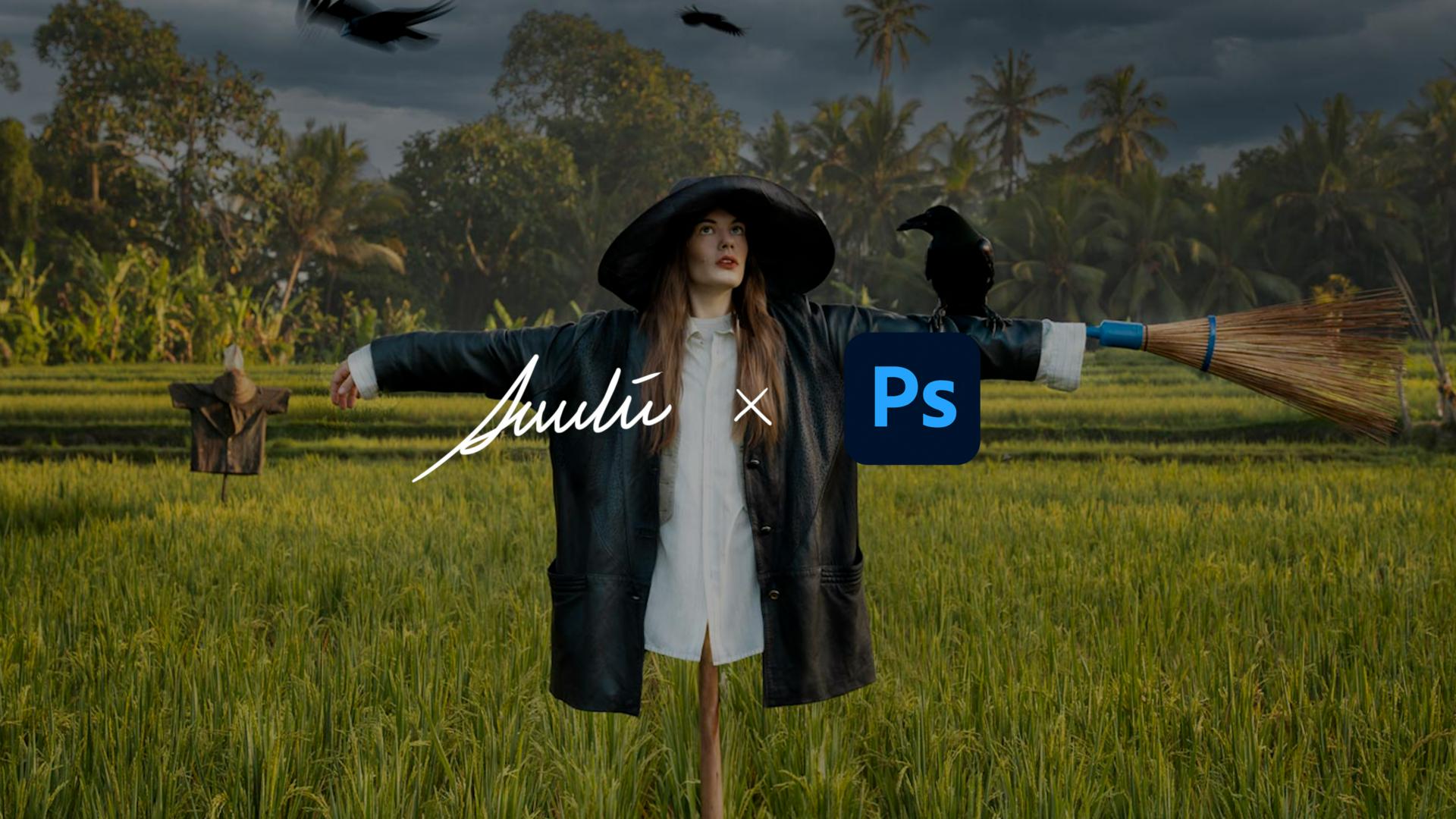
Die düstere Jahreszeit rund um Halloween ist doch der schönste Anlass für Gruselgeschichten – und schaurig schöne Fotokunst! Mit Adobe Photoshop und etwas Fantasie lässt sich jedes Foto in ein spooky Halloween-Composing verwandeln. Fotokünstlerin Amelie Satzger zeigt dir in ihrem interaktiven Halloween-Tutorial, wie sie selbst zur geheimnisvollne Vogelscheuche wird – vor düsterem Himmel und umringt von fliegenden Raben.
Benötigte Materialien
In der Anwendung üben
Kreativ & einfach: Das Tutorial eignet sich ideal für Anfänger:innen und Fortgeschrittene.
Realistisch: Entdecke die Möglichkeiten der Generativen KI, um Objekte und Hintergründe easy auszutauschen oder einzufügen.
Atmosphärisch: Kombiniere Himmel, Licht und Bewegung für eine gruselige Stimmung passend zur Spooky Season
Flexibel:
Lass dich von den Learnings für deinen eigenen Kreativprozess inspirieren
Das lernst du in diesem Photoshop-Tutorial:
Mit Generative Fill die Beine durch einen realistischen Holzstock ersetzen.
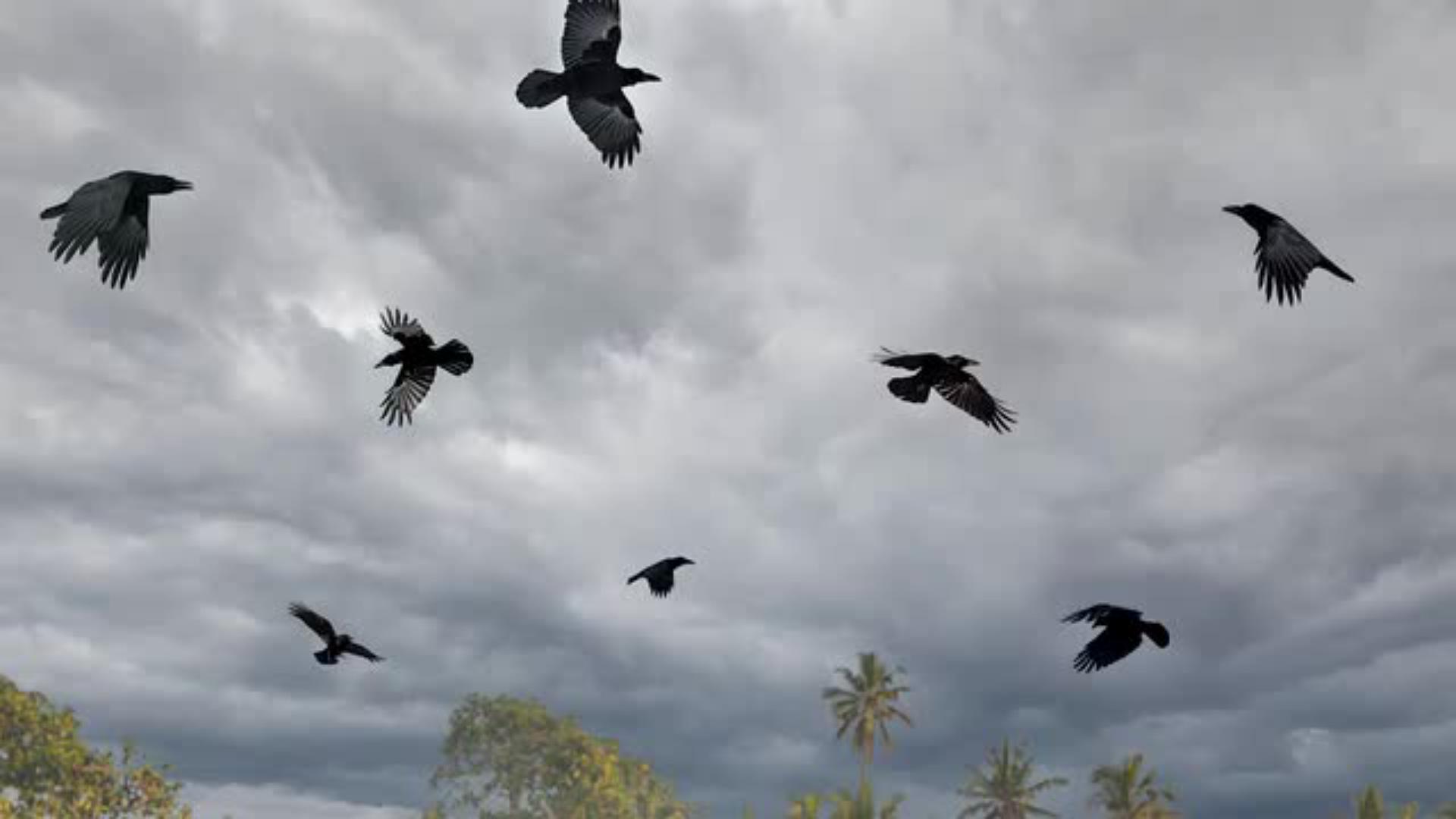
Den Himmel austauschen und realistische Raben mit der generativen KI einfügen.
Mit Bewegungsunschärfe Leben und Dynamik ins Bild bringen.
Erstelle jetzt dein eigenes Halloween-Compositing und erwecke deine Fantasie mit Adobe Photoshop zum Leben.
Schritt-für-Schritt-Anleitung: Halloween-Compositing in Photoshop
1. Hex, hex – no legs! Beine entfernen mithilfe der Photoshop-KI
Starte dein Halloween-Composing, indem du mithilfe von Generative Fill die Beine wegzauberst und sie anschließend durch einen Holzstock ersetzt.
Verwende das Schnellauswahl-Werkzeug, um die Beine auszuwählen.
Erstelle über das Ebenenfenster eine Maske.
Füge mit Bearbeiten > Generatives Füllen den Begriff „Holzstock“ ein – Photoshop erledigt den Rest.
2. Himmel austauschen und Raben einfügen
Für eine schaurig schöne Szenerie wird im nächsten Schritt der Himmel ausgetauscht. Die Photoshop-Funktion verändert mit nur einem Klick die gesamte Bildstimmung – wähle für eine gruselige Halloween-Atmosphäre eine dramatische Variante aus der Kategorie „Spektakulär“.
Dann erstellst du mithilfe der Generativen KI mehrere Raben – einige fliegend, andere sitzend. Sie verleihen dem Bild eine Hauch Horror und geben ihm Bewegung und Tiefe.
3. Bewegungsunschärfe hinzufügen für realistische Effekte
Apropos Bewegung: Um die Komposition realistischer wirken zu lassen, verpasst du den Raben mit dem Bewegungsunschärfe-Filter mehr Dynamik.
Wandle die Raben-Ebenen in Smartobjekte um.
Wende den Weichzeichnungsfilter → Bewegungsunschärfe an.
Passe den Winkel und die Intensität an, bis alles natürlich wirkt.
So entsteht ein realistischer Flug-Effekt – und dein Halloween-Composing wirkt wie aus einem Fantasy-Film.
Über die Künstlerin
Die Fotokünstlerin und Videografin Amelie Satzger ist für ihre surreale und farbenstarke Bildsprache bekannt. Ihre Arbeiten verbinden Realität und Fantasie – perfekt für kreative Projekte wie dieses Photoshop Tutorial. Als Adobe Creator zeigt sie, wie Bildbearbeitung, Generative KI und Fotokunst eins werden, um emotionale Geschichten zu erzählen.
Mehr Tutorials von Amelie Satzger findest du hier auf Adobe Learn oder direkt in deiner Photoshop App, indem du auf die Glühbirne oben rechts klickst oder im Menü unter „Hilfe“ zu den Tutorials navigierst.

Probiere diese Tutorials mit Photoshop aus
Fotos bearbeiten, um neue Bilder und Grafiken zu schaffen
You can control how Adobe websites use cookies and similar technologies by making choices below. But note that if you disable cookies and similar technologies entirely, Adobe websites may not function properly.
Cookies are small text files stored by your web browser when you use websites. There are also other technologies that can be used for similar purposes like HTML5 Local Storage and local shared objects, web beacons, and embedded scripts. These technologies help us do things like remembering you and your preferences when you return to our sites, measure how you use the website, conduct market research, and gather information about the ads you see and interact with.
You can make choices in the menu below about what cookies and other technologies you want us to use on Adobe sites when you visit them from this browser. You can always change those choices later by clicking on the Cookie Preferences link at the bottom of the page.
If enabled:
We can improve your experience by tailoring the site and the content to things we think might be of interest
We can better keep track of your preferences — like what language you prefer to use
We will better understand your likely interests so we can provide you more relevant Adobe ads and content on non-Adobe websites and in non-Adobe apps
It will help us improve the performance of our website and those of our partners who use the Adobe Experience Cloud
If disabled:
We won’t be able to remember you from session to session so the experience may not be tailored to your interests
You’ll still have access to the content of the site but certain features that depend on cookies may not function
You’ll still see ads, they just may not be as relevant to you
General information
You can control how Adobe websites use cookies and similar technologies by making choices below. But note that if you disable cookies and similar technologies entirely, Adobe websites may not function properly.
Cookies are small text files stored by your web browser when you use websites. There are also other technologies that can be used for similar purposes like HTML5 Local Storage, web beacons, and embedded scripts. These technologies help us do things like remembering you and your preferences when you return to our sites, measure how you use the website, conduct market research, and gather information about the ads you see and interact with.
You can make choices in the menu below about what cookies and other technologies you want us to use on Adobe sites when you visit them from this browser. You can always change those choices later by clicking on the Cookie Preferences link at the bottom of the page.
If enabled:
We can improve your experience by tailoring the site and the content to things we think might be of interest
We can better keep track of your preferences — like what language you prefer to use
We will better understand your likely interests so we can provide you more relevant Adobe ads and content on non-Adobe websites and in non-Adobe apps
It will help us improve the performance of our website and those of our partners who use the Adobe Experience Cloud
If disabled:
We won’t be able to remember you from session to session so the experience may not be tailored to your interests
We’ll still count your use of our site and services
You’ll still have access to the content of the site but certain features that depend on cookies may not function
You’ll still see ads, they just may not be as relevant to you
Operate the site and core servicesOperate site and measure engagement
Always active
These cookies are required, and they are used to enable the site and related services core functionality. Without them the site could not operate, so they cannot be disabled.
These cookies enable the site and related services’ core functionality and collect statistics about user engagement, such as counting active use to help us understand trends. These cookies cannot be disabled.
Measure performance
These cookies are used to analyze site usage to measure and improve performance. Without them Adobe cannot know what content is most valued and how often unique visitors return to the site, making it hard to improve information we offer to you.
These cookies are used to analyze site usage to measure and improve performance. Without them Adobe cannot know what content is most valued, making it hard to improve information we offer to you.
Extend functionality
These cookies are used to enhance the functionality of Adobe sites such as remembering your settings and preferences to deliver a personalized experience; for example, your username, your repeated visits, preferred language, your country, or any other saved preference.
Personalize advertising
These cookies are used to enable Adobe and our partners to serve ads more relevant to your interests. Without them you will still see ads, but they might not be as relevant to you.
Personalize advertising
These cookies are used to enable Adobe and our partners to serve ads more relevant to your interests. Without them you will still see ads, but they might not be as relevant to you.