What you’ll learn
- Page numbering in PDF files
- Adobe Acrobat online tools to add page numbers to PDFs
- Adobe Acrobat online tools for removing PDF page numbers
- Adobe Acrobat apps to add PDF page numbers
- Adobe Acrobat apps to remove PDF page numbers
Why PDF page numbers matter.
Before delving into the technical aspects of adding and removing page numbers, consider why your PDF document should have numbered pages. Page numbers serve several essential functions in PDF documents, such as —
- Navigation.
Page numbers help you and your readers navigate through lengthy documents more efficiently. Whether you're studying a research paper, referencing a manual, or simply reading a novel, page numbers make it easier to find specific content. - Organization.
Page numbers contribute to the overall organization of your PDF. They help to establish a structure to support the logic of your layout and your document’s readability. - Citations.
In academic and professional documents, page numbers are essential for accurate citations. They allow you and your readers to pinpoint the exact location of a quoted or referenced point or passage.
Adding page numbers to PDF files with Adobe Acrobat is a straightforward process — and even better, you can choose to do so online, or in one of our applications.
Add page numbers to PDF files online.
To add page numbers to a PDF using Adobe Acrobat’s online PDF page editor, you can just upload your file, or drag and drop, and use an online tool to add your page numbers to your document. There’s no need to download and install any applications or software. The many tools and features available for you to use in Adobe Acrobat Online are all web-based.
To insert page numbers into your PDF online —
-
Go to Adobe Acrobat online
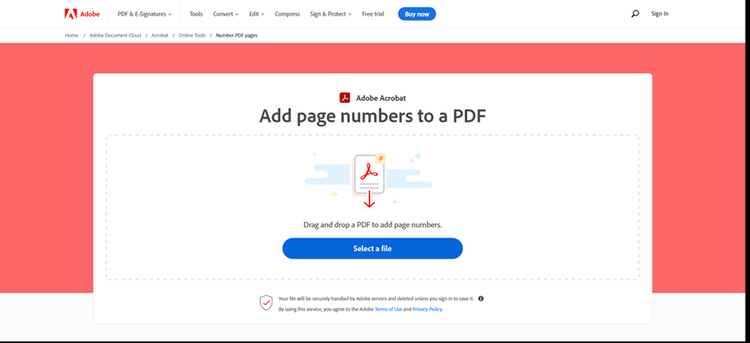
- Drag and drop your PDF file or click the “Select a file” button to upload a PDF from your computer or device.
- You will be prompted to sign in to a free account to work on your PDF after the file has been uploaded.
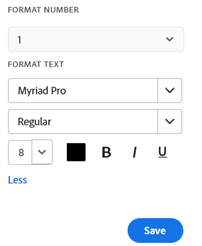
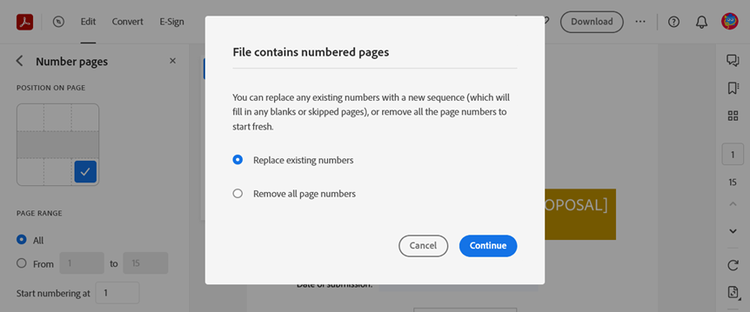
- Select from the options for the page numbers in your PDF. You can choose —