Acrobat
How to convert images to text with OCR technology.
Discover how to effortlessly extract text from images and create fully searchable PDFs with Adobe Acrobat.


Acrobat
Discover how to effortlessly extract text from images and create fully searchable PDFs with Adobe Acrobat.

OCR (Optical Character Recognition) technology effortlessly converts documents—whether PDFs or images—into fully editable, searchable text. It scans the content, recognising and extracting text from images or documents, including handwritten notes. By detecting individual characters, lines, and paragraphs, OCR technology transforms your content into a format that’s easy to edit, copy, and search. It's a smart way to make your text accessible and manageable.
No matter your field, Adobe Acrobat offers versatile tools for extracting text from images, giving you flexibility across devices. You can choose Adobe Acrobat Online, the Adobe Acrobat app, or the Adobe Scan mobile app to scan, convert, and edit text from images easily. These tools provide flexibility whether you're on your computer or mobile device.
With the Adobe Acrobat online OCR tool, there's no need to download any applications or software—everything is web-based. Simply upload your PDF file, and Acrobat will use OCR technology to recognise the text. Follow these steps:
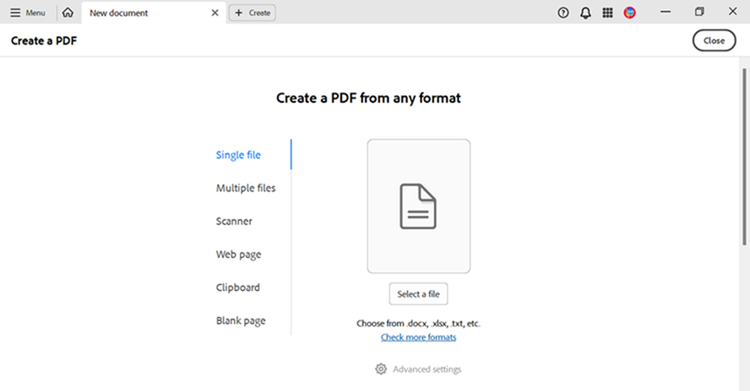
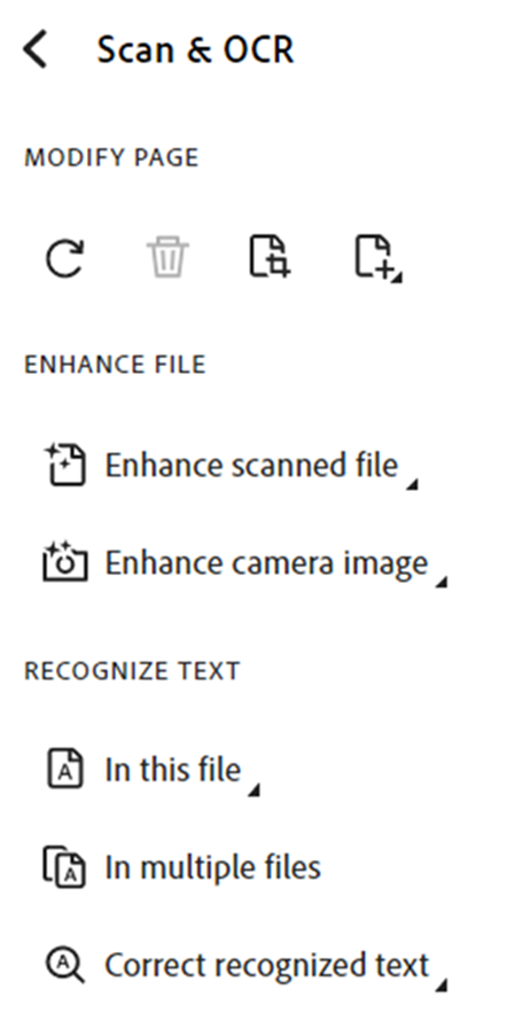
Using an Adobe Acrobat application, including the free trial version of Adobe Acrobat Pro, you can easily convert your files to PDF and utilise built-in tools to scan and correct recognised text.
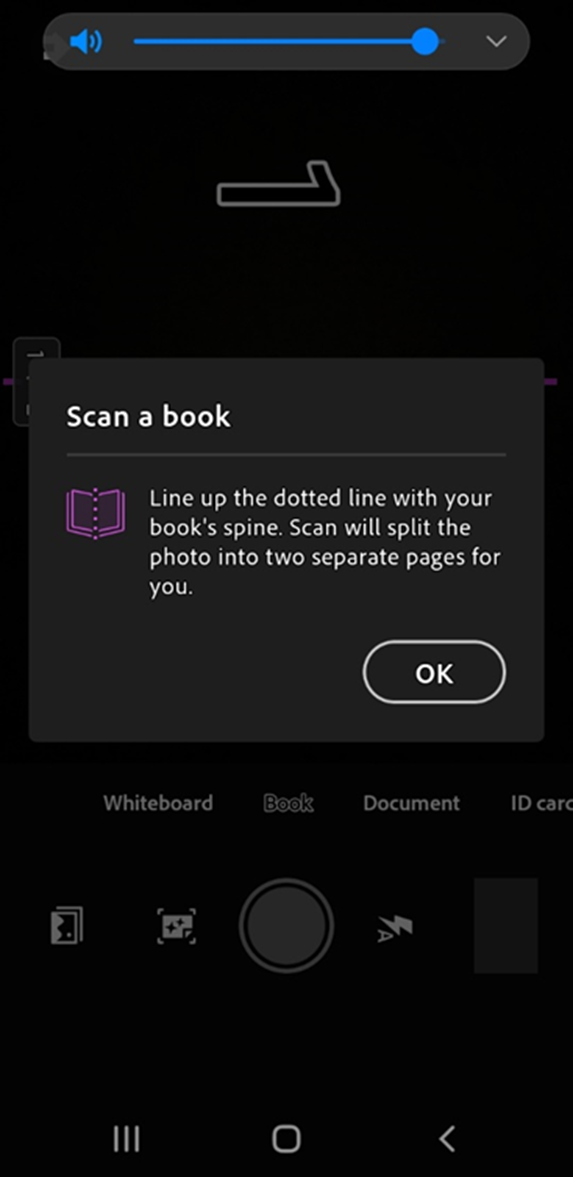
The Adobe Scan app allows you to capture images of documents, whiteboards, notes, and more. Adobe Scan automatically converts these into JPEG or PDF files, saving them to Adobe cloud storage and providing editable, searchable text.
The accuracy of OCR technology can vary depending on factors like the quality of the original document, clarity of the text, and font style. Follow these tips to get the best results when converting image text:
The clearer your original image, the more accurate the resulting text will be. Make sure the image is well-lit and free from obstructions like blurring or creases that can obscure words.
Adobe offers several apps for converting images to text. For example:
While OCR tools are powerful, always proofread the converted text to ensure accuracy. This is especially important when quoting directly from an image. Check the formatting too, to make sure it matches the rest of your document seamlessly.
OCR technology can be a game-changer for various users. Here’s how different groups can make the most of converting images to text:

