Acrobat
How to repair a PDF file.
Learn how to repair damaged or corrupted PDF files to restore access to vital information, maintain formatting, and ensure document usability.
Published by Adobe Acrobat Australia on 26 March 2025
How to repair a PDF file.
There are a range of ways to repair a broken or corrupted PDF - with one of the fastest being through Adobe Acrobat.
A quick guide to repairing a damaged PDF.
If your PDF file is corrupted or damaged and refuses to open, direct repair is not possible. However, you can recreate the file using the original source document with tools like Adobe Acrobat or Photoshop Elements. If the file remains inaccessible, follow the troubleshooting steps outlined below in the given order to resolve the issue.
Install the free Adobe Acrobat Reader on your computer.
If you have Acrobat Reader or Acrobat installed on your computer, skip to the next step.
Acrobat Reader is the only free PDF viewer that can open and interact with all types of PDF content – including forms and multimedia.
Go to the Adobe Acrobat Reader download page, and then select Download Acrobat Reader. For step-by-step instructions, see Download and install Adobe Acrobat Reader for Windows or Mac OS.
After the installation is complete, follow the steps in the next section.
Set Acrobat Reader or Acrobat as the default PDF owner.
Your system may not be set up to automatically open PDFs from the desktop with Acrobat Reader or Acrobat.
Here's how to set it up:
Window users
- Right-click the PDF, choose Open With > Choose another app.
- Choose Adobe Acrobat Reader or Adobe Acrobat in the list of programs, and then select Always use this app to open .pdf files.
Note: If you have both Adobe Acrobat and Adobe Acrobat Reader installed on your computer, choose Adobe Acrobat. - Select OK.
macOS users
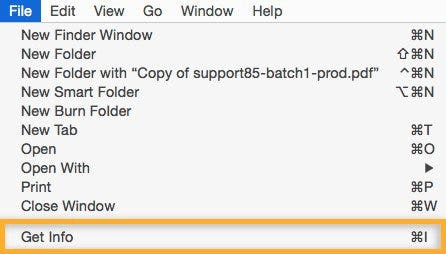
- Select the PDF file's icon in the Finder to select it.
- Choose File > Get Info.
- Select Open With, and choose Adobe Acrobat Reader or Adobe Acrobat from the drop-down list (if your preference isn't on the list, choose Other to select it).
- Choose Change All.
Update Acrobat Reader or Acrobat.
Adobe releases regular security updates for Acrobat Reader and Acrobat. Installing the latest updates might solve the issue. To update, Acrobat Reader or Acrobat, select Help > Check For Updates and follow the on-screen instructions.
Repair Acrobat Reader or Acrobat (Windows only).
Acrobat Reader or Acrobat - or the resources they depend upon - could be damaged. Run repair from within Acrobat Reader or Acrobat: Choose Help > Repair Installation.
Indicators that a PDF file is corrupted or needs repairing.
Recognising a corrupted PDF file can save time and help you troubleshoot the issue effectively. Here are some common signs that a PDF may be damaged:
- Error messages during opening. When you attempt to open the file, error messages like "File is damaged and cannot be opened" or "There was an error opening this document" may appear.
- Inconsistent display. The PDF may open, but parts of the content - such as images, text, or formatting - may be missing, distorted, or unreadable.
- Failure to open. The file might fail to open entirely, displaying a blank screen or refusing to load within your PDF viewer.
- Slow loading. Corrupted files often take unusually long to load, even on high-performing devices.
- Crashing PDF viewer. Opening the file may cause your PDF software or browser to crash repeatedly.
- Unresponsive links or buttons. Interactive elements, such as hyperlinks, embedded media, or form fields, may fail to function.
- File size issues. The file size may appear unusually small (suggesting missing content) or excessively large (indicating a potential error in saving).
- Unable to print. Corrupted PDFs often cause printing errors or fail to send data to the printer correctly.
Understanding these indicators allows you to diagnose the issue promptly and take steps to repair the file using tools like Adobe Acrobat.

Key considerations for repairing or fixing a corrupt PDF file.
When dealing with a corrupt or damaged PDF, certain factors can impact your ability to restore the file successfully. Here are the key considerations to keep in mind:
- Assess the symptoms. Identify common signs of corruption, such as error messages, unreadable content, or missing pages. This helps determine the severity of the damage and the appropriate recovery steps.
- Ensure software compatibility. Verify that the PDF isn’t simply incompatible with your current viewer. Update Adobe Acrobat or your preferred PDF reader to the latest version, as outdated software can cause display issues.
- Attempt a repair installation. If the PDF reader is up to date but the file still won’t open, try repairing the installation of Adobe Acrobat. This resolves potential software issues affecting file access.
- Restore a previous version. If the PDF is saved locally or in cloud storage, check for previous versions of the file. Many systems, including Windows, allow you to restore an earlier version, potentially recovering uncorrupted data.
- Recreate the PDF. If direct repair methods fail, recreate the PDF using the original source file. Tools like Adobe Acrobat or Photoshop Elements can be used to generate a new, functional version of the document.
- Extract data. For severely damaged files, extract the information using a PDF-to-Word converter or OCR tools. Reformat the extracted content and save it as a new PDF.
- Secure sensitive data. If the corrupted file contains sensitive information, ensure it is securely handled during recovery efforts. Use Adobe Acrobat’s redaction or encryption tools if applicable.
By addressing these considerations, you can systematically attempt to repair or recover a damaged PDF file, minimising data loss and restoring functionality.