1. Upload your base image in Photoshop.
Open the main image you want to work with in Photoshop. This will be your background layer, whether it’s a product photo, landscape or social media graphic.


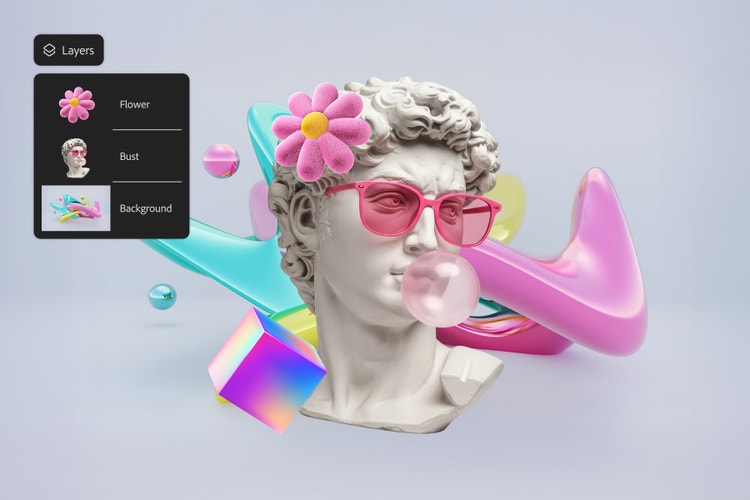
Easily overlay images using the powerful layering tools in Photoshop. Layer two or more images, photos, textures or effects with precise control over position, opacity and blend modes.
Drag and drop an image
to try it today
File must be JPEG, JPG or PNG and up to 40 MB
By uploading your image or video, you agree to the Adobe
Terms of Use and Privacy Policy
Overlaying images in Photoshop is a quick and powerful way to combine visuals, whether you’re creating a branded social post or a family keepsake. Layer photos, logos, textures or graphics to build polished, eye-catching designs or combine images for product mockups, photo collages or event invitations. It’s easy to get started.
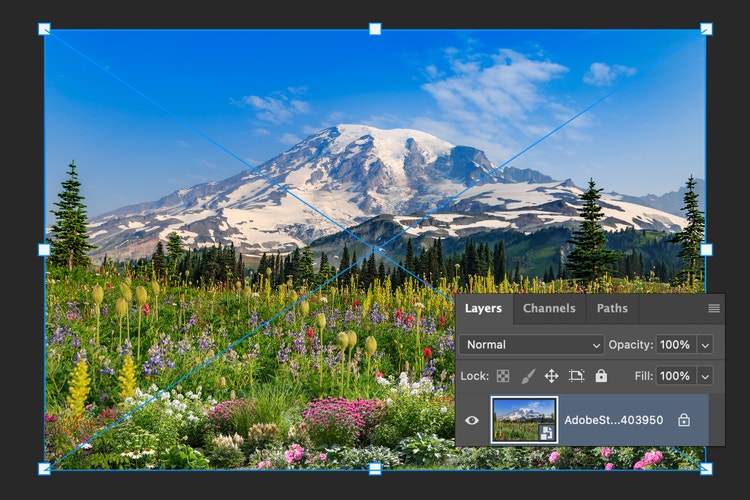
Open the main image you want to work with in Photoshop. This will be your background layer, whether it’s a product photo, landscape or social media graphic.
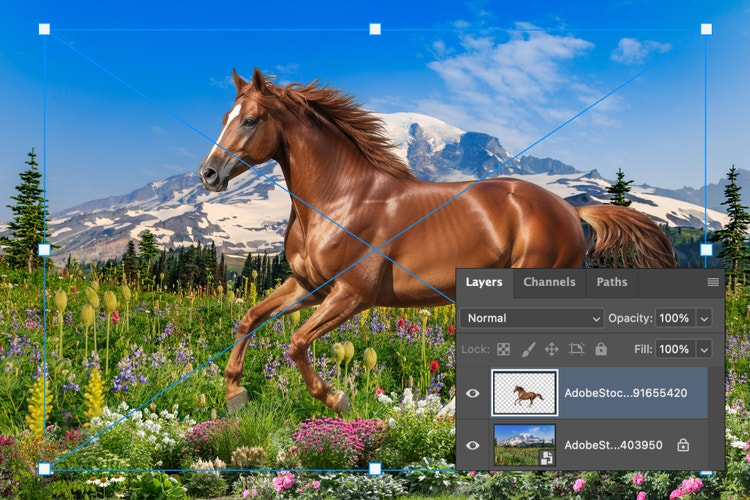
To add an image to image, drag and drop a second file into your Photoshop workspace. It will automatically appear as a new layer. Resize and reposition as needed to create the look you want.
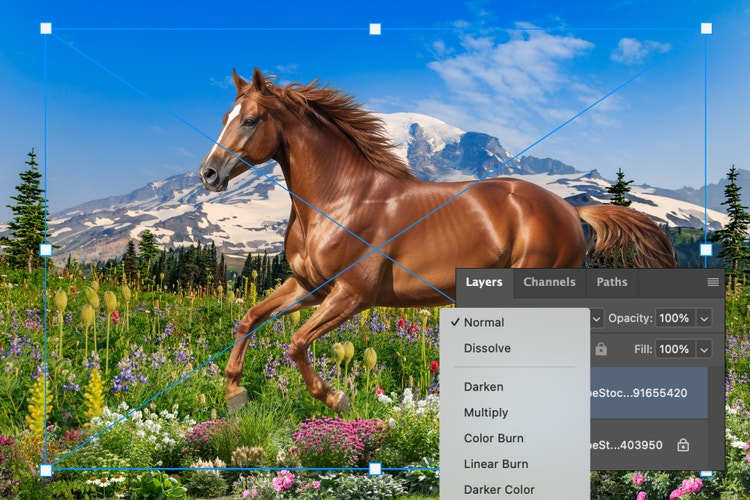
Use layer settings like opacity, blending modes or layer masks to control how the images interact. For a seamless match, use the Harmonise feature to automatically align the overlay’s colour and tone with your base image. Whether you want a subtle texture or a full overlay, Photoshop tools help you to create the perfect composition.
You can overlay images to combine photos, graphics and textures in a single composition with the Photoshop app or Photoshop online. Whether you’re layering a logo over a product shot or creating a digital collage, Photoshop lets you easily adjust placement, transparency and blend modes to get the perfect look, at home or on the go.
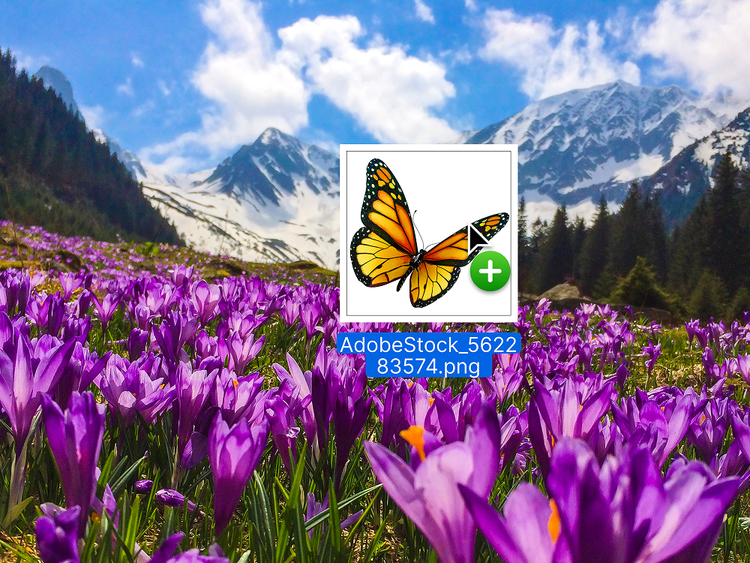
With drag-and-drop functionality in Adobe Photoshop, it’s easy to create professional-looking layered designs. Just drop your files into the canvas and Photoshop automatically adds them as new layers so you can start building your composition. Whether you’re a beginner or established designer, you can overlay images in seconds without slowing down your workflow.
To add an image to image, drag and drop a second file into your Photoshop workspace. It will automatically appear as a new layer. Resize and reposition as needed to create the look you want.
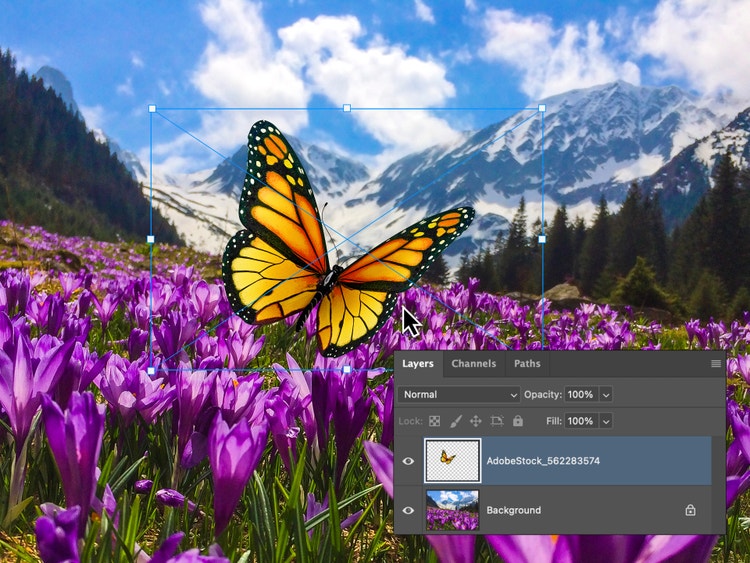
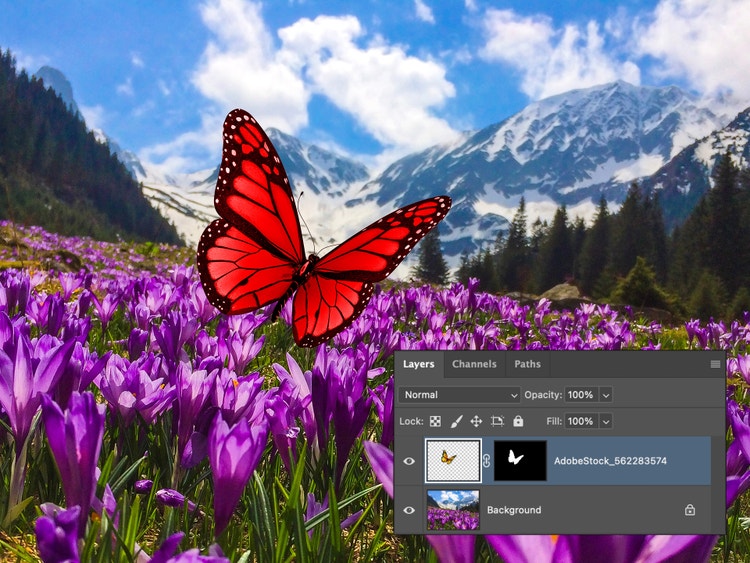
Layer masks in Photoshop let you experiment with image overlay while keeping your original images intact. Use gradients, brushes or selections to blend edges, hide areas or create smooth transitions. Whether you’re combining two images or more, layer masks give you non-destructive control to fine-tune every detail of your design.
Use Photoshop image overlay tools to build customised visuals for any project. Add textures, layer in bold typography or mix in artistic photo effects to create standout graphics for social, print or personal projects.
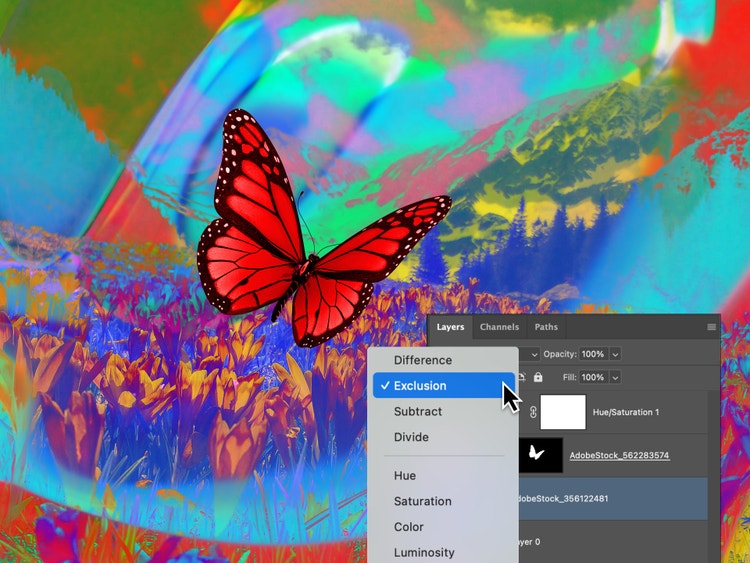
Overlaying images in Photoshop is a quick and powerful way to combine visuals, whether you’re creating a branded social post or a family keepsake. Layer photos, logos, textures or graphics to build polished, eye-catching designs or add an image to an image for product mockups, photo collages or event invitations. It’s easy to get started.
Whether you’re making a personal vision board or designing a branded YouTube thumbnail, the image overlay tools in Photoshop can help you move from concept to polished results — fast. Add photos or images to your image overlay, then use the Harmonise feature to match lighting, colour and shadows so every element feels like it belongs. Then layer, refine and publish for use on any platform. Explore Photoshop AI tools to generate unique patterns, textures and background layers that fit seamlessly into your design.
Experiment with image overlay to:
With the Photoshop app and Photoshop online, you can overlay images online free from anywhere. Whether you’re travelling, at a photoshoot or working from your tablet or phone, it’s easy to stay in sync across devices. Collaborate in real time, make quick edits and keep your creative workflow accessible wherever inspiration strikes.
Based on your location, we think you may prefer the United States website, where you'll get regional content, offerings, and pricing.


