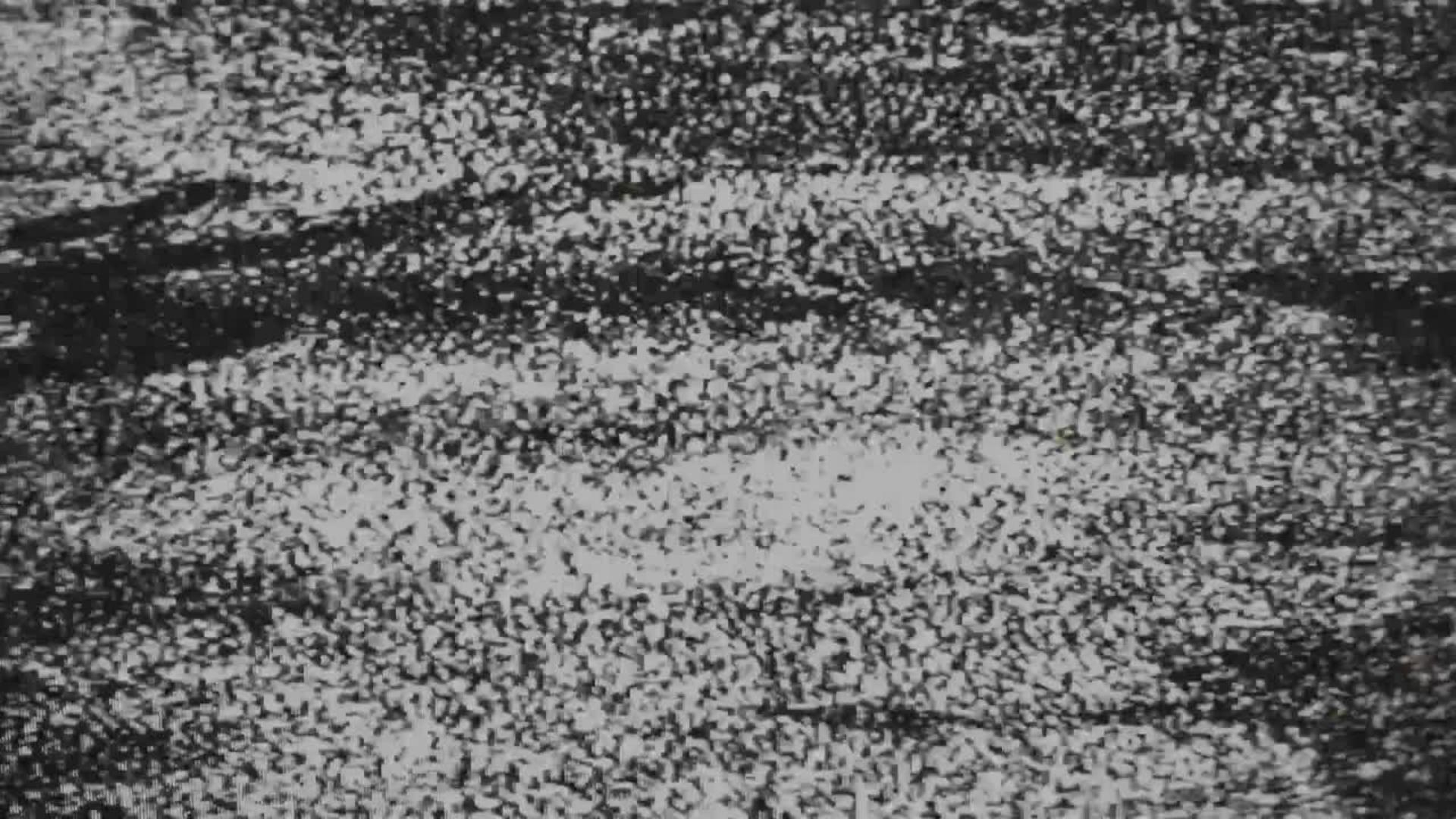
O diretor Alex Broadstock usou uma televisão antiga e dispositivos de dobra de circuitos (equipamento analógico DIY para alterar dispositivos eletrônicos) para criar estas seis texturas de vídeo “orgânicas”. Mas você não precisa conhecer os detalhes técnicos para ver como isso deixará seus projetos de vídeo ainda melhores.
Cada um dos seis efeitos de falha tem 10 segundos de duração e pode ser ajustado com os Modos de mesclagem ou até mesmo colocado em uma área visual específica. Quer ajuda para começar? Depois de adicioná-los à sua biblioteca (com o botão “Adicionar biblioteca” localizado na parte superior da página), veja abaixo como manipular as falhas em seu próprio trabalho.
1
Configure seu projeto.
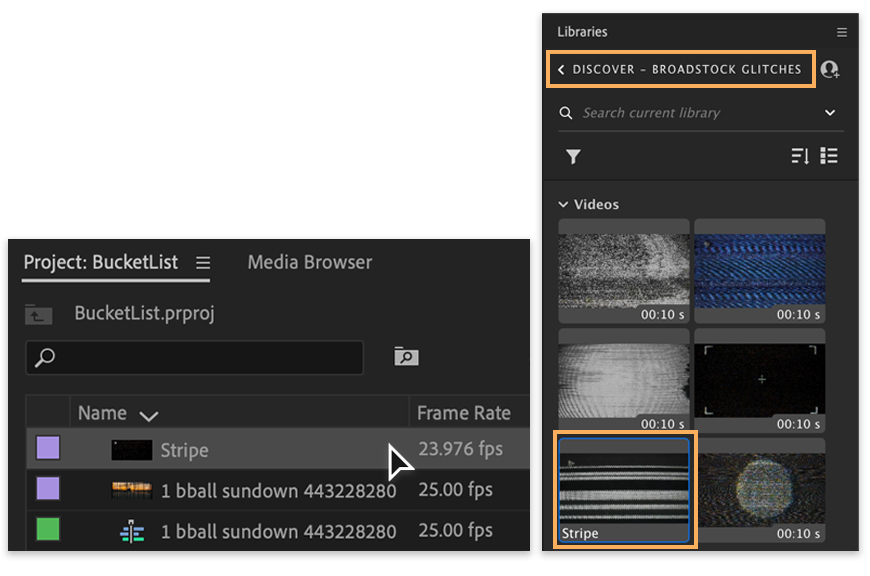
Crie um novo projeto no Premiere (Arquivo > Novo > Projeto), dê um nome a ele (aqui, o arquivo se chama BucketList) e clique em OK.
Arraste os clipes de vídeo que deseja usar do computador para o painel Projeto.
Agora, localize o arquivo Video_analog_glitches no painel Bibliotecas (Janela > Bibliotecas) e arraste sua escolha para o painel Projeto. Aqui, selecionamos Stripe.
2
Sinta a vibe vintage.
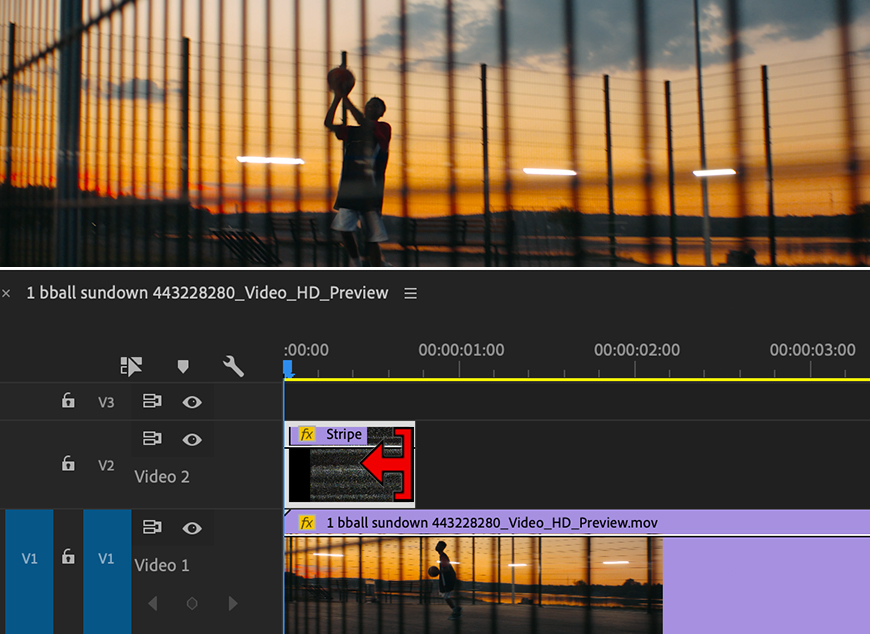
Arraste um clipe de vídeo do painel Projeto para a Linha do tempo e, em seguida, arraste a falha para a faixa de vídeo vazia logo acima do clipe. Pressione a barra de espaço para ver a reprodução da falha.
Cada efeito de falha tem 10 segundos. Se você quiser uma falha mais curta em seu projeto, passe o cursor do mouse sobre o início ou o fim do clipe de falha até ver a ferramenta Aparar. Arraste os pontos de início e de fim do corte para limitar a duração do efeito. Essa edição pode ser revertida. Portanto, você pode fazer reajustes sempre que quiser.
3
Personalize o efeito.
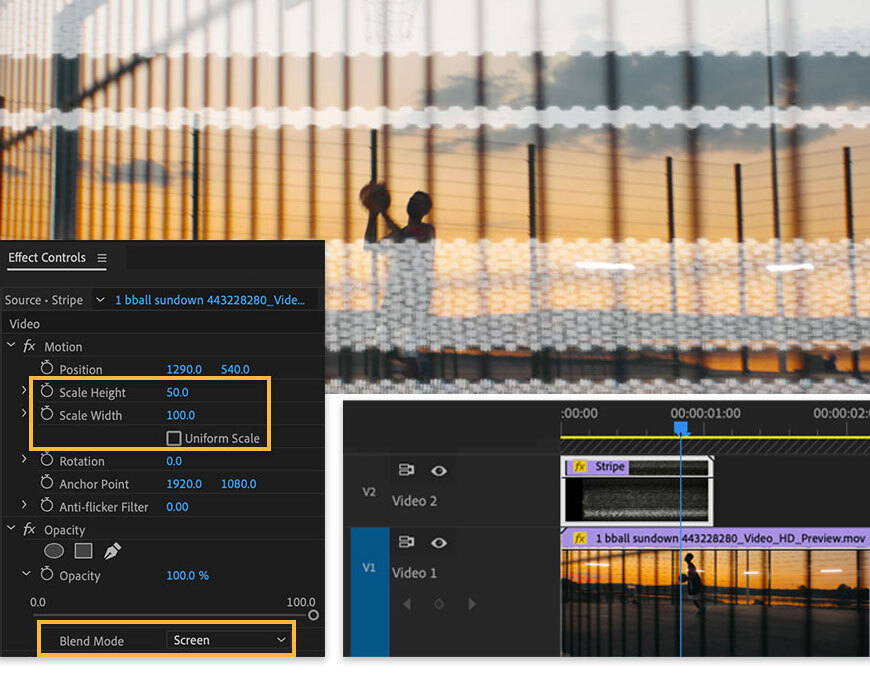
Para ver o efeito que a falha causa no clipe, você precisará ajustar o Modo de mesclagem. Primeiro, verifique se o clipe de falha está selecionado na Linha do tempo. Depois, abra o painel Controles de efeitos (Janela > Controles de efeitos) e exiba as opções do Modo de mesclagem na seção Opacidade. Nós gostamos do efeito de todas as falhas de Alex, mas fique à vontade para testá-las.
Você também pode alterar a proporção da falha dentro do quadro ajustando a escala na seção Movimento. Altere a altura e a largura da escala e pressione a barra de espaço para reproduzir o vídeo usando as configurações mais recentes.
4
Defina alguns limites.
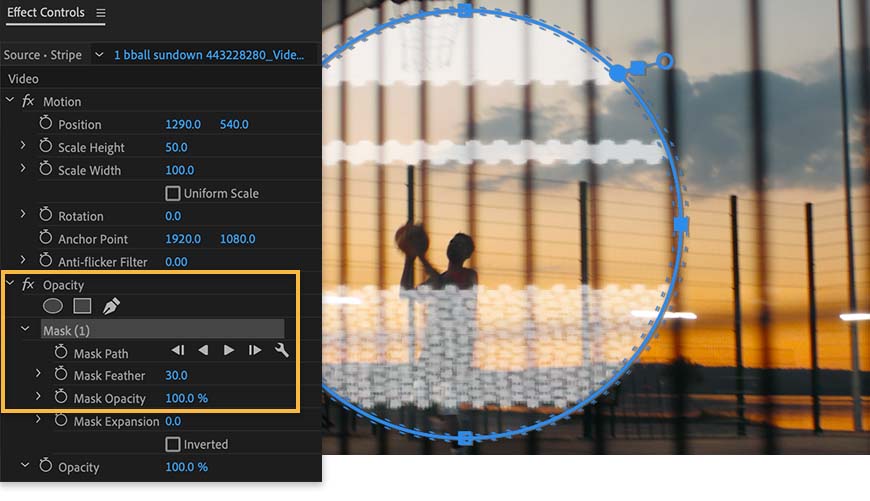
Para colocar a falha em uma área específica, crie uma máscara. Com o clipe de falha ainda selecionado na Linha do tempo, retorne às configurações de Opacidade e escolha uma forma ou a ferramenta Bézier. Usamos a máscara Elipse.
No Monitor de programa, ajuste os pontos de limite da máscara. Para suavizar as bordas, aumente a configuração Difusão da máscara.
5
Bônus: adicione um título.
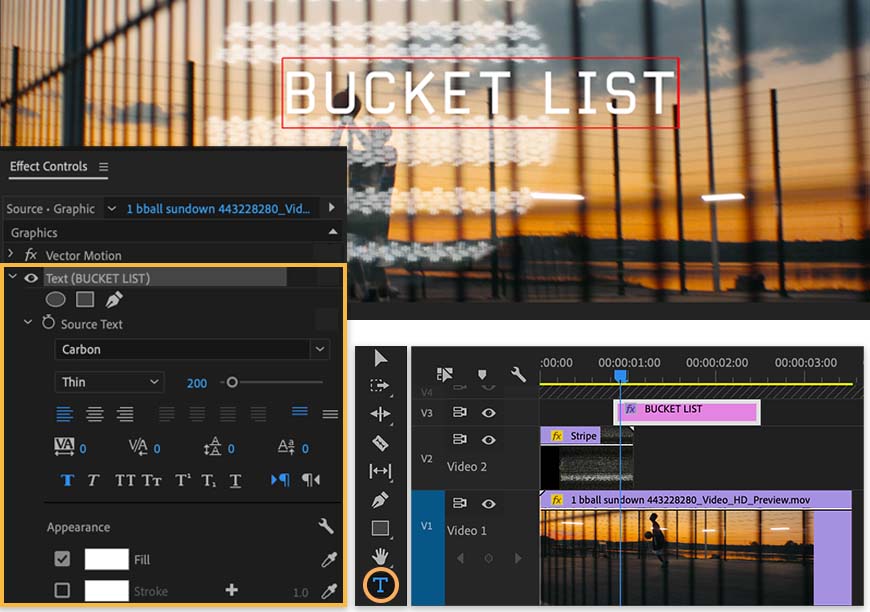
Dê o seu toque final ao vídeo adicionando um título. Verifique se não há nenhum item selecionado na Linha do tempo. Depois, selecione a ferramenta Texto (T), clique no Monitor de programa e comece a digitar.
Pressione Control+A (Windows) ou Command+A (macOS) para selecionar todo o texto. No painel Controles de efeitos, expanda os controles de texto para escolher uma fonte e ajustar o tamanho, a cor e muito mais. Nós usamos a fonteCarbon do Adobe Fonts (disponível com sua associação à Creative Cloud).
Por fim, na Linha do tempo, você pode arrastar todo o gráfico do título para determinar quando ele aparecerá e ajustar os pontos de início e fim do corte para definir sua duração na tela.
You can control how Adobe websites use cookies and similar technologies by making choices below. But note that if you disable cookies and similar technologies entirely, Adobe websites may not function properly.
Cookies are small text files stored by your web browser when you use websites. There are also other technologies that can be used for similar purposes like HTML5 Local Storage and local shared objects, web beacons, and embedded scripts. These technologies help us do things like remembering you and your preferences when you return to our sites, measure how you use the website, conduct market research, and gather information about the ads you see and interact with.
You can make choices in the menu below about what cookies and other technologies you want us to use on Adobe sites when you visit them from this browser. You can always change those choices later by clicking on the Cookie Preferences link at the bottom of the page.
If enabled:
We can improve your experience by tailoring the site and the content to things we think might be of interest
We can better keep track of your preferences — like what language you prefer to use
We will better understand your likely interests so we can provide you more relevant Adobe ads and content on non-Adobe websites and in non-Adobe apps
It will help us improve the performance of our website and those of our partners who use the Adobe Experience Cloud
If disabled:
We won’t be able to remember you from session to session so the experience may not be tailored to your interests
You’ll still have access to the content of the site but certain features that depend on cookies may not function
You’ll still see ads, they just may not be as relevant to you
General information
You can control how Adobe websites use cookies and similar technologies by making choices below. But note that if you disable cookies and similar technologies entirely, Adobe websites may not function properly.
Cookies are small text files stored by your web browser when you use websites. There are also other technologies that can be used for similar purposes like HTML5 Local Storage, web beacons, and embedded scripts. These technologies help us do things like remembering you and your preferences when you return to our sites, measure how you use the website, conduct market research, and gather information about the ads you see and interact with.
You can make choices in the menu below about what cookies and other technologies you want us to use on Adobe sites when you visit them from this browser. You can always change those choices later by clicking on the Cookie Preferences link at the bottom of the page.
If enabled:
We can improve your experience by tailoring the site and the content to things we think might be of interest
We can better keep track of your preferences — like what language you prefer to use
We will better understand your likely interests so we can provide you more relevant Adobe ads and content on non-Adobe websites and in non-Adobe apps
It will help us improve the performance of our website and those of our partners who use the Adobe Experience Cloud
If disabled:
We won’t be able to remember you from session to session so the experience may not be tailored to your interests
We’ll still count your use of our site and services
You’ll still have access to the content of the site but certain features that depend on cookies may not function
You’ll still see ads, they just may not be as relevant to you
Operate the site and core servicesOperate site and measure engagement
Always active
These cookies are required, and they are used to enable the site and related services core functionality. Without them the site could not operate, so they cannot be disabled.
These cookies enable the site and related services’ core functionality and collect statistics about user engagement, such as counting active use to help us understand trends. These cookies cannot be disabled.
Measure performance
These cookies are used to analyze site usage to measure and improve performance. Without them Adobe cannot know what content is most valued and how often unique visitors return to the site, making it hard to improve information we offer to you.
These cookies are used to analyze site usage to measure and improve performance. Without them Adobe cannot know what content is most valued, making it hard to improve information we offer to you.
Extend functionality
These cookies are used to enhance the functionality of Adobe sites such as remembering your settings and preferences to deliver a personalized experience; for example, your username, your repeated visits, preferred language, your country, or any other saved preference.
Personalize advertising
These cookies are used to enable Adobe and our partners to serve ads more relevant to your interests. Without them you will still see ads, but they might not be as relevant to you.
Personalize advertising
These cookies are used to enable Adobe and our partners to serve ads more relevant to your interests. Without them you will still see ads, but they might not be as relevant to you.