[Stefan Gruenwedel:] Hallo, ich bin Stefan Gruenwedel.
Ich bin Trainer im Adobe Learn-Team.
In diesem Video zeige ich dir, wie du die Funktionen für generative KI von Adobe Firefly Video für ein Projekt nutzt.
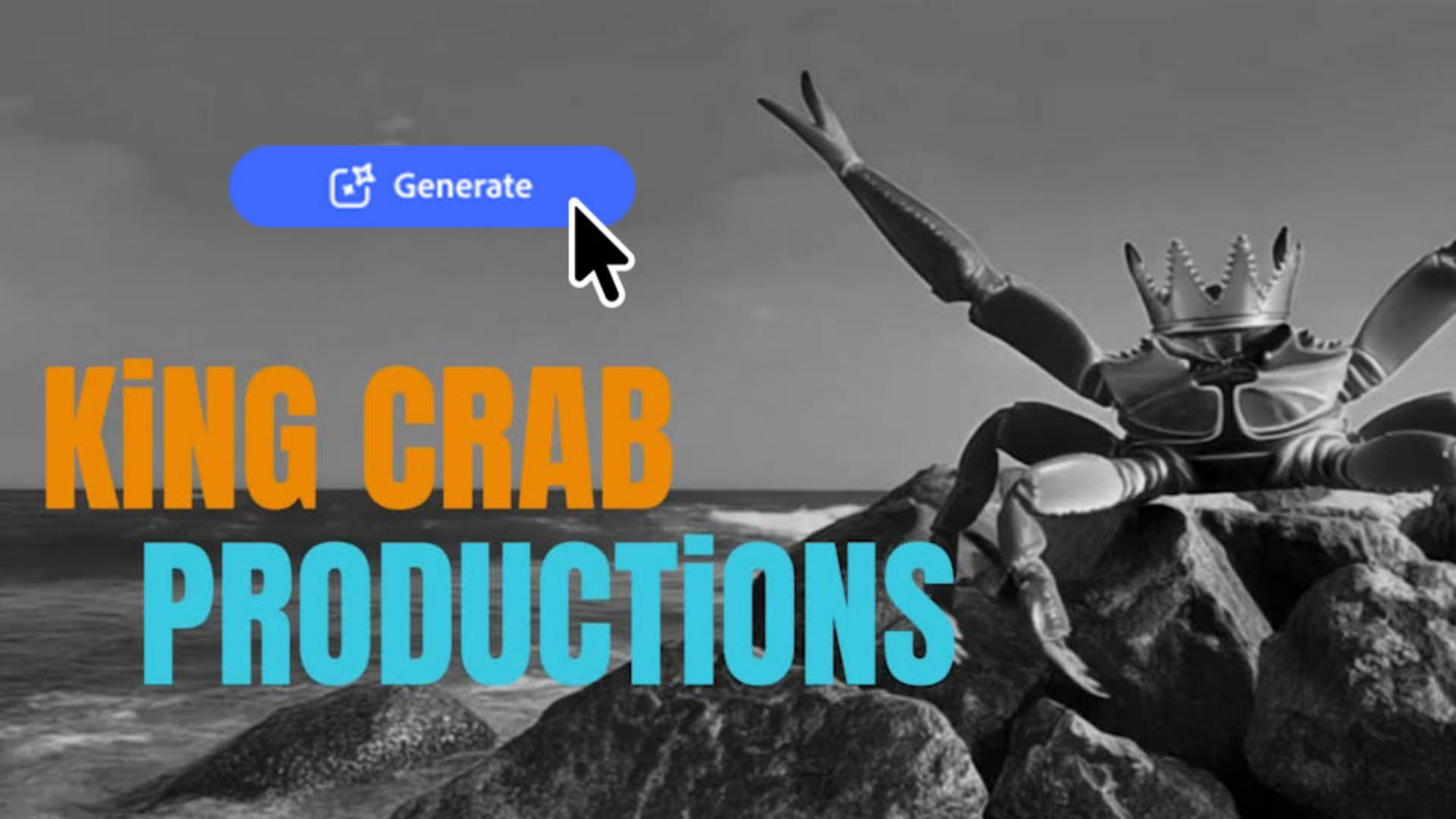
Wir wollen ein animiertes Logo für eine Produktionsfirma erstellen.
Ich stelle mir eine riesige Königskrabbe vor.
Sie taucht an einem Strand auf Felsen auf, während Wellen um sie herum brechen.
Das Video friert ein und der Name erscheint: „King Crab Productions“.
So etwas sieht man oft in Filmen, bevor der Vorspann beginnt.
Fangen wir an.
Aus einem Referenzbild per Text-Prompt einen Clip erstellen
Starte eine neue Firefly-Zeitleiste, und klicke auf der rechten Seite des Bildschirms auf „Medien generieren“.
Stelle sicher, dass die Registerkarte „Video“ ausgewählt ist, und gib dann einen Prompt ein.
Wähle ein Modell, die Auflösung, das Seitenverhältnis und die Länge.
Ich habe auf Adobe Stock ein Bild gefunden, das ich als Startbild verwenden will.
Ich ziehe es in die Ablagezone auf dem Bedienfeld.
Den Prompt und das Startbild findest du in den Übungsdateien.
Beachte die verbrauchten Credits, und klicke auf „Generieren“.
Wenn das Ergebnis links im Bedienfeld „Generierungsverlauf“ erscheint, scrubbe durch das Video, um es dir ganz anzusehen.
Wenn es dir gefällt, ziehe es an den unteren Bildschirmrand, wo „Füge Medien zur Zeitleiste hinzu“ steht.
Spiele die gesamte Zeitleiste ab.
Klicke am Ende auf „Schritt zurück“ im Bedienfeld „Viewer“, um ein Bild zurückzugehen.
Jetzt erstellen wir aus diesem Bild ein Standbild.
Die Aufnahme mit einem generierten Standbild fortsetzen
Klicke unten im Bedienfeld „Medien generieren“ auf „Alle löschen“.
Gib einen neuen Prompt ein, um dieses Bild in ein Video umzuwandeln, und passe die anderen Einstellungen an die vorherigen an.
Klicke in die Ablagebereiche für den ersten und letzten Frame und stelle beide so ein, dass sie denselben Frame verwenden, der gerade auf der Zeitleiste angezeigt wird.
Klicke auf „Generieren“.
Ziehe den Standbild-Clip ans Ende der Zeitleiste.
Die Stimmung mit einem Look festlegen und einen Übergang zwischen den Clips wählen
Stelle sicher, dass der Standbild-Clip ausgewählt ist.
Klicke im Werkzeugbedienfeld links auf das Symbol „Looks“, und wende den dramatischen Schwarz-Weiß-Look darauf an.
Klicke als Nächstes auf „Übergänge“, und ziehe „Auflösen“ zwischen die beiden Clips auf der Zeitleiste.
Klicke abschließend auf „Text“ und wähle einen Stil, der dir gefällt.
Einen Titel hinzufügen, der genau auf den Moment seines Erscheinens abgestimmt ist
Ich entscheide mich für diesen hier, „One Day in Paris“.
Durch Klicken wird ein Titel-Clip zur Zeitleiste hinzugefügt – genau dorthin, wo sich der Abspielkopf befindet.
Ersetze den Text und gestalte ihn im Bedienfeld „Eigenschaften“.
Klicke auf die Füllfarbe, um die Textfarbe nach deiner Vorstellung zu ändern.
Durch Ziehen kannst du die Größe und Position des Texts direkt im Viewer anpassen.
Klicke unter „Bewegungs-Presets“ auf die Schaltfläche „Hinein“, und wähle einen Effekt aus, der dir gefällt.
Ich wähle „Hineindriften“.
Positioniere zum Schluss das linke Ende des Text-Clips dort, wo der Titel auf der Zeitleiste angezeigt werden soll.
Schneide dann das rechte Ende zu, damit der Titel zur Dauer des Standbilds passt.
Spiele alles auf der Zeitleiste ab.
Das ist eine Möglichkeit, die Funktionen für generative KI in Firefly Video zu nutzen.
Probiere es selbst aus.
Wir haben einige Beispieldateien zum Üben bereitgestellt.
Danke fürs Zuschauen.
Hinweis: Die zur Verfügung gestellten Medien aus Adobe Stock dürfen nur zu Übungszwecken verwendet werden. Bedingungen beachten.
Zusammenfassung.
Aus einem Referenzbild per Text-Prompt einen Clip erstellen.
Das Tool „Medien generieren“ wandelt einen Prompt und ein Startbild in einen Video-Clip um. Im Generierungsverlauf kannst du durch den Clip scrubben, bevor du ihn verwendest. Wenn er dir gefällt, ziehe ihn direkt auf die Zeitleiste.
Die Aufnahme mit einem generierten Standbild fortsetzen.
Bewege den Abspielkopf zu dem Frame, bei dem das Bild anhalten soll. Lege in „Medien generieren“ dieses Bild sowohl als ersten als auch als letzten Frame fest. Generiere einen neuen Clip. Du erhältst einen Clip, der bei dieser Szene stehenbleibt. Ziehe ihn an das Ende der Zeitleiste, damit das Standbild direkt im Anschluss an den ursprünglichen Clip angezeigt wird.
Die Stimmung mit einem Look festlegen und einen Übergang zwischen den Clips wählen.
Wendest du den Look „S/W dramatisch“ auf das Standbild an, erhält der Clip einen eigenen Farbton. Wenn du für den Übergang zwischen den beiden Clips „Auflösen“ wählst, werden sie sanft miteinander verblendet, statt als harter Schnitt stehen zu bleiben. Die Kombination wirkt wie eine bewusste kreative Entscheidung und nicht wie zwei separate Generierungen, die zusammengefügt wurden.
Einen Titel hinzufügen, der genau auf den Moment seines Erscheinens abgestimmt ist.
Wenn du einen vordefinierten Textstil auswählst, wird ein Titel-Clip hinzugefügt, den du direkt im Viewer neu stylen, neu färben, in der Größe ändern und neu positionieren kannst. Füge ein Bewegungs-Preset wie „Hineindriften“ hinzu, um dem Clip beim Erscheinen Bewegung zu verleihen. Schneidest du den Titel-Clip so, dass er zur Dauer des Standbilds passt, bleibt das Timing an die darunterliegende Aufnahme gekoppelt.
You can control how Adobe websites use cookies and similar technologies by making choices below. But note that if you disable cookies and similar technologies entirely, Adobe websites may not function properly.
Cookies are small text files stored by your web browser when you use websites. There are also other technologies that can be used for similar purposes like HTML5 Local Storage and local shared objects, web beacons, and embedded scripts. These technologies help us do things like remembering you and your preferences when you return to our sites, measure how you use the website, conduct market research, and gather information about the ads you see and interact with.
You can make choices in the menu below about what cookies and other technologies you want us to use on Adobe sites when you visit them from this browser. You can always change those choices later by clicking on the Cookie Preferences link at the bottom of the page.
If enabled:
We can improve your experience by tailoring the site and the content to things we think might be of interest
We can better keep track of your preferences — like what language you prefer to use
We will better understand your likely interests so we can provide you more relevant Adobe ads and content on non-Adobe websites and in non-Adobe apps
It will help us improve the performance of our website and those of our partners who use the Adobe Experience Cloud
If disabled:
We won’t be able to remember you from session to session so the experience may not be tailored to your interests
You’ll still have access to the content of the site but certain features that depend on cookies may not function
You’ll still see ads, they just may not be as relevant to you
General information
You can control how Adobe websites use cookies and similar technologies by making choices below. But note that if you disable cookies and similar technologies entirely, Adobe websites may not function properly.
Cookies are small text files stored by your web browser when you use websites. There are also other technologies that can be used for similar purposes like HTML5 Local Storage, web beacons, and embedded scripts. These technologies help us do things like remembering you and your preferences when you return to our sites, measure how you use the website, conduct market research, and gather information about the ads you see and interact with.
You can make choices in the menu below about what cookies and other technologies you want us to use on Adobe sites when you visit them from this browser. You can always change those choices later by clicking on the Cookie Preferences link at the bottom of the page.
If enabled:
We can improve your experience by tailoring the site and the content to things we think might be of interest
We can better keep track of your preferences — like what language you prefer to use
We will better understand your likely interests so we can provide you more relevant Adobe ads and content on non-Adobe websites and in non-Adobe apps
It will help us improve the performance of our website and those of our partners who use the Adobe Experience Cloud
If disabled:
We won’t be able to remember you from session to session so the experience may not be tailored to your interests
We’ll still count your use of our site and services
You’ll still have access to the content of the site but certain features that depend on cookies may not function
You’ll still see ads, they just may not be as relevant to you
Operate the site and core servicesOperate site and measure engagement
Always active
These cookies are required, and they are used to enable the site and related services core functionality. Without them the site could not operate, so they cannot be disabled.
These cookies enable the site and related services’ core functionality and collect statistics about user engagement, such as counting active use to help us understand trends. These cookies cannot be disabled.
Measure performance
These cookies are used to analyze site usage to measure and improve performance. Without them Adobe cannot know what content is most valued and how often unique visitors return to the site, making it hard to improve information we offer to you.
These cookies are used to analyze site usage to measure and improve performance. Without them Adobe cannot know what content is most valued, making it hard to improve information we offer to you.
Extend functionality
These cookies are used to enhance the functionality of Adobe sites such as remembering your settings and preferences to deliver a personalized experience; for example, your username, your repeated visits, preferred language, your country, or any other saved preference.
Personalize advertising
These cookies are used to enable Adobe and our partners to serve ads more relevant to your interests. Without them you will still see ads, but they might not be as relevant to you.
Personalize advertising
These cookies are used to enable Adobe and our partners to serve ads more relevant to your interests. Without them you will still see ads, but they might not be as relevant to you.