Ich verwende Adobe Premiere seit über 30 Jahren, also seit der Markteinführung.
Die Entwicklung bis heute mitzuerleben, ist unglaublich.
Adobe bietet nicht mehr nur ein Tool zur Bearbeitung, sondern auch viele leistungsstarke Funktionen.
Besonders spannend ist die KI-gestützte Objektmaskierung.
Rotoscoping und Feinabstimmung haben früher Stunden gedauert.
Das geht jetzt in Sekunden.
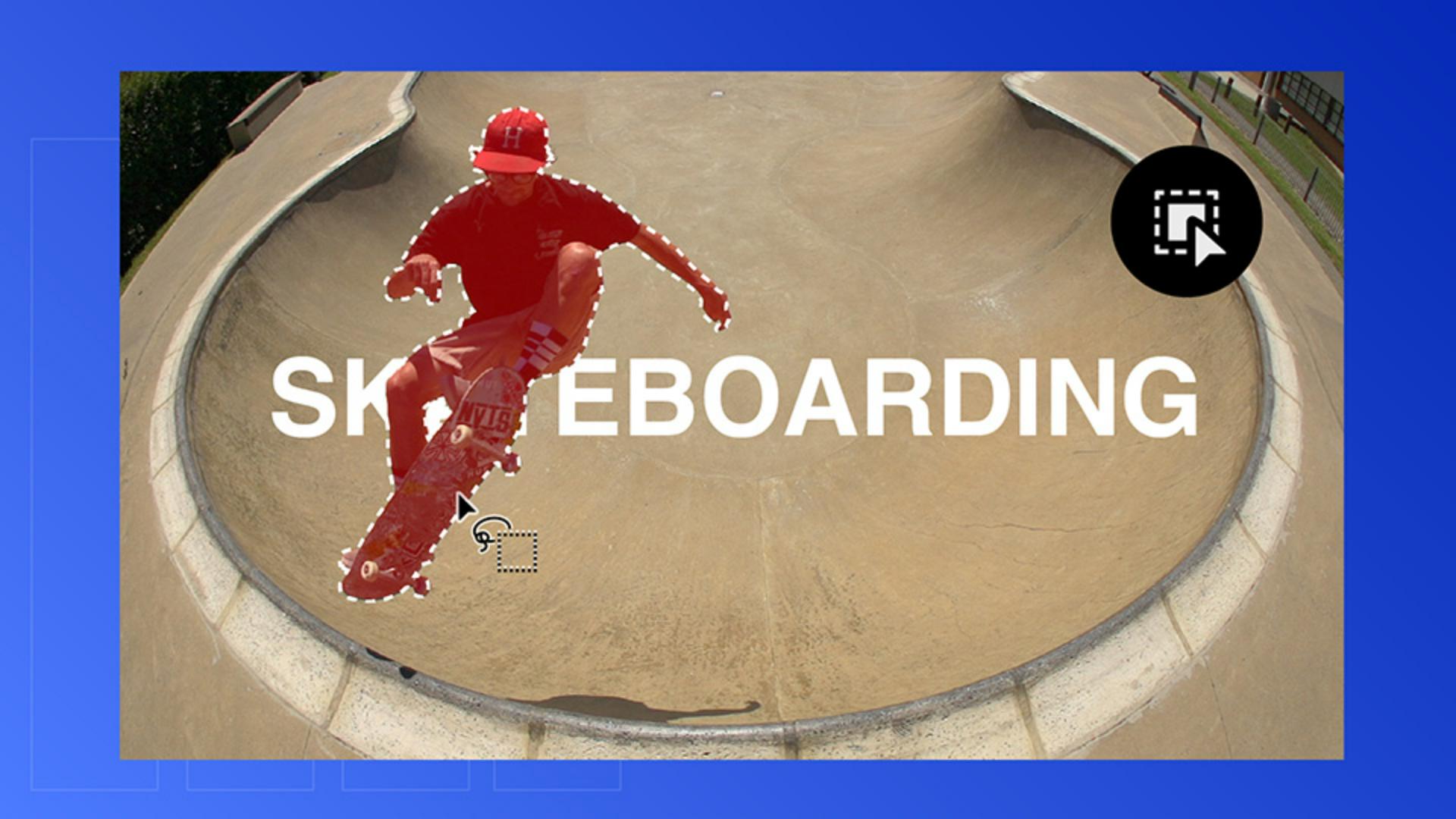
Ich will dir zeigen, wie du ein Motiv maskierst und dann Text hinter das Objekt legst, aber vor den Hintergrund.
Öffne die Projektdatei „Text_Behind_Title“.
Ein Motiv in Sekunden auswählen und maskieren
Ziehe den Clip aus der Ablage in das Schnittfenster, und drücke die =-Taste zum Hineinzoomen.
Scrubbe durch das Schnittfenster, und finde einen guten Frame, in dem der Skateboarder klar sichtbar ist.
Idealerweise sind alle Gliedmaßen zu sehen.
Je stärker die Silhouette, desto besser die Maske.
Wähle auf der Werkzeugleiste das Objektmasken-Werkzeug.
Führe den Cursor über den Skater.
Dabei erscheint eine rote Überlagerung.
Klicke darauf, um die Maske zu erstellen.
Wenn das Skateboard nicht in der Maske enthalten ist, klicke auf das Skateboard, um es zur Maske hinzuzufügen.
Wenn du das Skateboard entfernen möchtest, klicke und drücke die Wahltaste (macOS) oder Alt (Windows), um die Maske zu entfernen.
Das Skateboard soll hier aber Teil der Maske sein, also füge ich es wieder hinzu.
Sobald ich mit dem Auswahlbereich zufrieden bin, wechsle ich zum Bedienfeld „Effekteinstellungen“.
Unter „Nicht zugewiesene Masken" ist die Objektmasken-Ebene.
Das Motiv im Clip verfolgen
Klicke auf den mittleren Button zum Verfolgen vorwärts und rückwärts, um den gesamten Clip in beide Richtungen zu analysieren.
Mit diesen Buttons verfolgst du die Maske nur vorwärts, nur rückwärts oder Frame für Frame.
In Sekunden verfolgt Premiere dein Motiv Frame für Frame.
Die KI nimmt dir die Arbeit ab.
Jetzt füge ich Text hinzu.
Text hinzufügen und einen Ebenenstapel erstellen
Wähle das Text-Werkzeug.
Gib z.
B.
„Skateboarding“ ein.
Ändere die Größe, positioniere den Text, und nutze den Pool als Orientierungshilfe für die mittige Anordnung.
Der Text ist im Vordergrund, aber ich will ihn hinter den Skater setzen.
Jetzt kommt der spannende Teil.
Halte die Wahltaste auf dem Mac bzw.
Alt unter Windows gedrückt, und ziehe die Video-Ebene von V1 zu V3, um sie zu duplizieren.
Während der Video-Clip auf V3 ausgewählt bleibt,
Einen professionellen Look erzeugen
gehe ich in die Effekteinstellungen und ziehe die Objektmasken-Ebene nach unten zu „Deckkraft".
Jetzt habe ich einen sauberen Ebenenstapel erstellt: maskierter Skater oben, Text in der Mitte, ursprüngliches Video unten.
Der Text erscheint in der Mitte, also hinter dem Motiv, aber vor dem Hintergrund.
Sauber, schnell, professionell.
Wo früher aufwendiges Rotoscoping erforderlich war, genügen jetzt wenige Klicks.
Es gibt viele Möglichkeiten, diesen Look anzuwenden, um die Produktionsqualität deines nächsten Videos zu steigern.
Das geht alles, ohne Premiere zu verlassen.
Bis bald im nächsten Video.
Hinweis: Die zur Verfügung gestellten Medien aus Adobe Stock dürfen nur zu Übungszwecken verwendet werden. Bedingungen beachten
Zusammenfassung.
Ein Motiv in Sekunden auswählen und maskieren.
Wähle einen Frame aus, in dem dein Motiv gut zu sehen ist. Verwende das Objektmasken-Werkzeug, um das Motiv automatisch auszuwählen. Verfeinere den Auswahlbereich durch Hinzufügen oder Entfernen von Bereichen, bis du eine saubere Maske hast.
Das Motiv im Clip verfolgen.
Verwende den Button zum Tracking vorwärts und rückwärts, um dein Motiv im gesamten Clip zu verfolgen. So bleibt die Maske in jedem Frame an der richtigen Stelle.
Text hinzufügen und einen Ebenenstapel erstellen.
Gib deinen Text ein, und positioniere ihn im Frame. Dupliziere dann die Videoebene. Ordne die Ebenen so an, dass sich eine Video-Ebene über dem Text und eine unter dem Text befindet.
Einen professionellen Look erzeugen.
Wende die Maske auf die Eigenschaft „Deckkraft“ an, um den Text hinter dem Motiv zum Vorschein zu bringen, während der Hintergrund erhalten bleibt. So erzeugst du mit minimalem Aufwand einen dynamischen, professionellen Look.
You can control how Adobe websites use cookies and similar technologies by making choices below. But note that if you disable cookies and similar technologies entirely, Adobe websites may not function properly.
Cookies are small text files stored by your web browser when you use websites. There are also other technologies that can be used for similar purposes like HTML5 Local Storage and local shared objects, web beacons, and embedded scripts. These technologies help us do things like remembering you and your preferences when you return to our sites, measure how you use the website, conduct market research, and gather information about the ads you see and interact with.
You can make choices in the menu below about what cookies and other technologies you want us to use on Adobe sites when you visit them from this browser. You can always change those choices later by clicking on the Cookie Preferences link at the bottom of the page.
If enabled:
We can improve your experience by tailoring the site and the content to things we think might be of interest
We can better keep track of your preferences — like what language you prefer to use
We will better understand your likely interests so we can provide you more relevant Adobe ads and content on non-Adobe websites and in non-Adobe apps
It will help us improve the performance of our website and those of our partners who use the Adobe Experience Cloud
If disabled:
We won’t be able to remember you from session to session so the experience may not be tailored to your interests
You’ll still have access to the content of the site but certain features that depend on cookies may not function
You’ll still see ads, they just may not be as relevant to you
General information
You can control how Adobe websites use cookies and similar technologies by making choices below. But note that if you disable cookies and similar technologies entirely, Adobe websites may not function properly.
Cookies are small text files stored by your web browser when you use websites. There are also other technologies that can be used for similar purposes like HTML5 Local Storage, web beacons, and embedded scripts. These technologies help us do things like remembering you and your preferences when you return to our sites, measure how you use the website, conduct market research, and gather information about the ads you see and interact with.
You can make choices in the menu below about what cookies and other technologies you want us to use on Adobe sites when you visit them from this browser. You can always change those choices later by clicking on the Cookie Preferences link at the bottom of the page.
If enabled:
We can improve your experience by tailoring the site and the content to things we think might be of interest
We can better keep track of your preferences — like what language you prefer to use
We will better understand your likely interests so we can provide you more relevant Adobe ads and content on non-Adobe websites and in non-Adobe apps
It will help us improve the performance of our website and those of our partners who use the Adobe Experience Cloud
If disabled:
We won’t be able to remember you from session to session so the experience may not be tailored to your interests
We’ll still count your use of our site and services
You’ll still have access to the content of the site but certain features that depend on cookies may not function
You’ll still see ads, they just may not be as relevant to you
Operate the site and core servicesOperate site and measure engagement
Always active
These cookies are required, and they are used to enable the site and related services core functionality. Without them the site could not operate, so they cannot be disabled.
These cookies enable the site and related services’ core functionality and collect statistics about user engagement, such as counting active use to help us understand trends. These cookies cannot be disabled.
Measure performance
These cookies are used to analyze site usage to measure and improve performance. Without them Adobe cannot know what content is most valued and how often unique visitors return to the site, making it hard to improve information we offer to you.
These cookies are used to analyze site usage to measure and improve performance. Without them Adobe cannot know what content is most valued, making it hard to improve information we offer to you.
Extend functionality
These cookies are used to enhance the functionality of Adobe sites such as remembering your settings and preferences to deliver a personalized experience; for example, your username, your repeated visits, preferred language, your country, or any other saved preference.
Personalize advertising
These cookies are used to enable Adobe and our partners to serve ads more relevant to your interests. Without them you will still see ads, but they might not be as relevant to you.
Personalize advertising
These cookies are used to enable Adobe and our partners to serve ads more relevant to your interests. Without them you will still see ads, but they might not be as relevant to you.