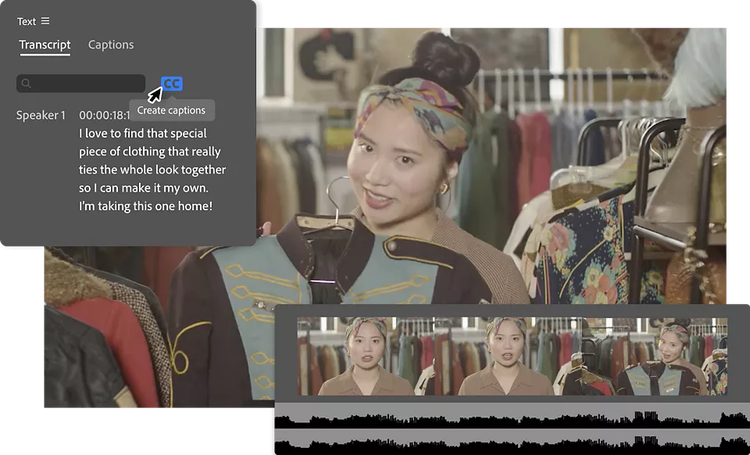
Die Funktion „Sprache zu Text“ generiert automatisch Untertitel und Videotranskripte. Die Untertitel kannst du in 27 Sprachen übersetzen lassen – mit KI direkt in Adobe Premiere.
Mehr Interaktion und Reichweite mit KI-gestützter Videotranskription.
Transkribiere die Audiospur von Videos mithilfe der KI-gestützten Spracherkennung in Echtzeit. Anschließend kannst du deine Videos direkt vom Transkript aus bearbeiten. Automatisch generierte Untertitel sorgen für mehr Barrierefreiheit und höhere Interaktion. So erreichst du mit deinem Content ein größeres Publikum.
style
Grid width 8
Transkripte für textbasierte Videobearbeitung – mit wenigen Klicks.
Mit KI-Unterstützung erstellst du Untertitel und Transkripte deiner Videos schneller und genauer denn je. Unterstützt werden Dialoge in 18 Sprachen.
Rohschnitt per Copy-and-Paste von Text.
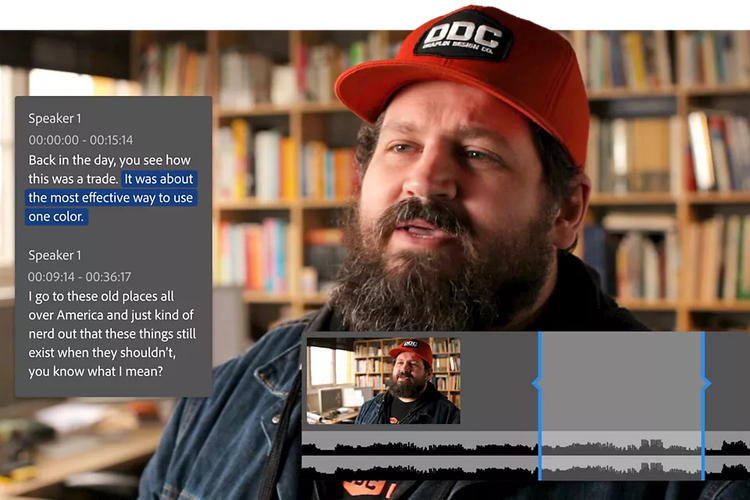
Nutze die KI-gestützte textbasierte Bearbeitung, um aus deinem Videotranskript schnell einen Rohschnitt zu erstellen. Du kannst Clips per Copy-and-Paste von Textblöcken verschieben, nach Stichwörtern suchen sowie Pausen oder Lücken automatisch ermitteln und entfernen lassen. So bringst du deine Clips schnell in die gewünschte Reihenfolge.
Untertitel mit Stil.
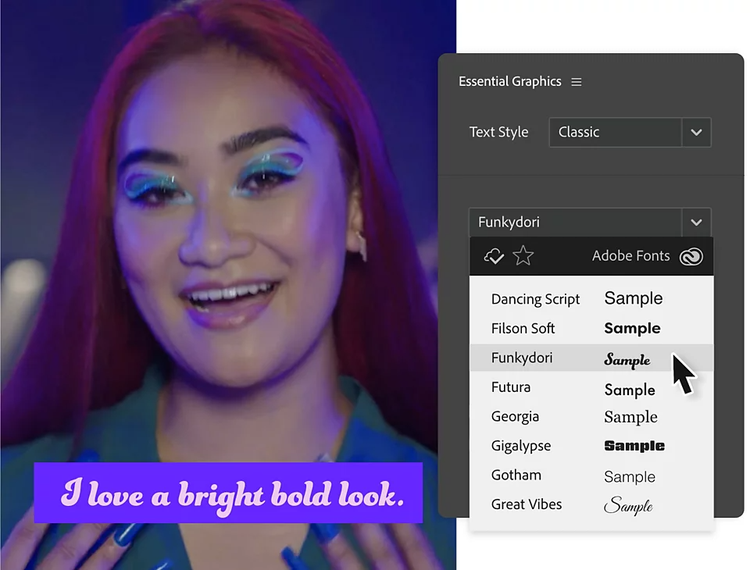
Formatiere Untertitel, um sie an den Stil deines Videos anzupassen, oder wandle sie in Grafiken um. Passe z. B. Schriftart, Position und Farbe an. Speichere deine Einstellungen, um sie in zukünftigen Projekten als Vorlage für Untertitel zu verwenden.
style
container
style
M spacing
style
grid width 10, L spacing
Fragen? Wir haben die Antworten.
Öffne dein Projekt in Premiere, und importiere die Videodatei. Wähle im Bedienfeld „Text“ die Option „Sequenz transkribieren“ aus. Premiere transkribiert die Audiospur des Videos mithilfe der KI-gestützten Spracherkennung in Echtzeit.
Mit „Sprache zu Text“ und der Funktion für Transkripte in Adobe Premiere kannst du ganz einfach Videos in Text umwandeln.
Die Funktion „Sprache zu Text“ ist für folgende Sprachen verfügbar: Dänisch, Deutsch, Englisch, Englisch (UK), Französisch, Hindi, Italienisch, Japanisch, Koreanisch, Niederländisch, Norwegisch, Portugiesisch, Russisch, Schwedisch, Spanisch, Traditionelles Chinesisch (Mandarin), Traditionelles Kantonesisch und Vereinfachtes Chinesisch (Mandarin).
Nein. „Sprache zu Text“ ist in deinem Premiere}-Abo enthalten. Derzeit ist die faire und angemessene Nutzung dieser Funktion durch Einzelabonnentinnen und -abonnenten für eigene Projekte nicht begrenzt.
Mit Premiere 22.2 und später kann die Funktion auch offline genutzt werden. Englische Texte können in Premiere standardmäßig transkribiert werden. Zusätzliche Sprachpakete können je nach Bedarf heruntergeladen werden. Nach Installation des Sprachpakets ist die Transkription ohne Internet-Verbindung möglich.
Ja. „Sprache zu Text“ nutzt KI-Technologie, um Transkripte zu generieren und Untertitel so zu platzieren, dass sie zu Geschwindigkeit und Rhythmus des gesprochenen Texts passen.
Du kannst SCC-, MCC-, STL- und DFXMP-Dateien exportieren oder die Untertitel beim Export in dein Video einbetten.
Erstelle einen neuen Titel-Clip mit dem Text-Werkzeug. Gib den gewünschten Text ein, und formatiere ihn. Platziere den Titel-Clip im Schnittfenster oberhalb deiner Video-Clips. Mit dem Text-Werkzeug kannst du die Textüberlagerung neu positionieren oder animieren. Statt eigenen Text zu erstellen, kannst du auch vorgefertigte Titelvorlagen aus Adobe Stock importieren.
Mit der Funktion „Textbasierte Bearbeitung“ von Premiere kannst du aus dem Audiomaterial deiner Video-Clips Transkripte erstellen und anschließend dein Footage auf Basis dieser Texte bearbeiten. Premiere passt das Video- und Audiomaterial automatisch an das bearbeitete Transkript an. So lässt sich die Bearbeitung von dialoglastigen Projekten beschleunigen.
Um die textbasierte Bearbeitung in Adobe Premiere zu aktivieren, öffne den gleichnamigen Arbeitsbereich, und klicke auf „Transkript“. Du kannst entweder das Audiomaterial deiner Video-Clips transkribieren lassen oder eine vorhandene Transkriptdatei importieren. Sobald ein Transkript verfügbar ist, kannst du den Text bearbeiten. Premiere aktualisiert die entsprechenden Video- und Audiosegmente automatisch auf Basis deiner Textänderungen.
Beim Import der Medien kannst du in den Importeinstellungen die Option „Automatische Transkription“ aktivieren. Oder mache im Projektfenster einen Rechtsklick bzw. Ctrl-Klick auf die Videodatei, und wähle „Transkribieren“. Auch im Bedienfeld „Text“ befindet sich ein Button zum Transkribieren des Clips.
Am schnellsten lassen sich Untertitel erstellen, indem du zuerst ein Transkript des Videos generierst. Klicke anschließend im Bedienfeld „Text“ auf „Untertitel erstellen“. Im Bedienfeld „Untertitel“ kannst du Stil und Timing der Untertitel anpassen.
Nachdem du die Untertitel erstellt hast, navigiere im Bedienfeld „Text“ zur Registerkarte „Untertitel“. Klicke im oberen Bereich der Registerkarte „Untertitel“ auf den Button „Untertitel übersetzen“. Wähle die gewünschten Sprachen aus, und klicke auf „Übersetzen“.
Normalerweise 77,99€/MonatAlternativ: 38,98€/Monatinkl. MwSt. Innerhalb von 14 Tagen kostenlos kündbar. Jahres-Abo mit monatlicher Abrechnung
Über 7 Millionen Kreative weltweit nutzen Creative Cloud bereits. Spare 50% in den ersten 3 Monate auf die Vollversion von Adobe Premiere und mehr als 20 Programme sowie die kreative KI Adobe Firefly. Zahle 38,98€/Monatinkl. MwSt. in den ersten 3 Monate und 77,99€/Monatinkl. MwSt. danach. Gilt nur für Neukundinnen und Neukunden. {Bedingungen beachten | Produktübersicht
Schnellere Video-Workflows mit der generativen KI von Adobe Firefly.
Visualisiere Aufnahmen und Effekte schon vor dem Dreh. Generiere in der Postproduktion fehlende Assets, um deinen Schnitt zu perfektionieren, und automatisiere lästige Routineaufgaben – so bleibt dein Kopf frei für kreative Ideen.
You can control how Adobe websites use cookies and similar technologies by making choices below. But note that if you disable cookies and similar technologies entirely, Adobe websites may not function properly.
Cookies are small text files stored by your web browser when you use websites. There are also other technologies that can be used for similar purposes like HTML5 Local Storage and local shared objects, web beacons, and embedded scripts. These technologies help us do things like remembering you and your preferences when you return to our sites, measure how you use the website, conduct market research, and gather information about the ads you see and interact with.
You can make choices in the menu below about what cookies and other technologies you want us to use on Adobe sites when you visit them from this browser. You can always change those choices later by clicking on the Cookie Preferences link at the bottom of the page.
If enabled:
We can improve your experience by tailoring the site and the content to things we think might be of interest
We can better keep track of your preferences — like what language you prefer to use
We will better understand your likely interests so we can provide you more relevant Adobe ads and content on non-Adobe websites and in non-Adobe apps
It will help us improve the performance of our website and those of our partners who use the Adobe Experience Cloud
If disabled:
We won’t be able to remember you from session to session so the experience may not be tailored to your interests
You’ll still have access to the content of the site but certain features that depend on cookies may not function
You’ll still see ads, they just may not be as relevant to you
General information
You can control how Adobe websites use cookies and similar technologies by making choices below. But note that if you disable cookies and similar technologies entirely, Adobe websites may not function properly.
Cookies are small text files stored by your web browser when you use websites. There are also other technologies that can be used for similar purposes like HTML5 Local Storage, web beacons, and embedded scripts. These technologies help us do things like remembering you and your preferences when you return to our sites, measure how you use the website, conduct market research, and gather information about the ads you see and interact with.
You can make choices in the menu below about what cookies and other technologies you want us to use on Adobe sites when you visit them from this browser. You can always change those choices later by clicking on the Cookie Preferences link at the bottom of the page.
If enabled:
We can improve your experience by tailoring the site and the content to things we think might be of interest
We can better keep track of your preferences — like what language you prefer to use
We will better understand your likely interests so we can provide you more relevant Adobe ads and content on non-Adobe websites and in non-Adobe apps
It will help us improve the performance of our website and those of our partners who use the Adobe Experience Cloud
If disabled:
We won’t be able to remember you from session to session so the experience may not be tailored to your interests
We’ll still count your use of our site and services
You’ll still have access to the content of the site but certain features that depend on cookies may not function
You’ll still see ads, they just may not be as relevant to you
Operate the site and core servicesOperate site and measure engagement
Always active
These cookies are required, and they are used to enable the site and related services core functionality. Without them the site could not operate, so they cannot be disabled.
These cookies enable the site and related services’ core functionality and collect statistics about user engagement, such as counting active use to help us understand trends. These cookies cannot be disabled.
Measure performance
These cookies are used to analyze site usage to measure and improve performance. Without them Adobe cannot know what content is most valued and how often unique visitors return to the site, making it hard to improve information we offer to you.
These cookies are used to analyze site usage to measure and improve performance. Without them Adobe cannot know what content is most valued, making it hard to improve information we offer to you.
Extend functionality
These cookies are used to enhance the functionality of Adobe sites such as remembering your settings and preferences to deliver a personalized experience; for example, your username, your repeated visits, preferred language, your country, or any other saved preference.
Personalize advertising
These cookies are used to enable Adobe and our partners to serve ads more relevant to your interests. Without them you will still see ads, but they might not be as relevant to you.