
1. Descarga elarchivo de práctica
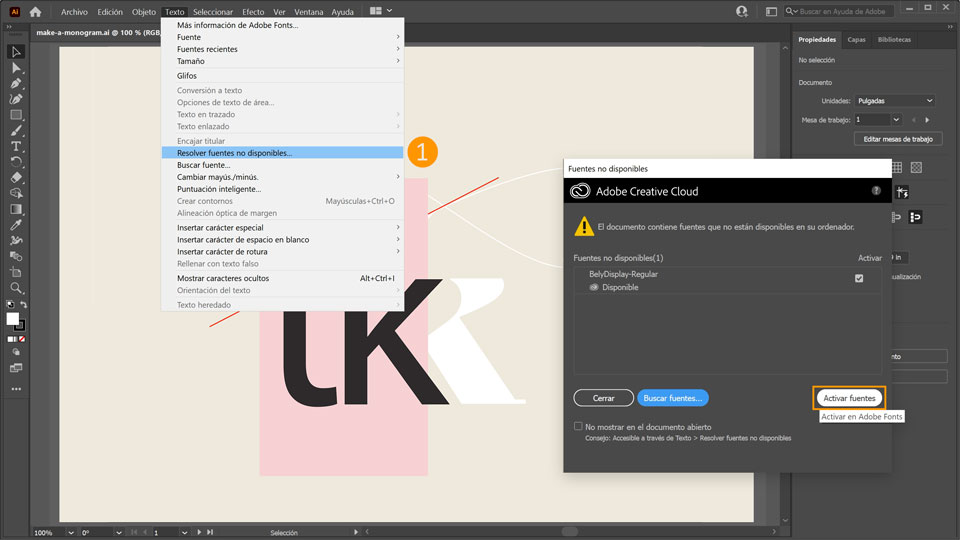
y abre “make-a-monogram.ai” en Illustrator. Meng utiliza la fuente BelyDisplay-Regular. Si no has utilizado nunca esa fuente, se abrirá la ventana Fuentes no disponibles. Haz clic en Activar fuentes para activar la fuente.
Consejo: También puedes acceder a la ventana Fuentes no disponibles accediendo a Texto > Resolver fuentes no disponibles.
Crea contornos
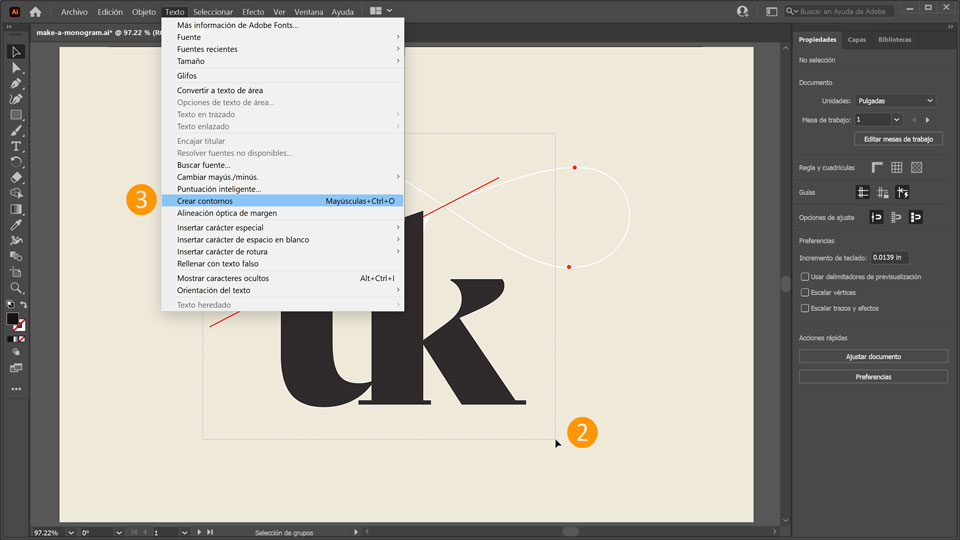
2. Elige la herramienta Selección (V)
en la barra de herramientas a la izquierda y arrastra el cursor sobre las iniciales para seleccionarlas.
3. Ve a Texto > Crear contornos para convertir el texto en un objeto con contornos que se puedan personalizar.
Personaliza las letras
4. Ahora, personaliza las letras. Utiliza la herramienta Selección directa (A) para arrastrar el cursor por la parte superior de la “t” y la “k”.
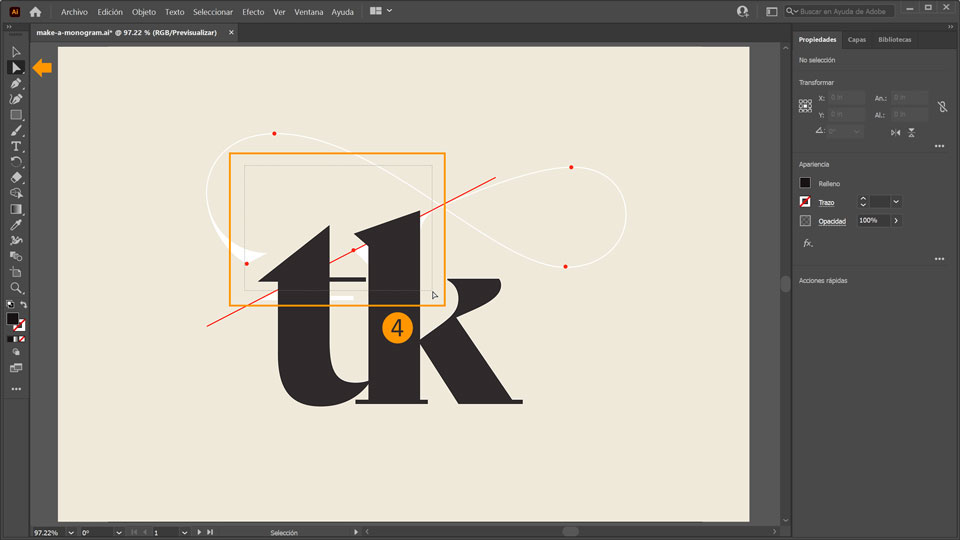
5. Con los puntos de anclaje superiores seleccionados, mantén pulsada la tecla Mayús (Shift) y tira de un punto de anclaje hacia abajo para acortarlo. Ahora, la “k” debería estar ligeramente por debajo de la guía roja.
Consejo: Meng incluyó la imagen del fantasma blanco que puedes utilizar como guía, así como guías rojas que te ayudan con la alineación.
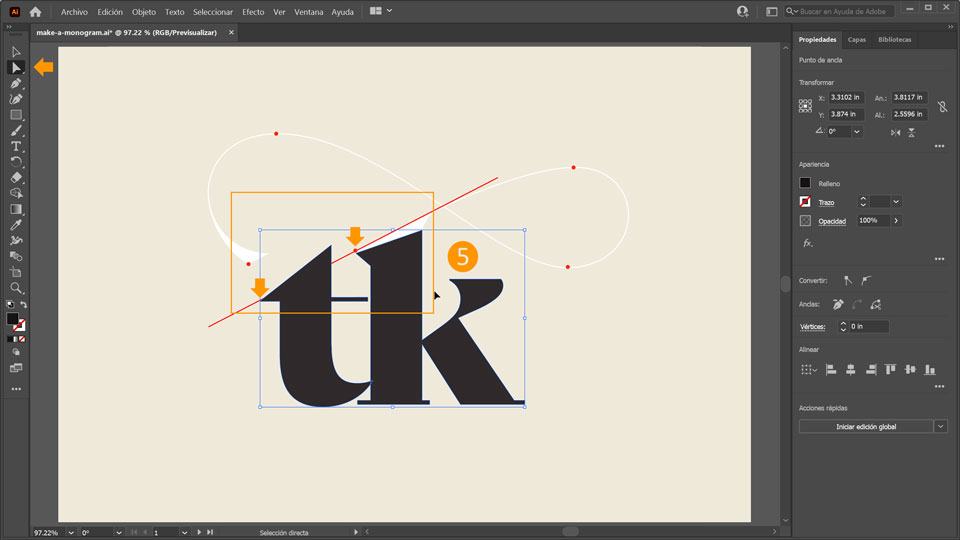
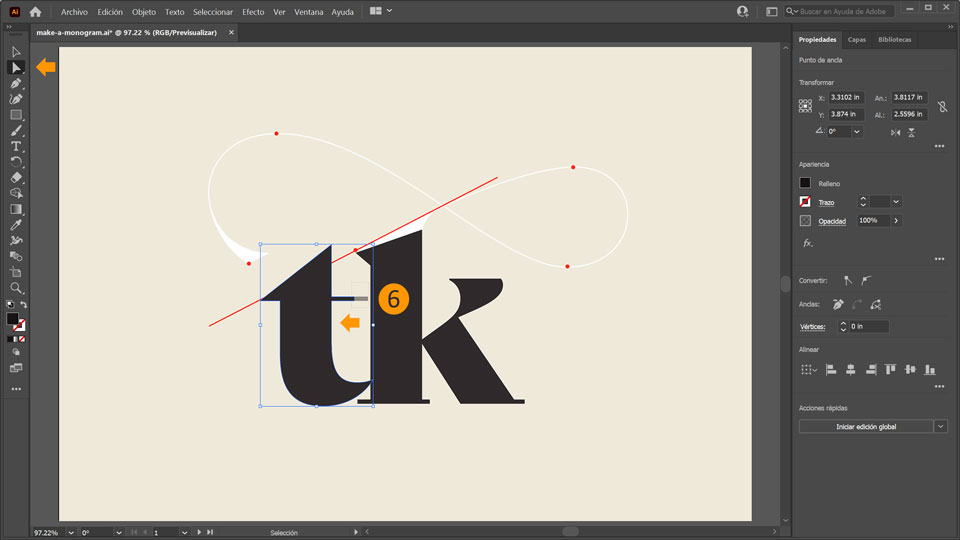
6. A continuación, arrastra el cursor por encima del asta transversal de la “t” para seleccionar los dos puntos de anclaje externos. Mantén pulsada la tecla Mayús (Shift) y arrastra el cursor a la izquierda para acortar la selección.
Consejo: También puedes usar la tecla de la flecha izquierda en el teclado para mover los puntos de anclaje a la izquierda.
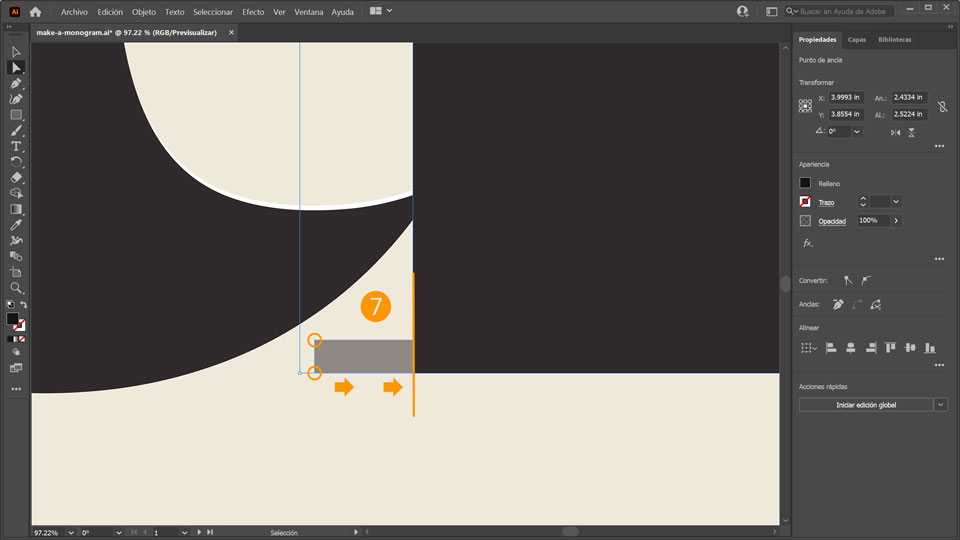
7. Para eliminar el remate de la “k”, arrastra el cursor por los dos puntos de anclaje externos del remate de la base y arrastra a la derecha para obtener un borde suave.
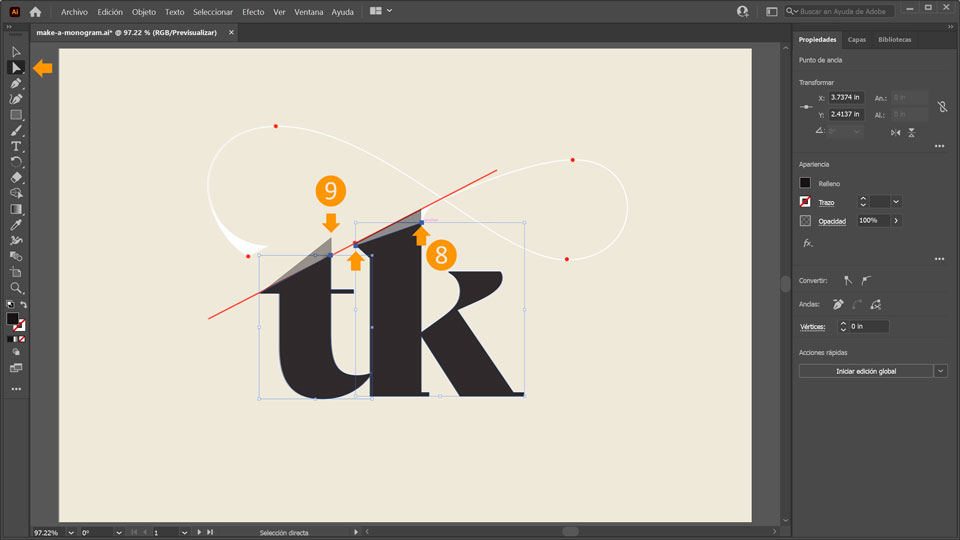
8. Usa la herramienta Selección directa (A) para seleccionar el punto de anclaje superior derecho de la “k” y arrástralo hacia la línea de la guía roja. Haz lo mismo con el punto de anclaje superior izquierdo.
9. Haz clic en el punto de anclaje superior derecho de la “t” y arrástralo hacia abajo a la línea de la guía roja.
Decora
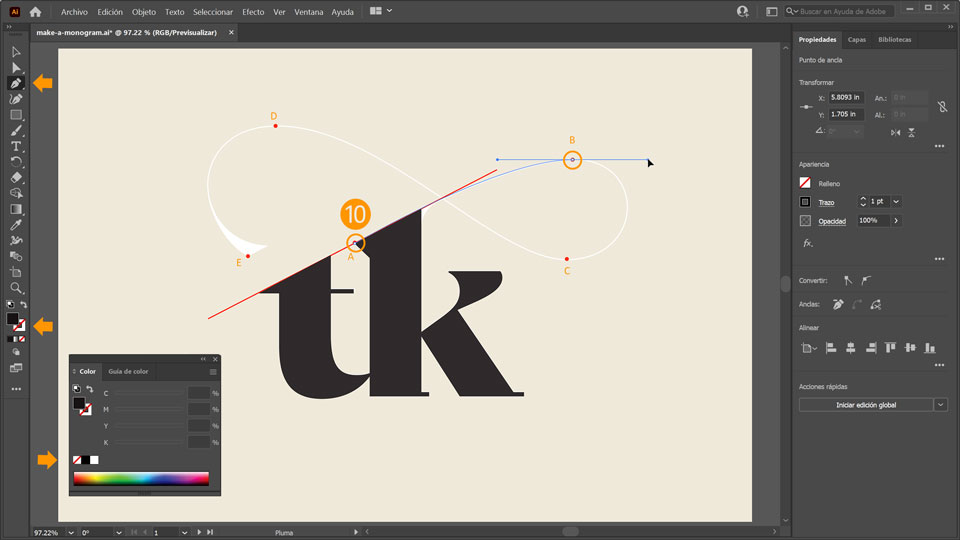
10. A continuación, dibuja la decoración de flores. Utiliza la herramienta Pluma (P) y empieza a trazar haciendo clic en el punto rojo de la “k” (A). A continuación, haz clic en el segundo punto rojo (B) y arrastra para alinear el trazo con el trazo de referencia. Continúa dibujando tu trazo con los puntos rojos para orientarte. Cuando termines, pulsa Intro.
Consejo: Cuando dibujes el trazo, asegúrate de que el color de relleno está establecido en Ninguno y de que el trazado está establecido en Negro. Para cambiar los colores, haz doble clic en el botón Color en la barra de herramientas para seleccionar un color de relleno, o bien haz doble clic en el botón Trazado para seleccionar un color de trazado.
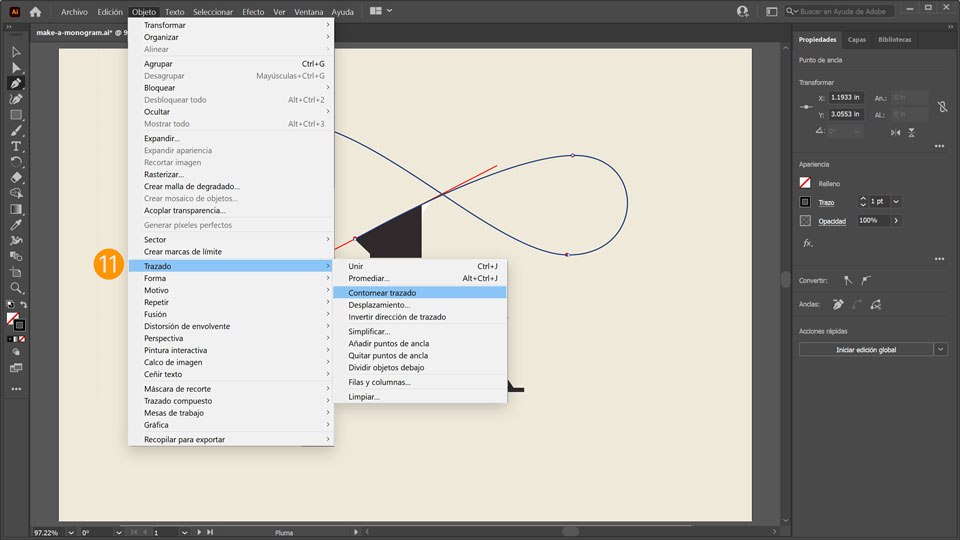
11. Elige Objeto > Trazo > Contornear trazado para crear un objeto a partir del trazo.
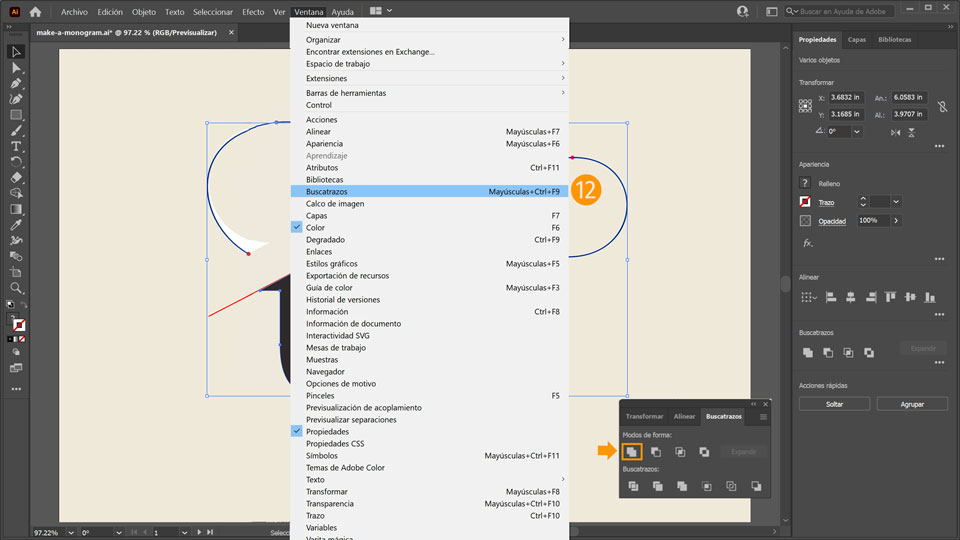
12. Para unificar la espiral y el monograma, utiliza la herramienta Selección (V) para seleccionar ambos objetos. A continuación, ve a Ventana > Buscatrazos y haz clic en Unificar en el panel.
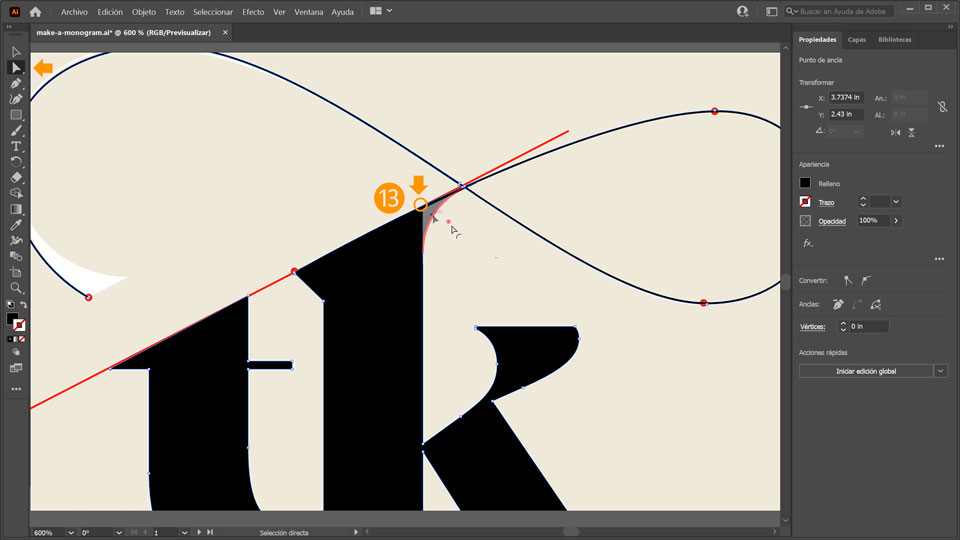
13. Utiliza la herramienta Selección directa (A) y haz clic en la esquina interior superior de la “k” > aparece un puntero del ratón con la cuarta parte de un círculo. Ahora, arrastra el círculo más allá del punto de anclaje para crear un trazo curvado entre la “k” y la espiral.
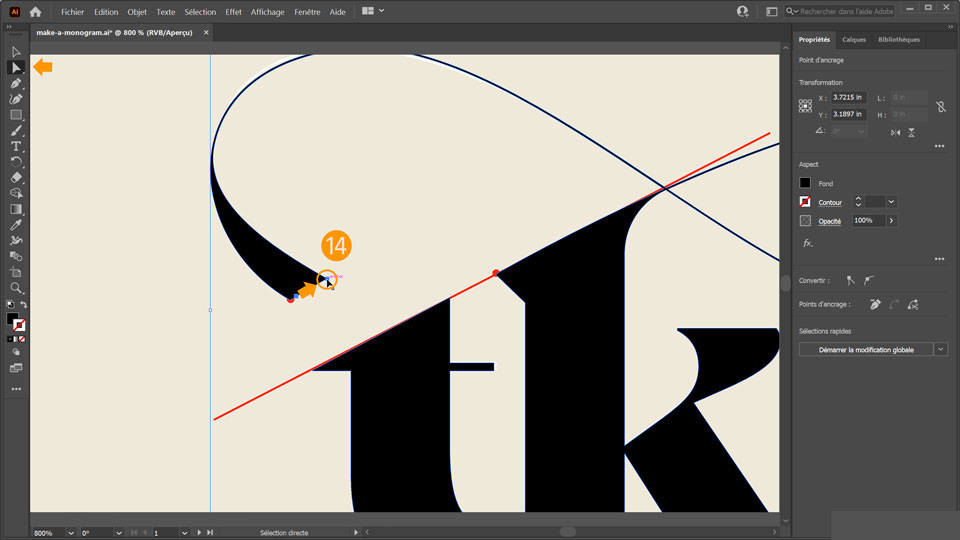
14. Haz doble clic en el extremo de la decoración con la herramienta Selección directa (A)
y arrastra el punto de anclaje a la derecha para crear un punto final ensanchado.
15. Por último, ve al panel Capas (Ventana > Capas) y haz doble clic en el icono del ojo en la capa de referencia para hacer invisible la capa.
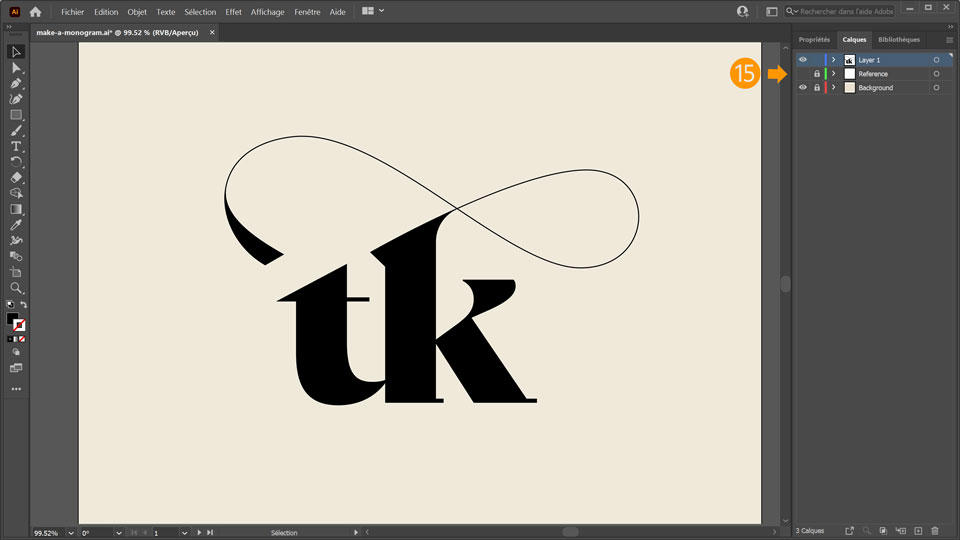
¡Ya está!
Ahora te toca a ti crear un monograma en Illustrator. Descárgate los activos o utiliza los tuyos propios, y comparte el resultado en Facebook, Twitter e Instagram con #MadewithIllustrator para obtener comentarios y conectar con otras mentes creativas.
Behance:https://www.behance.net/live Únete a nuestras retransmisiones en directo con profesionales y proyectos de verdad en tiempo real, y encuentra inspiración.

You can control how Adobe websites use cookies and similar technologies by making choices below. But note that if you disable cookies and similar technologies entirely, Adobe websites may not function properly.
Cookies are small text files stored by your web browser when you use websites. There are also other technologies that can be used for similar purposes like HTML5 Local Storage and local shared objects, web beacons, and embedded scripts. These technologies help us do things like remembering you and your preferences when you return to our sites, measure how you use the website, conduct market research, and gather information about the ads you see and interact with.
You can make choices in the menu below about what cookies and other technologies you want us to use on Adobe sites when you visit them from this browser. You can always change those choices later by clicking on the Cookie Preferences link at the bottom of the page.
If enabled:
We can improve your experience by tailoring the site and the content to things we think might be of interest
We can better keep track of your preferences — like what language you prefer to use
We will better understand your likely interests so we can provide you more relevant Adobe ads and content on non-Adobe websites and in non-Adobe apps
It will help us improve the performance of our website and those of our partners who use the Adobe Experience Cloud
If disabled:
We won’t be able to remember you from session to session so the experience may not be tailored to your interests
You’ll still have access to the content of the site but certain features that depend on cookies may not function
You’ll still see ads, they just may not be as relevant to you
General information
You can control how Adobe websites use cookies and similar technologies by making choices below. But note that if you disable cookies and similar technologies entirely, Adobe websites may not function properly.
Cookies are small text files stored by your web browser when you use websites. There are also other technologies that can be used for similar purposes like HTML5 Local Storage, web beacons, and embedded scripts. These technologies help us do things like remembering you and your preferences when you return to our sites, measure how you use the website, conduct market research, and gather information about the ads you see and interact with.
You can make choices in the menu below about what cookies and other technologies you want us to use on Adobe sites when you visit them from this browser. You can always change those choices later by clicking on the Cookie Preferences link at the bottom of the page.
If enabled:
We can improve your experience by tailoring the site and the content to things we think might be of interest
We can better keep track of your preferences — like what language you prefer to use
We will better understand your likely interests so we can provide you more relevant Adobe ads and content on non-Adobe websites and in non-Adobe apps
It will help us improve the performance of our website and those of our partners who use the Adobe Experience Cloud
If disabled:
We won’t be able to remember you from session to session so the experience may not be tailored to your interests
We’ll still count your use of our site and services
You’ll still have access to the content of the site but certain features that depend on cookies may not function
You’ll still see ads, they just may not be as relevant to you
Operate the site and core servicesOperate site and measure engagement
Always active
These cookies are required, and they are used to enable the site and related services core functionality. Without them the site could not operate, so they cannot be disabled.
These cookies enable the site and related services’ core functionality and collect statistics about user engagement, such as counting active use to help us understand trends. These cookies cannot be disabled.
Measure performance
These cookies are used to analyze site usage to measure and improve performance. Without them Adobe cannot know what content is most valued and how often unique visitors return to the site, making it hard to improve information we offer to you.
These cookies are used to analyze site usage to measure and improve performance. Without them Adobe cannot know what content is most valued, making it hard to improve information we offer to you.
Extend functionality
These cookies are used to enhance the functionality of Adobe sites such as remembering your settings and preferences to deliver a personalized experience; for example, your username, your repeated visits, preferred language, your country, or any other saved preference.
Personalize advertising
These cookies are used to enable Adobe and our partners to serve ads more relevant to your interests. Without them you will still see ads, but they might not be as relevant to you.
Personalize advertising
These cookies are used to enable Adobe and our partners to serve ads more relevant to your interests. Without them you will still see ads, but they might not be as relevant to you.