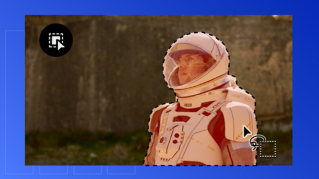
Añade un aspecto vintage a los clips en Adobe Premiere con los efectos de fallo de Alex Broadstock.
El director Alex Broadstock utilizó una antigua televisión y mezcladores de circuitos (equipos analógicos de bricolaje para modificar dispositivos electrónicos) para crear estas seis texturas de vídeo “orgánicas”. Sin embargo, no necesitas conocer los detalles técnicos para ver cómo mejorarán tus proyectos de vídeo.
Cada uno de los seis efectos de fallo dura 10 segundos y se puede ajustar con los modos de fusión o incluso con un área visual específica. ¿Necesitas ayuda para empezar? Una vez que los hayas añadido a tu biblioteca, echa un vistazo al botón “Añadir biblioteca” situado en la parte superior de la página; consulta a continuación para ver cómo puedes manipular los fallos en tu trabajo.
1
Configura tu proyecto.
Crea un nuevo proyecto en Premiere (Archivo > Nuevo > Proyecto), ponle un nombre (el nuestro se llama BucketList) y haz clic en Aceptar.
Arrastra los clips de vídeo que deseas utilizar desde el equipo al panel Proyecto.
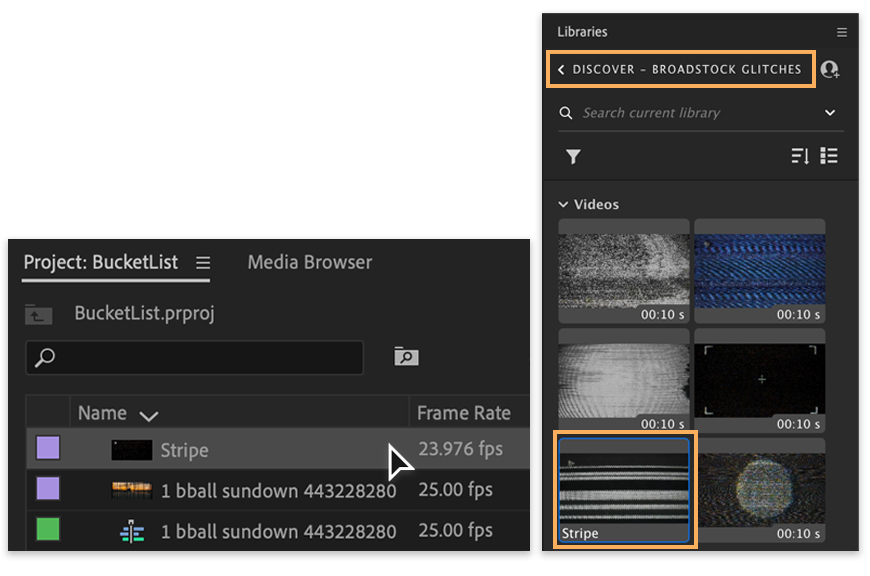
A continuación, busca Video_analog_glitches en el panel Bibliotecas (Ventana > Bibliotecas) y arrastra el que prefieras al panel Proyecto. Hemos seleccionado Stripe.
2
Consigue un estilo vintage.
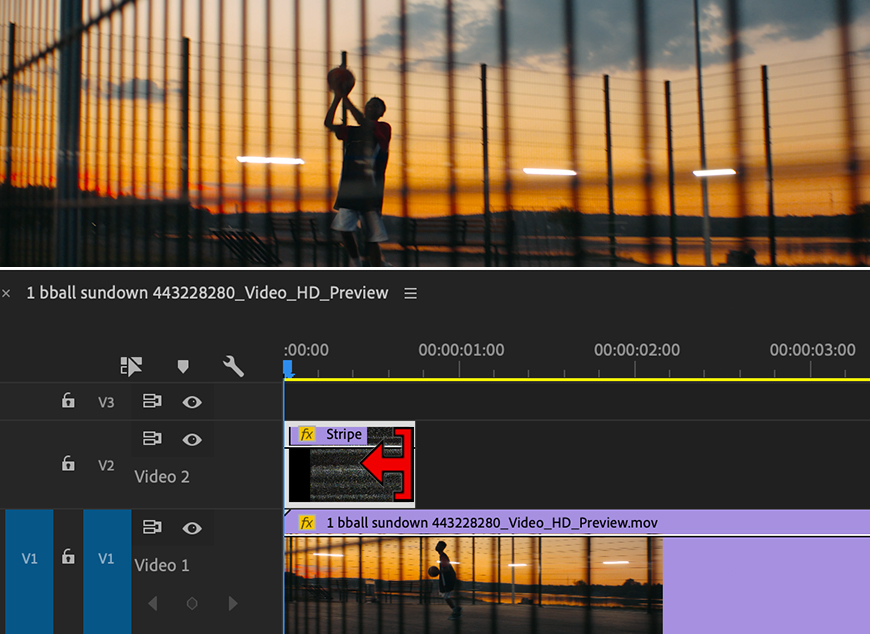
Arrastra un clip de vídeo desde el panel Proyecto a la cronología y, a continuación, arrastra el efecto de fallo a la pista de vídeo vacía justo encima del clip. Pulsa la barra espaciadora para reproducir el efecto de fallo.
Cada efecto de fallo dura 10 segundos. Si deseas un efecto de fallo más corto en el proyecto, pasa el cursor por el principio o el final del clip de fallo hasta que veas la herramienta Recortar. Arrastra los puntos de Entrada (inicio) y Salida (final) de recorte para limitar la duración del efecto. Esta edición no es destructiva, por lo que puedes reajustarla en cualquier momento.
3
Personaliza el efecto.
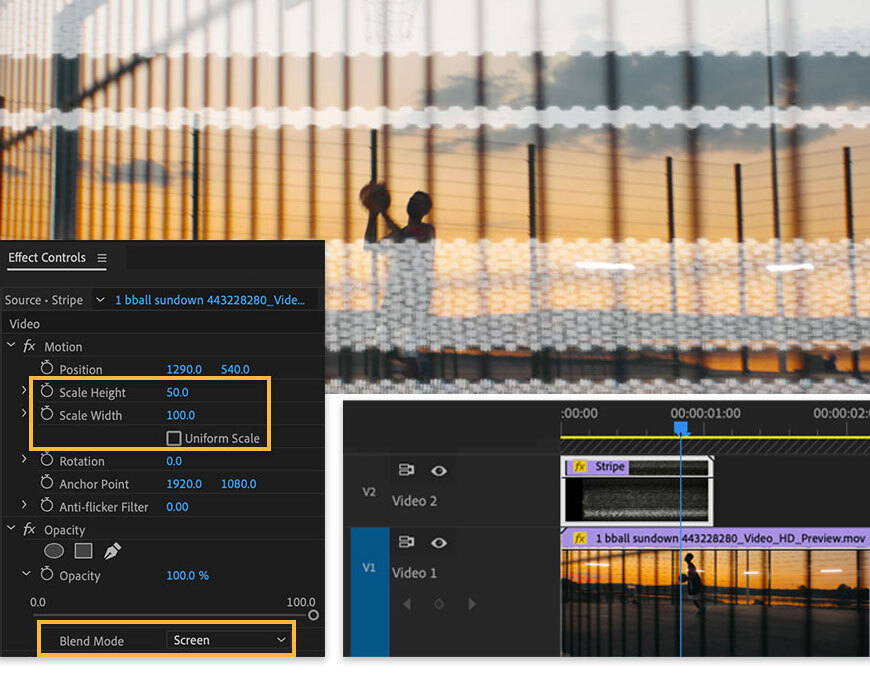
Para ver el efecto del fallo en tu clip, tendrás que ajustar su Modo de fusión. En primer lugar, asegúrate de que el clip de fallo esté seleccionado en la cronología. A continuación, abre el panel Controles de efectos (Ventana > Controles de efectos) y visualiza las opciones del Modo de fusión en la sección Opacidad. Nos gusta cómo funciona Screen con todos los fallos de Alex, pero no dudes en experimentar.
También puedes cambiar la proporción del efecto de fallo dentro del fotograma ajustando Escala en la sección Movimiento. Cambia la altura y la anchura de la Escala y, a continuación, pulsa la barra espaciadora para reproducir el vídeo con la configuración más reciente.
4
Define algunos límites.
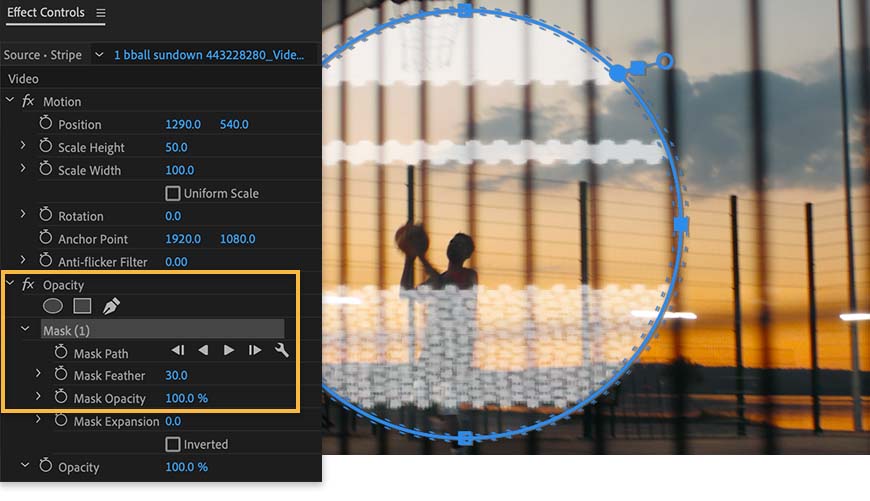
Para contener el efecto de fallo en un área específica, crea una máscara. Con el clip de fallo aún seleccionado en la cronología, vuelve a la configuración de Opacidad y elige una forma o la herramienta Bézier. Usamos la máscara Elipse.
En el Monitor de programa, ajusta los puntos límite de la máscara. Para suavizar los bordes, aumenta el ajuste Pluma de máscara.
5
Ventaja extra: Añade un título.
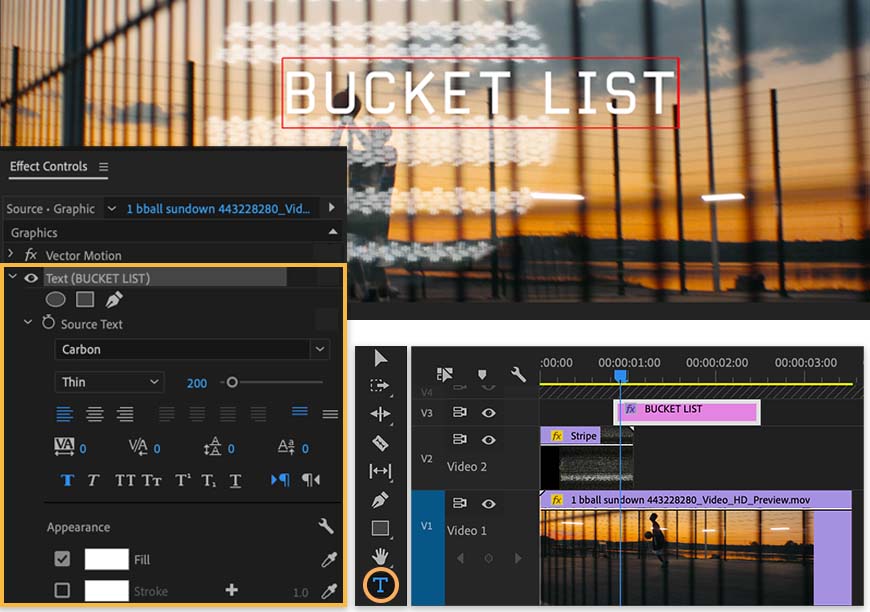
Dale un último retoque a tu vídeo añadiendo un título. Comprueba que no haya nada seleccionado en la cronología. A continuación, selecciona la herramienta Texto (T), haz clic en el Monitor de programa y comienza a escribir.
Pulsa Control+A (Windows) o Comando+A (macOS) para seleccionar todo el texto. En el panel Controles de efectos, expande los controles de texto para elegir una fuente y ajustar el tamaño, el color y mucho más. Usamos
Carbon en Adobe Fonts (disponible con tu abono a Creative Cloud).
Por último, en la cronología, puedes arrastrar todo el gráfico del título para determinar cuándo aparece y ajustar sus puntos de Entrada y Salida de recorte para establecer su duración en pantalla.
You can control how Adobe websites use cookies and similar technologies by making choices below. But note that if you disable cookies and similar technologies entirely, Adobe websites may not function properly.
Cookies are small text files stored by your web browser when you use websites. There are also other technologies that can be used for similar purposes like HTML5 Local Storage and local shared objects, web beacons, and embedded scripts. These technologies help us do things like remembering you and your preferences when you return to our sites, measure how you use the website, conduct market research, and gather information about the ads you see and interact with.
You can make choices in the menu below about what cookies and other technologies you want us to use on Adobe sites when you visit them from this browser. You can always change those choices later by clicking on the Cookie Preferences link at the bottom of the page.
If enabled:
We can improve your experience by tailoring the site and the content to things we think might be of interest
We can better keep track of your preferences — like what language you prefer to use
We will better understand your likely interests so we can provide you more relevant Adobe ads and content on non-Adobe websites and in non-Adobe apps
It will help us improve the performance of our website and those of our partners who use the Adobe Experience Cloud
If disabled:
We won’t be able to remember you from session to session so the experience may not be tailored to your interests
You’ll still have access to the content of the site but certain features that depend on cookies may not function
You’ll still see ads, they just may not be as relevant to you
General information
You can control how Adobe websites use cookies and similar technologies by making choices below. But note that if you disable cookies and similar technologies entirely, Adobe websites may not function properly.
Cookies are small text files stored by your web browser when you use websites. There are also other technologies that can be used for similar purposes like HTML5 Local Storage, web beacons, and embedded scripts. These technologies help us do things like remembering you and your preferences when you return to our sites, measure how you use the website, conduct market research, and gather information about the ads you see and interact with.
You can make choices in the menu below about what cookies and other technologies you want us to use on Adobe sites when you visit them from this browser. You can always change those choices later by clicking on the Cookie Preferences link at the bottom of the page.
If enabled:
We can improve your experience by tailoring the site and the content to things we think might be of interest
We can better keep track of your preferences — like what language you prefer to use
We will better understand your likely interests so we can provide you more relevant Adobe ads and content on non-Adobe websites and in non-Adobe apps
It will help us improve the performance of our website and those of our partners who use the Adobe Experience Cloud
If disabled:
We won’t be able to remember you from session to session so the experience may not be tailored to your interests
We’ll still count your use of our site and services
You’ll still have access to the content of the site but certain features that depend on cookies may not function
You’ll still see ads, they just may not be as relevant to you
Operate the site and core servicesOperate site and measure engagement
Always active
These cookies are required, and they are used to enable the site and related services core functionality. Without them the site could not operate, so they cannot be disabled.
These cookies enable the site and related services’ core functionality and collect statistics about user engagement, such as counting active use to help us understand trends. These cookies cannot be disabled.
Measure performance
These cookies are used to analyze site usage to measure and improve performance. Without them Adobe cannot know what content is most valued and how often unique visitors return to the site, making it hard to improve information we offer to you.
These cookies are used to analyze site usage to measure and improve performance. Without them Adobe cannot know what content is most valued, making it hard to improve information we offer to you.
Extend functionality
These cookies are used to enhance the functionality of Adobe sites such as remembering your settings and preferences to deliver a personalized experience; for example, your username, your repeated visits, preferred language, your country, or any other saved preference.
Personalize advertising
These cookies are used to enable Adobe and our partners to serve ads more relevant to your interests. Without them you will still see ads, but they might not be as relevant to you.
Personalize advertising
These cookies are used to enable Adobe and our partners to serve ads more relevant to your interests. Without them you will still see ads, but they might not be as relevant to you.