



Create a QR code flyer for free.
Invite customers to register for your event, visit your website, or check out your menu with a flyer that boldly displays a scannable QR code. Use the QR code generator from Adobe Express to quickly and easily create an attention-grabbing flyer.
Generate QR code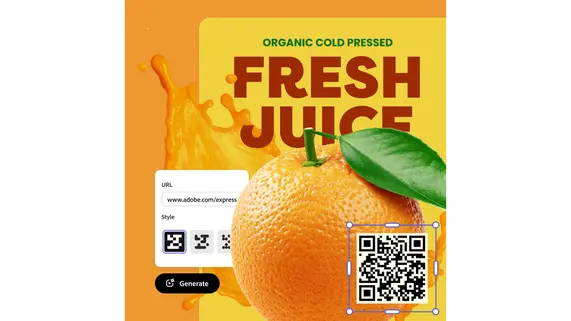
1. Generate.
Open the QR code generator, enter a URL, and tap the Download button. The image instantly changes to show your new QR code.
2. Personalize.
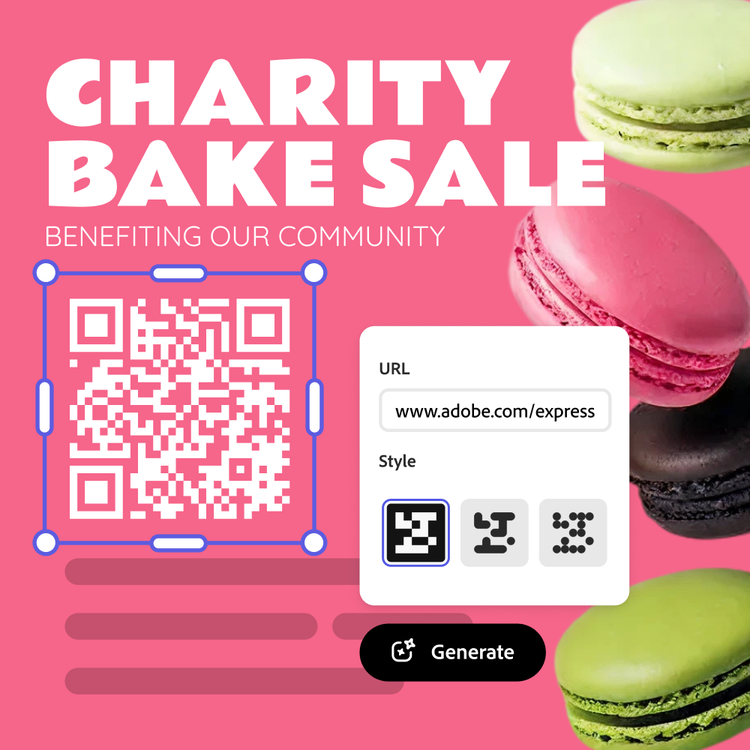
Customize the style and color of your free generated QR code to match your branding.

3. Continue editing.
Download the QR code image in your preferred file type or upload it to your flyer project in Adobe Express to keep editing.
Get found with a QR code flyer.
Adobe Express inspires you to think big and explore innovative opportunities with each new project you take on. Design your flyer with a scannable QR code that links to your event registration, social media, or product website. Now curious customers can learn more about what you have to offer while on-the-go. Repurpose your flyer design for other needs, like business cards, web banners, social media advertisements, and more.
Let Adobe Express be your flyer design expert.
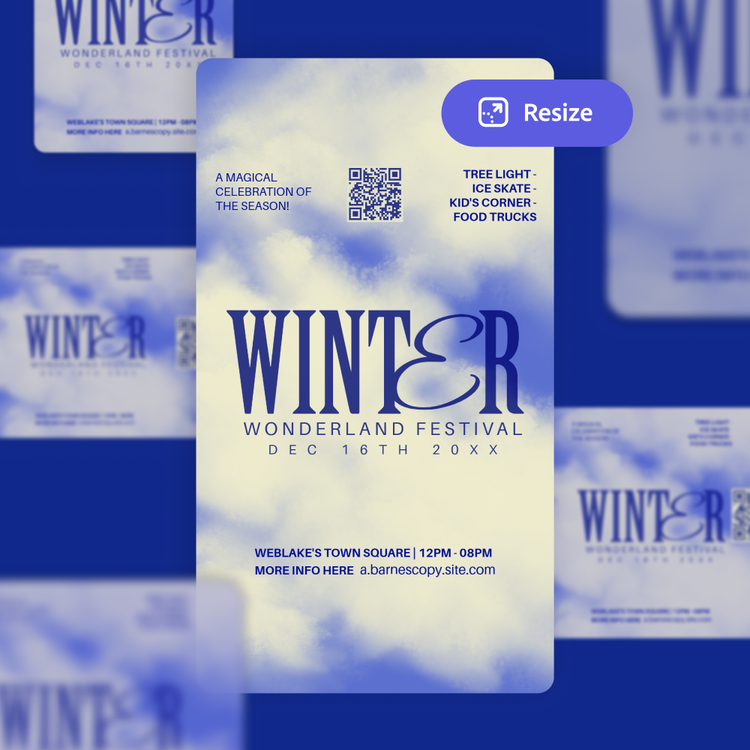
Hone your creativity with the power of Adobe Express. Explore professionally designed templates to get started or design your flyer from scratch. Establish a theme for your designs using photos, icons, logos, personalized fonts, and other customizable elements to make them feel entirely authentic. Duplicate designs and resize them to create consistency across multiple types of assets. With Adobe Express, it’s free and easy to make, save, and share your designs within minutes.
Make QR code flyers that show off your brand.
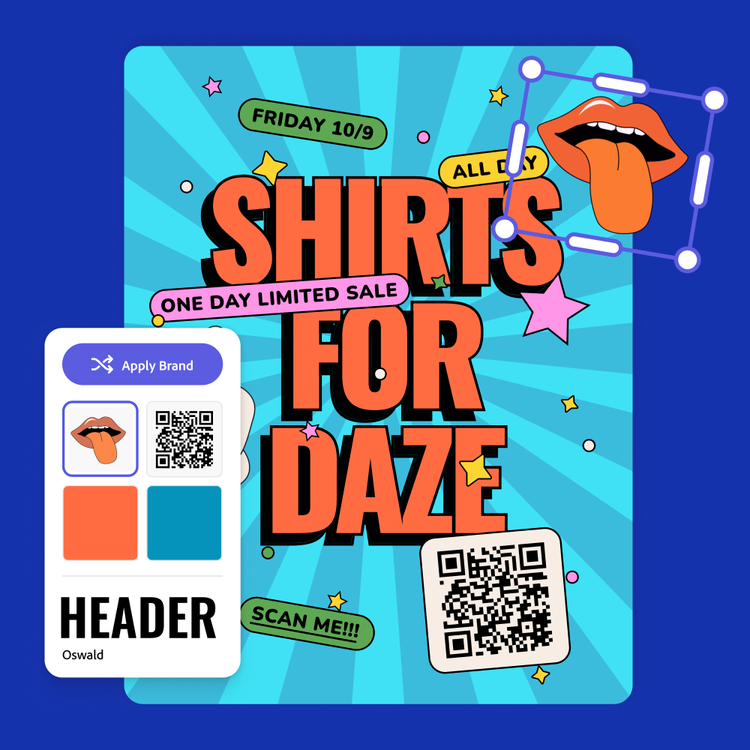
Even from a distance, your brand should stand out on your flyer. If you don’t know where to start, Adobe Express helps you out with customizable templates to kickstart the design process. Upload your logo, add color schemes, and fonts to create a flyer that aligns with your brand. With a Premium plan, you can auto-apply your branded assets across all your marketing collateral with the Brand kit.
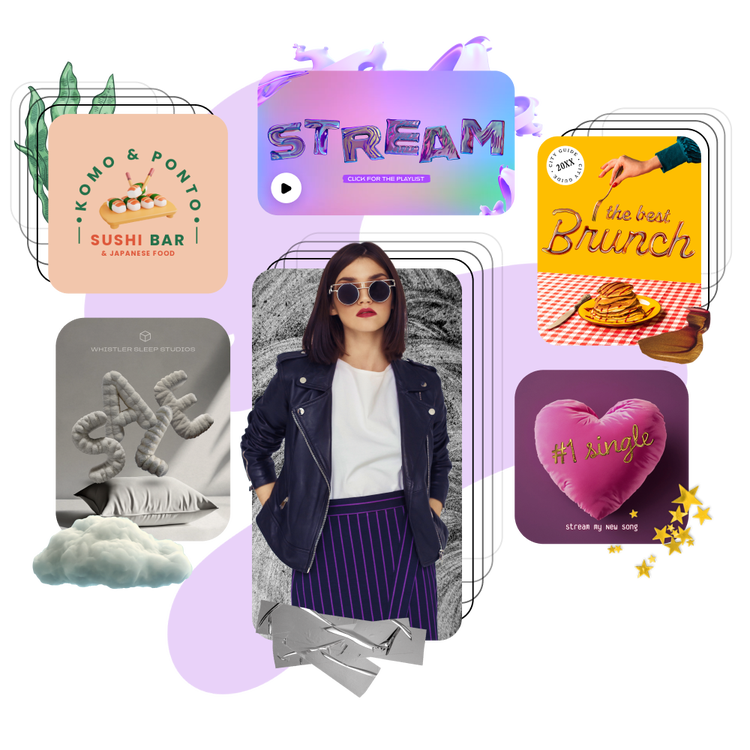
Stand out with Adobe Express.
Adobe Express is the quick and easy create-anything app to make impactful social posts, images, videos, flyers, presentations, documents, and more. With customizable templates, Adobe Stock design assets, and generative AI, it’s quick and easy to make attention-grabbing content. No experience required.
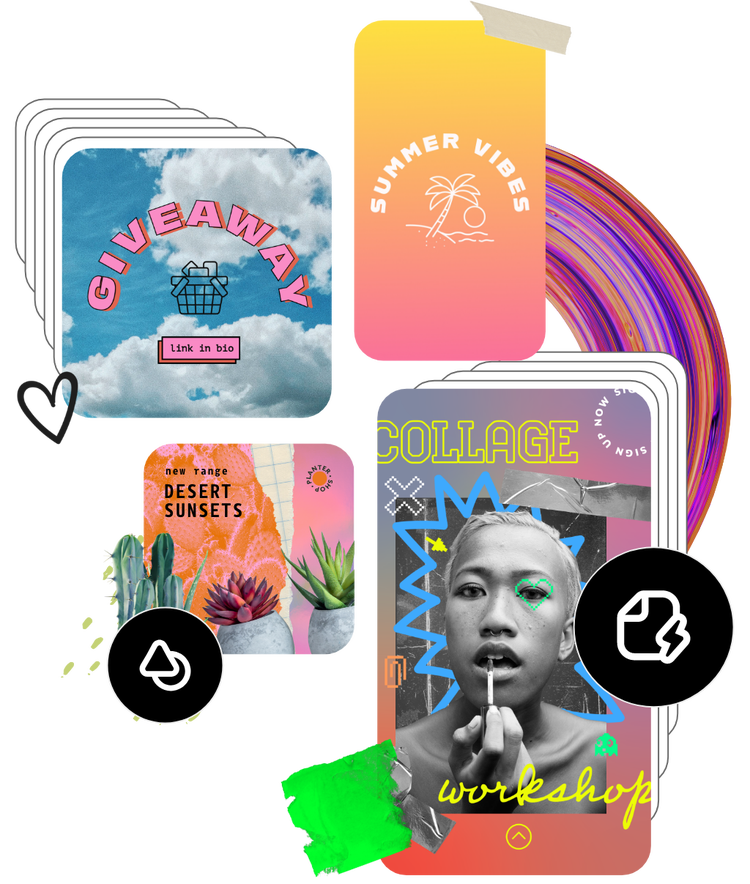
Choose from thousands of templates.
Adobe Express has thousands of expertly designed templates you can add a QR code to and make it easy for anyone to access your page or site. Create QR codes to highlight different categories or types of content – videos, campaigns, landing pages, brochures, work samples, and feedback pages. For another option, add a download link in a QR code to a PDF version of your flyer or brochure. Adobe Express templates help you stand out on any channel and every device.
Frequently asked questions.
What should I feature on my flyer?
A traditional design would prominently display your name, title, or logo. Include any other important details that need to be conveyed. For example, if your flyer is advertising an event, you should include where and when the event will take place. Add other design elements that will highlight your brand personality, like borders, images, and icons.
How do I create a QR code flyer using Adobe Express?
It’s quick and easy to create a QR code flyer with Adobe Express. Upload your link of choice to the QR code generator, follow the prompts, then download it to your device. Then upload it to your flyer project in Adobe Express.
What is the recommended flyer size?
A typical, printed flyer is the size of a sheet of printer paper: 8.5” x 11”. However, you can make your flyer any size you like. Consider how it will be distributed (printed or digital) when making your decision. If your flyer will be printed, check with your printer to find out boundary recommendations so no important info is cut off in printing.
Can I create my own flyer template?
Any new or existing project can be turned into a shareable template. To turn your flyer into a template, click Share and then Convert to template. You will then be directed to name the template, lock layers, and set style parameters before saving the template.
Can I get Adobe Express for free? If so, what’s included?
Yes, we have a free plan available for anyone. Enjoy everything you need to stand out, including thousands of templates, hundreds of Adobe Stock images, photo editing and effects, and much more. Visit our plans and pricing for details.


