PDF bank statements are useful for record-keeping, but they limit how you can sort and analyse transactions. Converting them to Excel turns static data into editable spreadsheets you can review, filter, and reuse.
Managing your finances effectively requires accurate and organised transaction records, regardless of whether you use SBI, HDFC, ICICI, or Axis Bank. Bank statements in PDF format are secure and widely used, but they can be difficult to analyse directly. Converting these statements into Excel allows you to review your income, expenses, and overall financial activity with ease.
With Excel, you can sort transactions, filter by categories, create charts, and even integrate data with accounting tools. This is especially useful for budgeting, GST reconciliation, or preparing data for ITR filing in India.
In this guide, we will walk you through the process of converting a bank statement PDF to Excel, explain the benefits, and provide practical tips to ensure smooth conversions.
style
two up
layout
1 | 2
Share this page
What is a bank statement?
A bank statement is a document from your bank that summarises all account activity over a set period. It includes deposits, withdrawals, checks, fees, interest earned, and other account activity. Typically sent via email as a PDF file or through regular mail as a printed document, a bank statement serves as a key tool for tracking income and expenses, monitoring account balances, and ensuring that all transactions are correct.
What are Excel files?
Excel files are digital spreadsheets used to organise, store, and analyse structured data. The most common Excel file format is XLSX, which supports multiple sheets, formulas, charts, and formatting options. This makes XLSX files ideal for tasks such as budgeting, financial reporting, project tracking, inventory management, and any scenario where data needs to be presented clearly and systematically.
Another widely used format is CSV (Comma Separated Values). Unlike XLSX, CSV files are plain text files where each piece of information is separated by a comma. This simple structure makes CSV files highly compatible with various applications, including databases, analytics tools, and spreadsheet programs like Microsoft Excel. While CSV files do not support multiple sheets, rich formatting, or formulas, they are excellent for quickly transferring and sharing data between different systems.
How to convert a bank statement PDF to Excel.
Bank statements are usually provided in PDF format to maintain consistency and security, but PDFs aren’t designed for sorting, filtering, or analysing transaction data. While Adobe Acrobat does not offer a direct PDF-to-CSV converter, it does allow you to export bank statements to Excel first, which can then be saved as a CSV file. This two-step approach preserves table structure and ensures your transaction data remains usable for spreadsheets, accounting tools, and financial analysis. Here are two ways you can do this:
Method 1: Using Adobe Acrobat (desktop app or online app)
If you already have access to Adobe Acrobat, this method gives you full control over the conversion process and is ideal for recurring or multi-page bank statements.
Steps to convert a bank statement PDF to Excel and CSV using Adobe Acrobat:
Open Adobe Acrobat on your desktop or via the Acrobat online app.
Open the bank statement PDF you want to convert.
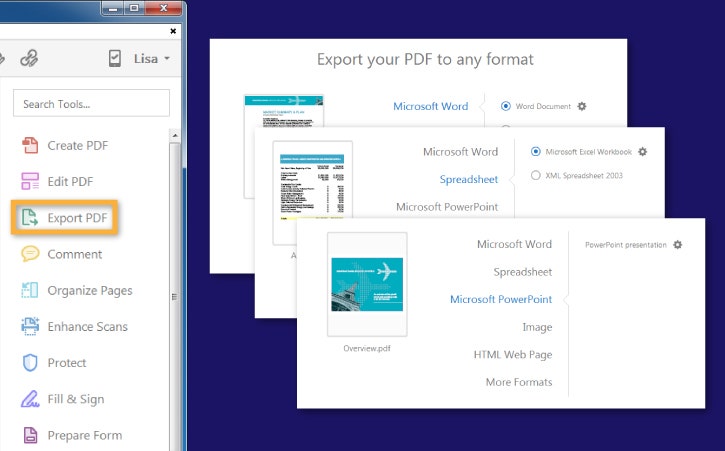
Navigate to All Tools > Export a PDF from the main menu.
Choose Microsoft Excel as the export format.
From the dropdown menu, select Excel Workbook (.xlsx).
Click Convert to XLSX and choose a location to save the converted file.
Once the file opens in Excel, review the transaction data for accuracy.
To save it as a CSV file, go to Home > Save As, then choose CSV (.csv) as the file format.
This approach is especially useful when dealing with detailed bank statements, as Acrobat accurately detects tables, columns, and rows. Saving the file as CSV makes it easier to upload data into accounting software or financial analysis tools.
Method 2: Using Adobe Acrobat’s online PDF-to-Excel converter
For quick, one-time conversions without installing software, Adobe Acrobat online services is a convenient option. It works directly in your browser and is optimised for speed and accuracy.
Steps to convert a bank statement PDF using Adobe Acrobat online services:
Click Select a file or drag and drop your bank statement PDF into the upload area.
Choose the PDF you want to convert to the XLSX file format.
Acrobat will automatically process and convert the PDF to Excel.
Download the converted Excel file or sign in to share it securely.
Open the file in Excel and review the extracted transaction data.
To convert it to CSV, go to Home > Save As and select CSV (.csv).
This method is ideal for users who need a fast and secure way to convert bank statements without installing additional tools. It’s particularly helpful for users in India who want browser-based access with minimal setup.
Why convert bank statements to Excel?
Converting bank statements from PDF to Excel makes financial data easier to read, organise, and analyse. This format transforms static statements into structured, editable data that can be reviewed in detail and reused across tools and workflows.
Here are key reasons why converting bank statements to Excel is beneficial:
Easier transaction tracking: Excel allows you to view all transactions in rows and columns. This simplifies the process of scanning entries by date, description, or amount. You can quickly filter transactions, search for specific payments, and isolate credits or debits without scrolling through multiple PDF pages.
Simplified budgeting and expense categorisation: Once your bank statement is in Excel, you can add custom columns to categorise transactions such as rent, utilities, groceries, or business expenses. Built-in formulas also help calculate totals, monthly spend, and savings automatically, supporting better budgeting and financial planning.
Improved financial analysis: Excel offers tools like charts, pivot tables, and conditional formatting to analyse spending patterns and income trends. This makes it easier to identify recurring charges, spot unusual transactions, and understand where money is being spent over time.
Compatibility with accounting and finance tools: Many accounting platforms, tax tools, and expense management systems accept Excel or CSV files. Converting bank statements to Excel ensures your data can be uploaded, shared, or integrated without manual re-entry.
Time savings and reduced errors: Manual data entry from PDFs increases the risk of mistakes and takes significant time. Converting bank statements to Excel automates data extraction, helping reduce errors while saving hours of repetitive work.
Tips for smooth PDF to Excel conversions.
Converting a bank statement PDF to Excel is usually straightforward, but small issues can affect data accuracy if the file isn’t prepared correctly. Following these best practices can help ensure your converted spreadsheet is clean, complete, and ready for analysis.
Ensure PDFs are not password-protected.
Many bank statements are secured with passwords to protect sensitive financial information. Before starting the conversion, make sure the PDF is unlocked. Most PDF converters, including Adobe Acrobat, cannot process protected files unless the password is removed first. Open the PDF, enter the password, and save an unlocked copy before exporting it to Excel.
Use OCR tools for scanned PDFs.
Some bank statements are scanned documents rather than digitally generated PDFs. In these cases, the text is stored as an image, not selectable text. Optical Character Recognition (OCR) is required to extract transaction details such as dates, descriptions, and amounts. Using OCR-enabled tools ensures that text is recognised correctly and placed into usable Excel cells.
Check formatting after conversion.
Once the file is converted, review how data appears in Excel. Verify that ₹ symbols and Indian date formats show correctly. Transaction tables may also include misaligned columns, extra spaces, or merged cells. Adjust column widths, align text properly, and remove unnecessary spaces to ensure proper sorting and calculations. Proper formatting improves readability and reduces errors during analysis.
Backup original PDFs.
Always keep an untouched copy of the original bank statement PDF. This allows you to verify data if discrepancies appear in the Excel file and ensures you can reconvert the document if needed. Backups are especially important when working with financial records for audits or tax reporting.
Frequently asked questions.
Most bank statement PDFs can be converted to Excel, especially those generated digitally by banks. Scanned statements may require OCR to extract text and transaction data before they can be edited in Excel.
Excel files (XLSX) are best for reviewing, formatting, and analysing data, while CSV files are better for sharing or importing into accounting systems. Many users convert to Excel first, then save the file as CSV for broader compatibility.
Basic table structure is usually preserved, but some formatting adjustments may be needed. Column alignment, spacing, and date formats should always be reviewed after conversion to ensure accuracy.
Yes. Once converted, the file becomes fully editable, allowing you to add notes, categories, formulas, and summaries without altering the original PDF record.
This can happen when PDFs use complex layouts or inconsistent spacing. Excel tools like “Text to Columns” and manual column adjustments can usually resolve these issues.
XLSX files open best in Microsoft Excel, but they can also be viewed using compatible spreadsheet tools. CSV files can be opened by most spreadsheet and data-processing applications.
File size limits depend on the tool being used. Large or multi-page bank statements may take longer to process or require a desktop application for best results.
Converted files are useful for preparation and analysis, but original PDFs should still be kept as official records. Excel files are best used as working documents alongside original statements.
No. Conversion creates a new Excel or CSV file and does not modify the original PDF, which remains unchanged and intact.
style
grid width 8
Use Acrobat tools for free
Sign in to try 25+ tools, like convert or compress
Add comments, fill in forms and sign PDFs for free
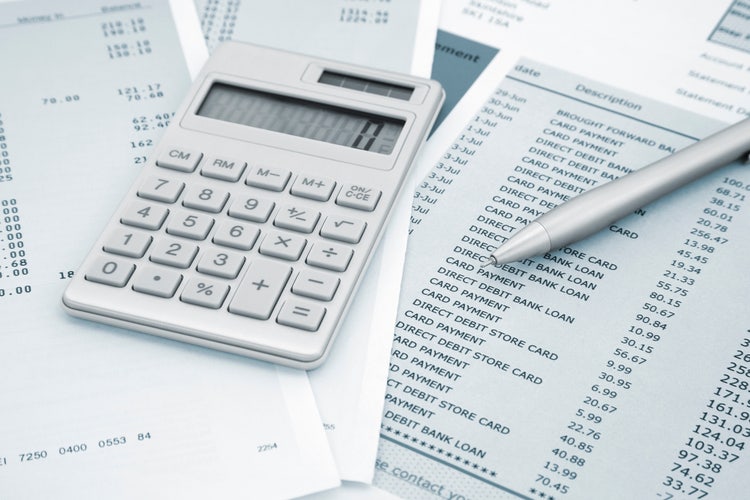
pdf to excel tutorial with bank statements, calculator, and pen highlighting transaction data
PDF to Excel export option highlighted in Adobe Acrobat with spreadsheet and bank statement examples
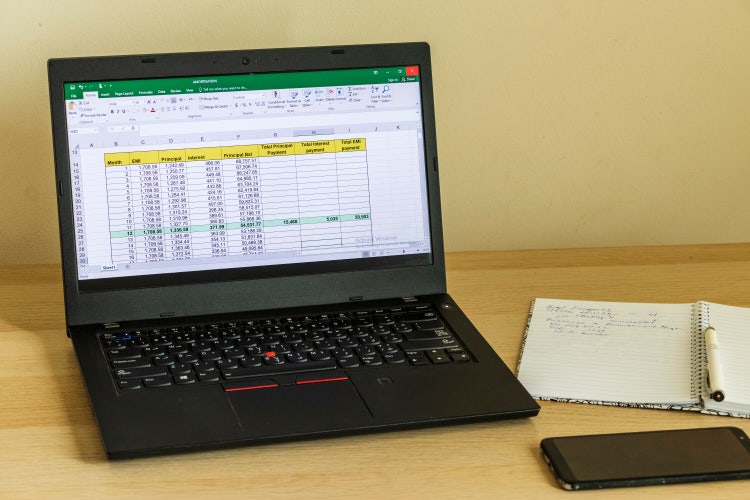
Laptop displaying an Excel spreadsheet for pdf to excel conversion, with notebook and phone on wooden desk
description
Learn how to convert a bank statement PDF to Excel for better data entry, financial analysis, and budget tracking. Adobe Acrobat makes conversion easy.