Adobe Acrobat
How to write and prepare an agenda for a meeting with AI.
A clear, well-structured meeting agenda sets the stage for productive discussions. With AI-powered tools like Adobe Acrobat AI Assistant, creating one is faster, easier, and smarter than ever.

https://main--dc--adobecom.aem.live/dc-shared/fragments/promo-banners/acrobat-studio
Published by Adobe Acrobat India on 5 Janury 2026
Document Management, Artificial Intelligence, Digital Transformation
JUMP TO SECTION
What is the purpose of an agenda in a meeting?
How AI can help you create effective meeting agendas
What is usually included in the agenda of a business meeting?
Sample meeting agenda templates
Explore Adobe Express meeting agenda templates
What is the difference between agenda and minutes of meeting?
Every successful meeting starts with a clear agenda. It sets direction, defines priorities, and ensures everyone knows what to expect. Yet, many teams still enter meetings without structure, leading to confusion and wasted time. That’s where technology helps.
Today, AI tools like Adobe Acrobat AI Assistant make it easier than ever to create, organise, and share professional agendas. In just a few clicks, you can turn raw notes or past minutes into a well-structured meeting plan. This is useful for teams, who are increasingly relying on AI to streamline daily workflows. Whether it’s preparing for client meetings, project reviews, or team catch-ups, having a clear agenda ensures that every minute of your meeting counts.
What is a meeting agenda?
A meeting agenda is a written outline of the topics, goals, and timeframes that guide a discussion. It acts as a roadmap that helps participants stay focused and aligned on key objectives. Whether for a business presentation, project review, or weekly team sync, an agenda sets expectations from the start.
In essence, a meeting agenda answers the question “What do we need to talk about, and in what order?”
What is the purpose of an agenda in a meeting?
An agenda sets the tone and structure for the meeting. A clear agenda helps participants come prepared, stay on time, and achieve decisions faster. It also provides a framework for writing accurate minutes afterward. Simply put, an agenda makes discussions more efficient and outcomes more measurable.
How AI can help you create effective meeting agendas.
With AI, preparing meeting agendas is faster, smarter, and far more efficient. Instead of starting from a blank page, Adobe Acrobat’s AI-powered tools can help you build a structured and professional agenda in just minutes. Whether you’re working from raw notes, past meeting minutes, or uploaded documents, AI can do the heavy lifting for you.
Use PDF Spaces to summarise and build a new agenda.
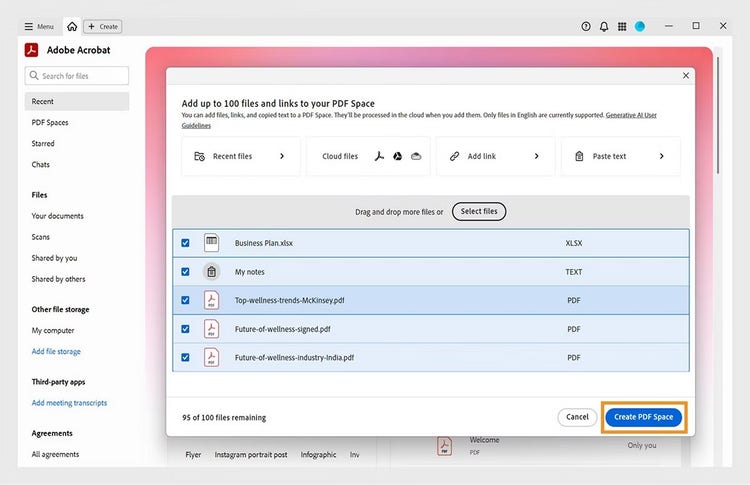
For ongoing projects or team meetings, PDF Spaces can help you gather all relevant materials in one place, including previous meeting agendas, minutes of meeting, raw notes, reports, and reference documents. You can use these resources to generate a brand-new agenda for your upcoming meeting.
- Create a new PDF Space in Acrobat and upload all related files.
- Use the AI Assistant and type a prompt like “Create a structured meeting agenda for the next session based on these documents.”
- Add additional details as necessary, such as topics, objectives, number of participants, etc.
- The AI will generate a concise, organised agenda you can copy and paste to a new document, format accordingly, and share as a PDF.
Using AI Assistant to create a meeting agenda.
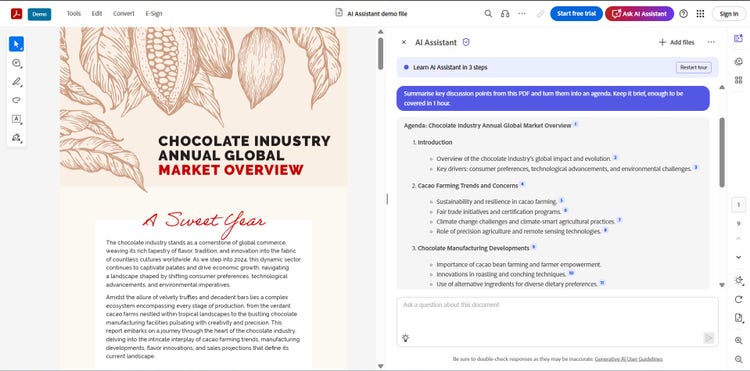
If you already have notes, minutes, or a summary from your previous meeting saved as a PDF, you can quickly create an agenda for your next meeting by interacting directly with your file.
- Open your meeting notes or summary in Adobe Acrobat.
- Click the AI Assistant icon to start interacting with your document.
- Type a prompt such as “Create a draft meeting agenda based on this document.” or “Summarise key discussion points from this PDF and turn them into an agenda.”
- Review the AI-generated draft.
- Edit or refine the output directly through chat until it’s ready to share.
- Copy and paste the final output into your document and save as a PDF file.
Try our online tools to edit your PDF after AI generation.

Easily update text, images, and links in your PDF.
--- #b6b6b6

Quickly fill forms and add your signature online.
--- #b6b6b6
https://main--dc--adobecom.hlx.live/dc-shared/assets/images/product-icons/frictionless-svg/reorder-pages.svg | Reorder PDF pages Reorder PDF pages

Rearrange pages into the right sequence.
--- #b6b6b6

Combine multiple PDFs into one seamless file.
--- #b6b6b6
What is usually included in the agenda of a business meeting?
Even with AI doing the heavy lifting, it helps to know what makes an agenda truly effective. A well-structured meeting agenda keeps your discussion focused and your participants aligned. Here’s what to include when writing an agenda for meetings:
- Meeting objectives: Define what you want to achieve by the end of the meeting.
- Discussion topics: List key items or issues to be covered, arranged in logical order.
- Time allocations: Assign realistic time blocks to prevent overruns and maintain priorities.
- Speakers or presenters: Indicate who will lead or contribute to each section.
- Supporting materials: Attach reports, data summaries, or previous meeting minutes to guide the discussion.
- Action items: Leave space to note decisions or tasks that come out of the meeting.
Sample meeting agenda templates.
Here’s an example of what a draft for a meeting agenda looks like. Details can be adjusted according to the nature of your meeting, participants, duration, and other information.
Meeting Title: Weekly Business Review Meeting
Date: [Insert Date]
Time: [Insert Start–End Time]
Location / Platform: [Meeting Room or Video Conference Link]
Meeting Organizer: [Name]
Attendees: [List of Participants]
Meeting Objectives:
- Review performance from the past week
- Identify key blockers and solutions
- Align on priorities and next steps
Agenda Items:
- 10:00 – 10:10 AM: Welcome and recap of the previous meeting — led by [Name]. Review last week’s highlights and pending actions.
- 10:10 – 10:30 AM: Project updates — presented by [Name]. Discuss progress on current initiatives and timelines.
- 10:30 – 10:45 AM: Department metrics review — led by [Name]. Go through sales, marketing, or operational performance data.
- 10:45 – 10:55 AM: Open discussion — all participants. Raise issues, share updates, or propose new ideas.
- 10:55 – 11:00 AM: Action items and next steps — led by [Organizer]. Confirm responsibilities, deadlines, and next meeting date.
Action Items:
- [Task 1] — assigned to [Name], due [Date]
- [Task 2] — assigned to [Name], due [Date]
- [Task 3] — assigned to [Name], due [Date]
Notes / Additional Comments:
Use this section to jot down key decisions, reminders, or follow-up actions discussed during the meeting.
Explore Adobe Express meeting agenda templates.
If you’d rather skip manual formatting altogether, you can start with a customisable meeting agenda template in Adobe Express. The platform offers hundreds of free, professionally designed layouts that you can edit directly in your browser.
Simply choose a template that fits your meeting type, personalise it with your company logo and colours, and add your agenda details. You can also use your AI-generated agenda from Acrobat, paste the content into the design, and export it as a polished PDF or image file for sharing.
Doing it this way is a faster, easier method to help you create professional, on-brand meeting materials in minutes.
What is the difference between agenda and minutes of meeting?
The agenda is prepared before the meeting, and they act as the plan or the “to-discuss” list. On the other hand, the minutes are written after the meeting, and they act as a summary of the discussions, decisions, and actions assigned during the gathering. While both the agenda and the minutes are essential elements of a meeting, they do serve a different purpose.
Together, the agenda and minutes of meeting create a complete documentation cycle. They provide a formal record that aids in maintaining accountability and ensuring meetings are productive.
Frequently asked questions.
Not all templates on Adobe Express are free, but a large selection is. You can browse and use thousands of free templates for business documents, social media posts, flyers, and more that can be customised with your own text, images, and branding without any cost.
However, some premium templates and design assets (such as certain fonts, photos, or advanced branding tools) are available only with a paid Adobe Express plan. When browsing, premium templates are clearly marked with a crown icon, so you can easily tell which ones require a subscription.
More resources